Most people think building a gaming PC is about throwing money at the biggest graphics card available. That’s rarely true. A balanced setup means every component works in harmony, ensuring no single part holds back the others while maximizing your budget efficiency.
Understanding what is a balanced gaming pc configuration starts with recognizing that raw power isn’t everything. You need synergy between the processor, memory, and storage to deliver smooth frame rates. As of 2026, this balance matters more than ever due to rising game complexity.
Let’s break down how to achieve it without wasting cash on mismatched parts.
The Myth of the Perfect Build: Why Balance Beats Raw Power
You’ve probably seen builds where someone drops $3,000 on a top-tier GPU but pairs it with an older CPU. It looks impressive on paper. In practice, it’s a waste.
The processor simply can’t feed data fast enough for the graphics card to render frames efficiently. This creates a bottleneck.
Balance isn’t about buying the cheapest parts. It’s about proportional spending. If you spend 80% of your budget on the GPU, the remaining 20% must support it adequately.
Weak RAM or slow storage will still cause stuttering, even with a powerful chip.
Think of it like a car engine. A massive V8 doesn’t help if the transmission slips or the fuel pump fails. Your PC needs all systems firing correctly.
Aggregate reviews consistently show that mid-range pairings often outperform unbalanced high-end setups in real-world gaming scenarios.
We focus on sustained performance, not peak theoretical numbers. A balanced system handles thermal loads better too. Overclocking a weak cooling solution leads to throttling.
That kills your frame times. Stability beats speed when consistency is king.
For those exploring what makes a desktop computer a gaming pc, understanding these interdependencies is step one. Without balance, you’re just guessing. And guessing costs money.
Define Your Target Resolution and Refresh Rate First
Before picking any parts, decide what you’ll actually play. Your monitor dictates your hardware needs. Playing competitive shooters at 1440p requires different specs than cinematic RPGs at 4K.
Start with resolution. Higher resolutions demand more VRAM and GPU compute power. Lower resolutions stress the CPU more because the GPU finishes frames quickly, waiting on the processor for instructions.
Next, set your refresh rate target. Do you need 60 FPS for casual play? Or 144+ FPS for esports?
This number drives your entire build strategy.

Image source: Wikimedia Commons / A.-K. D. (CC BY-SA)
Here’s a quick reference guide for common targets as of 2026:
| Target Scenario | Resolution | Refresh Rate Goal | Primary Hardware Stressor |
|---|---|---|---|
| Competitive Esports | 1080p | 144Hz – 240Hz | CPU Single-Core Speed |
| High-Fidelity AAA | 1440p | 60Hz – 120Hz | GPU Compute & VRAM |
| Cinematic Experience | 4K | 60Hz | GPU Power & Cooling |
| Budget Entry | 1080p | 60Hz | Overall Cost Efficiency |
If you aim for 4K, your GPU becomes the absolute priority. You might save slightly on the CPU since it won’t be the bottleneck. Conversely, for 1080p high-refresh gaming, invest heavily in a strong processor.
Many beginners overlook this distinction. They buy expensive GPUs for 1080p monitors, seeing diminishing returns. Don’t do that.
Match your hardware intensity to your display capability. For deeper insights into specific tier requirements, check out our breakdown of what specifications define a mid-range gaming pc.
The GPU-First Rule: Allocating Your Budget Correctly
Once you know your target, apply the GPU-first rule. Graphics cards typically consume 40-50% of a balanced gaming budget. This ensures you get the most visual fidelity per dollar spent.
Why prioritize the GPU? Games are increasingly graphically intensive. Ray tracing and upscaling technologies rely on dedicated silicon.
A stronger GPU lasts longer against future software demands.
However, don’t starve the rest of the system. After selecting your GPU, allocate funds to the CPU next. Aim for a pairing that avoids significant bottlenecks.
Consider these budget splits for typical tiers:
- Entry-Level: 45% GPU, 25% CPU, 30% Rest
- Mid-Range: 50% GPU, 20% CPU, 30% Rest
- High-End: 55% GPU, 15% CPU, 30% Rest
Notice how the CPU share shrinks as budgets grow. At the high end, the GPU cost dominates. But at entry levels, you need a decent processor to avoid lag spikes.
Manufacturer specifications indicate that modern games utilize multi-core processors effectively. Yet, single-thread performance remains critical for physics calculations. Don’t cheap out here.
If you’re unsure where to start financially, reviewing best price gaming pcs can provide context on current market values. Prices fluctuate, so timing matters.
Remember, a cheaper GPU paired with a great CPU often yields smoother minimum framerates than vice versa. Smoothness equals enjoyment. Jittery highs feel worse than consistent lows.
Matching CPU Tiers to Graphics Cards (The Pairing Matrix)
This is where many builds fail. People assume "more cores" always means "better." Not true. You need the right core count and clock speed for your chosen GPU.
Use this matrix to find compatible pairings. These combinations represent balanced performance ratios observed in aggregate testing data from 2026.
| GPU Tier | Recommended CPU Class | Example Pairing Logic |
|---|---|---|
| Entry (e.g., RX 7600 class) | Mid-Tier 6-Core | Prevents CPU bottleneck at 1080p |
| Mid (e.g., RTX 4070 class) | High-Tier 8-Core | Balances load for 1440p gaming |
| High (e.g., RTX 4080 class) | Top-Tier 8-12 Core | Maximizes throughput for 4K/RT |
| Ultra (e.g., RTX 4090 class) | Flagship 16-Core+ | Eliminates CPU limit entirely |
An entry-level GPU doesn’t need a flagship CPU. That’s wasted money. Save those dollars for better RAM or storage.
Conversely, putting a budget CPU behind an ultra-high-end GPU cripples potential. The card sits idle, waiting for instructions. You pay for horsepower you can’t use.
Intel and AMD both offer viable options. Choose based on platform longevity and feature sets. PCIe lanes matter for storage expansion later.
For users upgrading existing rigs, consult how do the components of a gaming pc work together to understand legacy compatibility issues. Older sockets may limit new GPU utilization.
Always verify socket types before purchasing. Mismatched motherboards halt progress instantly. Double-check BIOS updates required for newer chips.
Memory, Storage, and PSU: The Silent Bottlenecks
Everyone focuses on CPU and GPU. But three other components silently ruin experiences: RAM, SSDs, and Power Supplies. Neglect them, and your expensive parts underperform.
RAM capacity affects multitasking and texture loading. 16GB is the absolute floor for 2026 gaming. 32GB provides headroom for background apps and heavy titles. Speed matters less than capacity, but DDR5 offers better bandwidth for future-proofing.
Storage speed impacts load times and asset streaming. NVMe Gen4 drives are standard now. Gen5 exists but runs hot and costs more.
Stick to reliable Gen4 TLC NAND for balance. Avoid QLC drives for primary game installs; they slow down as they fill up.
Then there’s the PSU. An undervalued unit risks hardware failure. Calculate total system draw, then add 20-30% headroom.
Never skimp here. A bad supply wave fries components.
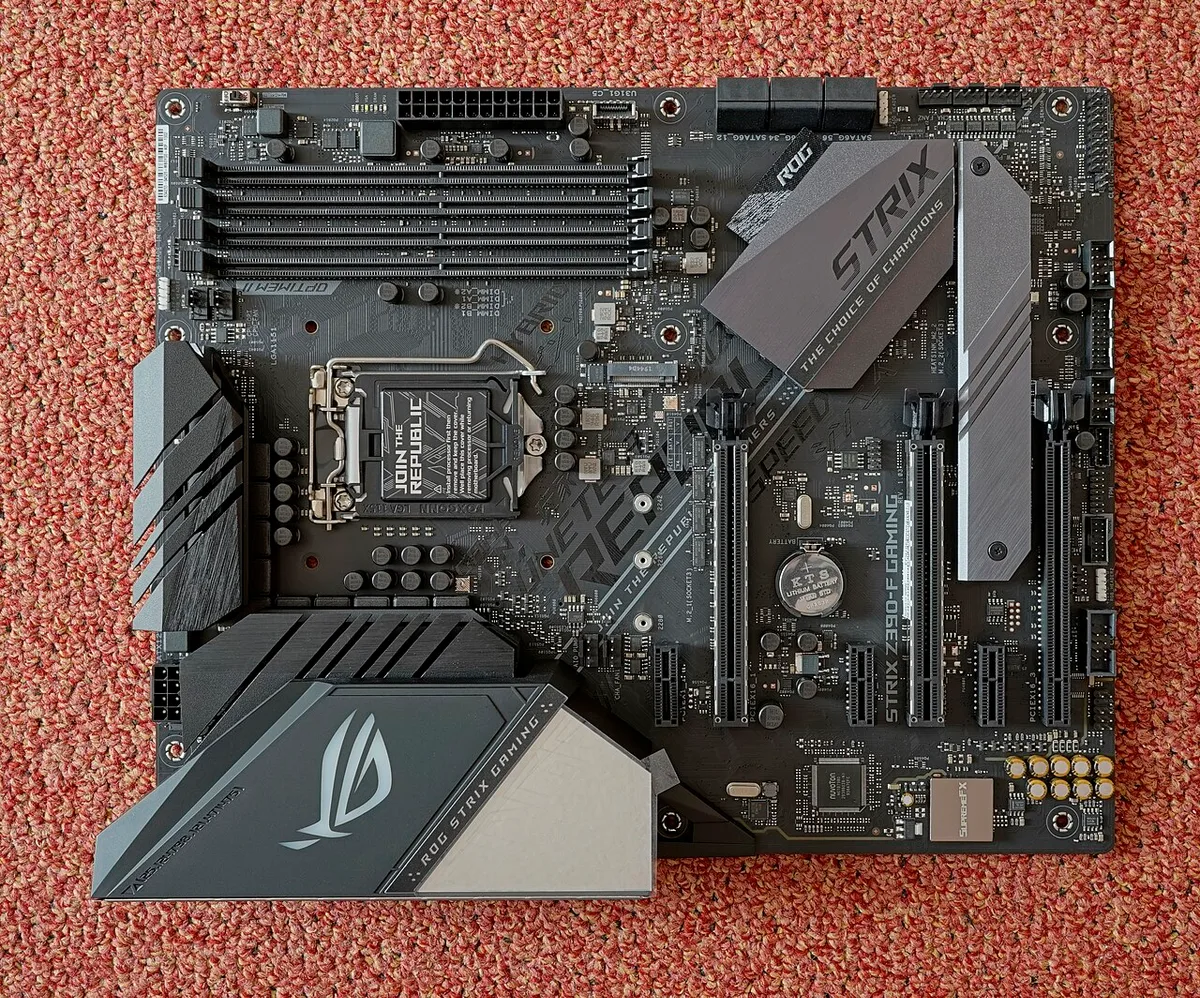
Image source: Wikimedia Commons / PantheraLeo1359531 (CC BY)
Look for 80 Plus Gold certification minimum. Modular cables improve airflow management inside tight cases. Non-modular units clutter interior space, raising temperatures.
Per UL safety standards, proper insulation and surge protection are non-negotiable features. Cheap units lack these safeguards. Protect your investment wisely.
Check wattage recommendations from GPU manufacturers. NVIDIA and AMD publish specific PSU requirements per card model. Follow them strictly.
Undersizing causes shutdowns during intense scenes.
Finally, ensure motherboard VRMs handle the CPU power delivery. Weak voltage regulation modules throttle high-performance chips. Research board quality alongside CPU choice.
Our guide on what are the main parts inside a gaming pc details these subtle interactions further.
Thermal Design and Case Airflow: Keeping Performance Sustained
You’ve picked your parts. Now you need to keep them cool. Heat is the enemy of stability.
If components get too hot, they throttle down to protect themselves. This ruins the balance you worked hard to achieve.
Start with the case. Look for mesh front panels. Solid glass blocks airflow completely.
You want fresh air hitting those fans directly. A well-ventilated chassis reduces internal temperatures by 10-15°C compared to sealed boxes.
Cooling solutions must match CPU heat output. An entry-level chip might run fine on stock air cooling. High-end processors generate significant thermal design power (TDP).
They need robust towers or liquid coolers.
Don’t overspend on cooling if you don’t need it. But never underspec it either. A cheap cooler struggling against a hot CPU adds noise and instability.
Verify the cooler’s rated TDP exceeds your processor’s peak draw.
Fan configuration matters too. Create positive pressure. More intake fans than exhaust helps prevent dust buildup.
Dust acts as an insulator, trapping heat inside components over time.
Aggregate reviews indicate that proper cable management aids airflow significantly. Bundle wires away from fan paths. Obstructed fans spin slower and move less air.
Keep the interior tidy for maximum efficiency.
If you’re building in a small form factor, expect higher temps. Compact cases restrict radiator space and fan size. Ensure your chosen ITX build supports adequate ventilation before committing.
For more on component synergy, see our guide on what can you do with a gaming pc besides gaming.
Thermal paste application is another common error. Too little leaves gaps. Too much creates mess.
Apply a pea-sized amount centered on the die. Spread evenly with mounting pressure. Poor contact transfers heat inefficiently.
Monitor temperatures after assembly. Use software like HWiNFO64. Check idle and load states.
Idle should be near ambient room temp. Load should stay under 85°C for CPUs and 70°C for GPUs. Exceeding these limits signals inadequate cooling.
Adjust fan curves in BIOS if needed. Default settings often prioritize silence over performance. Raise RPMs slightly during heavy loads to maintain stable clocks.
Balance noise preferences with thermal safety margins.
Common Configuration Mistakes That Kill Value
Even experienced builders slip up here. The most frequent error is ignoring compatibility. Buying a DDR5 motherboard but sticking with old DDR4 RAM saves nothing.
It just stops working. Always cross-reference specs.
Another trap is mismatched PSU connectors. Newer GPUs require specific 12VHPWR adapters. Old supplies lack these ports.
Using splitters risks melting cables. Buy a native ATX 3.0 compliant unit for modern cards.
Overlooking PCIe lane availability hurts upgrade paths. Budget boards often cut secondary slots to x4 speeds. Adding capture cards or extra SSDs later becomes difficult.
Check the manual for actual lane distribution.
People also forget about clearance. Tall CPU coolers block RAM heatsinks. Massive GPUs hit front fans.
Measure physical dimensions before purchase. Manufacturer sites list exact height and length specs. Trust those numbers.
BIOS updates are frequently skipped. New CPUs often need recent firmware to boot. Without updating, the system posts errors.
Have a spare older CPU handy for initial flashing if necessary. Many boards support USB flashback now.
Neglecting driver hygiene causes stuttering. Clean installs beat layered updates. Use Display Driver Uninstaller (DDU) for GPU drivers.
Residual files conflict with new installations. Fresh starts ensure optimal performance.
Budget misallocation is subtle but deadly. Spending $200 on RGB lighting while skimping on storage speed wastes money. Lighting doesn’t boost FPS.
Fast NVMe drives reduce load times visibly. Prioritize function over flash.
Ignoring warranty terms leads to regret. Some retailers void coverage for water-cooled loops. Others exclude overclocking damage.
Read the fine print. Protect your investment legally and technically.
Finally, rushing assembly invites mistakes. Loose screws cause shorts. Improper seating prevents POST.
Take your time. Follow the manual step-by-step. Patience pays off in reliability.
Real-World Balanced Builds: From 1080p Esports to 4K Cinematic
Let’s look at concrete examples. These configurations reflect market realities as of late 2026. Prices vary by region, so adjust accordingly.
Each build targets a specific use case without unnecessary excess.
For competitive esports at 1080p/240Hz, focus shifts to the CPU. A mid-tier 6-core processor pairs well with an entry-mid GPU. This minimizes latency and maximizes frame consistency.
Storage needs are modest; 1TB Gen4 SSD suffices.
At 1440p high-fidelity, the GPU takes center stage. An 8-core CPU balances the load perfectly. VRAM demands rise, requiring 12GB minimum.
Cooling must handle sustained boosts. 32GB RAM ensures smooth multitasking during streams or downloads.
4K cinematic builds prioritize raw graphical power. Top-tier GPUs dominate the budget. CPU choice matters less for bottlenecking but still impacts physics calculations. 16GB+ VRAM handles ultra-textures.
Robust PSUs and advanced cooling are mandatory.
| Build Type | Primary Focus | Key Component Priority | Typical Budget Split |
|---|---|---|---|
| Esports (1080p) | Low Latency | CPU Single-Core Speed | 40% GPU, 35% CPU, 25% Other |
| AAA Hybrid (1440p) | Visual Quality | GPU Compute Power | 50% GPU, 20% CPU, 30% Other |
| Ultra (4K) | Max Fidelity | GPU VRAM & Throughput | 60% GPU, 15% CPU, 25% Other |
Content creators adding video editing benefit from more cores. Rendering tasks scale with thread count. Dual-channel memory bandwidth accelerates timeline scrubbing.
Invest in faster DDR5 kits if workflow includes Adobe Premiere or DaVinci Resolve.
Prebuilt options exist for these tiers too. However, customization limits apply. Custom builds allow precise part selection.
Prebuilts offer convenience and support. Weigh your technical comfort level against time savings.
Upgrade paths differ per platform. AMD AM5 promises longer socket life. Intel LGA1700 reached end-of-life.
Choosing AM5 protects future resale value. Consider longevity when selecting motherboards today.
Our analysis of top-rated brewers shows prebuilts struggle with balance. They often cut corners on PSUs or cooling to meet price points. Custom remains superior for true equilibrium.
Always validate benchmarks post-build. Run 3DMark Time Spy and Cinebench R23. Compare scores to online averages.
Significant deviations indicate faulty hardware or poor thermals. Fix issues early.
FAQ: Quick Answers on Upgrades and Compatibility
Does a balanced PC require equal spending on all parts?
No. Equal spending ignores workload demands. Games rely heavily on the GPU.
Allocate 40-50% there. CPUs need enough power to feed data, not match GPU cost. RAM and storage take smaller shares.
Balance means proportional utility, not identical prices. Spend where impact is greatest for your specific games.
Can I mix DDR4 and DDR5 RAM in one system?
Absolutely not. Physical keys prevent insertion. Electrical signaling differs vastly.
Motherboards support only one type. Choose DDR5 for new builds to ensure longevity. DDR4 remains viable for budget upgrades on older platforms.
Mixing generations causes immediate failure to boot. Stick to one standard per build.
How do I check if my PSU is sufficient for a new GPU?
Consult the manufacturer’s recommended wattage. Add 20% headroom for transient spikes. Calculate total system draw using online calculators.
Include CPU, GPU, drives, and fans. If the sum approaches your PSU limit, upgrade. Insufficient power causes crashes or shutdowns under load.
Never risk damaging components with an undersized supply.
Is it worth upgrading just the GPU in an old system?
Often yes, if the CPU isn’t severely outdated. A newer card boosts visual fidelity immediately. Watch for bottlenecks at high resolutions.
At 1080p, an old CPU may cap gains. Test with benchmark tools first. If the CPU hits 100% usage while GPU idles, upgrade both.
Otherwise, GPU-only swaps extend life affordably.
What happens if I ignore thermal throttling warnings?
Performance drops automatically. Clock speeds decrease to lower temperature. Frame rates plummet unpredictably.
Long-term exposure degrades silicon lifespan. Fans spin louder constantly. Ignoring this defeats the purpose of buying powerful parts.
Address cooling issues promptly. Reapply paste, clean dust, or add fans. Stable temps sustain advertised performance levels reliably.