Stuttering mid-match usually points to one of three things: your CPU, your GPU, or your RAM. Knowing how to check ram usage while gaming takes about two minutes and tells you which one it is. This guide walks you through every method, from built-in Windows tools to in-game overlays.
Most modern games run well with 16 GB of RAM, and 32 GB leaves headroom for streaming or capture. The trick is reading the right number, not just the biggest one on screen. Let's start with the quick answer.
how to check ram usage while gaming
Open Task Manager with Ctrl+Shift+Esc. Click the Performance tab and select Memory. Launch your game, then alt-tab back to check.
Read the In use value against your total RAM. If it stays under 80 percent, RAM is not your bottleneck. Past 95 percent, you likely need more memory or fewer background apps.
The Metrics That Actually Tell You Something
The number that matters is "In use." It shows how much RAM your system and games are actively holding. Available memory is the rest, and it includes standby and cached data that Windows can free instantly. So a low available number is not always a problem.
Committed memory is different. It is the total RAM Windows has promised to running programs, including memory that could spill to the page file. If committed climbs above your physical RAM, Windows starts paging to disk.
That causes stutter. Watch committed, not just in use.
Standby and cached memory trips people up. Windows keeps recently used data in RAM so apps reopen fast. That memory looks "used" but it is not.
If your game needs it, Windows frees it immediately. So 90 percent "used" can still be fine if most of it is standby.
Hardware reserved memory is the small chunk your motherboard and integrated graphics hold back. It usually sits between 0.5 and 2 GB. Do not count it as a leak.
It is normal.
A quick rule: compare in use to your total installed RAM. Under 80 percent, you are fine. Between 80 and 95 percent, close background apps.
Past 95 percent, you are paging, and that is where hitching starts. If you are unsure how much memory your build should have, check the right amount of RAM for modern titles.
Which Monitoring Tool Fits Your Setup
The best tool depends on whether you want a quick check or a live readout while playing. Built-in Windows tools are free and accurate. Third-party tools add overlays and logging.
Pick based on your goal, not brand loyalty.
Built-In Windows Tools
Task Manager is the fastest option. Press Ctrl+Shift+Esc, open the Performance tab, and click Memory. It shows in use, available, committed, and speed.
Resource Monitor goes deeper and breaks usage down by process. Performance Monitor can log usage over time if you want a graph.
For a one-time check, Task Manager is enough. For tracking a suspected leak across a long session, Performance Monitor is better. Microsoft's Task Manager documentation covers every tab in detail.
Third-Party Overlays and Utilities
Xbox Game Bar shows memory in its performance widget and works out of the box on Windows 10 and 11. Steam's overlay shows RAM too, though it is less detailed. NVIDIA's overlay adds memory alongside FPS and GPU stats, and NVIDIA's overlay settings let you toggle which stats appear.
MSI Afterburner with RivaTuner Statistics Server (RTSS) is the gold standard for a custom on-screen display. It shows RAM, VRAM, CPU, and GPU in one OSD. HWiNFO is the choice for deep diagnostics and logging to a file.
Discord's overlay can show memory as well, but running two overlays at once often causes conflicts.
Each tool adds a little overhead. Keep only one overlay active at a time. If your frame rate drops after enabling one, disable it and use Task Manager instead.
| Tool | Best For | Overhead | In-Game Overlay |
|---|---|---|---|
| Task Manager | Quick checks | None | No |
| Xbox Game Bar | Simple OSD | Low | Yes |
| MSI Afterburner + RTSS | Custom OSD | Low to medium | Yes |
| HWiNFO | Deep diagnostics | Medium | Yes, with RTSS |
Your memory platform matters too. DDR4 versus DDR5 changes baseline behavior, and memory speed affects how quickly data moves. As of 2026, most mid-range boards handle either standard well.
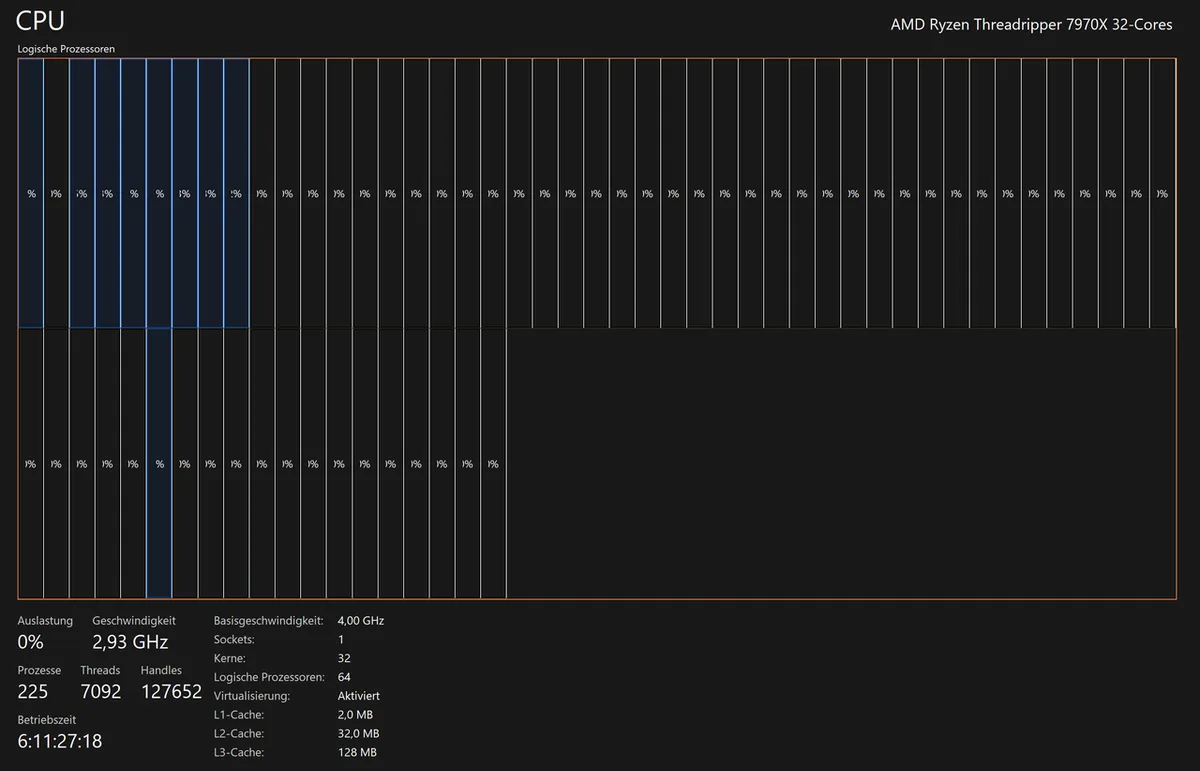
Image source: Wikimedia Commons / Software: Microsoft Corporation Screenshot: PantheraLeo1359531 😺 (talk)
Step-by-Step: Check RAM While Gaming
Follow these steps for a clean, repeatable check. Do them in order so your baseline stays accurate.
- Reboot your PC. This clears leaks and gives a true baseline.
- Let the desktop settle for two minutes. Open Task Manager and note idle in use.
- Close browsers, launchers, and chat apps you do not need.
- Launch your game and load into a typical scene.
- Alt-tab to Task Manager, or read your overlay, and note in use and committed.
- Play for ten minutes, then check again. Watch for a steady climb.
- Repeat with background apps closed to isolate their impact.
A steady climb in in use while gameplay stays the same points to a memory leak. A flat line near your total means you simply need more RAM. If you want to test RAM latency effects, run the same scene twice with different timings and compare frame times.
Log your results in a notes app. Write down idle in use, in-game in use, committed, and peak. Three sessions of data beats one guess.
Decision Tree: What Your Numbers Mean
Use this if-then logic to decide your next move. Start with your in use percentage during gameplay.
Under 80 Percent In Use
Your RAM is not the bottleneck. Look at CPU and GPU usage instead. Upgrading memory here will not improve frames.
Spend the money elsewhere, or enable XMP profiles if your RAM is running below its rated speed.
80 to 95 Percent In Use
You are close to the limit. Close background apps, disable startup programs, and re-test. If usage drops under 80 percent, you are fine.
If it stays high, consider more RAM. Check how much RAM a gaming PC needs before buying, since 16 GB and 32 GB serve different needs.
Over 95 Percent In Use
You are paging to disk. Expect stutter and hitching. Close everything non-essential first.
If it still pins at 95 percent or higher, you need more memory. Also verify your memory is running at its rated speed. XMP on Intel boards and EXPO on AMD boards enable the advertised speed.
If they are off, your RAM runs slower, and usage can read higher than expected.
Common Mistakes That Skew the Results
The biggest mistake is treating all "used" memory as a problem. Windows caches data in RAM to speed up apps. That cache looks full, but it frees instantly when a game needs it.
Always separate in use from standby before deciding you are short on memory.
Another trap is leaving browsers, launchers, and chat apps open. A dozen Chrome tabs can eat 3 to 5 GB on their own. Discord, Steam, and Epic Games Launcher add more.
Check Task Manager's process list if in use looks high. Close what you do not need, then re-test.
Running two overlays at once also skews results. Xbox Game Bar, Steam, Discord, and NVIDIA overlays can conflict or add overhead. Pick one overlay and disable the rest.
If your frame rate drops after enabling monitoring, the tool itself is the culprit, not your RAM.
Comparing different scenes gives bad data too. A quiet menu uses far less memory than a busy multiplayer match. Test the same map, same settings, and same length each time.
Otherwise you are chasing noise.
Finally, do not ignore memory speed. RAM running at its default JEDEC speed instead of its rated XMP or EXPO speed can inflate usage and hurt frame times. Check the speed line in Task Manager.
If it is far below the box rating, enable the profile in BIOS. Memory overclocking support explains what to look for.
How to Free Up RAM and Re-Test
Start with the easy wins. Close browsers, cloud sync tools, and extra launchers. Disable startup apps in Task Manager's Startup tab so they do not load next boot.
Restart the PC before a serious test session. A reboot clears leaked memory and gives a clean baseline.
If in use still sits high, look at per-process usage. Sort by memory in Task Manager's Processes tab. End tasks you recognize and do not need.
Avoid ending system processes or anything labeled Windows. When in doubt, leave it alone.
You can also trim standby memory. Tools like RAMMap from Microsoft Sysinternals can clear the standby list, but that is a temporary fix. Windows will refill it as you use the PC.
It helps for a single test, not as a daily habit. Do not chase zero used memory. A healthy Windows install uses some RAM by design.
Re-test using the same steps from earlier. Reboot, note idle in use, launch the same game, and check in use and committed after ten minutes. Compare the new numbers to your old log.
If usage dropped and stutter eased, you found the cause. If it stayed pinned near 95 percent, you likely need more memory.
Before buying, confirm your current capacity and speed. 16 GB handles most modern games well. 32 GB makes sense for streaming, capture, or heavy multitasking. If you are deciding between those, how much RAM a gaming PC needs breaks down the trade-offs.
Real-World Scenarios and What They Look Like
8 GB laptop, modern AAA game. In use hits 7.2 to 7.6 GB during gameplay. Committed exceeds physical RAM. The game hitches every few seconds.
Background apps make it worse. The fix is usually more memory, not settings tweaks. Many laptops ship with one stick, so adding a second module also enables dual-channel mode.
16 GB desktop, single game. In use sits around 9 to 11 GB. Committed stays under 16 GB. Frame times are stable.
This is the healthy zone. If usage climbs to 14 GB, check for background apps or a leak before blaming the game.
16 GB desktop with streaming. OBS, Discord, and a browser push in use to 13 to 15 GB. It still works, but there is little headroom. A memory leak in any app can push it over.
Watch for a slow climb across a long session. If committed stays under 16 GB, you are fine. If it crosses over, consider 32 GB.
32 GB creator rig. In use hovers at 16 to 20 GB with a game, capture software, and a browser open. Nothing pages to disk. This setup has room to spare.
The risk here is not capacity but speed. Slow RAM can still bottleneck frame times even with 32 GB installed.
Suspected memory leak. In use climbs from 10 GB to 14 GB over an hour with no change in gameplay. Committed climbs too. Restarting the game resets it.
That pattern points to the game, not your hardware. Check for updates or verify game files before buying RAM.
Frequently Asked Questions
How much RAM should I use while gaming?
Most modern games run well with 16 GB. 8 GB works for lighter titles but struggles with newer AAA games. 32 GB is useful for streaming, capture, or heavy multitasking. Check in use during gameplay to see if your setup is actually maxing out.
Can Task Manager show in-game RAM usage?
Yes. Alt-tab to Task Manager while the game runs. The Performance tab shows in use and committed memory in real time.
For a live readout without alt-tabbing, use Xbox Game Bar or MSI Afterburner with RTSS.
Does high RAM usage always mean I need an upgrade?
No. High in use can come from cached or standby memory, which Windows frees on demand. Check committed memory and whether usage stays flat or climbs.
If committed exceeds your physical RAM, then an upgrade may help.
What is a memory leak in a game?
A memory leak happens when a game keeps allocating RAM without releasing it. Usage climbs steadily even when gameplay stays the same. Restarting the game usually resets it.
Updates often fix the issue.
Should I clear standby memory before gaming?
Usually no. Standby memory helps apps reopen faster and frees instantly when needed. Clearing it can briefly slow things down.
Only clear it for a controlled test, not as a daily habit.
Does RAM speed matter more than capacity?
Capacity matters first. If you are paging to disk, more RAM helps more than faster RAM. Once capacity is adequate, speed and latency affect frame times.
Enable XMP or EXPO so your RAM runs at its rated speed.