Repasting helps when a gaming laptop runs hot, loud, and unstable during heavy play. Learning how to repaste a gaming laptop CPU and GPU means removing the heatsink, cleaning dried thermal interface material, and reapplying a controlled amount of paste or pads. The work is hands-on, but the hardest part is usually knowing which screws, cables, and metal parts must move.
Manufacturer service manuals and ESD Association guidance both stress battery disconnect and static control before opening the chassis. As of 2026, many gaming laptops still use non-conductive thermal paste rated around 7 to 12 W/mK, while some premium models use phase-change pads or liquid metal with much higher conductivity. The sections below focus on what you should look for visually before touching any hardware.
Why Visuals Matter When Repasting a Gaming Laptop CPU and GPU
A text-only guide can tell you to remove the heatsink, but it cannot show how much force is normal. Gaming laptops pack dense cooling hardware into a thin body, so small parts sit close together and look similar from above.
Photos and diagrams help you spot three things before you start. First, they show the screw layout around the bottom cover and heatsink. Second, they show which cables cross the heatsink path.
Third, they show the exact die shape under the cooler.
Without those cues, it is easy to pull a ribbon cable too hard or reinstall the heatsink crooked. A good visual guide also marks standoff points, adhesive strips, and hidden screws under rubber feet.
Think of the images as a map, not decoration. You are checking placement, order, and direction, not just reading labels. That is why model-specific photos beat generic teardown advice.
Key Identifiers: Screws, Cables, Heat Pipes, and Die Layout
Before opening anything, gather the right tools and identify the parts that matter most. A service manual for your exact model is the best starting point because screw counts and cable routes change by chassis.
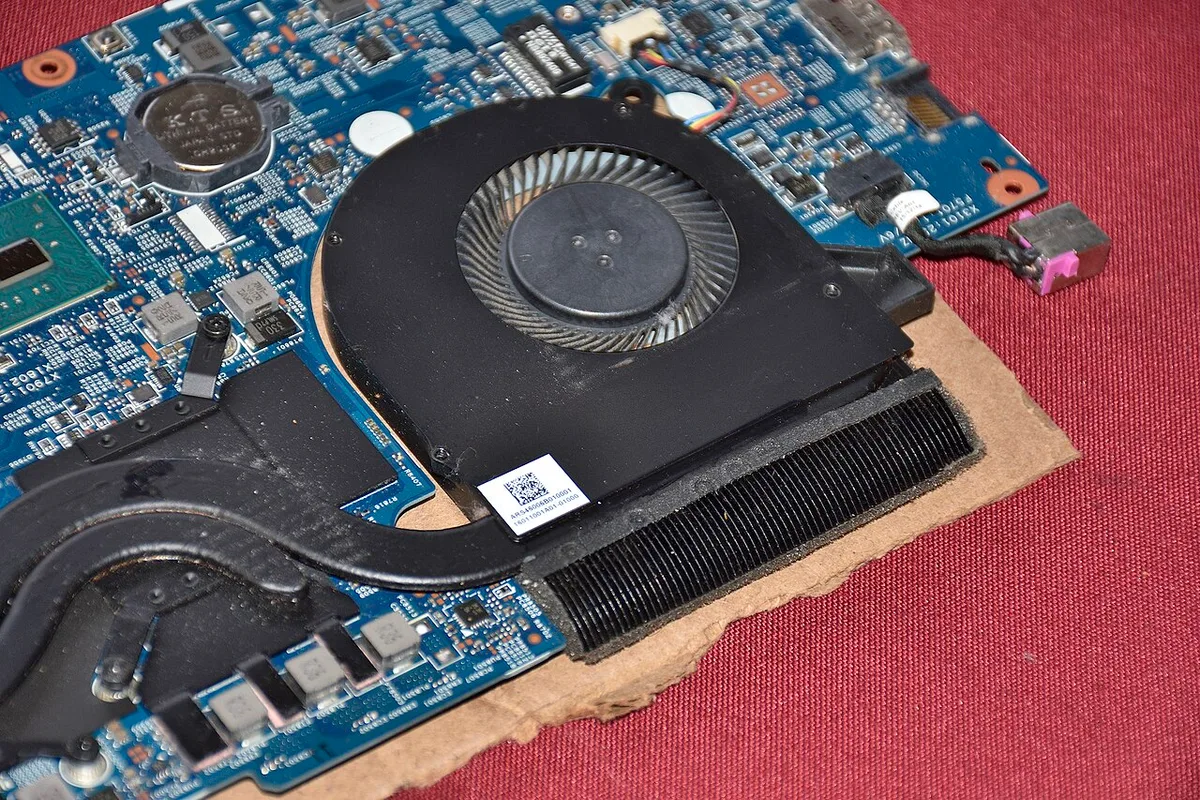
Image source: Wikimedia Commons / Saud (CC BY-SA)
Look for these identifiers as you go:
- Bottom cover screws: usually Phillips-head, sometimes Torx or JIS. Count them before removal.
- Heatsink screws: often numbered and tightened in a pattern. They may have different lengths.
- Fan cables: small two-wire or three-wire connectors near the heatsink corners.
- Display or keyboard cables: flat ribbons that can pass over the cooling assembly.
- Heat pipes: copper tubes that move heat from CPU and GPU to the fins.
- Fin stack: the thin metal radiator where hot air exits.
- CPU die: the exposed processor silicon under the cooler.
- GPU die: the graphics processor silicon, often beside the CPU.
- VRAM and voltage regulators: smaller chips that may use thermal pads instead of paste.
Heat pipes are especially important. They are not wires, and they should not be bent. If a heat pipe looks lifted, twisted, or dented, stop and reassess before continuing.
Die layout matters because paste placement changes with shape. A square CPU die may need a small centered dot. A rectangular GPU die may need a thin line or small X pattern.
Some laptops also expose multiple dies or chiplets, so one blanket rule rarely fits every model.
Use a magnetic tray or labeled cups for screws. Separate bottom cover screws from heatsink screws because swapping them can strip threads or leave the cooler loose.
Step-by-Step Visual Cues for Teardown and Heatsink Removal
Work slowly and keep each part in the order it came off. The goal is to remove cooling hardware without stressing the motherboard.
- Shut down the laptop fully, not sleep mode.
- Unplug the charger and remove external devices.
- Disconnect the internal battery before touching the heatsink. A battery replacement guide can help you find the connector on your model.
- Remove the bottom cover using the correct screwdriver. A tool guide for laptop upgrades helps avoid stripped heads.
- Take a photo before disconnecting any cable.
- Disconnect fan cables by pulling the connector straight out, not the wire.
- Loosen heatsink screws in reverse of the numbered tightening order.
- Lift the heatsink straight up once all screws are free.
- If it feels stuck, use gentle side-to-side motion. Do not pry the cooler off the dies.
- Place the heatsink on a clean, padded surface.
Visual cues to watch for during removal:
- A screw that spins freely may be stripped. Stop and inspect it.
- A cable that resists may still be clipped or taped.
- A heatsink that rocks side to side may have uneven old paste, not a broken mount.
- Thermal pads that stick to the heatsink may need careful repositioning.
If the cooler does not lift after all screws are removed, old paste may be acting like glue. Warm the area slightly with the laptop off and try again. Never use metal tools between the heatsink and silicon.
Cleaning Old Paste and Applying New TIM Correctly
Cleaning is where many repaste jobs succeed or fail. Old thermal interface material, or TIM, can be dry, crusty, or smeared across the die and surrounding components.
Use 99 percent isopropyl alcohol and lint-free wipes or swabs. Dampen the wipe, not the laptop. Clean the CPU die, GPU die, and heatsink contact plate until they look smooth and reflective.
Avoid these mistakes:
- Do not use paper towels that leave fibers.
- Do not let liquid pool near capacitors or sockets.
- Do not scrape with a razor or metal blade.
- Do not reuse old thermal pads unless they are in perfect condition.
- Do not touch the cleaned die with bare fingers.
For application, use less than you think. A small pea-sized dot or short line is usually enough for a laptop CPU. For a GPU die, follow the manufacturer or paste maker guidance, but keep the amount thin and centered.
After placing the paste, lower the heatsink straight down without twisting. Tighten screws in the proper order, usually from the center outward or in the numbered pattern. Snug them evenly rather than fully tightening one first.
Then reconnect cables, battery, and bottom cover. Power on and monitor temperatures with a trusted utility. Run a short stress test, then a longer one while watching for throttling, fan noise, and unexpected shutdowns.
Thermal Pads, Paste, and Liquid Metal: Choosing What Goes Where
Not every part under the heatsink uses the same material. Paste goes on CPU and GPU dies. Pads often go on VRAM, voltage regulators, and other nearby chips.
Liquid metal is a separate case and needs extra caution.
Image source: Wikimedia Commons / Wikimedia Commons contributor (CC BY)
Here is a practical comparison:
| Material | Best For | Main Risk | Visual Cue |
|---|---|---|---|
| Standard non-conductive paste | CPU and GPU dies | Pump-out over time | Small dot spreads evenly |
| High-conductivity paste | Hot-running dies | Messy cleanup | Slightly thicker spread |
| Thermal pads | VRAM and regulators | Wrong thickness blocks contact | Must match height exactly |
| Liquid metal | Experienced users only | Electrical shorting risk | Mirror-like metal spread |
Standard paste is the safest choice for most users. It is easy to clean, forgiving, and widely available. High-conductivity paste can help on very hot systems, but the gain may be small compared with proper heatsink seating.
Thermal pads need the right thickness. Too thin leaves a gap. Too thick can lift the heatsink and reduce CPU or GPU contact.
If a pad looks compressed and torn, replace it with the same thickness.
Liquid metal has high thermal conductivity, but it is electrically conductive. It can bridge nearby components and cause permanent damage if it leaks. Many manufacturers warn against it, and some warranty terms may be affected.
Use it only if you understand the exact die layout and can contain the material with a barrier.
A processor upgrade article is useful context here because repasting does not change the CPU itself. It only improves heat transfer between the existing silicon and cooler.
Common Visual Mistakes That Cause Shorts or Overheating
The most common mistake is applying too much paste. A thick layer can squeeze out under the heatsink and touch nearby components. That risk rises with runny paste and loose mounting pressure.
Another mistake is reinstalling the heatsink at an angle. If one corner sits higher than the others, the CPU or GPU die may lose contact. The result can be worse temperatures than before the repaste.
Watch for these visual warning signs:
- Paste spreading far beyond the die edges
- Thermal pads shifted off their chips
- A gap between heatsink and die
- Screws tightened in the wrong order
- Cables trapped under the cooler
- Liquid metal touching solder points or capacitors
Thermal pad errors are easy to miss. A pad that looks flat may be too thin to bridge the gap. A pad that bulges may be too thick and push the heatsink upward.
Cable routing is another hidden issue. A fan cable pinched under the heatsink can break or block airflow. A display cable bent too sharply can fail later, even if the laptop boots normally.
If temperatures rise after repasting, stop gaming and recheck the cooler. Look for uneven screw pressure, displaced pads, and paste overflow. A guide to opening a gaming laptop safely can help you plan a careful second teardown.
Safety Checks, Battery Disconnect, and Warranty Risks
Safety starts before the first screw comes out. Disconnect the battery, remove the charger, and ground yourself before touching internal parts. Static discharge can damage a motherboard even when nothing looks wrong.
The ESD Association publishes guidance on electrostatic control for electronics handling. A simple wrist strap and grounded mat are inexpensive compared with a failed board.
Run through these checks before and after reassembly:
- Battery disconnected and no charger attached
- ESD strap connected to a grounded point
- Correct screwdriver size for every screw
- No liquid near the motherboard
- All cables reconnected in their original positions
- Heatsink screws snug and evenly tightened
- No leftover screws or tools inside the chassis
Warranty risk depends on the brand and region. Some manufacturers allow basic service if done carefully. Others may void coverage for internal modifications, especially liquid metal use.
Photos can protect you here. Take pictures before each removal step and after each reconnection. If a warranty claim is questioned later, those photos show the condition of the laptop.
Sharp metal edges inside the chassis are another hazard. Work in good light and keep fingers away from fan blades. If a screw strips, stop instead of forcing it.
Temperature Results and What to Expect After Repasting
A successful repaste usually lowers CPU and GPU temperatures under load. The improvement depends on the old paste condition, heatsink fit, and laptop design. Aggregate reviews and repair reports often show gains of about 5 to 15 degrees Celsius.
Do not expect miracles from paste alone. If the fan is clogged or the thermal pads are worn, new paste will not fix every heat issue. Cleaning dust from the fan and vents matters just as much.
Use this simple before-and-after method:
| Check | Before Repaste | After Repaste |
|---|---|---|
| Idle CPU temperature | Record in HWiNFO | Record in same room |
| Idle GPU temperature | Record in same app | Record in same app |
| Gaming CPU temperature | 20 minute test | Same game and settings |
| Gaming GPU temperature | Same scene | Same scene |
| Fan noise | Note loudness | Note loudness |
| Throttling events | Check logs | Check logs |
Run the test in the same room with the same ambient temperature. A hot room can hide a good repaste. Let the laptop cool between runs so the comparison is fair.
Good signs after repasting include lower peak temperatures, steadier boost clocks, and quieter fans. Bad signs include sudden shutdowns, higher temperatures, or new error messages. Those usually point to mounting or cable problems.
Recheck paste after a few weeks if the laptop runs hard every day. Some materials settle during early use. That is normal, but large temperature spikes are not.
Frequently Asked Questions
How often should you repaste a gaming laptop?
Most gaming laptops need repasting every one to three years. Heavy daily use, hot rooms, and frequent full-load gaming can shorten that interval. If temperatures climb and cleaning does not help, repasting is worth considering.
Can you use liquid metal on a gaming laptop?
You can, but it is not the safest choice for most users. Liquid metal is electrically conductive and can short nearby parts if it leaks. Use it only when you understand the exact die layout and can contain it properly.
What happens if you use too much thermal paste?
Too much paste can squeeze out and touch capacitors or other components. It can also create a mess that lowers heat transfer. A small centered amount is usually enough for laptop dies.
Do you need to replace thermal pads too?
Not always, but inspect them closely. Replace pads that are torn, compressed, or the wrong thickness. Wrong pad thickness can lift the heatsink and reduce CPU or GPU contact.
Will repasting void your warranty?
It may, depending on the manufacturer and region. Some brands allow careful internal service, while others restrict it. Check the warranty terms before opening the laptop.
How long does a repaste usually take?
A careful first repaste often takes one to two hours. Most of that time goes to teardown, cleaning, and reassembly. Rushing increases the risk of stripped screws or damaged cables.
1 thought on “Repaste Your Gaming Laptop CPU & GPU: Step-by-Step”
Comments are closed.