How does pc cooling affect gaming performance? It only helps when heat limits boost clocks or causes throttling. If your CPU and GPU already run cool, a new cooler may mainly reduce noise.
Cooling matters most in long sessions, warm rooms, and CPU-heavy games. Check temperatures before buying parts.
Manufacturer specifications indicate most modern CPUs and GPUs reduce clock speed once they hit thermal limits. A useful target is keeping CPU load temps below about 85 C and GPU hotspot temps below 90 C. If you are already under those limits, extra cooling is mostly comfort, not FPS.
Let's start with the real problem.
Problem / Pain Point: Why PC Cooling Only Sometimes Changes Gaming Performance
Cooling gets blamed for weak FPS more often than it deserves. In many gaming PCs, the GPU or CPU is already running within its safe boost range. In that case, a bigger cooler changes temperatures, not frame rates.
The real issue is whether heat forces the chip to slow down. That is thermal throttling, which means the processor drops clock speed to protect itself. You may see stutter, lower 1% lows, or inconsistent frame times before average FPS drops much.
Common warning signs include:
- CPU or GPU temps spiking above safe ranges during gameplay
- Boost clocks that rise briefly, then fall under load
- Fan noise that ramps up and stays loud
- Performance drops after 20 to 30 minutes of play
- Hot air trapped near the GPU or VRMs
If none of those show up, cooling is probably not your bottleneck. A weak CPU, slow RAM, or a game that is GPU-bound can look like a cooling problem.
Core Explanation: How Temperature Limits CPU and GPU Boost Clocks
Modern processors do not run at one fixed speed. They boost higher when temperature and power allow it. When heat builds up, the chip protects itself by lowering clocks or power.
This is why cooling can improve gaming performance in some builds and do almost nothing in others. If your CPU is already holding its max boost, extra cooling only adds headroom. If it is throttling, better cooling can restore lost speed.
The same idea applies to GPUs. A GPU may show a safe core temperature while its hotspot or memory junction runs hotter. That hidden heat can still limit sustained performance.
Key points:
- Boost clock is the speed the chip tries to reach
- Sustained boost clock is the speed it can hold
- Thermal throttling is a forced slowdown
- Power limits can matter as much as temperature
- VRM heat can destabilize boost behavior
Manufacturer specs from Intel and AMD are the best place to check your chip's thermal and power limits.
Condition Variables: What Actually Determines If Cooling Matters
Cooling is a system problem, not just a cooler problem. The same air cooler can perform well in one case and poorly in another. Case airflow, dust, ambient room temperature, and game type all change the result.
As of 2026, most gaming CPUs still boost until they hit power or thermal limits. That means a cooling upgrade helps only if your current setup is hitting one of those limits.
| Variable | Why It Matters | What to Check |
|---|---|---|
| Ambient room temperature | Hot rooms reduce cooling headroom | Measure room temp during play |
| Case airflow | Stale air raises CPU and GPU temps | Front intake and rear exhaust path |
| Dust buildup | Dust blocks fins and filters | Fans, filters, heatsink fins |
| Game workload | CPU-heavy games load the processor more | Task Manager or hardware monitor |
| Cooler capacity | Small coolers may not match CPU heat | CPU TDP and cooler rating |
| Fan curve | Quiet curves can allow higher temps | RPM under load |
| Thermal paste age | Old paste can raise temps | Paste condition and install date |
If your room is hot, even a great cooler has less room to work. In that case, room ventilation may help more than new hardware.
Decision Branches: Is Your PC Thermally Limited or Bottlenecked Elsewhere?
This is where you avoid wasting money. Use your symptoms and measurements to decide the next step. Do not upgrade cooling just because a game feels slow.
| Situation | Likely Cause | Best Next Step |
|---|---|---|
| CPU temp high and clocks drop | CPU thermal limit | Improve CPU cooling or undervolt |
| GPU temp high and FPS drops | GPU thermal limit | Improve case airflow or GPU cooling |
| Temps normal but FPS low | CPU, GPU, RAM, or game bottleneck | Check bottleneck and settings |
| Temps normal but stutter | Frame pacing or storage issue | Check 1% lows and drive health |
| VRMs hot | Weak motherboard cooling | Add airflow or adjust power limits |
| Laptop temps high | Thin chassis limits airflow | Clean vents and use a cooling pad |
If temps are normal, cooling is not the fix. Look at resolution, graphics settings, CPU usage, and whether the game is poorly optimized.
Good airflow design starts with the case. A mesh front panel can help intake air, while cable clutter can block it. Case size also matters, since larger case airflow can give hot air more room to escape.
Recommended Actions: What to Fix First Based on Symptoms
Start with free or low-cost checks before buying a cooler. Many gaming PCs run hot because of dust, bad fan placement, or dried thermal paste. Fixing those first gives you real data.
- Monitor temps and clocks during a normal gaming session.
- Check whether the CPU or GPU is thermal throttling.
- Clean dust from fans, filters, and heatsink fins.
- Improve case airflow with better intake and exhaust balance.
- Reapply thermal paste if the current paste is old or poorly applied.
- Adjust fan curves for a balance of noise and cooling.
- Consider undervolting before buying new hardware.
- Upgrade the cooler only if throttling remains.
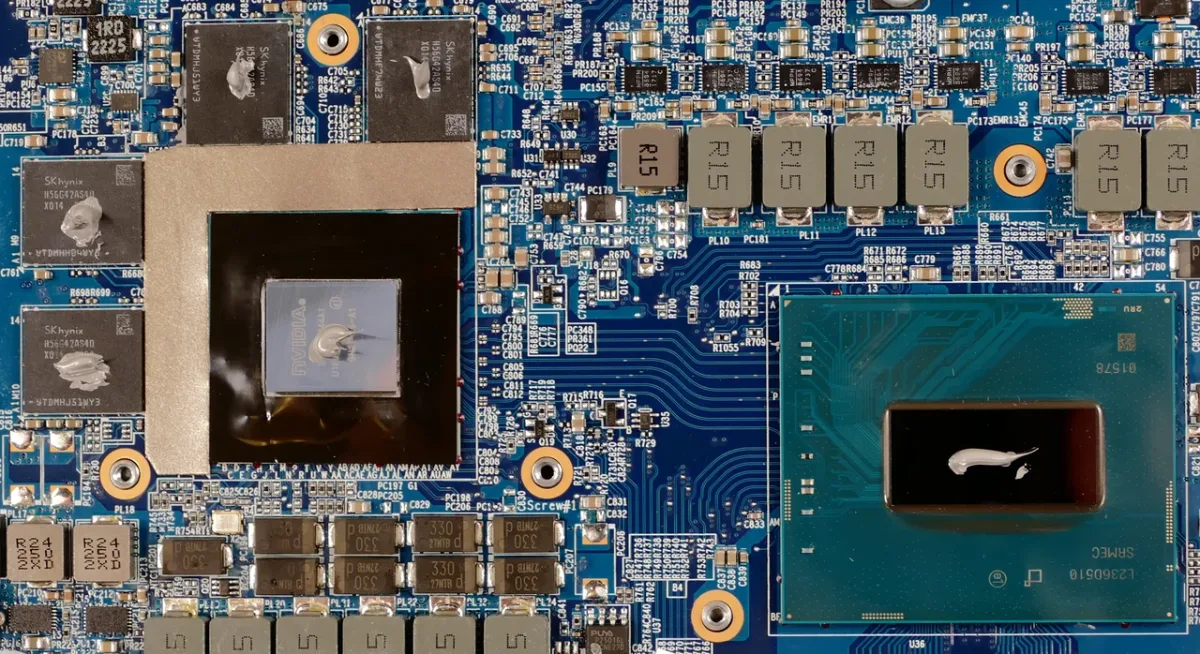
Image source: Wikimedia Commons / System76 (CC BY-SA)
Before choosing parts, confirm cooler fit and fan count. If you are moving to liquid cooling, liquid-cooled case choice matters as much as the cooler itself.
A practical order keeps you from overspending. Clean first, tune second, upgrade last. That order also makes it easier to see which change actually helped.
Comparison / Alternatives: Air, AIO, Undervolting, and Case Airflow Upgrades
Air coolers are usually the best starting point. A good tower cooler has strong value, fewer moving parts, and simple maintenance. It works well when the case has enough height and the fan can pull air through the fins.
AIO liquid coolers move heat to a radiator. They can help with hot CPUs, tight cases, or builds with limited cooler clearance. They also add pump noise, radiator upkeep, and a small leak risk.
A bigger radiator is not always better if the case cannot feed it fresh air.
Undervolting lowers voltage while keeping clocks high. It can reduce heat without buying new hardware. Results vary by chip, and stability testing matters.
Small changes are safer than aggressive tuning.
Case airflow is often the missing piece. Better intake and exhaust can lower CPU and GPU temps at the same time. It also helps VRMs and storage.
If the case traps hot air, a new CPU cooler alone may disappoint.
| Option | Best For | Main Tradeoff |
|---|---|---|
| Air cooler | Most gaming PCs | Needs height clearance |
| AIO cooler | Hot or compact builds | Pump and radiator upkeep |
| Undervolt | Heat-limited chips | Stability testing |
| Airflow upgrade | Hot cases | May need new fans |
If your CPU cooler already has headroom, improve airflow first. If the CPU is the hot part, upgrade the cooler or undervolt. If both CPU and GPU run hot, fix case airflow before chasing premium parts.
A larger case can help radiator fit, while dust control keeps fins clean.
Mistakes to Avoid: Cooling Upgrades That Waste Money
The biggest mistake is buying hardware before measuring. If CPU and GPU temps are normal, a new cooler cannot create performance. It may only make the system quieter.
Another mistake is watching only average CPU temperature. GPU hotspot and memory junction temps can be much higher than core readings. A game can stutter when those hidden temps spike even if the main sensor looks fine.
Other common mistakes include:
- Reusing old thermal paste during a cooler swap
- Mounting a cooler with uneven pressure
- Setting fans too quiet for the heat load
- Ignoring dust on filters and radiator fins
- Buying a cooler that does not fit the case
- Assuming liquid cooling is always better
- Overlooking VRM heat near the CPU socket
If your GPU is vertically mounted, airflow can change. Vertical GPU mounts can look clean, but they may trap heat near the side panel. Check temps after any layout change.
Also avoid changing too many things at once. If you add fans, repaste, and undervolt together, you will not know which fix worked. Change one variable, test, and log the result.
| Mistake | Better Approach |
|---|---|
| Buying first | Measure first |
| Watching one sensor | Check CPU, GPU, hotspot |
| Ignoring dust | Clean before upgrading |
Real Scenarios and Data: When Cooling Improves FPS, 1% Lows, or Nothing
Cooling improvements show up most clearly in sustained workloads. A short benchmark may hide a problem that appears after 30 minutes. Game sessions are better tests than quick runs.
Scenario one: a CPU hits 95 C and drops from 4.8 GHz to 4.2 GHz. After improving airflow and repasting, it holds 4.6 GHz. Average FPS may rise slightly, but 1% lows and frame pacing usually improve more.
Scenario two: a GPU core stays at 70 C, but hotspot reaches 98 C. Better case airflow lowers hotspot to 88 C. The game may stop hitching during long sessions, even if average FPS barely changes.
Scenario three: temps are 65 C CPU and 68 C GPU. A premium cooler lowers them to 55 C. FPS stays the same because neither chip was throttling.
| Scenario | Temp Change | Performance Result |
|---|---|---|
| CPU throttling | 95 C to 80 C | Better 1% lows |
| GPU hotspot spike | 98 C to 88 C | Less stutter |
| Already cool system | 65 C to 55 C | Little or no FPS gain |
The lesson is simple. Cooling helps when it removes a thermal limit. It does not create performance from nothing.
Track frame time, not just average FPS, to see the benefit.
FAQs: PC Cooling and Gaming Performance Questions
Does better PC cooling increase FPS?
It can, but only when heat limits clock speed. If your CPU and GPU already run within safe ranges, a new cooler may reduce noise without raising FPS. Check temps, boost clocks, and 1% lows before buying.
Cooling is a fix for thermal limits, not a general performance upgrade.
How hot is too hot for a gaming CPU?
Many gaming CPUs are designed to boost up to around 90 to 100 C, but sustained temps near the limit can reduce clocks. A safer target for most builds is below 85 C under load. Check your exact chip's manufacturer specification, because limits vary by model and generation.
Should I upgrade CPU cooler or case fans first?
Check the bottleneck first. If CPU temps are high and clocks drop, upgrade the CPU cooler. If both CPU and GPU run hot, improve case airflow first.
Dusty filters, weak intake, or trapped exhaust air can make a good cooler perform poorly.
Does thermal paste make a big difference?
Fresh, properly applied paste can help if the old paste dried out or was applied badly. It will not fix a weak cooler or poor airflow. Use the right amount and follow the cooler manufacturer's mounting instructions for even pressure.
Is liquid cooling better than air cooling for gaming?
Not always. A good air cooler can match many AIOs at lower cost and risk. Liquid cooling helps when space, CPU heat, or case layout demands it.
Choose based on fit, noise goals, and maintenance comfort, not marketing.
Final Recommendation / Verdict / Decision Guide: Your Cooling Decision Checklist
Cooling is a conditional upgrade. Buy it to solve a measured thermal problem, not to chase a random FPS boost. The best results come from matching the fix to the bottleneck.
Use this checklist before spending money:
- Measure CPU and GPU temps during real gameplay
- Check boost clocks and throttling status
- Log average FPS and 1% lows
- Clean dust from filters, fans, and heatsinks
- Test better case airflow or fan curves
- Try undervolting if your chip supports it
- Reapply thermal paste if it is old
- Upgrade the cooler only if throttling remains
- Confirm clearance and radiator support before buying
- Retest after every change
If temps are already safe, spend money elsewhere. A faster GPU, more RAM, or better settings may help more. If temps are high, fix airflow and paste first, then choose air or AIO based on case fit.
Case layout and cooler clearance should guide the final choice.
The right cooling setup is the one that keeps your chips stable, quiet, and within spec during your longest gaming sessions.
1 thought on “How PC Cooling Affects Gaming Performance Explained”
Comments are closed.