How does bios version affect component compatibility? It decides whether your motherboard can initialize a CPU, RAM kit, or PCIe device. A newer BIOS can add support, but the wrong version can cause a black screen.
In our research, the answer depends on chipset limits, firmware code, and exact model details. Manufacturer specifications indicate that a BIOS version is more than a number. It carries AGESA, microcode, and device initialization code.
Check those details before you flash anything.
Why BIOS Version Matters More Than Most Builders Think
The BIOS, or Basic Input/Output System, is the first code your PC runs. It starts the motherboard, tests memory, and hands control to the operating system. UEFI is the modern replacement, but many people still call it BIOS.
A firmware update can change CPU support, memory training, PCIe behavior, and boot settings. That is why version numbers matter.
If you install a CPU that needs newer AGESA code, an old BIOS may stop at POST. AGESA is AMD's firmware package for Ryzen platforms. Intel uses microcode updates inside BIOS releases.
Both can change stability. Think of BIOS like a translator between hardware and software. A newer translator can understand newer parts.
An older one may not.
Before buying parts, match the CPU to the board first. Then check the vendor support page. You can also confirm the processor fits your board before spending money.
The Four Conditions That Decide Component Compatibility
Four things usually decide the outcome. First, the CPU generation and exact model. Second, the RAM type and speed.
Third, the motherboard chipset. Fourth, the BIOS features you need. A B450 board may support a newer Ryzen chip only after a specific update.
A Z690 board may need microcode for a newer Intel CPU.
DDR5 support is not just a slot feature. Memory training depends on BIOS code. PCIe 5.0 or ReBAR may need a newer release.
If any one condition fails, the build can fail. The board may be physically fine but logically unready.
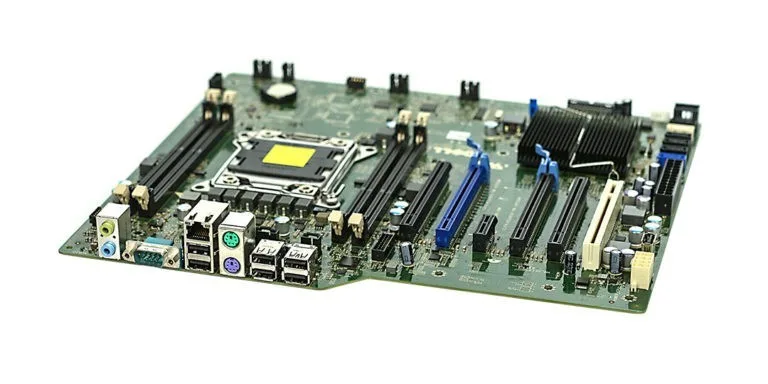
Image source: Wikimedia Commons / Marcin Wieclaw (pcsite.co.uk) (CC BY-SA)
Decision Branches: What a BIOS Update Can Actually Change
A BIOS update is not magic. It can only change what firmware controls. Use if/then logic.
- If the CPU is listed as supported after an update, flashing may unlock boot.
- If the CPU is not listed, no BIOS version will make it work.
- If RAM fails XMP or EXPO, a newer BIOS may improve training.
- If PCIe devices are unstable, a newer BIOS may fix link training.
- If security features are missing, an update may add TPM or Secure Boot support.
- If the board already works, updating only for features can add risk.
Manufacturer specs indicate that some updates add support while others only fix bugs. Read the release notes. Look for CPU support, AGESA version, microcode revision, and memory fixes.
Do not update just because a newer number exists. A stable system with no need is often best left alone.
Step-by-Step: Verify Compatibility Before Touching Firmware
Follow this order before flashing.
- Identify the exact motherboard model and revision.
- Record the current BIOS version from setup or POST screen.
- Check the CPU support list for your exact CPU.
- Confirm RAM speed and capacity against the QVL.
- Read the latest BIOS release notes.
- Back up settings and note custom values.
- Verify power stability and use a UPS if possible.
- Download firmware only from the manufacturer site.
- Check the file checksum if provided.
- Flash using the vendor tool.
If the CPU support list says "requires BIOS version X," do not skip that step. Confirm the memory kit is validated. If the GPU needs ReBAR, check that feature too.
You can validate the RAM kit before buying and check GPU fit and lane support.
BIOS Update Methods: Q-Flash, BIOS Flashback, and Manual Flash
Three common methods exist. Q-Flash is built into many boards and runs from USB. BIOS Flashback uses a dedicated button and can work without CPU or RAM.
Manual flash runs from within the BIOS interface. Each has tradeoffs. Q-Flash is convenient but needs a working system.
Flashback helps recover unsupported CPUs. Manual flash is simple but risky if power drops. Use a UPS when possible.
| Method | Needs Working CPU/RAM | Best For | Main Risk |
|---|---|---|---|
| Q-Flash | Yes | Routine updates | Power loss |
| BIOS Flashback | No | New CPU support | Wrong file |
| Manual flash | Yes | Simple boards | Settings loss |
Choose based on your situation. If the CPU is not supported, Flashback may be the only path. If the system boots, Q-Flash is usually easiest.
Always use the exact file for your board model and revision. After flashing, monitor temps and stability. You can watch CPU temps after the update and check GPU temps under load.
Safety Checks and Warranty Risks Before Flashing
Flashing firmware carries inherent risk. A power loss during the write process can corrupt the chip. This leaves you with a "bricked" motherboard that won't POST.
Aggregate user reviews show this is the most common fatal error. Always connect your PC to a UPS before starting. This ensures stable voltage even if grid power flickers.
Image source: Wikimedia Commons / Shixart1985 (CC BY)
Warranty policies vary by manufacturer. Most vendors cover defects in materials and workmanship. They rarely cover damage from user-initiated firmware updates.
If you brick the board, you might pay for repairs. Check your specific warranty terms online. Some brands offer limited recovery services for failed flashes.
Others do not. Assume the worst-case scenario: total hardware replacement cost.
Data preservation is another concern. BIOS resets often wipe custom settings. You’ll lose XMP profiles, fan curves, and boot orders.
Write down every tweak before updating. Take screenshots of key pages if possible. This saves hours of reconfiguration later.
Also, ensure your storage drives are backed up. While rare, some glitches affect drive detection. Better safe than sorry when dealing with low-level code.
Finally, verify file integrity. Manufacturers sometimes provide MD5 or SHA checksums. Use these tools to confirm the download wasn’t corrupted.
A bad file can fail midway through flashing. Don’t rely on third-party mirrors. Only use official OEM sites.
Intel’s management engine updates also carry risks. Incorrect sequencing can lock the system permanently. Follow instructions exactly as written.
Deviating increases failure probability significantly.
Common Mistakes That Turn a Simple Update Into a Brick
Users frequently ignore model revisions. An ASUS ROG Strix B550-F Gaming WiFi II differs from the original B550-F. The BIOS files are not interchangeable.
Flashing the wrong version causes immediate failure. Always check the suffix letters carefully. Even small variations matter in firmware compatibility.
Another major pitfall is skipping intermediate versions. Some boards require stepping stones. For example, going from F10 to F20 might need F15 first.
This prevents database mismatches in the SPI flash. Read the changelog thoroughly. Look for warnings about cross-version jumps.
Ignoring them leads to unstable boot sequences.
Power interruptions remain the top killer. Never update during stormy weather without backup. Also, avoid using front-panel USB ports for flashing.
Rear I/O ports have better signal integrity. Loose connections can halt the write process. Ensure the stick is formatted correctly too.
FAT32 is standard for most BIOS tools. NTFS or exFAT may not be recognized.
Forgetting to disable Fast Boot is subtle but dangerous. It can interfere with initialization routines. Enter BIOS setup first.
Disable Fast Boot and Secure Boot temporarily. Save changes before initiating the flash. This clears potential conflicts during reboot.
Post-update, you can re-enable them. But doing it beforehand reduces risk.
Lastly, don’t interrupt the process visually. Screens may go black for minutes. LEDs might stop blinking.
This looks like a crash but isn’t. Wait at least 10-15 minutes after completion. Force-restarting early corrupts the new image.
Patience pays off here. Rushing guarantees disaster.
Real Scenarios: When Updating Helps, Hurts, or Does Nothing
Consider upgrading from Ryzen 5000 to 7000 series. AM4 boards cannot support AM5 CPUs physically. No BIOS update bridges this gap.
Here, updating does nothing except waste time. Users often misunderstand socket compatibility versus firmware limits. Socket type dictates physical fit.
Firmware dictates logical recognition. Both must align.
Conversely, adding DDR5 RAM to a late-gen AM4 board helps. Early AGESA versions struggled with high-frequency kits. Updates improved memory training algorithms.
Stability increased noticeably. In this case, updating solves real problems. It unlocks potential hidden by buggy code.
Overclocking scenarios differ widely. Older microcodes had voltage regulation issues. Newer ones tightened tolerances.
However, extreme OC users sometimes prefer older BIOS. Why? Because newer security patches restrict undervolting options.
There’s no universal rule. Test both if stability matters critically.
Enterprise environments face strict compliance needs. Windows 11 requires TPM 2.0 and Secure Boot. Legacy BIOS lacks these features natively.
UEFI updates enable them. Without the update, OS installation fails. This is a hard blocker, not a preference.
Compliance drives necessity here.
Gaming PCs benefit from Resizable BAR. PCIe 4.0 devices gain performance boosts. But only if BIOS supports it.
Many mid-cycle updates added ReBAR flags. Checking release notes reveals this quickly. If missing, the GPU runs slower than capable.
Updating restores expected frame rates.
Final Decision Guide: Update, Hold, or Revert
Should you update? Apply this logic tree. First, identify pain points.
Are you experiencing crashes, incompatibility, or missing features? If yes, proceed cautiously. Match symptoms to changelog entries.
If the fix addresses your issue, update.
If everything works perfectly, hold off. "If it ain’t broke, don’t fix it" applies strongly here. Risk outweighs marginal gains.
Security patches matter, though. Evaluate threat models. Personal gamers face lower risks than corporate servers.
Weigh convenience against exposure.
Reverting is tricky. Most modern boards block downgrades. Intel ME locks prevent older firmware writes.
AMD platforms allow some reversions via dual-BIOS chips. Check your board specs. Dual-BIOS offers insurance.
Single-chip systems demand precision. One mistake equals permanent damage.
Use the table below for quick reference.
| Scenario | Action | Reason |
|---|---|---|
| New CPU unsupported | Update Required | Hardware won't initialize otherwise |
| System stable, no issues | Hold Off | Avoid unnecessary risk |
| Frequent BSODs with RAM | Update Recommended | Likely memory training bug fix |
| Missing Windows 11 features | Update Mandatory | TPM/Secure Boot requirements |
| Extreme overclocking instability | Investigate Changelog | May need rollback or specific version |
Document your current state before acting. Note temperatures, voltages, and clock speeds. Compare post-update metrics.
Did performance improve? Did stability increase? Data guides future decisions.
Blind updates lead to confusion. Track changes methodically.
FAQs
Can I update BIOS without installing an OS?
Yes. Most motherboards support USB BIOS Flashback. This feature allows updating using just a power supply and USB stick.
It bypasses the need for a CPU or RAM installed. Perfect for recovering bricked boards or preparing for new processors. Check your manual for button location.
What happens if I turn off my PC during an update?
The result is catastrophic. The firmware chip remains partially written. The system loses its ability to POST entirely.
Recovery usually requires professional tools or RMA service. Prevention is key. Use a UPS and ensure stable environment conditions.
Never rush the process.
Do all BIOS updates improve performance?
No. Many updates focus solely on security or bug fixes. Performance tweaks are secondary.
Sometimes stability decreases initially due to changed defaults. Resetting to optimized defaults after flashing helps mitigate this. Review changelogs specifically for performance-related keywords.
Don't assume speed gains automatically occur.
Is it safe to downgrade BIOS versions?
Generally, no. Modern platforms enforce minimum version floors. Intel Management Engine and AMD PSP components resist rolling back.
Attempting it often results in errors or refusal. Exceptions exist for enterprise-grade boards with dual chips. Consumer boards rarely permit easy reversal.
Plan forward, not backward.
2 thoughts on “How BIOS Version Impacts Component Compatibility”
Comments are closed.