Is Windows good for gaming laptops? For most buyers, yes. Windows gives you the widest game library, mature GPU drivers, and working kernel anti-cheat.
It also brings bloatware, background tasks, and heat-management trade-offs you should expect on a thin chassis.
Windows 11 now ships on most new gaming laptops, while Windows 10 still runs fine on older hardware. Per Microsoft DirectX documentation, DirectX 12 Ultimate features like ray tracing and variable rate shading are built around Windows support. So the real question is not whether Windows runs games.
It is whether Windows fits your games, your budget, and your tolerance for upkeep.
Why the OS Choice Matters More on a Gaming Laptop
On a desktop, you can brute-force heat and power. On a laptop, the OS has to share space with tight thermals, limited battery, and aggressive fan curves. That is why two laptops with the same GPU can feel different.
Windows gives game developers a predictable target. They build for it first. That means fewer surprises with anti-cheat, overlays, and driver updates.
It also means more background services than a console-like OS.
If you play competitive shooters, kernel anti-cheat matters. Games like Valorant use Riot Vanguard, while others rely on Easy Anti-Cheat or BattlEye. Those tools are designed around Windows.
On other operating systems, support is uneven.
Heat still decides the experience. A good Windows setup cannot fix a bad cooler. If your laptop stutters in long sessions, check for dust buildup and thermal paste age.
Our guide on sudden freezes during heavy sessions covers common causes.
What Windows Actually Brings to Gaming (Windows 10 vs Windows 11)
Windows 11 is the better long-term choice for new gaming laptops. Windows 10 remains usable, especially on older machines. The gap is smaller than marketing suggests, but it is real.

Image source: Wikimedia Commons / 玄史生
Windows 11 adds DirectStorage, Auto HDR on supported games, and better window management. DirectStorage can reduce CPU overhead when loading assets from fast NVMe storage. Auto HDR improves older DirectX 11 and DirectX 12 titles on HDR panels.
Windows 10 still supports DirectX 12, but it lacks several newer quality-of-life features.
| Feature | Windows 10 | Windows 11 |
|---|---|---|
| DirectX 12 support | Yes | Yes |
| DirectX 12 Ultimate features | Limited by hardware and game | Better ecosystem support |
| DirectStorage | Limited support | Primary target |
| Auto HDR | No | Yes on supported games |
| Game Mode | Yes | Yes, improved |
| Hardware security baseline | TPM optional in practice | TPM 2.0 and Secure Boot common |
Driver support is the bigger story. NVIDIA GeForce, AMD Adrenalin, and Intel Arc drivers are all tuned for Windows first. OEM tools like Armoury Crate, MSI Center, and Lenovo Vantage also assume Windows.
Per Microsoft Learn, Windows 11 security features rely on TPM 2.0 and Secure Boot on many systems. That is good for security, but it can limit older upgrades.
The Windows Side: Pros, Cons, and Real Trade-Offs
Windows is not perfect. It is flexible, and flexibility creates friction. Knowing the trade-offs helps you buy the right laptop and set it up well.
Pros you will notice quickly:
- Broad game compatibility across Steam, Epic Games Store, GOG, and Xbox app
- Strong support for PC Game Pass
- Mature GPU driver updates from NVIDIA, AMD, and Intel
- Working kernel anti-cheat for most multiplayer games
- Wide peripheral support for mice, headsets, controllers, and capture cards
- External GPU support over Thunderbolt on many models
Cons that annoy real owners:
- OEM bloatware can waste storage and memory
- Background Windows processes can add stutter
- Updates may interrupt gaming sessions
- Thermal limits still dominate laptop performance
- Battery life drops sharply under load
- Privacy and telemetry settings need manual review
The biggest win is compatibility. If a game runs on PC, it usually runs on Windows. The biggest cost is maintenance.
You need to manage drivers, storage, and thermals. For example, routine upkeep like keeping the chassis clean matters more on Windows laptops because heat affects boost clocks.
The Alternatives: macOS, Linux/Proton, SteamOS, and ChromeOS
Windows is the default, not the only option. Each alternative has a clear lane. The right choice depends on your game list, not brand loyalty.
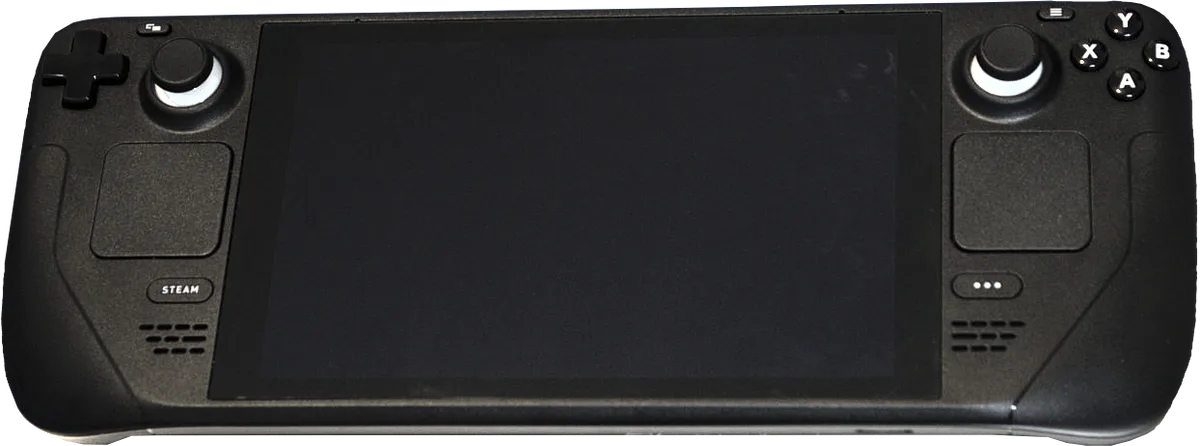
Image source: Wikimedia Commons / Liam Dawe/GamingOnLinux, PNG version by VulcanSphere (CC BY-SA)
macOS on Apple Silicon is polished and efficient. It is not a strong gaming platform. Many AAA games are missing, and kernel anti-cheat support is limited.
It suits creative work first, light gaming second.
Linux with Proton has improved fast. Steam Play can run many Windows games well. Still, anti-cheat support is the weak point.
Some multiplayer titles work, others do not. It rewards tinkerers who do not mind troubleshooting.
SteamOS is cleaner for handhelds and living-room PCs. It is less common on traditional gaming laptops. ChromeOS is fine for cloud gaming, but it is not a serious local gaming OS.
If you want a simpler machine for cloud play, ChromeOS can work. If you want maximum local compatibility, Windows still wins. For older hardware, our guide on upgrading an older machine can extend its useful life.
Side-by-Side: Windows vs Every Major Alternative
This table keeps the decision practical. Use it as a filter, not a final verdict.
| Option | Best For | Main Strength | Main Weakness |
|---|---|---|---|
| Windows 11 | Most gamers | Game and anti-cheat support | Maintenance and bloatware |
| Windows 10 | Older laptops | Familiar and stable | Fewer new features |
| macOS | Creators who game lightly | Battery life and build quality | Small native game library |
| Linux / Proton | Tinkerers | Open-source control | Anti-cheat gaps |
| SteamOS | Handhelds and couch play | Console-like feel | Limited laptop support |
| ChromeOS | Cloud gaming | Low cost and simplicity | Weak local performance |
Windows is the safest default for a gaming laptop in 2026. It has the broadest support, the most model choices, and the fewest compatibility surprises. If your library is mostly single-player, Linux may be viable.
If you rely on competitive multiplayer, stay with Windows.
For hardware changes, check whether parts are replaceable before you buy. Our article on replaceable laptop parts helps you avoid locked-down designs. If you add storage later, our guide on adding more storage is a useful next step.
Per NVIDIA GeForce, modern laptop GPUs depend heavily on driver and power tuning. That is another reason Windows remains the practical choice for most gaming laptops.
Best Fit by Gamer Type and Use Case
Windows fits most gamers, but not every gamer needs it. Match the operating system to your main use case first, then check your game list.
- AAA single-player gamers: Windows is the safest choice. You get DirectX 12 Ultimate, ray tracing, and upscaling support.
- Competitive esports players: Windows is strongly preferred. Kernel anti-cheat tools are built around it.
- Steam library owners: Windows gives the fewest compatibility surprises.
- VR players: Windows has the widest headset and game support.
- Students and travelers: Windows works, but battery life depends more on hardware than the OS.
- Content creators: Windows is flexible, though macOS may suit color-critical work.
If your library is mostly single-player and you enjoy tinkering, Linux with Proton can be viable. If you rely on ranked multiplayer, stay on Windows.
| Gamer Type | Best OS | Why It Fits |
|---|---|---|
| Competitive multiplayer | Windows | Kernel anti-cheat support |
| AAA single-player | Windows | DirectX features and driver maturity |
| Light gaming and battery focus | macOS | Efficiency and build quality |
| Tinkerers | Linux / Proton | Open control, with compatibility gaps |
| Cloud gaming | ChromeOS | Low cost and simple setup |
Common Mistakes That Make Windows Gaming Laptops Feel Worse
Windows gaming laptops often feel worse because of setup, not because of Windows itself. Small mistakes can turn a strong GPU into a stuttering machine.
Common mistakes include:
- Skipping GPU driver updates after buying the laptop
- Leaving OEM utilities and startup apps running
- Gaming on battery power
- Ignoring dust, vents, and cooling limits
- Running storage nearly full
- Expecting desktop-level thermals
If you see stutter, start simple. Update the GPU driver. Disable unnecessary startup apps.
Check temperatures during a long session. If heat stays high, clean the fans and consider repasting. Our guide on repasting a CPU and GPU explains when that helps.
A regular service schedule also keeps boost clocks stable.
What It Costs: Pricing, Specs, and Performance Data
Price matters, but GPU power limits matter just as much. Two laptops with the same graphics chip can perform differently based on cooling and wattage.
As of 2026, typical gaming laptop tiers look like this:
| Tier | Typical Price | Common GPU | RAM | Storage | Display |
|---|---|---|---|---|---|
| Budget | $800 to $1,200 | RTX 4050 or 4060 | 16GB | 512GB NVMe | 120Hz to 144Hz |
| Mid-range | $1,200 to $1,800 | RTX 4070 | 16GB to 32GB | 1TB NVMe | 144Hz to 165Hz |
| High-end | $1,800 to $3,000+ | RTX 4080 or 4090 | 32GB | 1TB to 2TB NVMe | 165Hz to 240Hz |
Performance data should focus on more than average FPS. Watch 1% lows, frame times, and temperatures. A laptop with a 140W GPU TGP will usually outperform one with a 95W version of the same chip.
Battery life during gaming is often one to two hours. Temperatures above 90°C can reduce sustained performance.
Final Verdict: Is Windows Worth It for a Gaming Laptop?
Yes, Windows is worth it for most gaming laptops. It offers the broadest game support, the most reliable anti-cheat compatibility, and the deepest driver ecosystem.
Choose Windows if you want:
- The largest PC game library
- Smooth multiplayer support
- Easy driver and accessory compatibility
- PC Game Pass access
- Upgrade and repair options on many models
Consider another OS only if your needs are narrow. macOS suits light gaming and creative work. Linux suits tinkerers who accept compatibility gaps. ChromeOS suits cloud gaming on a tight budget.
For most buyers, Windows remains the practical default. It is not the cleanest OS, but it is the one most games are built around.
FAQs
Is Windows 11 better than Windows 10 for gaming?
Windows 11 is better for new gaming laptops. It supports DirectStorage, Auto HDR, and newer security features. Windows 10 still runs most games well on older hardware.
If your laptop is newer, Windows 11 is the better long-term choice.
Can a gaming laptop run Linux well?
Yes, many gaming laptops can run Linux well. Steam Play and Proton support a large number of Windows games. The main risk is anti-cheat compatibility.
Some multiplayer games will not work properly on Linux.
Does Windows bloatware affect FPS?
It can affect performance indirectly. Background apps use CPU time, memory, and storage. That can cause stutter or longer load times.
Removing unnecessary startup apps usually helps.
Is macOS good for gaming laptops?
macOS is not a strong gaming platform. It has good battery life and strong build quality, but the native game library is smaller. Kernel anti-cheat support is also limited.
It suits creative work more than serious gaming.
How much RAM do you need for Windows gaming?
16GB is the practical minimum for modern Windows gaming laptops. 32GB is better for heavy multitasking, streaming, or large open-world games. More RAM will not fix a weak GPU.
Does Windows improve gaming laptop battery life?
No, Windows does not improve battery life by itself. Battery life depends on hardware, GPU power, display brightness, and game load. Gaming on battery also often reduces performance.
Expect short runtime during demanding games.