You've probably spent good money on parts, yet your frame rates still feel inconsistent or capped. That frustration usually stems from a misunderstanding of how components interact under load. When asking what does gaming pc performance depend on most, the answer isn't a single chip.
It’s the specific bottleneck created by your resolution and game engine demands.
Aggregate reviews and technical benchmarks show that shifting from 1080p to 4K changes which component limits you entirely. Manufacturer specifications indicate that modern engines rely heavily on both CPU thread counts and GPU rasterization power simultaneously. Let's break down exactly where those limits sit for your build as of 2026.
Why Your Gaming PC Feels Slow Even With Good Specs
High-end hardware doesn't guarantee smooth gameplay if one part lags behind. Think of it like a relay race. If one runner is slow, the whole team loses time regardless of talent elsewhere.
Many builders assume more expensive equals better across the board. That assumption ignores diminishing returns in specific workloads.
Your system might hit a thermal ceiling before it hits a raw compute limit. Or perhaps your storage drive can't feed assets fast enough to the memory. These hidden constraints cause stutters that average FPS counters miss.
Identifying them requires looking beyond simple spec sheets.
We need to distinguish between peak performance and sustained consistency. A card that boosts high but throttles quickly offers poor real-world experience. Similarly, a CPU with many cores but low clock speeds struggles in older titles.
Understanding these nuances prevents wasted upgrades.
The Real Answer: CPU vs GPU Depends on Your Game and Resolution
There is no universal "most important" component. The hierarchy shifts based on three variables: resolution, game genre, and settings preset. At lower resolutions, the processor handles more of the heavy lifting.
At higher resolutions, the graphics card takes over completely.
This dynamic means your bottleneck moves depending on what you play. An esports title at 1080p will stress the CPU significantly. A cinematic AAA game at 4K will saturate the GPU instantly.
Knowing this helps you prioritize spending correctly.
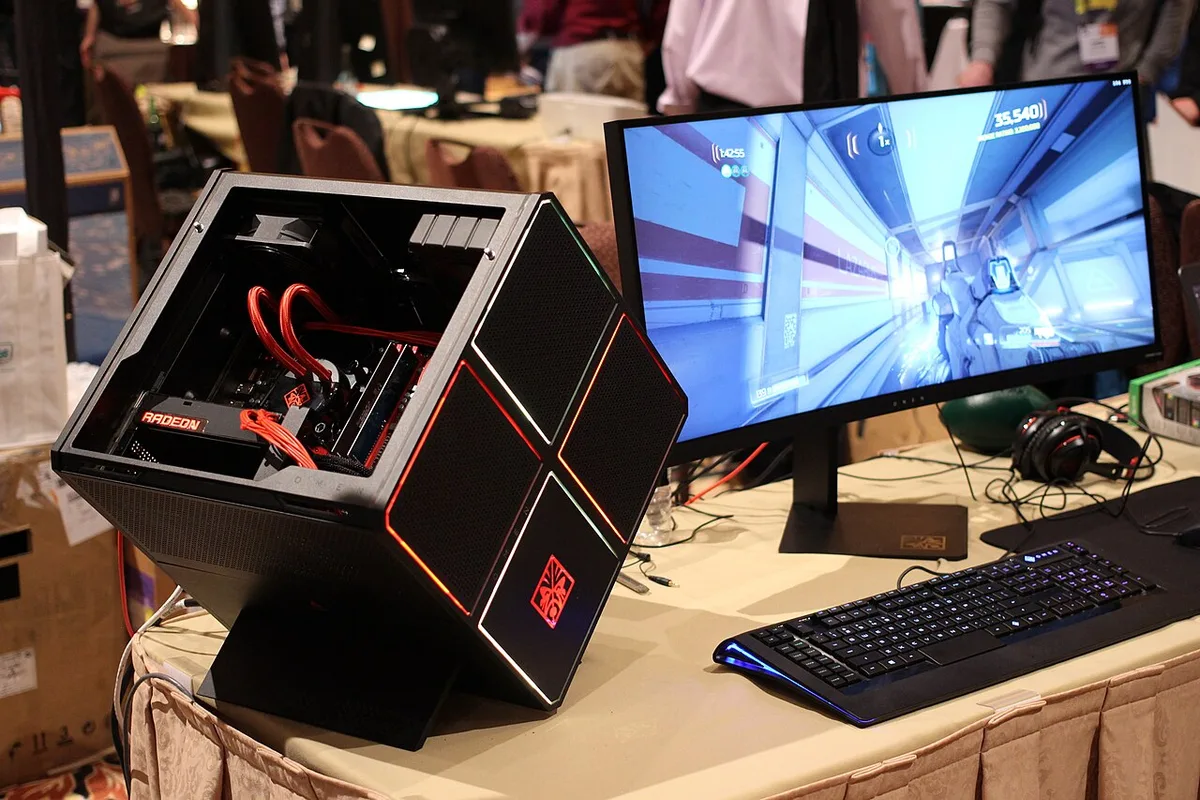
Image source: Wikimedia Commons / Maurizio Pesce (CC BY)
Consider competitive shooters first. Games like Counter-Strike 2 or Valorant run at very high frame rates. They demand quick instruction processing from the central unit.
Here, single-core speed matters far more than multi-core count. The GPU has plenty of headroom at these framerates.
Now look at open-world adventures. Titles like Cyberpunk 2077 push millions of pixels per frame. Ray tracing calculations multiply the workload exponentially.
In this scenario, video memory bandwidth becomes critical. The CPU waits for the GPU to finish rendering each scene.
Image source: Wikimedia Commons / Nick Stathas (CC BY-SA)
Strategy games introduce another variable. Simulations like Civilization VII calculate thousands of independent units. This logic-heavy task relies on cache size and core efficiency.
Graphics remain relatively simple compared to the computational math involved. Thus, a stronger processor yields bigger gains here.
Resolution acts as the great equalizer. Moving from 1080p to 1440p increases pixel count by roughly 78%. This shift pushes more weight onto the graphics subsystem.
By the time you reach 4K, the GPU is almost always the limiter. Your choice of monitor dictates your upgrade path.
If you stick to high-refresh displays, you'll likely face CPU constraints sooner. Conversely, pairing a mid-tier card with a 4K panel creates a severe graphical bottleneck. Matching your display to your hardware ensures balanced utilization.
How CPU, GPU, RAM, and Storage Actually Share the Work
Each component plays a distinct role in the pipeline. The CPU prepares instructions and manages game logic. It tells the GPU what to draw and when.
This coordination happens hundreds of times per second.
The GPU executes those drawing commands. It calculates lighting, textures, and geometry in parallel. Millions of small tasks happen simultaneously on its cores.
This architecture makes it perfect for visual rendering but poor for sequential logic.
System memory bridges the gap between them. Fast RAM allows the CPU to access data quickly. Slow or insufficient memory forces the processor to wait.
This latency directly impacts frame pacing and stability. Dual-channel configurations double bandwidth compared to single-stick setups.
Storage determines how fast assets enter the system. Traditional hard drives struggle with rapid texture streaming. NVMe solid-state drives reduce load times drastically.
However, they rarely affect steady-state FPS unless VRAM fills up. Once video memory exhausts, the system swaps to slower RAM.
| Component | Primary Role | Key Metric for Gaming |
|---|---|---|
| CPU | Logic & Physics | Single-Core Speed (GHz) |
| GPU | Rendering Pixels | Raw Compute Power & VRAM |
| RAM | Data Access | Speed (MT/s) & Capacity |
| SSD | Asset Loading | Sequential Read/Write Speed |
Understanding this division helps diagnose issues. If your GPU usage sits at 50%, your CPU is likely maxed out. You're waiting on logic, not visuals.
If GPU usage hits 99% while CPU idles, you're render-bound. Upgrading either side won't help until you address the other.
For example, playing an older title on a new rig often reveals CPU bottlenecks. The game engine wasn't designed for massive parallelism. It leans on legacy code paths that favor frequency over core count.
Modern engines distribute work better, balancing loads more evenly.
When building a mid-range setup, aim for harmony. Don't pair a top-tier GPU with a budget CPU. That mismatch guarantees early obsolescence.
Balanced builds offer smoother experiences across varied genres.
The Decision Tree: CPU-Bound, GPU-Bound, or Memory-Bound?
Determining your bottleneck starts with context. Ask yourself what you primarily play and at what resolution. This initial filter narrows down the likely culprit immediately.
High-Refresh 1080p and Esports Titles
Competitive gamers chase maximum frames for reduced input lag. At 1080p, the GPU finishes tasks faster than the CPU can prepare them. This leaves the processor working overtime.
You become CPU-bound even with powerful cards.
Prioritize high clock speeds and efficient architectures here. Multi-core counts matter less than IPC improvements. Games rarely utilize more than six or eight threads effectively.
Overpaying for excess cores wastes potential performance.
Ensure your cooling solution maintains boost clocks. Thermal throttling drops frequencies rapidly during intense sessions. Sustained high GHz readings are crucial for stable frametimes.
Look into effective virus protection too, as background scans spike CPU usage unexpectedly.
1440p and 4K AAA Games
Higher resolutions demand massive pixel throughput. The GPU spends longer calculating each frame. Meanwhile, the CPU waits idle between batches.
This reverses the typical balance seen in esports.
Video memory capacity becomes vital at 4K. Textures consume gigabytes rapidly. Insufficient VRAM forces spills to system RAM, causing stutter.
Always check recommended specs for latest releases.
Ray tracing adds significant computational overhead. Dedicated RT units accelerate these effects. Without them, performance tanks severely.
Consider enabling DLSS or FSR to offload some work. Upscaling reduces native resolution requirements while maintaining image quality.
Strategy, Simulation, and City Builders
These genres simulate complex economies and AI behaviors. Calculations happen sequentially rather than in parallel. The CPU bears nearly all the burden.
Graphics remain secondary to logical accuracy.
Cache size influences performance noticeably. Larger L3 caches keep frequently used data close to cores. This minimizes fetch delays from main memory.
AMD's 3D V-Cache technology exemplifies this advantage well.
Multi-threading benefits exist but plateau quickly. Beyond eight cores, gains diminish sharply. Focus on strong single-thread performance instead.
Pair this with ample RAM to handle large save files efficiently.
Streaming or Recording While You Play
Encoding video consumes substantial resources. Hardware encoders on GPUs relieve pressure on the CPU. Software encoding remains inefficient for live broadcasts.
Use NVENC or AMF whenever possible.
Background processes steal cycles from gaming loops. Close unnecessary applications rigorously. RGB control software often runs persistently without user awareness.
Disable auto-start features aggressively.
A dedicated capture card isolates recording duties entirely. This frees up internal hardware solely for gameplay. For serious streamers, this separation proves invaluable.
Explore options within prebuilt systems if DIY integration feels daunting.
How to Check Which Component Is Holding You Back
Guesswork leads to bad purchases. Measure actual behavior using diagnostic tools. Free utilities provide detailed insights into real-time operations.
Watch CPU and GPU Usage in Real Time
Install monitoring software like MSI Afterburner or HWiNFO64. Enable overlays showing utilization percentages. Launch your favorite game and observe trends during combat scenes.
Look for asymmetry. If GPU hovers near 100% while CPU stays below 70%, you're graphically limited. Swap priorities apply inversely.
Both hovering near max suggests a balanced load requiring overall upgrades.
Check individual core usage too. Sometimes one thread saturates while others sleep. This indicates poor optimization in the game engine itself.
No hardware fix resolves badly coded titles fully.
Look at Frame Times, Not Just Average FPS
Average numbers hide inconsistencies. Smoothness depends on regular intervals between frames. Spikes represent moments of delay perceived as jankiness.
Analyze 1% lows specifically.
Graphical interfaces plot these fluctuations clearly. Flat lines indicate stability. Jagged peaks signal problems.
Address causes ranging from driver bugs to thermal events. Consistency trumps raw height every time.
Compare against target refresh rates. Hitting 60FPS averages means little if dips occur constantly. Aim for minimums exceeding half your desired cap.
This buffer absorbs minor variations gracefully.
Change One Setting at a Time
Isolate variables scientifically. Lower shadow quality first. Shadows tax CPUs via physics calculations sometimes.
Note any immediate improvement in frametime graphs.
Next, adjust texture resolution. High-res assets strain VRAM capacities. Dropping this setting alleviates memory pressure instantly.
Observe whether stutters vanish upon reduction.
Finally, tweak anti-aliasing methods. Temporal AA balances sharpness and cost. MSAA demands heavier sampling rates.
Switch modes gradually to pinpoint sensitivity thresholds. Document results meticulously for future reference.
Settings and Hardware Variables That Can Flip the Bottleneck
Settings change hardware demand quickly. Upscaling can move load from GPU to CPU. Ray tracing can do the opposite.
Small toggles often matter more than new parts.
If you enable DLSS Quality, the GPU renders fewer native pixels. That can reduce GPU usage. It may also expose a CPU limit.
If you disable upscaling, GPU usage rises again.
Texture quality affects VRAM directly. High textures can push an 8GB card past its limit. That causes stutter.
Lowering one step often fixes it. Shadow quality can hit CPU physics in some engines.
RAM configuration matters too. Dual-channel memory doubles bandwidth. Single-channel can cut CPU performance in some games.
This is common in budget builds. It is easy to miss.
Cooling and power delivery also change results. A hot CPU lowers boost clocks. A weak PSU may fail under transient spikes.
Both look like random slowdowns. How gaming components work together explains why one weak link affects the whole system.
If your GPU usage jumps from 60% to 95% after a settings change, you found a GPU-sensitive toggle. If CPU usage rises instead, the setting taxes logic. Change one variable at a time.
Keep notes.
Common Mistakes That Make Performance Worse
Many slowdowns come from setup errors. The hardware is fine. The configuration is not.
Fixing these costs little or nothing.
One mistake is assuming higher settings always improve value. Ultra shadows may add almost no visual benefit. They can cost 15% of frame rate.
High or Medium often looks similar. Test before locking Ultra.
Another mistake is ignoring background apps. Launchers, RGB tools, and overlays consume CPU time. Some run constantly.
Close them before testing. Reboot after major driver installs.
RAM speed is often overlooked. Fast memory helps CPU-bound games. Slow memory can bottleneck a good processor.
Check XMP or EXPO profiles in BIOS. Make sure they are enabled.
Thermal paste and dust also matter. A dusty heatsink raises temperatures. High heat lowers sustained clocks.
Clean filters monthly. Replace old paste if temps climb.
Finally, compare results fairly. Benchmark the same scene each time. Random gameplay varies too much.
Use built-in benchmarks when available. Consistent testing prevents bad conclusions.
Real Scenarios: What "Most Important" Looks Like in Practice
A 1080p esports player with a Ryzen 5 and RTX 4060 may see 280 FPS. The GPU might sit at 55% while the CPU hits 95%. Here, the CPU is most important.
Upgrading the graphics card would waste money.
A 4K AAA player with a Ryzen 7 and RTX 4070 Ti may average 70 FPS. GPU usage stays near 99%. CPU usage sits around 45%.
Here, the GPU is most important. A stronger processor would barely help.
A strategy fan running Civilization VII at 1440p may see CPU spikes during turns. GPU usage stays low. Large maps increase AI calculations.
In this case, cache and single-core speed matter most.
A streamer with OBS software encoding may lose 20% of FPS. Switching to NVENC can recover much of that. The bottleneck was not the game alone.
It was concurrent workload.
These examples show why context matters. The same PC can be CPU-bound in one game and GPU-bound in another. Your monitor and settings decide the limit.
Match upgrades to your worst scenario, not your best.
Your Best Next Step Based on What You Found
If CPU usage stays high and GPU usage stays low, focus on processor limits. Check temperatures first. If thermals are safe, consider a CPU with better IPC.
Also verify RAM speed and channel count.
If GPU usage stays near 100%, your graphics card is the limit. Reduce resolution or settings to confirm. If performance improves sharply, the GPU was holding you back.
Upgrade VRAM and compute power together.
If both components stay high, your build is balanced. General upgrades help, but gains are smaller. A newer GPU or CPU can still extend lifespan.
Avoid spending on one side only.
If frame times spike while usage looks normal, look deeper. Storage speed, driver issues, and background tasks can cause stutter. Update drivers carefully.
Test after each change.
If you are unsure, keep the current system and benchmark longer. Gather data across several games. Decisions based on one title often mislead.
A short gaming rig specs guide can help frame realistic expectations.
Frequently Asked Questions
Is CPU or GPU more important for gaming?
It depends on resolution and game type. At 1080p esports, the CPU often matters more. At 4K AAA, the GPU usually matters more.
Check usage to know your case.
Can too much RAM slow down a gaming PC?
No. Extra RAM does not slow performance. The issue is speed and configuration.
Slow RAM or single-channel mode can reduce CPU performance in some games.
Why is my GPU usage not at 100%?
Your CPU may be the bottleneck. It cannot prepare frames fast enough. Background apps can also reduce GPU load.
Check both usage and temperatures.
Does an SSD improve gaming FPS?
Usually no. An SSD improves load times and texture streaming. It rarely increases steady FPS.
It can reduce stutter when VRAM runs low.
Should I upgrade CPU or GPU first?
Upgrade the component that hits 100% first. If GPU usage is maxed, start there. If CPU usage is maxed, start there.
Balance matters more than raw power.
How do I know if my PC is balanced?
Both CPU and GPU should reach high usage in demanding games. Neither should sit far below the other. Frame times should stay consistent.
That indicates good balance.
1 thought on “What Drives Gaming PC Performance? Key Factors Explained”
Comments are closed.