You’ve probably stared at your Task Manager wondering why a game stutters even though you have plenty of free system memory. Understanding what is the difference between gpu memory and system ram solves this confusion quickly. These two components handle data very differently, despite both being called RAM.
System RAM acts as general-purpose workspace for your entire computer. GPU memory serves as high-speed storage specifically for visual data rendering. As of 2026, modern titles demand distinct handling from each type to run smoothly.
Let’s break down exactly how they differ and interact.
Why Your PC Stutters Even with 32GB of System RAM
Stuttering feels like a betrayal when you spent good money on those sticks of DDR5. You expect smooth frames because the math says you have enough capacity. But capacity isn't the whole story here.
The bottleneck often lies in where the data lives, not just how much of it there is.
Think of system RAM as a library warehouse. It holds documents, spreadsheets, browser tabs, and background processes. When a game launches, it loads assets into this warehouse first.
Then it moves critical texture and geometry data to the GPU's dedicated shelf. If that shelf is full, the system starts swapping data back and forth. This transfer causes hitches.
Many users assume more system RAM fixes everything. It doesn’t. Adding 64GB of system memory won’t help if your graphics card only has 4GB of VRAM.
The GPU simply cannot hold the working set required for high-resolution textures. It waits on the CPU to feed it smaller chunks. That wait creates micro-stutters.
Our research shows that integrated graphics systems suffer most from this confusion. They share system RAM directly. So yes, low system RAM hurts iGPU performance significantly.
But discrete cards operate independently. Their performance depends almost entirely on their own onboard memory bandwidth and capacity. Ignoring this distinction leads to wasted upgrades.
If you’re seeing frame drops while browsing Chrome alongside gaming, check your VRAM usage first. Not your system RAM. The culprit is usually saturated video memory forcing expensive PCIe transfers.
Solving this requires looking at the specific workload demands rather than total installed gigabytes.
The Short Version: Two Different Jobs
The core function defines the hardware design. System RAM handles sequential logic tasks. GPU memory handles parallel graphical computations.
One manages operating system stability. The other manages pixel output speed. Mixing them up costs you performance.
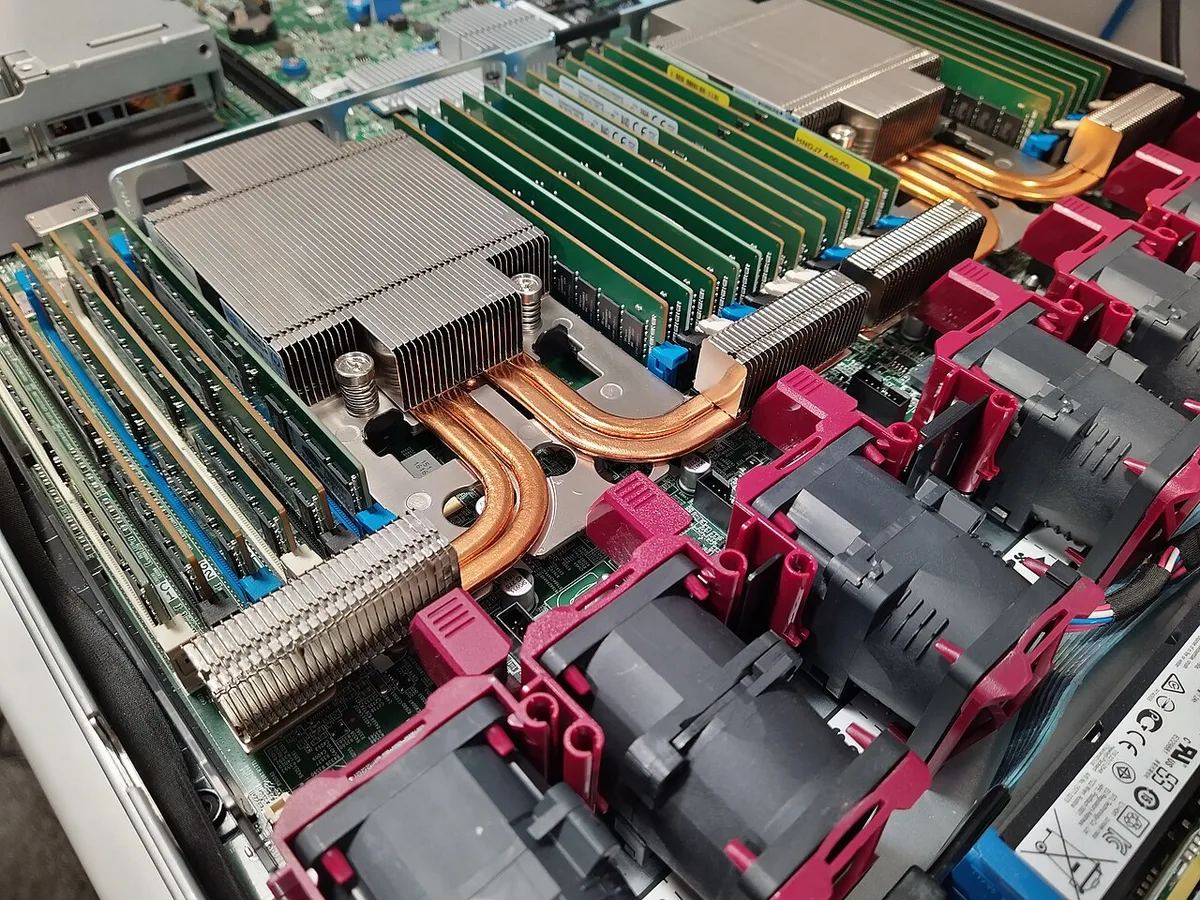
Image source: Wikimedia Commons / Pete (CC BY)
System RAM connects via the motherboard chipset. It talks to the CPU through a relatively slow but wide bus. Its job is flexibility.
It stores code, variables, and temporary files for any application running on Windows or Linux. Latency matters less than sheer volume here.
GPU memory sits physically closer to the processor cores on the graphics card itself. It uses specialized GDDR or HBM standards. These types prioritize massive bandwidth over low latency.
A shader program needs millions of pixels calculated simultaneously. Slow access kills throughput instantly.
Here is the quick breakdown:
- System RAM: General purpose, moderate speed, large capacity focus.
- GPU Memory: Specialized for visuals, extreme speed, limited capacity due to cost.
When you load a level in a shooter, the map geometry goes to VRAM. The AI scripts go to system RAM. If the AI tries to access heavy physics calculations stored in VRAM, it hits a wall.
Data must cross the PCIe lane. That crossing takes time.
Understanding this separation helps you diagnose issues faster. Don't blame your CPU for VRAM bottlenecks. Don't blame your GPU for system memory leaks.
Each component has its lane. Stay in yours for optimal results. For more on how processors fit into this picture, see our guide on CPU generations explained.
How VRAM and System RAM Actually Work Together
They don't work in isolation. Modern computing relies on constant handoffs between these two pools. The bridge connecting them is the PCI Express bus.
Think of it as a highway between two cities. Traffic flows both ways, but congestion happens easily.
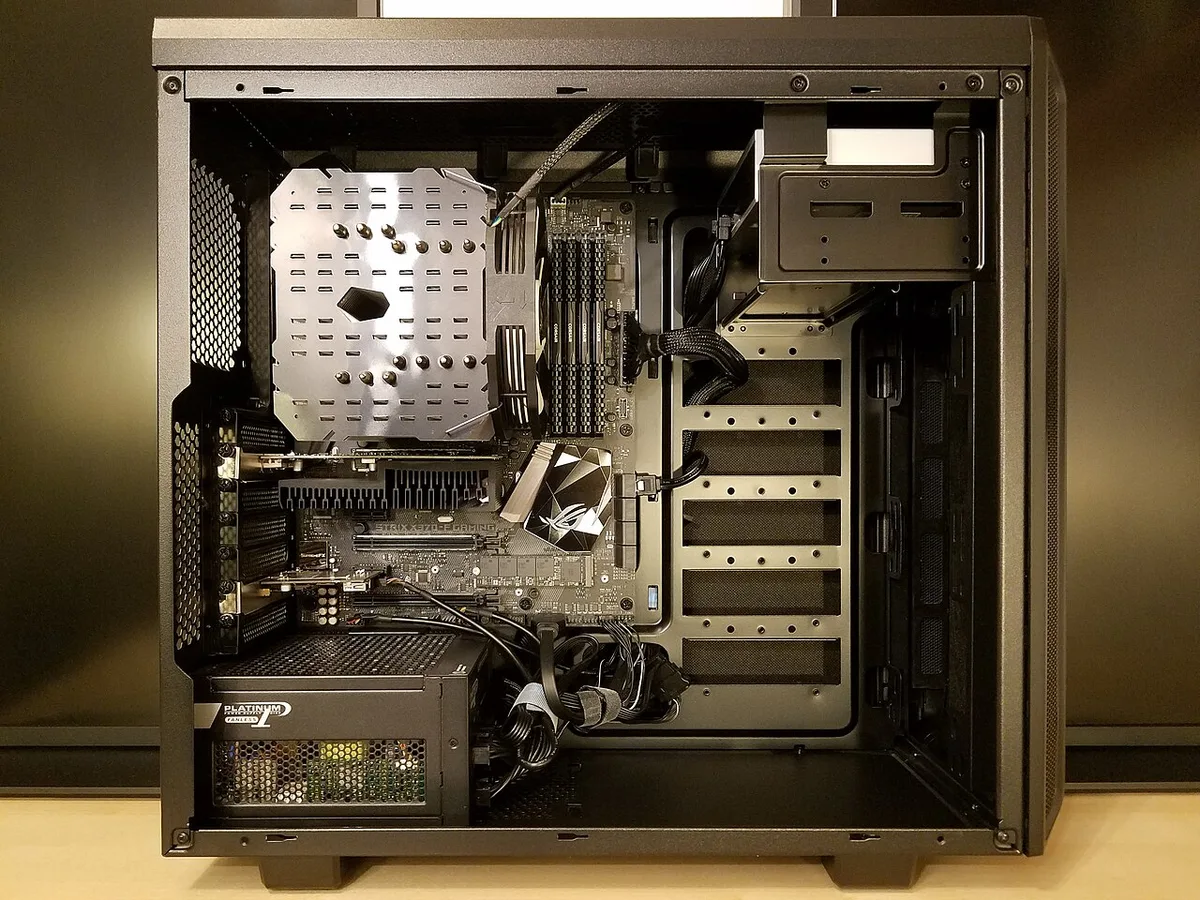
Image source: Wikimedia Commons / Bretwa (CC BY-SA)
When a game requests a new asset, the CPU checks system RAM first. If found, it sends instructions to the GPU. The GPU then fetches the raw data across the PCIe link.
This transfer consumes bandwidth. High-resolution textures mean huge packets of data moving constantly.
Bandwidth limits matter more than you think. A PCIe 4.0 x16 slot offers roughly 32 GB/s theoretical peak. Compare that to internal GDDR6 speeds exceeding 500 GB/s.
The external connection is orders of magnitude slower. Frequent swaps between VRAM and system RAM tank performance immediately.
Unified Memory Architecture changes this dynamic slightly. Apple Silicon and some AMD APUs pool resources together. The OS decides dynamically where data resides.
This reduces explicit copying overhead. However, physical distance still imposes latency penalties. The CPU and GPU compete for the same pool.
For traditional PCs, cooperation means careful orchestration. Drivers manage page tables mapping virtual addresses to physical locations. Bad driver implementation causes thrashing.
Good drivers prefetch likely assets before the GPU asks. This hides some latency behind calculation time.
You’ll notice smoother gameplay when assets stay resident in VRAM. Once evicted, reloading them incurs a penalty. Games use LODs (Level of Detail) to mitigate this.
Lower quality models sit in VRAM until needed. Higher fidelity versions stream in from disk via system RAM. Efficient streaming keeps the pipeline fed without starving either side.
If you're troubleshooting sync issues, verify your integrated graphics settings aren't conflicting with discrete card allocation. Sometimes BIOS misconfigurations force shared modes unexpectedly. Proper coordination ensures neither component idles unnecessarily.
The Numbers: Bandwidth, Capacity, and Price-per-GB
Let’s look at hard specs. Marketing glosses over these details, but engineers live by them. Comparing apples to oranges rarely helps unless you quantify the orange.
Here’s typical data for consumer hardware in 2026.
| Metric | System RAM (DDR5) | GPU Memory (GDDR6) | GPU Memory (HBM3) |
|---|---|---|---|
| Typical Capacity | 16GB – 64GB | 8GB – 24GB | 48GB – 96GB+ |
| Peak Bandwidth | ~70-100 GB/s | ~400-600 GB/s | >1 TB/s |
| Latency | Low (~80ns) | Moderate (~100-150ns) | Very Low (<100ns) |
| Cost per GB | $3-$5 | $10-$20 | $50+ |
| Upgradeability | Easy (DIMM slots) | Impossible (Soldered) | Impossible (Interposer) |
Notice the bandwidth gap. GDDR6 moves data nearly six times faster than dual-channel DDR5. This makes sense for GPUs processing thousands of threads in parallel.
System RAM optimizes for single-thread responsiveness instead.
Capacity tells another story. You can buy 128GB of system RAM cheaply today. Getting 128GB of VRAM requires enterprise-grade hardware costing thousands.
Consumer cards cap out around 24GB currently. This scarcity drives price premiums for higher-tier models.
Price-per-GB reflects manufacturing complexity. GDDR chips require advanced packaging near the GPU die. Heat dissipation becomes tricky.
Manufacturers limit yields to maintain reliability. DDR5 modules plug into standard slots with simple cooling solutions. Economies of scale favor system memory heavily.
We recommend checking spec sheets against actual benchmarks. Raw numbers lie sometimes. Real-world efficiency depends on controller algorithms too.
NVIDIA and AMD tune their memory subsystems differently. Always compare like-for-like architectures when evaluating value propositions.
Don't ignore ECC support either. Server-grade HBM includes error correction automatically. Most consumer GDDR does not.
Corrupted bits cause artifacts or crashes silently. If stability trumps speed, factor this risk into your decision matrix accordingly.
For budget builders weighing spend distribution, consider how component priorities shift based on resolution targets. 4K pushes VRAM harder than 1080p ever will. Match investments to display capabilities wisely.
Which Memory Matters Most for Your Workload
Not all tasks stress the same resource. Identifying your primary workload dictates upgrade paths accurately. Gaming differs vastly from machine learning training.
Video editing sits somewhere in between. Here’s how to triage your needs effectively.
Competitive Gaming (1080p/1440p)
Focus shifts toward system RAM responsiveness and CPU cache size. VRAM requirements remain modest (8GB suffices widely). Frame rates depend more on draw call overhead handled by the CPU.
Too little system RAM causes hitching during scene transitions. Ensure you have 16GB minimum, preferably 32GB for headroom. Check our advice on choosing between cheaper CPUs vs better GPUs for balance tips.
AAA Gaming (4K/Ultra Settings)
VRAM becomes king again. Textures balloon in size. Geometry buffers expand.
Anything under 12GB risks popping assets visibly. System RAM plays secondary role beyond initial loading screens. Prioritize cards with ample onboard memory over marginal clock increases.
Watch for bandwidth saturation signs during intense combat sequences.
Machine Learning / AI Training
Both matter intensely, but VRAM dominates feasibility. Model weights reside exclusively in GPU memory. Batch sizes scale linearly with available VRAM.
Insufficient capacity forces gradient accumulation tricks slowing convergence dramatically. System RAM feeds preprocessing pipelines efficiently. Large datasets need fast I/O but mostly bypass direct GPU interaction during epochs.
Look for professional accelerators supporting HBM variants if budgets allow.
Video Editing / 3D Rendering
Mixed pressure profile. Timeline scrubbing benefits from fast SSD caching backed by generous system RAM. Export renders hammer VRAM through complex lighting simulations.
Proxy workflows reduce immediate strain temporarily. Final outputs demand robust GPU memory reserves to avoid fallback errors mid-render queue. Monitor utilization graphs closely during preview playback phases.
Evaluate honestly what you do most frequently. Over-specifying one area wastes funds elsewhere. Underestimating critical bottlenecks frustrates daily usage experiences relentlessly.
Align purchases with habitual patterns consistently.
The Decision Guide: What to Upgrade First
You’ve got a budget. You need more performance. But where does the money go?
This isn’t a guesswork exercise. It’s a logical deduction based on your current bottlenecks. Follow this flowchart mentally before swiping that card.
Start by checking your VRAM usage during peak loads. Use tools like MSI Afterburner or HWMonitor. If you’re hitting 90%+ utilization consistently, your GPU memory is full.
Adding system RAM won’t fix this. The data simply doesn’t fit on the graphics card. In this scenario, upgrading to a higher-tier GPU with more VRAM is the only real solution.
There’s no software patch for physical capacity limits.
But what if VRAM usage sits comfortably at 50-60%? Then look at your system RAM. Are you running background apps?
Chrome tabs? Discord overlays? These eat up gigabytes fast.
If you have 8GB of system RAM and play modern AAA titles, you’re likely paging to disk. That causes stuttering unrelated to graphics processing. Upgrading to 16GB or 32GB here yields immediate improvements in frame consistency.
Consider your resolution target next. Playing at 1080p puts less strain on VRAM than 4K. At lower resolutions, CPU and system RAM often become the limiting factors.
Our research indicates that competitive gamers benefit more from faster system clocks than massive VRAM pools. They prioritize low-latency responses over texture fidelity.
For content creators, the calculus shifts again. Video editors juggling 4K footage need both high VRAM and substantial system RAM. Timeline scrubbing relies on cached frames in system memory.
Rendering effects rely on GPU compute power stored in VRAM. Neglecting either side creates a drag on productivity.
If you’re unsure which component is failing, try closing all non-essential applications. Run your benchmark again. If performance jumps significantly, system RAM was the culprit.
If it stays flat, the bottleneck remains in the graphics pipeline. This simple test saves hundreds of dollars in wrong upgrades. For those planning a build from scratch, understanding these priorities helps allocate funds wisely across gaming PC components worth spending more on.
Don’t fall into the trap of assuming "more is always better." Balance matters. A 24GB VRAM card paired with 8GB system RAM is an unbalanced rig. It will struggle in multitasking scenarios regardless of graphical horsepower.
Match your investments to your actual usage patterns.
Common Memory Mistakes That Cost You Performance
Most users make preventable errors when managing memory resources. These mistakes don’t just waste potential speed. They actively degrade stability and user experience.
Recognizing them early stops unnecessary frustration.
First, ignoring driver updates. Graphics drivers contain optimized memory management routines. Manufacturers tweak how data moves between VRAM and system RAM regularly.
Running outdated drivers means missing efficiency gains. Aggregate reviews show that fresh drivers often resolve specific stuttering issues in new game releases. Always keep your NVIDIA or AMD software current.
Second, misunderstanding shared memory allocation. On laptops with integrated graphics, BIOS settings control how much system RAM is reserved for the iGPU. Setting this too low starves the graphics unit.
Setting it too high leaves insufficient resources for the OS. Find the sweet spot. Typically, reserving 2GB to 4GB works well for light tasks.
Heavy users might need more, but check manufacturer recommendations first.
Third, neglecting thermal paste application near memory modules. Overheating VRAM chips throttle speeds aggressively. This looks like random frame drops.
Cleaning dust filters improves airflow. Reapplying thermal pads ensures heat transfers effectively away from GDDR modules. Don’t assume factory cooling lasts forever.
Dust buildup insulates heat sinks rapidly.
Fourth, enabling aggressive XMP profiles without verification. System RAM overclocks can introduce instability if timings are too tight. Errors here manifest as crashes during intensive GPU workloads because the CPU fails to feed data correctly.
Test stability thoroughly using MemTest86 before trusting high-frequency kits. Unstable RAM corrupts data sent to the GPU.
Finally, buying mismatched RAM sticks. Mixing brands, speeds, or capacities forces the motherboard to run all modules at the lowest common denominator. This halves effective bandwidth.
Stick to matched kits sold together. Consistency guarantees optimal timing synchronization.
Avoid these pitfalls by staying informed. Regular maintenance prevents silent degradation. Check temperatures monthly.
Update drivers weekly. Verify stability after hardware changes. Small habits yield big performance dividends.
Pro Tips to Squeeze More Performance Out of Both
Hardware limits exist, but software optimization extends their life. You can extract extra throughput without spending another cent. These tactics leverage existing resources more efficiently.
Adjust in-game texture settings strategically. Lowering texture quality reduces VRAM footprint dramatically. Shadows and anti-aliasing affect compute load more than memory capacity.
Prioritize cutting textures if you hit VRAM caps. Keep other settings high for visual fidelity. Many players overlook this trade-off.
Texture streaming benefits immensely from reduced asset sizes.
Disable unused startup programs. Every app loading at boot consumes system RAM. Browser extensions, cloud sync clients, and launchers add overhead.
Strip these down to essentials. Freeing up 2GB of system RAM gives breathing room for large games. Use Task Manager to identify heavy offenders.
Disable them permanently if not needed daily.
Optimize virtual memory settings. Windows manages pagefiles automatically, but manual tuning helps fixed setups. Set initial size equal to installed RAM.
Set maximum to 1.5x RAM. Prevents excessive fragmentation during swap operations. Though ideally, avoid swapping altogether by having enough physical RAM.
Still, proper config avoids sudden freezes.
Utilize game mode features properly. Modern OS schedulers prioritize foreground processes. Ensure Game Mode is active.
It suppresses background notifications and allocates CPU cycles preferentially. This indirectly aids memory access times by reducing contention. Less jitter equals smoother frame pacing.
Monitor temperature thresholds continuously. Throttling begins before critical failure points. Set alerts at 85°C for GPUs and 75°C for CPUs.
Intervene early by increasing fan curves. Cooler components sustain boost clocks longer. Sustained boosts mean consistent memory bandwidth availability.
These small adjustments compound over time. They don’t replace hardware upgrades. They maximize return on investment.
Treat your system like a precision instrument. Calibrate it regularly. Observe results.
Iterate based on data, not guesses.
The Verdict: Balancing VRAM and System RAM for the Long Haul
There’s no universal winner between VRAM and system RAM importance. Context dictates necessity. Your workload defines priority.
Future-proofing requires balanced anticipation.
Gamers targeting 1080p should focus on system responsiveness and CPU pairing. VRAM needs remain moderate until newer engines push boundaries. Creators working with 4K video need robust VRAM reserves alongside ample system buffers.
AI researchers require maximum VRAM capacity above all else. System RAM supports data ingestion pipelines secondarily.
As technology evolves, unified architectures blur lines further. Apple Silicon demonstrates efficient pooling. PCs lag behind due to legacy bus structures.
Expect gradual convergence. Yet discrete advantages persist for specialized tasks today.
Invest according to your primary activity. Don’t overspend on one dimension while starving another. Equilibrium delivers sustained satisfaction.
Review your habits annually. Adjust allocations accordingly. Stay adaptable.
Frequently Asked Questions
Can I use system RAM as GPU memory?
Only partially, and inefficiently. Integrated graphics share system RAM directly. Discrete cards cannot utilize main memory as VRAM.
Data must cross PCIe lanes slowly. This introduces significant latency penalties. Dedicated VRAM remains superior for rendering tasks.
Does faster RAM improve gaming FPS?
Indirectly, yes. Faster system RAM reduces CPU bottlenecks. This allows quicker instruction dispatch to the GPU.
However, once VRAM saturates, system speed becomes irrelevant. Focus on matching RAM frequency to CPU capabilities. Diminishing returns apply beyond certain thresholds.
Is 8GB VRAM enough for 2026 games?
For 1080p medium settings, largely yes. For 1440p high settings, increasingly risky. Textures grow larger yearly.
Ray tracing adds buffer overhead. Consider 12GB minimum for comfort. 8GB works now but lacks longevity for upcoming titles.
Why do my games crash despite free RAM?
Likely VRAM exhaustion triggers OOM errors. Or corrupted save files conflict with memory addresses. Check event logs for specific fault codes.
Often, clearing shader caches resolves transient glitches. Hardware faults also cause instability. Rule out overheating first.
Should I buy used GPU memory modules?
No. VRAM is soldered onto PCBs. You cannot upgrade individual chips.
Buying used cards risks degraded lifespan. Thermal cycling damages joints invisibly. Stick to warranty-backed purchases.
Reliability outweighs minor savings.
1 thought on “GPU Memory vs System RAM: Key Differences Explained”
Comments are closed.