When you ask why won't my gaming laptop turn on, the answer usually starts outside the laptop. A dead outlet, bad charger, or drained battery causes more no-power cases than a dead motherboard. Start with simple checks before opening anything.
Manufacturer specs often list an input around 19.5 volts, so a mismatched charger can fail before the laptop does. As of 2026, most gaming laptops still use barrel-jack or USB-C Power Delivery inputs. Let's work through the symptoms first.
why won't my gaming laptop turn on
Your gaming laptop will not turn on because power is not reaching the motherboard. Check the wall outlet first. Then test the charger and cable.
A drained battery or loose RAM can also stop startup.
Why Your Gaming Laptop Won't Turn On: Start With the Symptoms
Start by sorting the symptom before touching tools. A laptop with no lights needs a different path than one with lights but no screen. This saves time and prevents random part swapping.
Use these quick symptom groups:
- No lights, no fan, no sound means the system is not getting power.
- Charging light on but no boot means the battery may be dead or the motherboard may be stuck.
- Fan spins once then stops means power reached the board, but startup failed.
- Screen stays black with lights on means the display or boot path may be the issue.
- Repeated clicking or blinking lights often points to a power or memory fault.
A hard reset is often the first real fix. Disconnect the charger, remove peripherals, and hold the power button for 15 seconds. This drains residual charge and can clear a stuck embedded controller.
If your model has a removable battery, take it out first.
If nothing changes, move to the charger and wall outlet. Do not assume the laptop is dead yet. Many gaming laptops draw 180 watts, 230 watts, or more, so a weak outlet or travel adapter can look like total failure.
Power Source Checks: Outlet, Charger, and Cable
This is where most no-power cases end. Test the wall outlet with another device, then inspect the charger brick and cable. A charger can look fine while failing under load.
Try this sequence:
- Plug a phone charger or lamp into the same outlet.
- Try a second wall outlet on a different circuit.
- Remove power strips and surge protectors.
- Inspect the charger cable for kinks, heat marks, or loose ends.
- Check the charging light when the charger is connected.
- Smell the charger brick for a burnt plastic odor.
If the charger light is on but the laptop stays dark, the charger may still be weak. Gaming laptops need their exact wattage. A lower-rated unit may not start the system.
For more detail, review the correct charger wattage before buying a replacement.
Also check the port. A bent barrel jack or damaged USB-C Power Delivery port can break the connection. Wiggle the connector gently while watching the charging light.
If the light flickers, the port or cable is likely at fault.
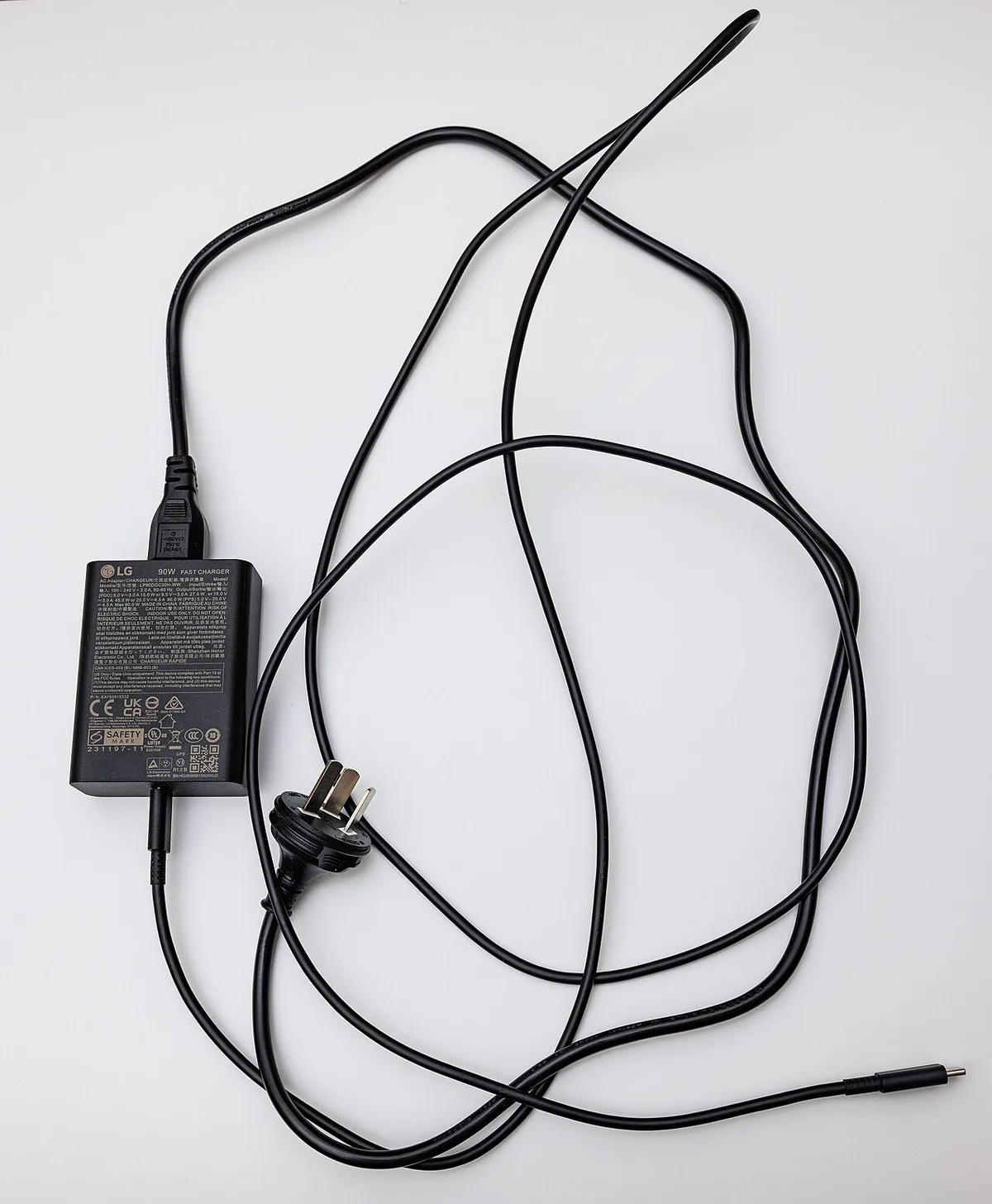
Image source: Wikimedia Commons / Dinkun Chen (CC BY-SA)
| Check | Good Sign | Bad Sign |
|---|---|---|
| Wall outlet | Other device works | No power to anything |
| Charger brick | No heat or smell | Hot, buzzing, or burnt |
| Cable | Firm connection | Loose, frayed, or bent |
| Laptop port | Steady charging light | Flickering or no light |
If the charger is damaged, stop using it. A swollen or leaking battery is also a fire risk. If you suspect battery damage, follow proper battery replacement steps instead of forcing a charge.
Battery, Hard Reset, and Power Cycle Branches
Once the charger passes, branch by battery type. Some gaming laptops have removable batteries. Many modern models seal the battery inside.
The correct reset method depends on access.
Use this if/then path:
- If the battery is removable, remove it, hold the power button for 15 seconds, then try AC power alone.
- If the battery is internal, disconnect AC power, hold the power button for 30 seconds, then reconnect AC power.
- If the laptop turns on without the battery, the battery or its cable may be the fault.
- If it still shows no power, the motherboard power circuit may be damaged.
- If it turns on but shuts off fast, overheating or a short may be present.
A hard reset can fix sleep death. That happens when the laptop appears off but the embedded controller is stuck in a low-power state. It is not the same as a Windows restart.
Windows restart needs the system to boot first.
Do not keep holding the power button for minutes. Fifteen to thirty seconds is enough for most models. Longer holds rarely help and can confuse the reset process.
If you need to open the chassis, use safe opening steps first. Internal batteries are lithium-ion packs. They can puncture, swell, or ignite if handled roughly.
Disconnect the battery cable before touching RAM or storage.
What the Lights, Fans, and Sounds Tell You
Small signals matter. A blinking charging LED is not random. Manufacturers use light patterns to show power, charging, and error states.
Your service manual is the best source for those codes.
Watch for these clues:
- Charging light on, power button dead: possible power button board or motherboard fault.
- Power light blinks in a pattern: often a RAM or BIOS error.
- Fan spins for one second: power reached the board, but startup stopped.
- No fan but lights on: possible cooling, firmware, or boot issue.
- Beep codes: usually memory or CPU initialization problems.
The power button board can fail even when the motherboard is fine. It is a small part with a cable, not a full board replacement. If the button feels mushy or stuck, that is a strong clue.
RAM problems can also stop POST. Power-On Self Test checks memory before the screen turns on. If a module is loose, the system may appear dead.
Remove and reseat RAM, then test one stick at a time. If you plan to upgrade later, review RAM upgrade steps before buying parts.
Storage failure is different. A bad SSD usually still lets the laptop power on. You may see a boot error or black screen with a cursor.
That points to Windows or the drive, not total power loss.
Hardware Checks: RAM, Storage, and Loose Connections
Only do this step if the laptop is out of warranty or you are comfortable opening it. Start with the easiest parts. Reseat RAM first.
Then check storage and internal cables.
Use this order:
- Disconnect AC power.
- Remove or disconnect the battery if possible.
- Ground yourself to reduce static discharge.
- Remove the bottom panel with the correct screwdriver.
- Reseat each RAM module until it clicks.
- Check the SSD or hard drive connection.
- Look for loose display or power cables.
- Reassemble and test on AC power only.
Do not force connectors. Laptop ribbon cables tear easily. If a cable has a locking tab, lift it first.
If the battery cable is glued or taped, follow the service manual.
This is also a good time to check for heat damage. Burnt smells, melted plastic, or dark spots on the board point to a power circuit fault. That usually needs professional repair.
If you find a swollen battery, do not puncture or compress it. Place the laptop in a safe, fire-resistant area and contact the manufacturer or a repair shop. For future care, review battery health protection tips so the replacement lasts longer.
A low-wattage charger can also create confusing symptoms. It may charge slowly while the laptop is off but fail during startup. If you recently changed chargers, check low-wattage charger risks before blaming hardware.
At this point, you have tested the outlet, charger, battery, reset path, lights, and basic hardware. If the laptop still has no power, the issue is likely deeper. That could mean a motherboard VRM fault, embedded controller failure, or liquid damage.
The next section covers software dead ends and when repair makes sense.
Software, Firmware, and Boot Recovery Dead Ends
Sometimes the hardware is fine but the system never reaches Windows. A corrupted BIOS or failed update can halt boot before the screen lights up. These cases look like dead hardware but need software recovery.
Try these steps if you see any lights or fan movement:
- Disconnect all peripherals and external displays.
- Boot into the manufacturer's recovery menu using the brand-specific key.
- Use Windows Recovery if the logo appears briefly.
- Flash the BIOS only if the manufacturer provides a recovery method.
- Reset CMOS by removing the small coin cell battery on the board.
A CMOS reset clears firmware settings. It can fix boot loops after a bad overclock or update. Remove the coin cell for 5 to 10 minutes, then reinstall it.
Some boards have a clear-CMOS jumper instead.
Do not flash BIOS from a random file. Use only the exact model number from the service manual. A wrong file can permanently brick the board.
If the laptop has no power at all, software recovery will not help.
Boot recovery also depends on storage health. A failed SSD can stop the boot process even when power is present. If you reach the BIOS but Windows never loads, check the drive in the firmware menu.
For storage guidance, review SSD upgrade steps before replacing anything.
If the system powers on but shows a black screen, try an external monitor. A failed display panel or cable can mimic a dead laptop. The GPU may be running fine while the screen stays dark.
Common Mistakes That Make a Dead Gaming Laptop Worse
Panic repairs often cause more damage than the original fault. The biggest mistake is forcing a charger into a damaged port. That can snap the port off the motherboard.
Avoid these common errors:
- Using a non-matching charger with the wrong wattage.
- Opening the chassis while the battery is still connected.
- Removing RAM or SSDs without grounding yourself.
- Shorting the motherboard with a screwdriver.
- Ignoring a swollen battery.
- Pouring liquid cleaners near vents or ports.
A lower-wattage charger will not always start a gaming laptop. It may charge slowly while off but fail under load. If you recently switched chargers, check low-wattage charger risks before buying new parts.
Static discharge can kill a motherboard silently. Touch a grounded metal surface before opening the chassis. Use a simple anti-static wrist strap if you have one.
Work on a hard surface, not a carpet.
Liquid damage needs special care. Do not power it on to test. Disconnect the battery if you can do so safely.
Let it dry for 48 hours in a dry space. Rice does not fix internal corrosion. A repair shop can clean the board with proper tools.
Another mistake is skipping the service manual. Each model has different screw locations and cable routing. Find your gaming laptop service manual before removing panels.
That prevents broken tabs and stripped screws.
Repair vs. Replace: Cost, Warranty, and Next Steps
Once basic checks fail, decide whether repair makes sense. Age, warranty status, and part cost all matter. A three-year-old budget laptop may not justify a $400 motherboard repair.
Compare your options:
| Situation | Best Path | Why |
|---|---|---|
| Under warranty | Manufacturer service | Covered repair or replacement |
| Minor part failure | Local or DIY repair | Lower cost, faster turnaround |
| Motherboard fault | Professional repair | Needs board-level tools |
| Severe liquid damage | Replace or claim insurance | Repair cost often exceeds value |
| Older low-end model | Replacement | Parts may be unavailable |
Motherboard repairs can cost $200 to $600 depending on region and model. A new mid-range gaming laptop often starts around $900 to $1,200 as of 2026. Compare that to your current machine's value.
Warranty matters. Opening the chassis can void coverage on some models. Check the terms before removing screws.
If the laptop is under warranty, contact the manufacturer first.
If you choose repair, ask for a diagnosis before approving work. A good shop will quote before replacing parts. Ask whether they test the charger, battery, and RAM before blaming the board.
If you choose replacement, back up data first if possible. Remove the SSD and place it in an external enclosure. That preserves files even if the laptop is dead.
For future prevention, keep vents clear and avoid gaming on soft surfaces. Dust buildup raises temperatures and stresses power circuits. Clean fans every few months with compressed air.
A cooling pad helps but does not fix a clogged heatsink.
Frequently Asked Questions
Why does my gaming laptop show no lights at all?
No lights usually mean no power is reaching the motherboard. Test the wall outlet and charger first. A dead battery or failed power button board can also cause this.
If the charger and outlet work, the issue may be internal.
Can a dead battery stop a gaming laptop from turning on?
Yes. Some laptops will not boot with a failed battery even on AC power. Remove or disconnect the battery and try AC power alone.
If it boots, the battery is likely the fault. Replace it following proper battery replacement steps.
How long should I hold the power button for a hard reset?
Hold it for 15 to 30 seconds. This drains residual charge and can clear a stuck embedded controller. Longer holds rarely help.
If nothing changes after two tries, move to charger or hardware checks.
Is it safe to open a gaming laptop myself?
It can be safe if you follow the service manual and disconnect power first. Use the right screwdriver and avoid forcing cables. If the laptop is under warranty, opening it may void coverage.
When unsure, seek professional help.
Can a bad RAM stick prevent startup?
Yes. A loose or failed RAM module can stop POST before the screen lights up. Remove and reseat each stick.
Test one module at a time in each slot. If the system boots, the removed stick or slot may be faulty.
When should I replace instead of repair?
Replace when repair costs exceed half the laptop's current value. Also replace if parts are unavailable or liquid damage is severe. For minor faults like batteries or chargers, repair is usually the better choice.
1 thought on “Why Won’t My Gaming Laptop Turn On? Fix It Now”
Comments are closed.