Low FPS can make even a powerful gaming laptop feel disappointing. A game that should look smooth may suddenly feel sluggish, stutter during fights, or drop frames after a few minutes of play.
The good news is that you often do not need a new laptop to improve gaming performance.
The biggest gains usually come from making sure the game is using the dedicated GPU, plugging the laptop into power, choosing the correct performance mode, reducing demanding graphics settings, enabling technologies such as DLSS or FSR, and preventing thermal throttling.
If you want to know how to increase FPS on a gaming laptop, start with the free fixes below before spending money on hardware upgrades.
Quick Answer: How Can You Increase FPS on a Gaming Laptop?
For the fastest results, try these steps first:
- Plug the laptop into its original power adapter.
- Switch to Performance, Turbo, or Gaming mode.
- Make sure the game is using the dedicated NVIDIA, AMD, or Intel GPU.
- Enable dGPU-only or MUX mode if your laptop supports it.
- Update your graphics driver.
- Close unnecessary background programs.
- Lower shadows, reflections, ray tracing, and other demanding settings.
- Enable DLSS, FSR, or XeSS in supported games.
- Improve airflow and check for thermal throttling.
- Set your display to its highest supported refresh rate.
- Check whether V-Sync, BatteryBoost, WhisperMode, or an FPS limiter is capping your frame rate.
Do not change everything at once. Make one or two adjustments, test the game again, and compare the results. That makes it much easier to identify what was actually limiting performance.
What Is FPS in Gaming?
FPS stands for frames per second. It describes how many individual frames your laptop renders every second.
A game running at 30 FPS produces 30 frames every second. At 60 FPS, it produces 60. Higher frame rates generally make movement look smoother and can improve responsiveness.
As a rough guide:
- 30 FPS is playable for many slower single-player games.
- 60 FPS provides a smooth experience for most players.
- 90–120 FPS feels noticeably more responsive.
- 144 FPS and above can be useful for competitive games when paired with a high-refresh-rate display.
More FPS is not always automatically better. Your display also needs to be capable of showing those frames.
FPS vs Refresh Rate: What Is the Difference?
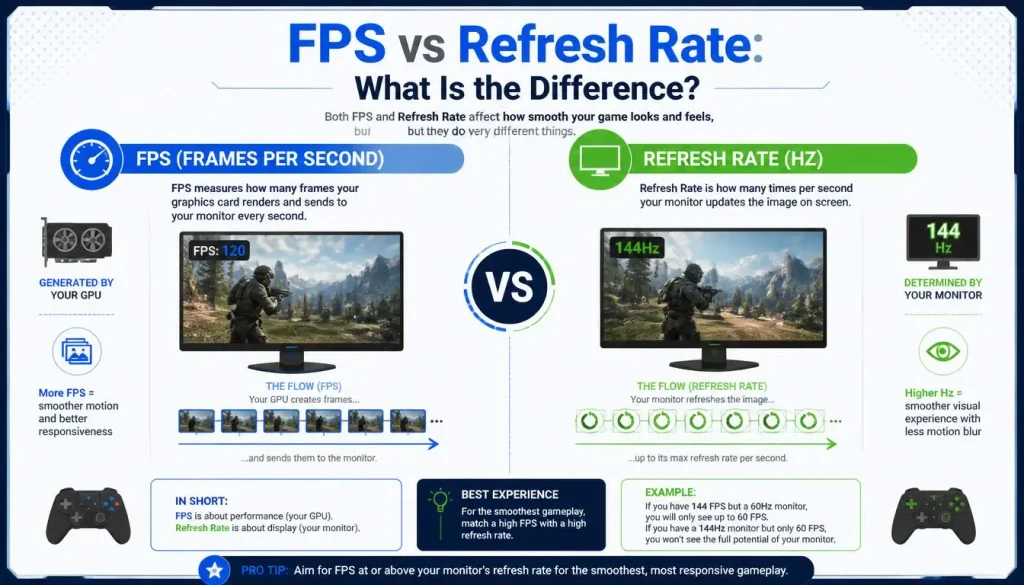
FPS is produced by your CPU and GPU.
Refresh rate, measured in hertz or Hz, describes how many times your screen can refresh each second.
A 144Hz laptop display can refresh up to 144 times per second. If your game is producing only 55 FPS, changing the display from 60Hz to 144Hz will not magically make the GPU produce 144 FPS.
However, if your laptop already renders 120 or 144 FPS while the screen is set to 60Hz, changing the refresh rate can let you see more of those frames.
Why Is My Gaming Laptop Getting Low FPS?
Before changing dozens of settings, it helps to understand what is causing the problem.
Low FPS on a gaming laptop commonly comes from one or more of the following:
- The game is running on integrated graphics instead of the dedicated GPU.
- The laptop is running on battery power.
- A quiet or power-saving profile is active.
- The CPU or GPU is overheating.
- Graphics settings are too demanding.
- The game is running at a very high resolution.
- Ray tracing is consuming too much GPU power.
- Graphics drivers are outdated or problematic.
- Background applications are using CPU or RAM resources.
- The system does not have enough RAM or VRAM.
- The game is CPU-limited.
- The laptop GPU has a restrictive power limit.
- V-Sync or another frame limiter is active.
- The game itself has optimization problems.
The right fix depends on the cause. A laptop that is overheating needs a different solution from one that is simply rendering a game at native 4K with ray tracing enabled.
How to Increase FPS on a Gaming Laptop
Here are the most useful optimizations to try, starting with the easiest.
1. Plug Your Gaming Laptop Into the Charger
This sounds obvious, but it is one of the first things worth checking.
Gaming laptops can consume far more power during heavy gaming than the battery alone is designed to supply continuously. Manufacturers therefore commonly reduce CPU and GPU power while the laptop is unplugged.
That can lead to noticeably lower FPS.
For the best gaming performance:
- Connect the laptop to its power adapter.
- Make sure the charger is properly connected.
- Use the original adapter or a replacement that provides the correct wattage.
- Confirm that Windows shows the laptop as charging.
USB-C charging can also be a problem on some performance laptops. A laptop may support USB-C charging for everyday use while still requiring its larger proprietary adapter for maximum gaming performance.
If your FPS is much lower on battery than when plugged in, that is usually normal behavior rather than a hardware fault.
2. Switch to Performance or Turbo Mode
Many gaming laptops provide several operating profiles.
Common options include:
- Silent
- Balanced
- Performance
- Turbo
- Extreme Performance
These modes can change CPU power limits, GPU power limits, fan behaviour, and sometimes the way the laptop switches between integrated and dedicated graphics.
For gaming, Performance or Turbo mode is usually the better choice.
Depending on the manufacturer, you may find the setting in software such as:
- ASUS Armoury Crate
- Lenovo Vantage
- Acer PredatorSense
- MSI Center
- Alienware Command Center
- OMEN Gaming Hub
- Gigabyte Control Center
Turbo modes can make the fans louder, so maximum performance is not always the best setting for quiet environments. For demanding games, however, the extra cooling and power headroom can help maintain higher clock speeds.
3. Make Sure the Game Is Using the Dedicated GPU
Most gaming laptops contain two graphics processors.
The integrated GPU, or iGPU, is built into the processor and is designed to use less power.
The dedicated GPU, or dGPU, is the NVIDIA, AMD, or Intel graphics processor intended for demanding workloads such as gaming.
If a game accidentally runs on integrated graphics, FPS can be dramatically lower.
In Windows 11, you can check the graphics preference by going to:
Settings > System > Display > Graphics
Find or add your game, open its options, and choose the high-performance GPU when appropriate.
You can also open Task Manager while the game is running and check which GPU is being used.
Do not assume that every game automatically selects the correct GPU, especially after driver changes, Windows updates, or game reinstalls.
4. Enable MUX Switch or dGPU-Only Mode
Some gaming laptops include a MUX switch.
A MUX switch allows the internal display to connect more directly to the dedicated GPU rather than always routing rendered frames through the integrated graphics system.
Laptop manufacturers may use different names for this feature, including:
- dGPU only
- Discrete GPU mode
- Ultimate mode
- NVIDIA GPU only
- Hybrid mode off
- MSHybrid off
Using dGPU-only mode can improve performance or reduce latency in some configurations, although the size of the improvement depends heavily on the laptop and game.
There is a trade-off: battery life is usually worse because the dedicated GPU remains active.
If your laptop supports NVIDIA Advanced Optimus or a similar automatic switching technology, it may be able to change display paths without requiring a manual reboot.
For gaming while connected to power, dGPU mode is worth testing.
5. Update Your Graphics Driver
Graphics drivers can have a major impact on gaming performance, compatibility, and stability.
New drivers may include:
- Performance optimizations for new games
- Bug fixes
- Shader improvements
- Support for new graphics features
- Fixes for crashes and visual problems
For NVIDIA GPUs, use the NVIDIA app or the manufacturer’s recommended driver source.
For AMD GPUs, use AMD Software: Adrenalin Edition where appropriate.
For Intel graphics, use Intel’s driver tools or your laptop manufacturer’s support page.
There is one important exception: newer is not automatically better in every situation.
If your FPS dropped immediately after installing a new driver, search for known issues or consider rolling back to a previously stable version.
Laptop manufacturers may also provide customized graphics drivers, so check the manufacturer’s support page if generic drivers create problems.
6. Turn On Windows Game Mode
Windows includes Game Mode, which is designed to prioritize the gaming experience and limit certain background interruptions while a game is running.
You can check it under:
Settings > Gaming > Game Mode
Turn it on and test your game.
Do not expect a huge FPS increase from Game Mode alone. On a well-configured gaming laptop, the difference may be small.
It is still worth enabling because it is easy to test and costs nothing.
7. Close Unnecessary Background Apps
Games compete with other applications for CPU time, RAM, storage activity, and sometimes GPU resources.
Before starting a demanding game, check whether you really need applications such as:
- Dozens of browser tabs
- Video editing programs
- Creative software
- Cloud synchronization tools
- Game launchers you are not using
- Recording applications
- RGB utilities
- Hardware monitoring tools
- Background downloads
Press:
Ctrl + Shift + Esc
to open Task Manager.
Look at CPU, Memory, Disk, and GPU usage.
If an unrelated application is consuming a large amount of resources, close it and retest the game.
Be careful with random “gaming optimization” guides that tell you to disable Windows services you do not understand. Removing necessary services can create more problems than it solves.
8. Disable Unnecessary Overlays and Recording Features
Gaming overlays are convenient, but they can occasionally contribute to stuttering or performance problems.
Common overlays include:
- Discord Overlay
- Steam Overlay
- Xbox Game Bar
- NVIDIA Overlay
- AMD Overlay
- Third-party FPS monitoring software
You do not need to permanently disable all of them.
Instead, if a game has unexplained stuttering or low FPS, temporarily disable overlays one at a time and test again.
Background recording deserves special attention. Recording gameplay continuously requires additional system resources and storage activity.
If you are not recording, disabling unnecessary capture features may reduce background load.
9. Lower the Most Demanding Graphics Settings
You do not need to set every graphics option to Low.
The smarter approach is to reduce the settings that cost the most performance while keeping settings that have little impact on FPS at higher values.
Start with:
- Ray tracing
- Shadows
- Volumetric lighting
- Reflections
- Global illumination
- Crowd density
- View distance
- Ambient occlusion
- Screen-space reflections
- Hair or simulation quality
Then test again.
Texture quality is different. It often depends more heavily on available VRAM than raw GPU processing power.
If you have enough VRAM, you may be able to keep textures relatively high even after reducing shadows and effects.
10. Lower the Resolution or Render Scale
Resolution has a direct effect on the number of pixels your GPU must render.
A game at 2560 × 1440 requires considerably more GPU work than the same game at 1920 × 1080.
If your GPU is the bottleneck, reducing resolution can provide a significant FPS increase.
Try:
- 4K to 1440p
- 1440p to 1080p
- Lowering render scale from 100% to 90% or 80%
Some games offer dynamic resolution, which automatically changes internal rendering resolution to help maintain a target FPS.
The downside is image quality. Lower resolutions can appear softer, especially on large high-resolution displays.
That is why modern upscaling technologies are often a better first choice.
11. Enable DLSS, FSR, or XeSS
Many modern games support intelligent upscaling.
The main technologies are:
- NVIDIA DLSS
- AMD FidelityFX Super Resolution, or FSR
- Intel XeSS
Instead of rendering every frame at the full output resolution, these technologies can render at a lower internal resolution and reconstruct a higher-resolution image.
This can significantly improve performance in GPU-limited games.
Common quality modes include:
- Quality
- Balanced
- Performance
- Ultra Performance
Start with Quality mode.
If FPS is still below your target, try Balanced.
Performance mode can provide a larger boost but may reduce image clarity, particularly at lower output resolutions.
For a 1080p display, aggressive upscaling can sometimes look too soft. At 1440p or 4K, it is generally easier to use stronger upscaling while retaining acceptable image quality.
12. Use Frame Generation When It Makes Sense
Frame Generation is different from normal upscaling.
Upscaling reduces the amount of work required to render the original frames.
Frame Generation creates additional frames between traditionally rendered frames.
In supported games and on compatible hardware, this can substantially increase the displayed frame rate.
However, generated frames do not solve every performance problem.
If the base frame rate is extremely low, the game may still feel sluggish despite a high FPS counter.
For that reason, Frame Generation is usually more attractive when the game already has a reasonably playable base frame rate.
It is particularly useful in demanding single-player titles with ray tracing.
For highly competitive games, many players prioritize native responsiveness and latency over maximum displayed FPS.
13. Reduce or Disable Ray Tracing
Ray tracing can dramatically improve reflections, shadows, lighting, and global illumination.
It can also be one of the heaviest graphics workloads in a modern game.
If FPS is too low:
- Reduce ray-tracing quality.
- Disable ray-traced reflections first.
- Reduce ray-traced lighting or global illumination.
- Enable DLSS, FSR, or XeSS.
- Test Frame Generation if supported.
For a mid-range gaming laptop, a combination of high traditional graphics settings and reduced ray tracing can often provide a better experience than using maximum ray tracing with an unstable frame rate.
14. Improve Cooling and Prevent Thermal Throttling
Gaming laptops operate in a compact chassis.
That makes cooling especially important.
As CPU and GPU temperatures rise, the system may reduce clock speeds or power consumption to remain within its thermal limits. This is known as thermal throttling.
A common symptom looks like this:
You start the game at 100 FPS, but after 10 or 20 minutes it falls to 70 FPS even though nothing in the graphics settings changed.
To improve cooling:
- Use the laptop on a hard, flat surface.
- Do not game on a bed, sofa, blanket, or pillow.
- Keep air vents unobstructed.
- Clean accumulated dust from accessible vents.
- Use the laptop’s Performance or Turbo fan profile.
- Consider elevating the rear of the laptop slightly.
- Consider a quality cooling pad if airflow is limited.
If you monitor temperatures, look at the complete picture rather than a single temperature number. High temperature combined with falling clock speeds and reduced power is a stronger sign of throttling.
Opening a laptop to replace thermal paste is not a beginner-level FPS tweak. If the machine is under warranty or difficult to service, professional maintenance may be the safer option.
15. Enable the Correct Display Refresh Rate
Some gaming laptops ship with 120Hz, 144Hz, 165Hz, 240Hz, or faster displays but may not always be configured exactly as expected.
In Windows 11, check:
Settings > System > Display > Advanced display
Then select the highest appropriate refresh rate supported by your panel.
Remember:
Changing from 60Hz to 144Hz does not force your GPU to produce 144 FPS.
It only allows the screen to display more frames when your laptop is capable of producing them.
Variable Refresh Rate technologies such as G-SYNC and FreeSync can also make gameplay appear smoother when FPS fluctuates.
16. Check Hardware-Accelerated GPU Scheduling
Some Windows systems provide a setting called Hardware-Accelerated GPU Scheduling, often shortened to HAGS.
Depending on your Windows version, GPU, and driver, you may find it under graphics default settings.
Do not assume it must always be enabled for gaming.
Its impact varies by system and game. On one laptop it may make little noticeable difference, while another configuration may behave better with it enabled or disabled.
The most reliable approach is simple:
- Benchmark the same game scene.
- Change the HAGS setting.
- Restart if Windows requests it.
- Repeat the same test.
- Keep the setting that produces better consistency on your system.
Focus on average FPS, 1% lows, and stuttering rather than only watching the highest FPS number.
17. Enable Optimizations for Windowed Games in Windows 11
If you play games in borderless or windowed mode, Windows 11 includes a setting called Optimizations for windowed games.
You can find it under:
Settings > System > Display > Graphics
It is designed for compatible games and can improve how some titles running in windowed or borderless modes present frames.
This does not mean borderless mode will automatically outperform exclusive fullscreen in every game.
The best option depends on the title, graphics API, and your Windows configuration.
If a game behaves poorly in borderless mode, compare:
- Exclusive fullscreen
- Borderless fullscreen
- Windowed mode
Use whichever provides the best combination of FPS, latency, stability, and convenience.
Best In-Game Settings to Increase FPS
If you want more FPS without making the game look terrible, adjust graphics settings in the right order.
Shadows
Shadows can be surprisingly demanding.
Moving from Ultra to High or Medium often provides a useful performance improvement without ruining image quality.
Reflections
Screen-space reflections and ray-traced reflections can have a significant GPU cost.
Reduce these before lowering textures.
Volumetric Effects
Fog, clouds, smoke, and volumetric lighting can place a heavy load on the GPU.
Medium settings often look close to Ultra while using fewer resources.
Ray Tracing
If you are struggling to maintain your target FPS, ray tracing should be one of the first major features you reduce.
Texture Quality
Textures mainly depend on available VRAM.
If your game is exceeding available VRAM, reduce texture quality.
If VRAM usage is comfortable, you may be able to keep textures relatively high.
View Distance
View distance can affect both the CPU and GPU depending on the game.
In large open-world titles, reducing it can help CPU-limited systems.
Crowd Density
Crowd density is often CPU-heavy.
If your GPU usage is surprisingly low while the CPU is heavily loaded, reducing crowd or simulation settings may improve performance.
Anti-Aliasing
Modern anti-aliasing techniques vary greatly.
If the game supports DLSS, FSR, or XeSS, these may replace or interact with traditional anti-aliasing.
Experiment rather than automatically setting everything to the lowest value.
Motion Blur
Disabling motion blur usually does not provide a massive FPS increase, but many players prefer the sharper image.
If you dislike the effect, turn it off.
Render Scale
A render scale below 100% reduces internal resolution and increases FPS.
Try modern upscaling first, because it can often produce better image quality than simple resolution scaling.
Low FPS vs FPS Drops vs Stuttering
These problems are related, but they are not the same.
Understanding the difference makes troubleshooting much faster.
Constant Low FPS
If FPS is consistently low from the moment you start the game, common causes include:
- Graphics settings are too high.
- Resolution is too high.
- The wrong GPU is being used.
- The GPU is not powerful enough for the selected settings.
- The game is CPU-limited.
- The laptop is in a low-power mode.
FPS Starts High and Then Drops
If performance is good at first but deteriorates after several minutes, investigate:
- CPU temperature
- GPU temperature
- Fan operation
- Power limits
- Charger connection
- Thermal throttling
This pattern often points toward heat or sustained power limits.
High FPS but Frequent Stuttering
A game can show an average of 100 FPS while still feeling unpleasant.
Possible causes include:
- Poor 1% lows
- Shader compilation
- RAM pressure
- VRAM pressure
- Background processes
- Storage delays
- Driver issues
- Game-specific bugs
That is why average FPS should not be your only measurement.
What Are 1% Low FPS Numbers?
Average FPS shows general performance.
1% low FPS helps show how smooth the worst-performing moments are.
For example:
Laptop A:
Average FPS: 120
1% low: 105
Laptop B:
Average FPS: 125
1% low: 55
Laptop B technically has a higher average FPS, but Laptop A may feel much smoother because its frame rate is more consistent.
When optimizing your laptop, pay attention to:
- Average FPS
- 1% lows
- Frame-time consistency
- Stuttering
- Input responsiveness
Do not chase a higher average FPS if it makes frame pacing worse.
Why Is My Gaming Laptop FPS Capped at 30, 60, or 120?
If your FPS refuses to go above an exact number, your laptop may not have a performance problem at all.
A frame-rate limiter may be active.
Check the following.
In-Game FPS Limit
Many games have settings such as:
- Maximum FPS
- Frame Rate Limit
- Menu FPS Limit
- Background FPS Limit
Make sure the value is not lower than you intended.
V-Sync
V-Sync can synchronize FPS with the display refresh rate.
On a 60Hz display, this may result in the game operating around 60 FPS.
V-Sync can prevent visible tearing, so disabling it is not automatically the best option.
If your display supports G-SYNC or FreeSync, you may prefer to configure adaptive sync instead.
NVIDIA Max Frame Rate
NVIDIA software can apply a per-game or global frame limit.
If your FPS is stuck at an exact value, check the NVIDIA app or Control Panel settings.
BatteryBoost
On supported NVIDIA gaming laptops, BatteryBoost is designed to manage gaming performance when unplugged and can operate around a target frame rate.
If you want maximum FPS, plug the laptop in and check whether battery-oriented gaming features are affecting performance.
WhisperMode
WhisperMode is designed to reduce laptop fan noise by balancing graphics settings, power use, and frame pacing.
That is useful when you want quieter gaming.
It is not necessarily what you want when chasing maximum FPS.
If your compatible NVIDIA laptop is running strangely close to a specific frame rate while plugged in, check whether WhisperMode is enabled.
Refresh Rate or Dynamic Refresh Settings
Also verify the Windows display refresh rate.
A display set incorrectly can create confusion when troubleshooting smoothness, even though refresh rate itself is not a GPU FPS limiter in every configuration.
Should You Disable V-Sync for More FPS?
It depends on what you want.
V-Sync can reduce screen tearing by synchronizing frame delivery with the display.
Possible disadvantages include:
- Additional latency in some situations
- FPS behaviour tied to refresh rate
- Less flexibility in competitive games
You may prefer V-Sync off if:
- You play competitive shooters.
- Input latency is your priority.
- Your FPS is well above the display refresh rate.
- You use another frame synchronization strategy.
You may prefer it on if:
- Screen tearing bothers you.
- You play slower single-player games.
- Smooth presentation matters more than minimum latency.
There is no single correct global setting for every gaming laptop.
Check Your GPU VRAM Usage
VRAM is the memory located on or allocated to the GPU for graphics workloads.
Games use VRAM for things such as:
- Textures
- Frame buffers
- Geometry
- Lighting data
- Ray-tracing data
If a game requires more VRAM than your GPU can comfortably provide, you may experience:
- Stuttering
- Texture pop-in
- Severe frame-time spikes
- Performance drops
High-resolution textures, ray tracing, and higher output resolutions can all increase VRAM use.
If VRAM is full, start by reducing:
- Texture quality
- Ray tracing
- Resolution
- High-resolution texture packs
Do not confuse VRAM with normal system RAM. They perform different jobs.
Upgrade RAM if Memory Is the Bottleneck
Will more RAM increase FPS?
Sometimes.
If your laptop already has enough system memory for the game, adding more RAM may provide little improvement in average FPS.
However, upgrading can help when:
- You only have 8GB and the game regularly uses more.
- Background applications are consuming a large amount of RAM.
- Your laptop is using a poor single-channel memory configuration.
- Integrated graphics depend heavily on system memory bandwidth.
- The game suffers from memory-related stuttering.
For modern gaming, 16GB is a practical baseline for many systems, while 32GB can be useful for demanding games, heavy multitasking, streaming, mods, and content creation.
Before buying RAM, check:
- Maximum supported capacity
- Number of slots
- Whether memory is soldered
- Supported speed
- Current channel configuration
Gaming laptops vary considerably.
Does Dual-Channel RAM Increase FPS?
It can.
Dual-channel memory increases available memory bandwidth compared with an equivalent single-channel configuration.
The benefit is especially noticeable in some CPU-limited games and systems using integrated graphics.
However, modern laptops can use different memory architectures, including soldered memory and newer DDR5 configurations, so old rules such as “two sticks always doubles performance” should not be applied blindly.
Check your exact laptop model before upgrading.
Does an SSD Increase FPS?
Usually, an SSD does not provide a dramatic increase in average FPS by itself.
An SSD is more likely to improve:
- Game loading times
- Level loading
- Asset streaming
- System responsiveness
- Texture loading
- Some forms of storage-related stuttering
If you are still gaming from an old mechanical hard drive, moving the game to an SSD can make the entire experience feel much better.
If you already use a healthy modern SSD, upgrading to an even faster SSD may have little effect on average FPS.
Understand Your Laptop GPU TGP and Power Limits
Two laptops can have GPUs with the same name and still perform differently.
Why?
Laptop performance depends on more than the GPU model.
Factors include:
- GPU power limit
- Cooling system
- CPU power allocation
- Chassis size
- Firmware
- Memory configuration
- MUX design
- Manufacturer tuning
This is particularly important when comparing gaming laptops.
An RTX-class GPU operating in a thin, power-limited laptop may behave differently from the same GPU family in a larger machine with more cooling capacity.
Performance or Turbo mode can sometimes allow the laptop to give the GPU more power, but you should not attempt to force unsupported wattage limits.
Respect the settings provided by the laptop manufacturer.
CPU Bottleneck vs GPU Bottleneck: How to Tell the Difference
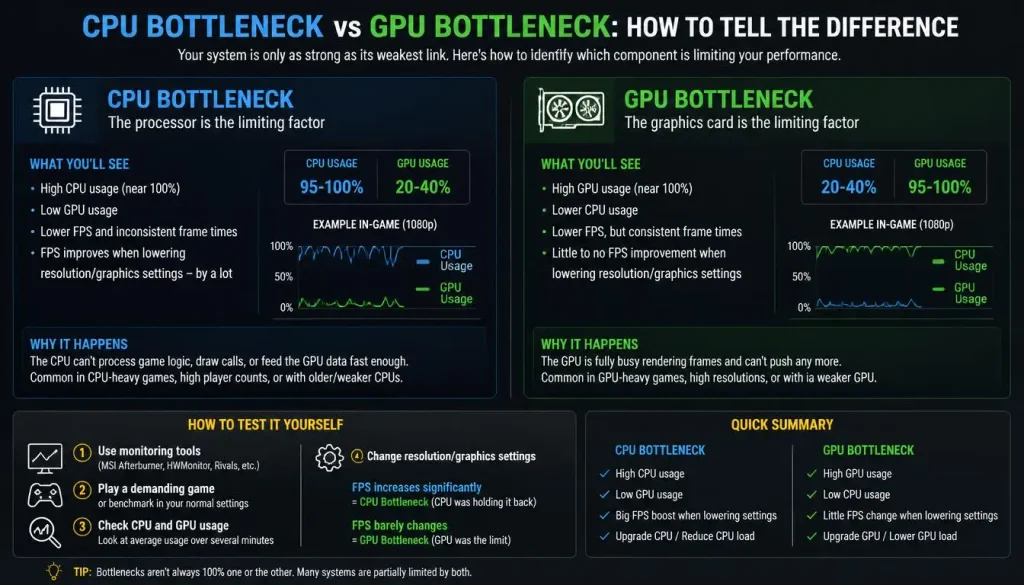
Before lowering every graphics setting, determine which component is limiting performance.
Signs of a GPU Bottleneck
Common clues include:
- GPU usage is consistently very high.
- Lowering resolution increases FPS noticeably.
- Lowering graphics settings improves FPS.
- The CPU still has available headroom.
What to try:
- Reduce resolution.
- Lower shadows and reflections.
- Reduce ray tracing.
- Enable DLSS, FSR, or XeSS.
- Lower GPU-heavy effects.
Signs of a CPU Bottleneck
Possible clues include:
- GPU usage stays well below its maximum.
- One or more CPU cores are heavily loaded.
- Reducing resolution barely changes FPS.
- FPS drops in crowded cities, large battles, or simulation-heavy scenes.
What to try:
- Lower crowd density.
- Reduce view distance.
- Reduce simulation quality.
- Close CPU-heavy background apps.
- Use the laptop’s performance profile.
- Check CPU temperatures.
Remember that Task Manager’s total CPU percentage can be misleading. A game may be limited by a small number of heavily loaded cores even when total CPU usage is far below 100%.
Best NVIDIA Settings for More FPS on a Gaming Laptop
If you have a GeForce gaming laptop, avoid copying random “best NVIDIA settings” lists without understanding them.
A few settings are worth checking.
Power Management
Use an appropriate high-performance setting for demanding games if your laptop and software provide one.
Do not automatically force maximum performance globally for every application because it can increase power consumption and heat.
Maximum Frame Rate
Check that you have not accidentally created a global or per-game FPS limit.
NVIDIA Reflex
Reflex is primarily a latency technology rather than a simple FPS booster.
In supported competitive games, it can help reduce system latency.
DLSS
Enable DLSS Super Resolution in supported games when GPU performance is limiting you.
Start with Quality mode.
Frame Generation
If supported by your GPU and the game, Frame Generation can increase displayed FPS substantially.
Treat it as an enhancement rather than a substitute for a healthy base frame rate.
Advanced Optimus
On compatible laptops, Advanced Optimus can switch the display between integrated and dedicated GPU paths.
If your laptop allows manual display-mode control, test the dedicated GPU mode for maximum gaming performance.
BatteryBoost and WhisperMode
These features prioritize battery life or acoustics rather than maximum unrestricted FPS.
If performance is your only goal, confirm that they are not limiting the game.
Best AMD Settings for More FPS on a Gaming Laptop
AMD gaming laptops may offer several useful technologies depending on the hardware.
AMD FSR
Use FidelityFX Super Resolution in supported games to reduce rendering load and improve FPS.
Radeon Super Resolution
RSR can provide driver-level upscaling in supported configurations when a game does not provide the upscaling option you want.
Radeon Anti-Lag
Anti-Lag focuses on responsiveness rather than simply producing more frames.
It can be useful when reducing input latency is important.
Radeon Boost
In supported situations, Radeon Boost can dynamically adjust rendering behaviour during fast motion to improve performance.
SmartAccess Graphics
Compatible AMD laptops may switch graphics paths to prioritize dedicated GPU performance when gaming.
Smart Access Memory
Compatible CPU/GPU platforms may use Smart Access Memory to improve data access between the processor and graphics memory.
The real-world improvement varies by title, so treat it as a platform optimization rather than a guaranteed large FPS increase.
Can an External Monitor Increase FPS on a Gaming Laptop?
Sometimes, but not because the monitor itself makes the GPU faster.
On certain gaming laptops, specific HDMI or DisplayPort outputs connect directly to the dedicated GPU.
If the internal display normally routes frames through integrated graphics, connecting an external monitor to a dGPU-connected output may bypass that route.
This can improve performance in some laptop designs.
It does not apply universally.
Before buying a monitor for this reason, check your laptop’s port wiring and manufacturer documentation.
An external display can also reduce FPS if you switch to a much higher resolution.
For example, moving from a 1080p laptop screen to a 4K external monitor greatly increases the GPU workload.
What If Only One Game Has Low FPS?
If every other game runs well, do not immediately assume the laptop is faulty.
The problem may be specific to that title.
Try the following.
Update the Game
Game patches often contain performance and stability fixes.
Verify the Game Files
Launchers such as Steam and Epic Games provide tools to verify or repair installed game files.
Corrupted files can cause strange performance problems.
Reset the Graphics Settings
A configuration file or unusual setting may be causing the issue.
Return the game to default settings and test again.
Allow Shader Compilation to Finish
Some games compile shaders after installation, updates, or driver changes.
During this process, you may see temporary stuttering.
Check for Known Driver Problems
If the problem started immediately after a driver update, the latest driver may be involved.
Remove Problematic Mods
Mods can increase CPU, GPU, RAM, or VRAM requirements.
Test the game without them.
How to Troubleshoot FPS Drops Step by Step
If the previous fixes did not solve the problem, use a more systematic approach.
Step 1: Record Your Current Performance
Choose a repeatable game location or built-in benchmark.
Record:
- Average FPS
- 1% low FPS
- GPU usage
- CPU usage
- RAM usage
- VRAM usage
- CPU temperature
- GPU temperature
Step 2: Check the GPU
If GPU usage is consistently close to maximum, reduce GPU-heavy settings.
Step 3: Check the CPU
If GPU usage is low while CPU-heavy scenes cause FPS drops, investigate a CPU bottleneck.
Step 4: Check Temperatures
If clocks and FPS decline as the laptop heats up, cooling may be the problem.
Step 5: Check RAM and VRAM
If either memory pool is close to its practical limit, reduce usage or upgrade where possible.
Step 6: Test the Dedicated GPU Mode
If your laptop supports MUX or dGPU mode, compare performance.
Step 7: Test One Setting at a Time
Avoid changing 15 settings and then wondering which one worked.
Controlled testing gives you much better information.
Quick FPS Troubleshooting Table
| Symptom | Possible Cause | What to Try First |
|---|---|---|
| Very low FPS in every game | Wrong GPU or low-power mode | Select dGPU and plug in charger |
| FPS drops after several minutes | Thermal or power throttling | Check cooling and temperatures |
| GPU usage stays near maximum | GPU bottleneck | Lower graphics or enable upscaling |
| GPU usage is low but FPS is poor | CPU bottleneck or frame cap | Check CPU load and FPS limiters |
| FPS is exactly 30 or 60 | Frame-rate limiter | Check V-Sync, BatteryBoost, WhisperMode, game limits |
| High FPS but frequent stutter | Poor 1% lows, RAM, VRAM, shaders | Monitor memory and frame times |
| Game runs on integrated graphics | GPU selection issue | Set game to high-performance GPU |
| Only one game performs badly | Game-specific issue | Update, verify files, reset settings |
| FPS improves when laptop is cold | Thermal limitation | Improve airflow and fan mode |
| Good FPS but screen feels slow | Refresh-rate setting | Check Advanced Display settings |
Which Changes Usually Have the Biggest Impact?
The exact result depends on the laptop, but these fixes are generally worth prioritizing.
| Optimization | Possible Impact | Cost | Difficulty |
|---|---|---|---|
| Use dedicated GPU | High if game was using iGPU | Free | Easy |
| Plug into proper charger | High on power-limited laptops | Free | Easy |
| Enable Performance/Turbo mode | Low to High | Free | Easy |
| Enable MUX/dGPU mode | Low to High | Free | Easy |
| Lower graphics settings | High | Free | Easy |
| Lower resolution | High when GPU-limited | Free | Easy |
| DLSS/FSR/XeSS | High in supported games | Free | Easy |
| Reduce ray tracing | High | Free | Easy |
| Fix thermal throttling | Medium to High | Low | Medium |
| Close background apps | Low to Medium | Free | Easy |
| Upgrade RAM | Low to High if memory-limited | Paid | Medium |
| Upgrade SSD | Usually small for average FPS | Paid | Medium |
Things You Should Not Do Just to Gain FPS
Performance tuning can go too far.
Avoid blindly following guides that tell you to:
- Disable Windows security features without a clear reason.
- Delete system files.
- Install unknown “FPS booster” software.
- Disable dozens of essential Windows services.
- Flash an unofficial BIOS.
- Force unsupported GPU wattage.
- Overclock hardware without understanding temperatures and stability.
- Download modified graphics drivers from untrusted websites.
A few extra frames are not worth making the laptop unstable or insecure.
Should You Overclock a Gaming Laptop?
Overclocking can improve performance in some situations, but laptops are not desktops.
They have tighter:
- Thermal limits
- Power limits
- Cooling capacity
- Firmware restrictions
Some gaming laptops provide manufacturer-approved GPU tuning or performance profiles. Those are generally safer to experiment with than forcing unsupported settings.
Manual overclocking can lead to:
- Higher temperatures
- More fan noise
- Crashes
- Visual artifacts
- Reduced stability
For most users, proper cooling, correct power mode, better graphics settings, and upscaling should come before overclocking.
Quick Checklist to Increase FPS on a Gaming Laptop
Before launching your next game, run through this checklist:
- Plug in the laptop.
- Use the correct full-power charger.
- Enable Performance or Turbo mode.
- Confirm the game is using the dedicated GPU.
- Test MUX or dGPU-only mode if supported.
- Update the graphics driver.
- Update the game.
- Enable Windows Game Mode.
- Close unnecessary background applications.
- Disable unnecessary overlays if troubleshooting.
- Reduce ray tracing.
- Lower shadows, reflections, and volumetric effects.
- Enable DLSS, FSR, or XeSS.
- Test Frame Generation where supported.
- Check CPU and GPU temperatures.
- Keep laptop vents unobstructed.
- Set the display to the correct refresh rate.
- Check V-Sync and frame-rate caps.
- Check BatteryBoost or WhisperMode on supported NVIDIA laptops.
- Monitor RAM and VRAM.
- Compare average FPS with 1% low FPS.
Frequently Asked Questions
How Can I Increase FPS on My Gaming Laptop?
Start by plugging the laptop into power, selecting Performance mode, ensuring the game uses the dedicated GPU, updating the graphics driver, and reducing demanding graphics settings. If supported, enable DLSS, FSR, or XeSS. Also check temperatures because thermal throttling can reduce performance during long gaming sessions.
How Can I Increase FPS Without Upgrading My Laptop?
You can improve FPS without buying hardware by changing power mode, using the dedicated GPU, lowering graphics settings, reducing resolution, disabling unnecessary ray tracing, enabling upscaling, closing background apps, updating drivers, and improving cooling.
Why Is My FPS Low on a Good Gaming Laptop?
A powerful laptop can still deliver low FPS if it is running on battery, using integrated graphics, operating in Silent mode, overheating, running the game at excessive settings, or being limited by V-Sync or another FPS cap.
Does More RAM Increase FPS?
More RAM helps when insufficient memory is causing a bottleneck. If your laptop already has enough RAM for the game, adding more may have little effect on average FPS. Memory configuration and bandwidth can also matter.
Does a Cooling Pad Increase FPS?
A cooling pad can help when your laptop is losing performance because of high temperatures. If the CPU and GPU are already staying within their intended operating range without throttling, FPS improvement may be small.
Does an SSD Increase FPS?
Usually not by much. An SSD primarily improves loading times, asset streaming, and overall responsiveness. It may reduce some types of stuttering, especially compared with an old hard drive.
Does Windows Game Mode Increase FPS?
It may help system resource management and reduce background interruptions, but it should not be treated as a guaranteed large FPS boost. The effect depends on the system and game.
Does a MUX Switch Increase FPS?
A MUX switch can improve performance on some gaming laptops by allowing the dedicated GPU to drive the display more directly. The improvement varies significantly by laptop, game, and graphics configuration.
Does Lowering Resolution Increase FPS?
Yes, when the GPU is the main bottleneck. Lower resolution means fewer pixels need to be rendered. Modern upscaling technologies can often improve FPS while preserving better image quality than simply reducing output resolution.
Does VRAM Affect FPS?
Yes. If a game exceeds available VRAM, performance can suffer through stuttering, frame-time spikes, and reduced texture performance. Lowering texture quality, resolution, or ray tracing can reduce VRAM demand.
Why Does My FPS Drop After 10 Minutes of Gaming?
A gradual FPS drop may indicate thermal or power throttling. Monitor CPU and GPU temperatures, clock speeds, and power while gaming. Make sure vents are clear and the laptop is using its correct performance mode.
Why Is My Gaming Laptop Stuck at 60 FPS?
Check the in-game FPS limit, V-Sync, NVIDIA or AMD frame-rate controls, Windows display settings, BatteryBoost, WhisperMode, and manufacturer performance software. An exact FPS ceiling often points to a limiter rather than weak hardware.
Should I Use Fullscreen or Borderless Mode for More FPS?
It depends on the game and Windows configuration. Modern Windows versions optimize compatible windowed and borderless games much better than older versions did. Test both modes and compare FPS, frame times, and input latency.
Does an External Monitor Increase FPS on a Gaming Laptop?
It can on specific laptop designs if the external video port connects directly to the dedicated GPU and bypasses an integrated-GPU display path. However, this is not universal, and a higher-resolution external monitor can actually reduce FPS.
Is 60 FPS Good for Gaming?
Yes. Sixty FPS provides a smooth experience for most games. Competitive players may prefer 120, 144, 165, 240 FPS, or higher when their hardware and display support those frame rates.
How Can I Get 144 FPS on My Gaming Laptop?
You need enough CPU and GPU performance to render approximately 144 frames per second in the specific game. Use a high-performance power profile, dedicated GPU mode, lower graphics settings, appropriate resolution, and upscaling when available. Competitive games are generally easier to run at 144 FPS than demanding cinematic titles.
Is Frame Generation the Same as Real FPS?
Frame Generation creates additional displayed frames between traditionally rendered frames. It can make motion look significantly smoother, but generated frames do not replace the need for a healthy base frame rate. Input responsiveness is still influenced heavily by the game’s traditionally rendered frame rate and latency pipeline.
Final Thoughts
If you are trying to increase FPS on a gaming laptop, start with the changes that address the most common laptop-specific limitations.
Plug the laptop into power, select Performance mode, make sure the game is using the dedicated GPU, and test MUX or dGPU mode if available. Then update your drivers and optimize the most demanding graphics settings.
If the GPU is overloaded, lower resolution or enable DLSS, FSR, or XeSS. If performance starts high and falls later, investigate temperatures and thermal throttling. If FPS is locked to an exact number, look for V-Sync, BatteryBoost, WhisperMode, or another frame limiter.
Finally, do not judge gaming performance by average FPS alone. Smooth 1% lows, stable frame times, sensible temperatures, and responsive controls are often more important than chasing the highest possible number on an FPS counter.
The goal is not simply to make the FPS number bigger. It is to make the game consistently smoother, more responsive, and more enjoyable on the hardware you already have.