How bright should a gaming laptop screen be? For most buyers, 400 to 500 nits is the practical sweet spot. That range keeps games readable in a lit room without draining battery too fast.
It also leaves room for HDR highlights.
Nits measure luminance in candela per square meter. VESA DisplayHDR 400 is a common entry point for HDR certification. Manufacturer specs often list peak brightness, not sustained brightness.
The gap between those two numbers matters more than many shoppers expect.
how bright should a gaming laptop screen be
Aim for 400 to 500 nits for everyday gaming. Go 500 to 600 nits for bright rooms or HDR. Choose 300 nits only for dark rooms and long battery life.
Sustained brightness matters more than peak brightness.
Why Brightness Numbers Alone Don't Tell the Whole Story
Brightness specs look simple, but they hide a lot of context. A 500 nit panel can look great in one laptop and flat in another. The difference usually comes from how the panel sustains and controls that light.
Peak brightness is the highest flash a screen can reach. Sustained brightness is what it holds during a long gaming session. Many laptops can hit a high peak for a few seconds, then drop lower.
That drop can change HDR impact and battery use.
Surface finish also changes the result. A glossy screen can look sharper, but reflections can wash out the image. A matte screen cuts glare, yet it can soften contrast.
Room lighting matters as much as the nit rating.
Color volume is another hidden factor. A bright screen with weak color coverage can look pale. Panels with strong DCI-P3 coverage usually keep colors richer at higher brightness.
That is why brightness and color gamut should be judged together.
Automatic brightness limiters can reduce output during bright scenes. Local dimming can improve contrast, but it can also cause blooming. These effects are hard to see in a spec sheet.
| Spec Term | What It Really Means |
|---|---|
| Peak brightness | Short burst of maximum light |
| Sustained brightness | Light held during normal use |
| Color volume | Color strength at different brightness levels |
| ABL | Automatic reduction during bright scenes |
SDR vs HDR Brightness: What Actually Matters
SDR and HDR ask different things from a gaming laptop screen. SDR content usually looks balanced between 200 and 400 nits. HDR content needs brighter highlights to create depth.
For SDR gaming, 350 to 450 nits is usually enough. For HDR gaming, higher peak output matters more. A panel that reaches 600 nits or more can show stronger highlights.
It still needs good tone mapping to avoid crushed shadows.
VESA DisplayHDR certification gives a useful starting point. DisplayHDR 400 is entry level. DisplayHDR 600 and 1000 add stricter brightness and contrast rules.
Certification helps, but real reviews still matter.

Image source: Wikimedia Commons / David from Colorado Springs, United States (CC BY)
HDR mode can also make SDR content look wrong. Colors may shift, and brightness may feel off. Good laptops let you switch HDR on and off quickly.
That matters if you play both HDR and SDR games.
Battery use rises with HDR brightness. High luminance draws more power from the backlight or OLED pixels. If you game on battery, HDR can shorten session time.
Plugged-in play removes most of that concern.
| Mode | Typical Brightness Need | Main Tradeoff |
|---|---|---|
| SDR | 300 to 450 nits | Lower power use |
| HDR | 600+ nits peak | More battery draw |
| Battery play | 250 to 350 nits | Longer runtime |
Panel Types and How They Change the Brightness Experience
Panel type shapes how brightness feels. IPS panels are common and balanced. They usually offer good viewing angles and stable color.
Brightness is steady, but contrast is modest.
VA panels often have deeper blacks and stronger contrast. They can look rich in dark scenes. Some VA panels have slower response times, which matters for fast games.
OLED panels control light at the pixel level. Blacks look truly black, and HDR can feel dramatic. Peak brightness can be high, but sustained brightness may be lower.
Automatic brightness limiting can reduce output in bright scenes.
Mini-LED panels use many small backlight zones. They can reach high brightness and strong contrast. Blooming can appear around bright objects on dark backgrounds.
Zone count and tuning affect how noticeable that is.
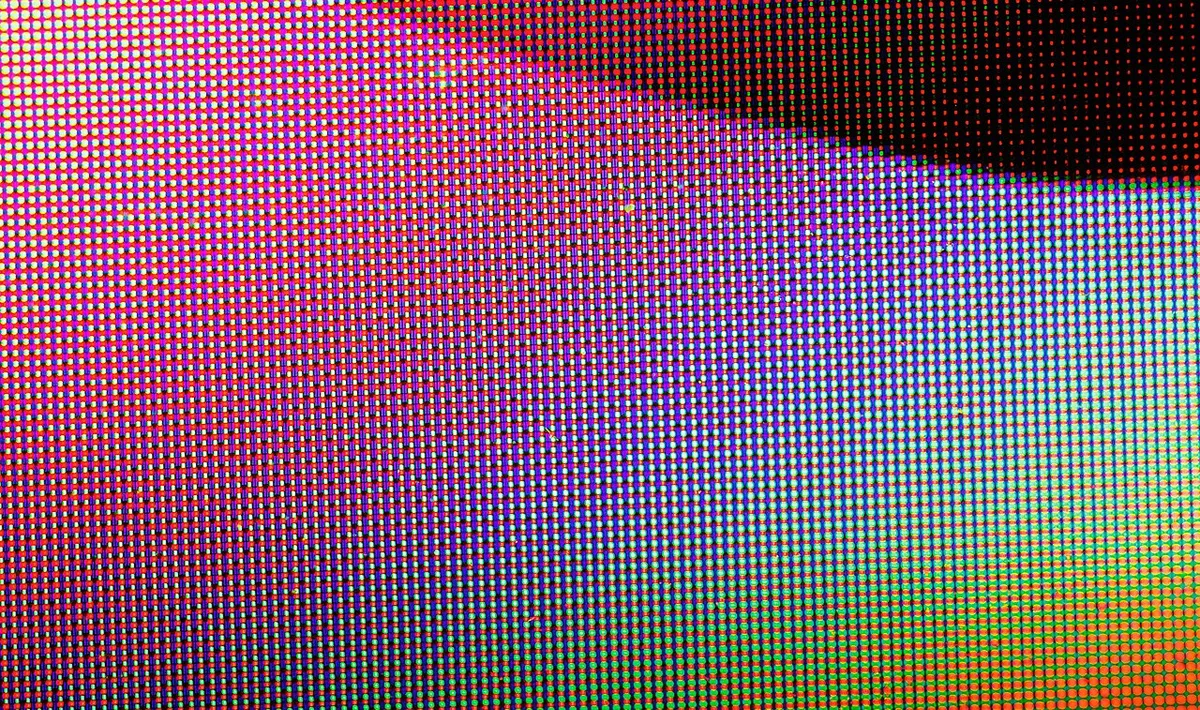
Image source: Wikimedia Commons / Dinkun Chen (CC BY-SA)
Glossy and matte finishes also change perception. Glossy screens can make colors pop, but reflections can hide detail. Matte screens reduce glare, but they can look slightly softer.
Neither finish is wrong. It depends on where you play.
| Panel Type | Brightness Strength | Main Caution |
|---|---|---|
| IPS | Stable and predictable | Lower contrast |
| VA | Deep blacks | Slower response |
| OLED | Pixel-level HDR | ABL and burn-in risk |
| Mini-LED | High peak output | Blooming |
Brightness by Real-World Use Case
The right brightness depends on where and how you play. A dark bedroom setup needs less light. A sunny living room needs more.
Competitive players may prefer consistency over maximum flash.
For dark-room gaming, 300 to 400 nits is often enough. Higher brightness can cause eye strain during long sessions. Lower output also helps battery life.
Color accuracy still matters.
For bright rooms, 500 to 600 nits is more useful. It fights glare and keeps HUD text readable. A matte finish can help here.
Glossy screens may need even higher brightness to overcome reflections.
For HDR gaming, peak output is the main goal. Look for 600 nits or more, plus strong local dimming or OLED contrast. Sustained brightness still matters for long cutscenes.
Marketing peak numbers alone are not enough.
For travel and battery play, lower brightness is smarter. Drop to 250 to 350 nits when unplugged. That can add meaningful runtime.
Graphics switching on battery can also affect power behavior, so check your laptop's mode.
For office or study use between games, 250 to 350 nits is comfortable. Eye comfort modes and blue light filters can help. Avoid running at maximum brightness all day.
| Use Case | Good Brightness Range | Extra Tip |
|---|---|---|
| Dark room | 300 to 400 nits | Lower eye strain |
| Bright room | 500 to 600 nits | Consider matte finish |
| HDR gaming | 600+ nits peak | Check sustained output |
| Battery play | 250 to 350 nits | Save power |
| Work between games | 250 to 350 nits | Use eye comfort mode |
Side-by-Side: 300, 400, 500, and 600+ Nits
Numbers make more sense when you see them compared directly. Each brightness tier suits a different player and a different room. None of them is automatically wrong.
300 nits works for dark rooms and long battery sessions. It keeps eye strain low during late-night play. Colors can look rich on a good panel at this level.
It struggles in daylight or near windows.
400 nits is the most common sweet spot. It balances readability and power use. Most mainstream gaming laptops land here.
It handles mixed lighting without draining the battery too fast.
500 nits adds real headroom for bright rooms. It keeps HUD text crisp under overhead lights. HDR highlights also gain more pop.
Battery life takes a moderate hit at this level.
600 nits and above is for HDR enthusiasts and bright environments. Highlights look punchy and detailed. Sustained output still matters more than peak numbers.
Battery drain rises sharply at these levels.
| Brightness Tier | Best For | Main Drawback |
|---|---|---|
| 300 nits | Dark rooms, battery play | Weak in daylight |
| 400 nits | Mixed lighting, daily use | Limited HDR impact |
| 500 nits | Bright rooms, casual HDR | Moderate battery cost |
| 600+ nits | HDR gaming, sunny rooms | High power draw |
Battery Life, Eye Strain, and the Hidden Tradeoffs
Brightness is not free. Every extra nit costs power and can affect comfort. The right choice balances visibility with endurance and eye health.
Higher brightness drains the battery faster. Backlight power rises with luminance on LCD panels. OLED panels also draw more power at high brightness.
Dropping to 250 to 350 nits can add real runtime.
Eye strain depends on brightness and room lighting together. A bright screen in a dark room can tire your eyes. A dim screen in a bright room forces you to squint.
Matching brightness to ambient light is the key.
PWM dimming can cause flicker at low brightness. Some users feel headaches or fatigue from it. DC dimming is gentler on sensitive eyes.
Check reviews if flicker bothers you.
Hybrid graphics mode can also affect power behavior. Some laptops route display output through the integrated GPU. That can change how brightness and battery interact.
You can learn more about switching between integrated and dedicated GPU modes if power management matters to you.
That choice can also affect brightness behavior on some models.
How to Test and Calibrate Brightness on Your Laptop
Calibrating brightness is easier than it sounds. You do not need expensive gear to get a good result. A few simple checks can improve comfort and accuracy.
Start by disabling adaptive brightness in Windows settings. Auto-adjust can fight your manual settings. It often dims the screen at the wrong time.
Set brightness manually instead.
Use a colorimeter if you want precise results. Devices like the Calibrite Display Pro measure luminance and color. They create a profile that corrects your panel.
Aggregate reviews report noticeable improvements on budget panels.
Check brightness in your actual gaming room. A number that looks great in a store can feel wrong at home. Test during the time of day you usually play.
Adjust until text and HUD elements feel comfortable.
Try this simple process:
- Disable auto-brightness in Windows and laptop software
- Set brightness to 50 percent
- Play a dark scene and a bright scene
- Raise or lower until both feel clear
- Save the setting as your default profile
In-game brightness sliders add another layer. Many games include their own adjustment tool. Set the laptop brightness first, then tune the game slider.
That prevents double adjustment.
VESA DisplayHDR certification can help you verify HDR capability. Check the official VESA database if you are unsure. Manufacturer specs sometimes list peak numbers that real testing does not match.
Cross-check with trusted review data before buying.
Mistakes Gamers Make When Judging Screen Brightness
Many buyers focus on the wrong number. They chase peak nits without checking sustained output. That leads to disappointment during long sessions.
Another common mistake is ignoring room lighting. A 600 nit screen in a dark room can feel harsh. A 300 nit screen in a bright room can feel washed out.
Match the panel to your space.
Glare is often overlooked too. A glossy screen can look stunning in a showroom. At home near a window, reflections can ruin the image.
Matte finishes are not flashy, but they are practical.
HDR mode gets misused as well. Turning it on for SDR games can distort colors and brightness. Switch it off when the content does not support HDR.
Quick toggling saves frustration.
Battery play is another blind spot. Gaming at maximum brightness drains power fast. Drop brightness when unplugged to extend sessions.
Power plans can help automate this.
PWM flicker is easy to ignore until it causes headaches. Some panels flicker at low brightness. If you feel eye fatigue, check reviews for flicker reports.
DC dimming panels are gentler on sensitive users.
Frequently Asked Questions
Is 300 nits enough for a gaming laptop?
300 nits is enough for dark rooms and battery play. It keeps eye strain low during long sessions. It struggles in bright rooms or near windows.
Upgrade to 400 nits if you play in mixed lighting.
Is 500 nits better than 400 nits for gaming?
500 nits adds real headroom for bright rooms and HDR. It keeps HUD text crisp under overhead lights. Battery life takes a moderate hit at this level.
For daily mixed use, 400 nits is usually the better value.
Does high brightness drain battery faster?
Yes, higher brightness drains battery faster on both LCD and OLED panels. Backlight power rises with luminance. Dropping to 250 to 350 nits can add meaningful runtime.
Power plans can automate brightness changes.
Is HDR worth it on a gaming laptop?
HDR is worth it if the panel reaches 600 nits or more with good contrast. OLED and mini-LED panels deliver the best HDR experience. Entry-level DisplayHDR 400 panels often disappoint.
Check sustained brightness and tone mapping before buying.
Can bright screens cause eye strain?
Yes, excessive brightness in a dark room can tire your eyes. A dim screen in a bright room forces squinting. Match brightness to your ambient lighting.
Eye comfort modes and blue light filters can also help during long sessions.
Should I calibrate my gaming laptop screen?
Yes, calibration improves color accuracy and comfort. Disable auto-brightness first, then set a manual level. A colorimeter gives precise results.
Even without one, testing dark and bright scenes in your actual room helps.
1 thought on “How Bright Should a Gaming Laptop Screen Be? Ideal Nits”
Comments are closed.