How to diagnose gaming laptop hardware problems starts with symptoms, not guesses. A black screen, sudden shutdown, or loud fan can point to different faults. Test one variable at a time.
This keeps you from replacing the wrong part.
Manufacturer specifications often list thermal limits near 95 to 105 C for CPU and GPU. That number gives you a useful baseline. If temps stay far below it, heat may not be the cause.
Start with safe checks, then move deeper.
how to diagnose gaming laptop hardware problems
How to diagnose gaming laptop hardware problems starts with symptoms, not parts. Rule out software first. Then test power, heat, memory, storage, and display one at a time.
Use built-in diagnostics and stress tests. Stop before opening the chassis if warranty applies.
Why Gaming Laptop Symptoms Are Easy to Misread
Gaming laptops hide heat, dust, and cable stress inside a thin chassis. A symptom can look like a dead GPU when it is only a loose RAM stick. That is why symptom lists alone are not enough.
Start with the simplest explanation before touching hardware. Update drivers, check vents, and confirm the wall outlet. If the issue only happens in one game, suspect software first.
Common misreads happen because several faults share one sign. The table below shows a safer first guess.
| Symptom | Often blamed | Better first check |
|---|---|---|
| Black screen | GPU failure | External monitor and cable |
| Sudden shutdown | Bad battery | Charger wattage and temps |
| Loud fan | Dying fan | Dust and thermal paste |
| Boot loop | Dead SSD | RAM reseat and BIOS reset |
If you see freezing mid-match, compare it with freezing during games before assuming hardware damage. A software loop can look like a hardware fault. That one check saves time.
The Conditions That Change Your Diagnosis Path
Your diagnosis path changes with warranty status, tools, skill level, and symptom pattern. A sealed chassis with active coverage needs a different first move than an older laptop. The same symptom can also change meaning based on load and temperature.
Check these variables before opening anything. They decide whether you test, clean, or book service.
- Warranty status and seal stickers
- AC adapter wattage rating
- Room temperature and desk airflow
- Recent drops, spills, or upgrades
- Whether the issue is constant or intermittent
- Whether fans spin during the fault
If the laptop is under coverage, document symptoms and use OEM diagnostics first. If it is out of warranty, you can try safe isolation steps. Keep receipts and error codes either way.
Age matters too. A three-year-old machine may need cleaning before any part replacement. A new machine with sudden power-offs may point to firmware or charger issues instead.
Image source: Wikimedia Commons / Kurt Kaiser
No-Power or No-POST Troubleshooting Branch
No power means no lights, no fan spin, and no response from the power button. No POST means lights or fans run, but the screen stays black and Windows never loads. Treat these as two separate branches.
For no power, verify the outlet, adapter, and DC jack first. Remove the battery if it is removable and test on adapter power only. If nothing changes, the fault may sit in the charging circuit.
For no POST, listen for beep codes and watch diagnostic LEDs. Reseat RAM and storage before assuming a dead board. A barebones test with one RAM stick and no drives can isolate the fault.
- Test a known-good outlet and adapter.
- Check for lights, fan spin, and beep codes.
- Remove all USB devices and external displays.
- Reseat RAM and SSD.
- Reset CMOS or BIOS settings.
- Try a minimal boot with one RAM stick.
If the machine still will not start, review no-power fixes before replacing parts. Many no-POST cases come from memory or firmware, not the motherboard. That distinction matters for cost.
Overheating, Fan Noise, and Thermal Throttling Branch
Heat problems show up as FPS drops, fan spikes, and hot keyboard areas. Start by checking temperatures under a real game load. Compare them with the thermal limits in the service manual.
Dust is the most common cause. A blocked heatsink can push CPU or GPU temps past safe ranges. Clean vents first, then consider deeper service.
If cleaning does not help, check thermal paste age and fan bearing noise. Coil whine can sound like a bad fan, so listen carefully. Use fan cleaning before assuming replacement is needed.
- Log CPU and GPU temps in C during a 15-minute game session.
- Check fan RPM and whether one fan stays at zero.
- Inspect vents for dust mats and pet hair.
- Compare idle temps before and after cleaning.
- Watch for thermal throttling warnings in monitoring software.
If temps stay high after cleaning, repaste timing becomes the next question. Old paste dries out and loses contact. Replacing it can help, but only after basic cleaning and airflow checks.
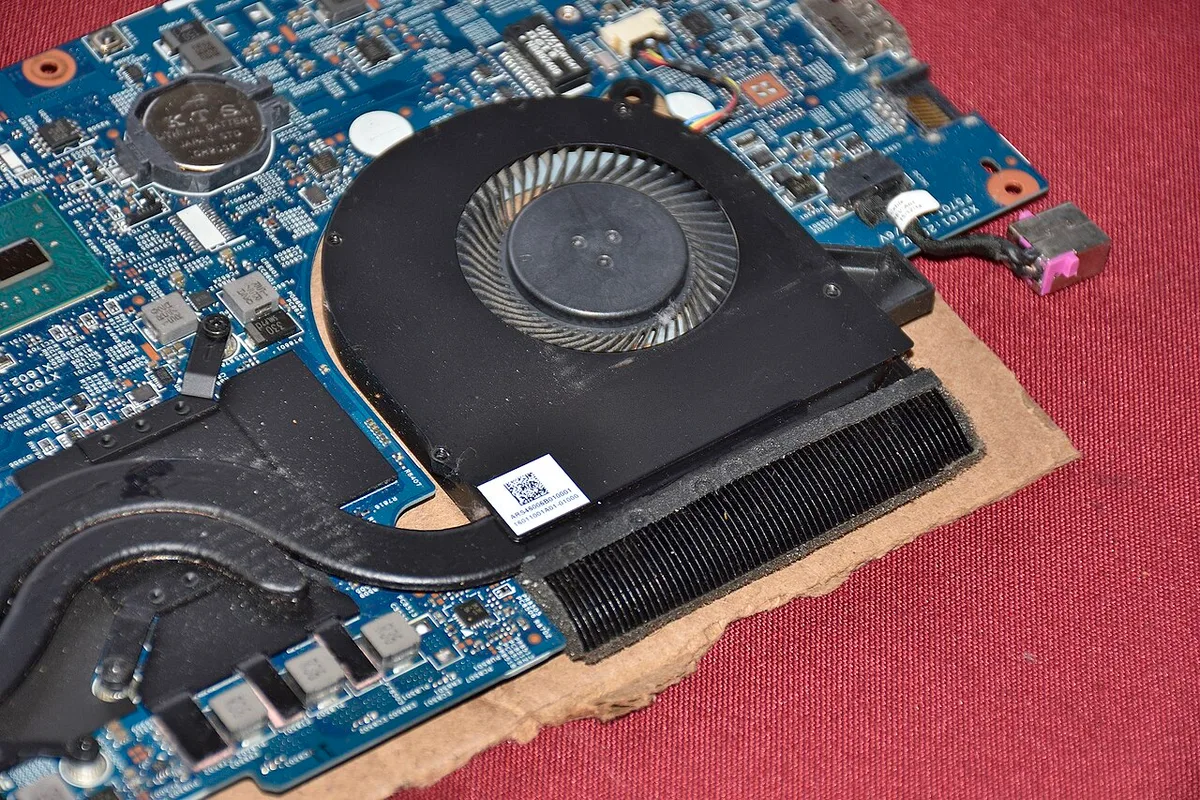
Image source: Wikimedia Commons / Saud (CC BY-SA)
Display Artifacts, Black Screen, and Panel Fault Branch
Display faults split into three groups. Artifacts point to GPU or VRAM issues. A black screen with backlight can point to panel or cable faults.
A totally dark panel may point to backlight or inverter problems.
Test with an external monitor first. If the external image is clean, the GPU may be fine. If both screens show artifacts, suspect the graphics subsystem.
Hinge stress can damage the eDP cable over time. Open and close the lid slowly while watching for flicker. That simple motion can reveal an intermittent cable fault.
- Check whether artifacts appear in BIOS, not just Windows.
- Test an external monitor at the same resolution.
- Inspect the hinge area for cable pinching.
- Look for backlight glow in a dark room.
- Check panel model and cable type in the service manual.
If the external display works but the built-in panel does not, the panel or cable is more likely than the GPU. For replacement questions, parts replacement helps set expectations. Some panels are easy to swap, while others need full top-cover work.
Image source: Wikimedia Commons / PantheraLeo1359531 (CC BY)
Safe Isolation Steps Before Replacing Parts
Safe isolation means changing one variable at a time. It keeps you from buying a part you do not need. It also protects data and warranty status.
Start with the least invasive tests. Then move to physical checks only if the symptom survives. If the laptop is under warranty, stop before opening the chassis.
- Test on a known-good outlet with the original adapter.
- Remove all USB devices, docks, and external displays.
- Boot into BIOS and check whether the fault appears there.
- Reseat RAM, SSD, and the Wi-Fi card if access is simple.
- Reset BIOS settings to defaults.
- Try one RAM stick in each slot.
- Run a clean boot and driver rollback in Windows.
- Check temps and clock speeds with HWiNFO64.
If the fault disappears during one of these steps, you found the trigger. If it survives all of them, hardware is more likely. At that point, compare the result with service manual guidance before opening anything.
A minimal boot is the most useful isolation trick. Remove extra drives, disconnect the battery if removable, and test with one RAM stick. If it still fails, the fault likely sits in CPU, GPU, or board-level power.
If it works, add parts back one at a time.
Before any screw comes out, check safe opening steps. Use an anti-static strap and the correct screwdriver size. Keep screws sorted by location.
Hardware Diagnosis Mistakes That Cost Time and Money
The biggest mistake is treating a software fault like a hardware failure. A bad driver can cause crashes, black screens, and boot loops. Clean the software side before you order parts.
Another common mistake is replacing the GPU when the issue is the cable, adapter, or panel. Artifacts in Windows but not BIOS often point to driver trouble. No image on both screens points higher up the chain.
- Buying parts before isolating the fault
- Ignoring charger wattage mismatch
- Skipping ESD protection
- Assuming coil whine means a dying fan
- Opening a sealed chassis under active warranty
- Testing only for five minutes and calling it fixed
- Mixing up Celsius and Fahrenheit temperature readings
- Using compressed air at full blast on fan blades
Intermittent faults need longer testing. Run stress tests for at least 30 minutes if the laptop stays stable. Log crashes, temps, and error codes.
That record helps with warranty claims and repair quotes.
Do not guess at battery health from runtime alone. Check cycle count and health percentage in OEM tools. A swollen pack needs professional handling, not continued use.
Repair, Replace, or Claim Warranty: The Final Decision
Choose repair when the part is cheap, available, and easy to swap. Choose replacement when the board is dead or the cost nears half the laptop value. Choose warranty when coverage still applies.
Age and parts availability matter as much as the fault. A two-year-old gaming laptop usually justifies a RAM, SSD, or fan repair. A five-year-old unit with a dead GPU may not.
| Situation | Best path | Why |
|---|---|---|
| Active warranty, no liquid damage | Claim warranty | Lowest risk and cost |
| Dead RAM or SSD, out of warranty | Repair | Cheap and targeted |
| Thermal paste or dust issue | Clean or repaste | Low cost, high payoff |
| Dead motherboard or GPU | Replace or part out | Repair often exceeds value |
| Swollen battery | Professional service | Fire risk |
As of 2026, many gaming laptops still use soldered CPU and GPU packages. That limits repair options for board-level faults. Check the service manual before promising a fix.
Data comes first in every decision. Back up the drive before any repair or replacement. If the drive is failing, recover data before chasing the hardware fault.
Frequently Asked Questions
How do I know if a gaming laptop problem is hardware or software?
Start with software checks. Update drivers, run a clean boot, and test in safe mode. If the fault appears in BIOS or survives a clean install, suspect hardware.
Log temps, errors, and crash codes before deciding.
What should I check first when a gaming laptop will not turn on?
Check the outlet, adapter, and power button response. Remove USB devices and external displays. Then try a minimal boot with one RAM stick.
If nothing changes, the charging circuit or board may be at fault.
Can overheating damage gaming laptop hardware?
Yes, sustained high heat can shorten component life. It can also cause throttling, shutdowns, and solder stress over time. Clean vents, monitor temps, and address paste degradation early.
Is it safe to open a gaming laptop for diagnosis?
It can be safe with the right tools and an anti-static strap. It is not safe if the battery is swollen or damaged. Opening may also void warranty coverage on sealed units.
When should I stop DIY diagnosis and use a repair shop?
Stop when you see liquid damage, swollen batteries, or board-level faults. Stop too if parts are soldered or unavailable. A shop can test voltage rails and source parts safely.
2 thoughts on “How to Diagnose Gaming Laptop Hardware Problems Fast”
Comments are closed.