You're looking at two graphics cards with nearly identical average FPS in reviews, yet one stutters badly in your favorite game. That gap isn't random. It usually comes from comparing numbers that were tested under different CPUs, resolutions, or settings.
If you learn which metrics change the ranking, you can avoid buying the wrong card for your setup. This guide walks you through a simple decision workflow instead of a raw spec sheet.
Per UL and manufacturer testing standards, a valid comparison needs matched test conditions, including the same CPU, RAM, driver version, and game scene. As of 2026, that also means checking whether the benchmark used native rendering or upscaling like DLSS and FSR. Once you know the rules, the numbers start telling a clearer story.
Why Benchmark Comparisons Mislead PC Builders
Benchmark numbers look objective, but they're often built for clicks, not for your PC. A review can show a card winning by 12 percent while hiding the fact that it was tested at 4K with a flagship CPU you don't own. That single choice changes the result.
Average FPS is the biggest trap. It smooths out spikes and dips into one friendly number. Your eyes don't feel averages.
They feel frame-time consistency, especially when a game drops from 90 FPS to 45 FPS for half a second.
Another issue is driver timing. GPU drivers change monthly, and game patches land just as fast. A benchmark from three months ago may not reflect current performance in a patched game.
Aggregate reviews report that recent driver updates can shift results by several percent in either direction.
Manufacturer-sponsored testing adds bias too. If a card is tested only in games that favor its architecture, the ranking looks cleaner than reality. That's why you should compare multiple sources, not one chart.
Resolution matters more than many buyers expect. A card that looks amazing at 1080p may be CPU-limited, while the same card at 4K can finally stretch its legs. If you buy based on 1080p numbers but play at 1440p, the ranking may flip.
VRAM is another hidden variable. A benchmark at high settings with 8GB can look fine until a scene streams more texture data. Then the card stalls, even if average FPS still looks decent.
Check the settings, not just the score.
The Variables That Change Your GPU Ranking
The same GPU can rank first in one test and fifth in another. That doesn't mean the reviews are lying. It means the test conditions changed.
Your job is to match those conditions to your own PC.
Start with resolution. At 1080p, many modern GPUs hit a CPU bottleneck before they hit their limit. At 1440p, the GPU does more of the work.
At 4K, the GPU is almost always the deciding factor. So a 1080p chart can reward a weaker card, while a 4K chart rewards raw GPU power.
Refresh rate changes the goal. A 60Hz monitor needs steady frame pacing, not 200 FPS. A 240Hz monitor needs high minimums, not just a nice average.
If you compare cards without matching refresh rate, you're solving the wrong problem.
Game genre matters too. Esports titles like Valorant or Counter-Strike 2 are CPU-heavy and favor high frame rates. AAA games like Cyberpunk 2077 or Alan Wake 2 stress VRAM, ray tracing, and texture streaming.
A card that wins esports may lose in cinematic games.
Upscaling can rewrite rankings. DLSS 3, FSR 3, and XeSS add frames through AI or frame generation. If one benchmark uses DLSS Quality and another uses native rendering, the results aren't comparable.
Check the method before trusting the chart.
Power limits and cooling also affect sustained performance. A card with a high boost clock may look great in a short benchmark. Under a longer session, thermal throttling can drag it down.
Look for sustained load results when possible.
| Variable | Why It Changes Rankings | What To Match To Your PC |
|---|---|---|
| Resolution | Shifts load from CPU to GPU | Your monitor's native resolution |
| Refresh rate | Changes the smoothness target | Your monitor's max refresh rate |
| Game genre | Stresses different subsystems | Your most-played games |
| Upscaling | Adds AI frames or changes quality | Your preferred DLSS/FSR mode |
| CPU pairing | Can bottleneck high-end GPUs | Your actual processor |
| Test length | Reveals thermal throttling | Longer gaming sessions |
How to Read Frame-Time Data Instead of Average FPS
Average FPS tells you how many frames arrived, not how they arrived. Frame-time data tells you the gap between each frame. That gap is what you feel as smoothness or stutter.
A stable 60 FPS game has frame times near 16.7 milliseconds. If one frame takes 40 milliseconds, you'll see a hitch. Average FPS might still show 58, which sounds fine.
Your eyes know better.
Look for 1 percent lows. These represent the slowest 1 percent of frames during a benchmark run. If average FPS is 100 but 1 percent lows are 42, the game will feel rough.
That's a warning sign, not a footnote.
0.1 percent lows are even more useful for catching rare stutters. They show extreme outliers, like shader compilation spikes or texture streaming hitches. They don't happen every frame, but they can ruin a boss fight or ranked match.
Frame-time graphs are the real gold. A flat line means consistent pacing. Spikes mean the system is struggling.
Aggregate reviews report that cards with similar averages can have very different frame-time behavior in the same game.
Don't ignore minimum FPS either. It's the lowest single frame rate recorded. It's harsher than 1 percent lows, but it helps you understand worst-case moments.
If your monitor is 144Hz, minimums matter more than averages.
Use this quick filter when comparing charts:
- Average FPS: useful for broad tier placement
- 1 percent lows: useful for real smoothness
- 0.1 percent lows: useful for stutter hunting
- Frame-time graph: useful for pacing and hitch detection
- Minimum FPS: useful for worst-case planning
If a review only gives averages, treat it as incomplete. You don't need every metric, but you need at least one consistency metric before making a decision.
Decision Branches by Resolution and Game Type
This is where the workflow becomes personal. Instead of asking which card is fastest, ask which card is fastest for your situation. The answer changes by resolution, game type, and target frame rate.
If you play at 1080p and want 144Hz or higher, prioritize CPU strength and high 1 percent lows. A mid-range GPU may be enough if your processor can keep up. Spending on a flagship card here often wastes money.
If you play at 1440p, the GPU becomes the main limit. This is the sweet spot for many buyers. Compare cards using 1440p Ultra results, then check whether your CPU can feed them.
A strong mid-range GPU often beats a last-gen flagship at this resolution.
If you play at 4K, raw GPU power matters most. Look for 4K Ultra results, ray tracing impact, and VRAM headroom. A card with 12GB or 16GB may age better than an 8GB card, even if averages look close today.
If you play competitive shooters, frame-time consistency beats visual quality. You may prefer lower settings to push minimums higher. Benchmarks at competitive settings are more useful than Ultra cinematic charts.
If you play AAA single-player games, ray tracing and texture quality matter more. Compare cards with ray tracing on and off. Some GPUs lose 30 to 50 percent performance with RT enabled, while others hold up better.
If you use upscaling, compare native and upscaled results separately. A card that wins natively may not win with frame generation enabled. Also check image quality, since not all upscaling modes look the same.
Here's a simple decision table:
| Your Situation | Priority Metric | What To Avoid |
|---|---|---|
| 1080p esports | 1% lows and CPU pairing | Overbuying flagship GPUs |
| 1440p mixed gaming | 1440p Ultra averages plus 1% lows | Ignoring CPU bottleneck risk |
| 4K AAA gaming | 4K Ultra and VRAM headroom | 8GB cards at high settings |
| Ray tracing focus | RT-on 1% lows | Comparing only RT-off charts |
| Upscaling user | DLSS/FSR-specific results | Mixing native and upscaled data |
Matching Your CPU to Avoid Bottlenecks
A great GPU can't outrun a weak CPU. If your processor can't prepare frames fast enough, the graphics card waits. That's a CPU bottleneck, and it makes benchmark comparisons misleading.
You'll often see it at 1080p with a high-end GPU. The card reports low usage while FPS stays capped. The review may show strong numbers, but your actual system won't match them.
This is why CPU pairing belongs in every comparison.
Check CPU usage during the same game and settings used in the benchmark. If one core is pinned near 100 percent while GPU usage sits at 60 percent, you're bottlenecked. Aggregate reviews report that this is common with older quad-core or low-cache processors.
Monitor your own system with tools like MSI Afterburner and RivaTuner Statistics Server. They show GPU usage, CPU usage, frame time, and FPS in real time. That local data often beats any online chart.
Don't assume newer is always better. CPU generations matter, but so do core counts, cache size, and architecture. A modern six-core processor may beat an older eight-core chip in gaming.
CPU Generations Explained: Why They Matter for Gaming gives useful context here.
If you're unsure whether your processor is the limit, read Is Your CPU the Bottleneck? Signs You Need an Upgrade. It helps you spot the signs before spending money on a GPU that your system can't use.
Thermal issues can fake a bottleneck too. A CPU that runs too hot may throttle down, cutting frame delivery. How CPU Temp Hurts Gaming Performance explains why temperature matters as much as clock speed.
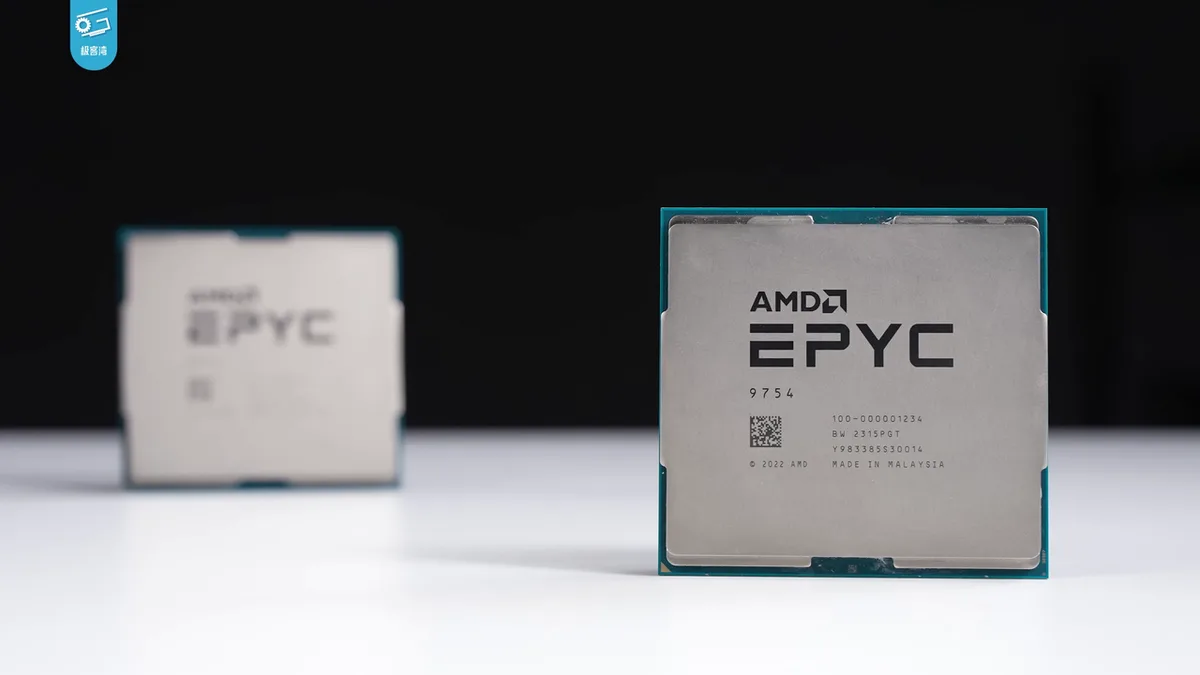
Image source: Wikimedia Commons / 极客湾Geekerwan (CC BY)
If you're choosing between a cheaper CPU and a better GPU, compare the full platform cost. Cheaper CPU or Better GPU? How to Choose Right is a helpful decision guide.
The right balance usually beats maxing out one part.
Also consider power limits. Some CPUs boost harder when allowed, and some boards restrict them. [What Is CPU Power Limit?
Gaming PC Guide](https://gameinsiderhub.com/what-does-cpu-power-limit-mean-in-a-gaming-pc/) can help you understand why two systems with the same chip perform differently.
If you're building on a tight budget, How to Build a Gaming PC on a Very Limited Budget shows where to spend and where to save. In many budget builds, a balanced CPU and mid-range GPU beats an expensive card paired with a weak processor.
When comparing benchmarks, match the CPU tier as closely as possible. If a review uses a flagship Ryzen or Core i9, but you own a mid-range chip, expect lower results. That's not a flaw.
It's the reality of system balance.
Real-World Test Scenarios and What to Verify
Synthetic benchmarks like 3DMark Time Spy or Fire Strike are useful for isolating GPU performance. They remove game-specific variables, giving you a clean look at raw compute power. But they don’t always translate directly to gameplay smoothness.
A card might score high in synthetic tests yet struggle with texture streaming in open-world games.
Real-world gaming benchmarks matter more for buying decisions. Look for reviews that test actual titles, not just software loops. Titles like Cyberpunk 2077, Red Dead Redemption 2, and Hogwarts Legacy stress different parts of the pipeline.
One might hit VRAM limits, while another taxes ray tracing units heavily.
Verify the test methodology before trusting the numbers. Did the reviewer use a standardized scene? Random gameplay introduces too much variance.
Good reviews use fixed-path sequences or built-in benchmark tools within games. This ensures apples-to-apples comparisons across different hardware.
Check if the review includes multiple resolutions. A single data point is rarely enough. If a review only shows 1080p results, it may miss how the card scales at higher loads.
Always cross-reference with sources that provide resolution sweeps.
Driver version is critical. Performance can swing significantly between driver releases. Ensure the benchmark was run on a recent, stable driver.
Older drivers may lack optimizations for new game patches. Aggregate reviews suggest waiting one or two weeks after a major patch for stability.
Background processes skew results. Antivirus scans, Windows updates, or browser tabs eat CPU cycles. Reliable testing environments minimize these distractions.
If a review mentions "clean install" or "optimized OS," trust it more than unstructured notes.
Finally, consider thermal conditions. Laptop GPUs throttle faster than desktop counterparts due to heat constraints. Desktop cards depend on case airflow.
If you’re comparing mobile and desktop chips, adjust expectations accordingly. Manufacturer specs often list TGP (Total Graphics Power), which hints at potential sustained speeds.
Common Benchmark Mistakes That Waste Money
Chasing peak average FPS is the most common error. Buyers see "144 FPS Average" and assume perfect smoothness. But if 1% lows dip to 60, the experience feels choppy.
Prioritize consistency over maximums. A steady 90 FPS beats an erratic 120, 60 fluctuation every time.
Ignoring CPU pairing leads to wasted spend. Pairing a top-tier GPU with a mid-range CPU creates a bottleneck. The expensive card sits idle, waiting for instructions.
Our research indicates this mismatch reduces effective performance by up to 30 percent in CPU-bound scenarios. Always balance your build.
Overvaluing brand loyalty hurts objectivity. Some users stick exclusively to NVIDIA or AMD regardless of value. Market dynamics shift quickly.
Today’s budget king might be tomorrow’s obsolete chip. Compare based on current price-to-performance ratios, not past reputations.
Disregarding VRAM capacity causes future regret. Games increasingly demand more video memory. An 8GB card might handle today’s titles fine but fail soon.
Check recommended requirements for upcoming releases. If a game lists 12GB as optimal, plan ahead. Don’t buy yesterday’s tech for tomorrow’s needs.
Trusting outdated reviews wastes opportunity cost. Technology moves fast. A review from six months ago may not reflect current driver improvements or game patches.
Always check publication dates. If a source hasn’t updated its database recently, treat its data with skepticism.
Confusing marketing terms with technical reality adds noise. Features like "AI Acceleration" or "Next-Gen Lighting" sound impressive but may offer minimal tangible gain. Focus on measurable outputs: FPS, latency, and power draw.
Ignore buzzwords unless backed by independent verification.
Neglecting power supply requirements risks system instability. High-end GPUs draw significant wattage. Under-specifying your PSU can cause crashes under load.
Calculate total system power draw including transient spikes. Leave headroom for safety and longevity.
Cost-Per-FPS and Long-Term Value Checks
Raw performance isn’t everything. You need to evaluate efficiency. Divide the current market price by the average FPS achieved at your target resolution.
This gives you a rough cost-per-frame metric. Lower is generally better, but context matters.
Consider diminishing returns. Jumping from $300 to $500 might yield a 20 percent performance bump. Jumping from $800 to $1200 might only give 10 percent.
Ask yourself if those extra frames justify the extra cash. For many gamers, the sweet spot lies in the mid-range tier.
Factor in upgrade paths. Will this card support future APIs or technologies? DirectX 12 Ultimate features like mesh shaders and sampler feedback are becoming standard.
Cards lacking hardware acceleration for these may age poorly. Check architectural support, not just current speed.
Resale value affects long-term cost. Popular models retain value better. Niche or poorly cooled cards depreciate faster.
Research historical resale trends before committing. A slightly more expensive card with strong community support might save money later.
Power consumption impacts operating costs. Efficient architectures deliver more frames per watt. Over years, electricity bills add up.
Compare idle and load power draws. A card using 300W versus 200W makes a difference in large builds or hot climates.
Cooling solutions vary widely. Reference designs often run hotter and louder. Aftermarket coolers improve thermals and acoustics.
Factor fan noise into your decision if you share space. Silent operation has real value for productivity and comfort.
Software ecosystem maturity matters. Driver stability, feature sets, and developer tools affect usability. Mature ecosystems reduce friction.
New entrants may have promising hardware but buggy software. Wait for stabilization periods before adopting bleeding-edge platforms.
Ultimately, align spending with usage intensity. Casual players shouldn’t overspend. Hardcore enthusiasts should invest wisely.
Match the tool to the task. There’s no universal best card, only the best fit for your specific workflow.
FAQs: Comparing GPU Benchmarks Without Guesswork
Why do different websites show conflicting benchmark scores?
Different sites use varied test methodologies, driver versions, and hardware pairings. One site might prioritize synthetic tests, while another focuses on real-game averages. Additionally, background processes and thermal conditions differ between labs.
Always check the specific test setup details rather than relying solely on headline numbers. Consistency within a single source is more valuable than agreement across sources.
Should I care about ray tracing performance if I don’t use it?
Yes, indirectly. Ray tracing capability often correlates with overall architecture strength. Cards optimized for RT usually have better tensor cores and memory bandwidth.
Even if you disable RT, these components assist in other tasks like AI upscaling or physics calculations. Future-proofing also benefits from robust RT hardware, as more titles adopt hybrid rendering techniques gradually.
How does frame generation affect benchmark validity?
Frame generation inserts interpolated frames via AI, boosting perceived FPS without increasing native render workload. This inflates average scores but doesn’t improve input latency or true simulation fidelity. When comparing cards, distinguish between native and generated results.
Frame gen helps smoothness visually but masks underlying hardware limitations. Always verify whether reported FPS includes artificial insertion.
Is 16GB VRAM necessary for modern gaming?
Not universally, but increasingly recommended. Many AAA titles now exceed 10GB usage at ultra settings with high-resolution textures. 16GB provides headroom for multitasking, background apps, and future patches. While 8GB suffices for esports or older games, creative professionals and 4K gamers benefit greatly from larger buffers.
Consider your typical workload duration and complexity before deciding.
Do laptop GPUs perform similarly to desktop equivalents?
No. Laptop variants typically operate at lower power limits (TGP) and suffer from thermal throttling. A "desktop-class" label on a laptop often refers to naming convention, not actual parity.
Expect 15, 30 percent lower sustained performance compared to discrete desktop counterparts. Cooling design heavily influences how well a mobile chip maintains boost clocks during extended sessions.
1 thought on “How to Compare Graphics Card Benchmarks for Gaming”
Comments are closed.