If you're upgrading RAM, the first thing to get right is form factor. UDIMM (unbuffered dual in-line memory module) is the standard desktop memory module, while SODIMM (small outline dual in-line memory module) is the compact version used in laptops and small systems. Buying the wrong one means it won't seat, won't boot, or both.
Manufacturer specifications and JEDEC standards define the physical differences clearly. For example, a DDR4 UDIMM is 288 pins and 133.35 mm long, while a DDR4 SODIMM is 260 pins and 67.6 mm long. Match the module to your device before you spend money.
what is the difference between udimm and sodimm memory
UDIMM is standard desktop memory. SODIMM is smaller laptop memory. They differ in size and pin count.
They use different slots. They are not interchangeable.
Why UDIMM vs SODIMM Actually Matters When You Upgrade RAM
The short answer is simple: your device only accepts one physical form factor. A desktop motherboard has long DIMM slots. A laptop has shorter SODIMM slots.
Get it wrong and the module won't install at all.
This matters most when people assume "DDR4 is DDR4" or "DDR5 is DDR5." The generation matters, but the shape matters first. A DDR4 SODIMM won't fit a DDR4 UDIMM slot, even though both are DDR4. The same is true for DDR5.
It also matters for cost and upgrade paths. Desktop UDIMM kits often offer higher capacities per module and more cooling options. Laptop SODIMM upgrades are more space-limited, but they're still one of the easiest ways to extend a notebook's life.
If you're unsure what your system takes, check board compatibility first before ordering anything. That one step prevents most bad purchases.
What UDIMM Memory Is and Where It Belongs
UDIMM stands for unbuffered dual in-line memory module. It's the full-size memory module you'll find in most desktop PCs, workstations, and some servers. "Unbuffered" means the memory controller talks directly to the DRAM chips without a register in between.
A UDIMM is 133.35 mm long, so it needs a standard DIMM slot. You'll see these slots on ATX, micro-ATX, and mini-ITX motherboards. They're also common in larger all-in-one PCs and some compact desktops that still use full-size boards.
UDIMMs are popular because they're widely available and cost-effective. They also tend to offer higher maximum capacities per stick. That makes them a strong fit when you want 32 GB, 64 GB, or more in a desktop.
The motherboard's memory support determines how many modules you can install and which speeds it will run. Always check the manual, not just the box.
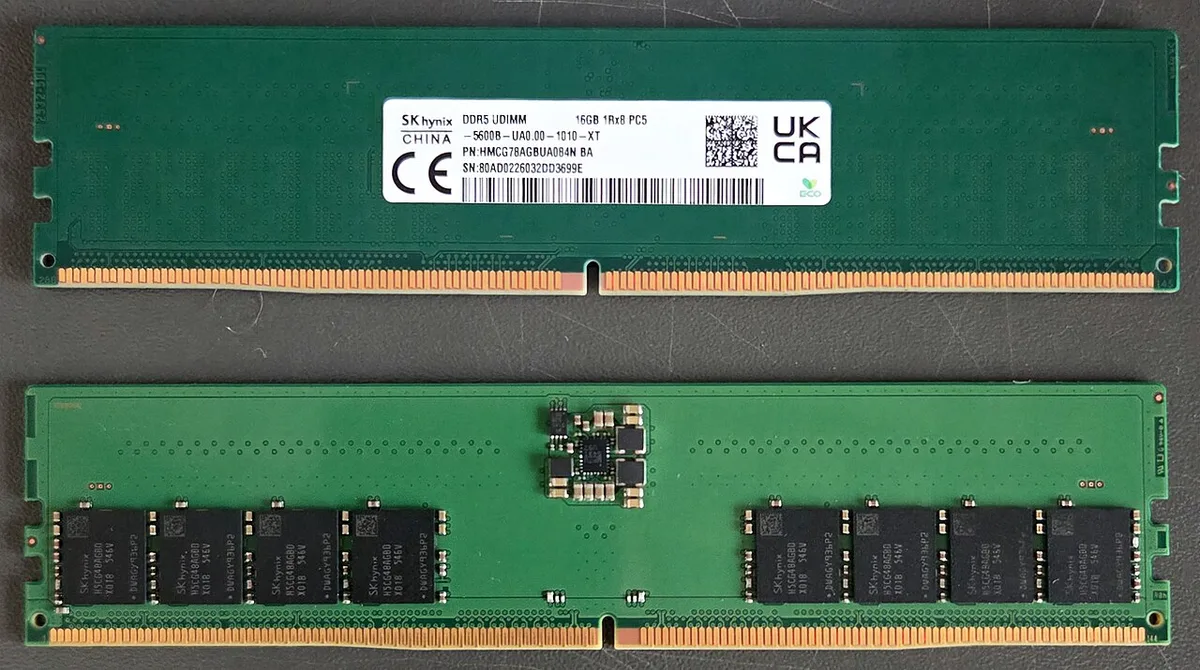
Image source: Wikimedia Commons / ITEagle Europe, Sebastiaan Broekhoven (CC BY-SA)
What SODIMM Memory Is and Where It Belongs
SODIMM stands for small outline dual in-line memory module. It's the shorter memory module used in laptops, mini PCs, and many compact devices. Think of it as desktop RAM compressed into a smaller footprint.
A standard DDR4 SODIMM is 67.6 mm long. That's roughly half the length of a UDIMM. The shorter body lets it fit beside batteries, cooling fans, and thin chassis designs.
You'll find SODIMMs in most laptops, many small form factor PCs, network appliances, and some embedded systems. Some routers, NAS devices, and industrial computers also use them. So "laptop RAM" is a useful shortcut, but it's not the whole story.
SODIMM upgrades are often the easiest laptop improvement. If your notebook has removable memory, swapping in a larger or faster SODIMM kit can add years of useful life. Just confirm the slot count and maximum supported capacity first.

Image source: Wikimedia Commons / Raimond Spekking (CC BY-SA)
Side-by-Side Specs: UDIMM vs SODIMM
Here's the practical comparison most buyers need. The numbers below are common DDR4 values, but the pattern stays similar across generations.
| Feature | UDIMM | SODIMM |
|---|---|---|
| Typical use | Desktops, workstations | Laptops, mini PCs, compact devices |
| Module length | 133.35 mm | 67.6 mm |
| DDR4 pin count | 288 pins | 260 pins |
| DDR5 pin count | 288 pins | 262 pins |
| Common max per module | 32 GB to 64 GB+ | 16 GB to 64 GB |
| Cooling room | More | Less |
| Cost per GB | Usually lower | Usually higher |
The key takeaway is that the modules are not interchangeable. The notch position, pin count, and slot length all prevent mixing. If a module looks too long or too short, stop.
That's your compatibility warning.
Capacity also depends on the system, not just the stick. A motherboard may support 128 GB total but only with certain module sizes. Check how much capacity you need before chasing the biggest kit.
DDR Generations, Voltage, and ECC: The Details That Trip People Up
Form factor is only the first filter. You also need the right DDR generation. DDR4 and DDR5 use different keying and speeds, so they won't physically fit in the wrong slot.
DDR3 and DDR4 are also incompatible.
Voltage matters too. Many DDR4 modules run at 1.2V, while older DDR3 desktop memory often runs at 1.5V. DDR3L low-voltage modules run at 1.35V and may work in some boards that accept both.
As of 2026, DDR5 systems commonly use 1.1V. Mixing voltages can cause instability or prevent booting.
ECC is another detail people miss. ECC (error-correcting code) memory can detect and correct certain data errors. It's common in workstations and servers, but most consumer gaming PCs use non-ECC memory.
A non-ECC board usually won't run an ECC module properly, and an ECC board may require ECC memory.
Speed is the last piece, not the first. Memory speed and latency affect performance, but only after form factor, generation, voltage, and ECC are correct. If you want to go deeper, read about DDR4 and DDR5 differences and memory speed matters once the basics are settled.
Official standards from JEDEC define many of these electrical and physical rules. Device manuals and manufacturer spec sheets are the final authority for your specific system.
Best Memory Form Factor for Each Use Case
Choose based on the device, not preference. Desktops and towers use UDIMM. Laptops and compact systems use SODIMM.
That's the first decision, and it's usually non-negotiable.
Desktops and gaming PCs
Desktop motherboards use full-size DIMM slots. UDIMM modules are easier to cool and often cheaper per gigabyte. They also support higher capacities in many boards.
If you're building or upgrading a gaming PC, UDIMM is almost always the right choice.
Laptops, mini PCs, and SFF systems
SODIMM is the right fit here. The shorter module clears tight spaces and fits beside cooling hardware. Some mini PCs use two SODIMM slots, while others solder memory in place.
Check the service manual before buying.
Workstations and servers
Many workstations still use UDIMM, but some require RDIMM or ECC UDIMM. Servers more often use registered memory. The form factor may still be UDIMM length, but the electrical type changes.
Match the platform exactly.
Specialty and embedded devices
Routers, NAS units, industrial PCs, and some all-in-one machines may use SODIMM. A few use MicroDIMM. These systems often have strict capacity limits.
Manufacturer specs matter more than general advice.
If you're choosing a motherboard for a new build, match the board to your CPU and memory plan at the same time. Memory and socket compatibility shape the whole build.
Common Mistakes to Avoid When Buying or Installing RAM
Most memory mistakes are simple, but they can waste money fast. Here are the ones we see most often.
- Buying by DDR generation only. DDR4 SODIMM and DDR4 UDIMM are different. The generation doesn't make them interchangeable.
- Ignoring voltage. A 1.5V module may not behave like a 1.2V module. Low-voltage boards can be picky.
- Mixing ECC and non-ECC memory. Most consumer boards want non-ECC. Some workstations require ECC.
- Assuming all laptops are upgradeable. Many thin laptops solder RAM to the board. SODIMM slots may not exist.
- Forcing a module. If it doesn't seat easily, stop. Check orientation, keying, and slot type.
- Skipping the manual. Capacity limits and supported speeds are listed there.
- Mixing speeds and ranks without checking. It may work, but it often runs at the slowest speed.
If your system won't boot after an upgrade, remove the new module and test one stick at a time. That isolates a bad module or slot quickly. For broader upgrade planning, know when a motherboard upgrade makes sense.
How to Check Compatibility Before You Buy
Do this before checkout. It takes five minutes and prevents most returns.
- Identify your device model. Use the exact model number, not just the brand.
- Check the official manual or support page. Look for memory type, form factor, DDR generation, voltage, and ECC support.
- Confirm slot count. Some systems have one slot. Others have two. A few have soldered memory plus one slot.
- Check maximum capacity per slot and total. A 32 GB stick may not be supported even if the slot exists.
- Match speed to the board. Faster memory can downclock. Unsupported profiles may not enable automatically.
- Verify XMP or EXPO support if you want advertised speeds. Not every board enables overclocked profiles. You can learn more about XMP on Intel boards and EXPO on AMD boards.
- Compare your current module. Remove it and read the label. Match form factor and generation first.
If the manual is unclear, use the motherboard or laptop model in the manufacturer's memory finder. Crucial and Kingston offer tools that match by system model. Treat those results as a starting point, not a guarantee.
For a new build, choosing the right motherboard should include memory support from the start.
Final Recommendation: Which Memory Form Factor Should You Choose?
Choose the form factor your device requires. For desktops, that's UDIMM. For laptops and most compact systems, that's SODIMM.
There is no universal better option. There is only the option your slots accept.
After form factor, match DDR generation, voltage, and ECC support. Then choose capacity and speed based on your workload. Gamers, creators, and multitaskers benefit from more capacity.
Faster speeds help in some games and apps, but only after the basics are right.
If you're upgrading a laptop, check whether memory is soldered first. If it is, no SODIMM upgrade will help. If it isn't, a memory upgrade is one of the best value improvements you can make.
For desktop builds, leave room for future upgrades when possible. Two slots filled today may limit tomorrow. A balanced kit often beats maxing out one slot.
In short: match the physical module first, then the electrical specs, then the performance tier. That order keeps the upgrade simple and safe.
Frequently Asked Questions
Can I use UDIMM in a laptop?
No. Laptops use SODIMM slots. The physical size and pin count differ.
A UDIMM won't seat in a SODIMM slot.
Can I use SODIMM in a desktop?
Usually no. Desktop boards use UDIMM slots. Some compact desktops may use SODIMM, but standard ATX boards do not.
Are UDIMM and SODIMM the same speed?
They can be the same speed within a generation. A DDR4-3200 UDIMM and DDR4-3200 SODIMM share the same data rate. Speed depends on the module and board.
Does SODIMM perform worse than UDIMM?
Not inherently. Performance depends on capacity, speed, latency, and channel setup. The form factor itself isn't the bottleneck.
Can I mix UDIMM and SODIMM?
No. They use different slots and are not interchangeable. Even in systems with both, they serve different purposes.
How do I know which one I need?
Check the manual or model support page. Look for memory type, form factor, and slot count. Reading the label on your current module also helps.