Your gaming PC shutting down under load is one of the most frustrating problems a builder can face. The screen goes black, fans spin down, and there's no error message to explain what happened. Why does a gaming pc shut down under load?
In most cases, it's the system protecting itself from damage.
The trigger is usually thermal, electrical, or both. Manufacturer specifications indicate that modern CPUs and GPUs cut power instantly when they hit their thermal or electrical limits. As of 2026, high-wattage GPUs and power-hungry CPUs make borderline power supplies the most common culprit.
Let's walk through how to find your specific cause.
why does a gaming pc shut down under load
A gaming PC shuts down under load when a protection circuit trips. The system cuts power to prevent damage from heat or excess current. Common triggers include an overloaded PSU, overheating, failing VRMs, or loose cables.
Check temperatures and Event Viewer logs first to narrow it down.
Why Your Gaming PC Shuts Down the Moment You Push It
A shutdown under load is not a crash. A crash shows a blue screen or an error dialog. A shutdown means the system lost power or killed it on purpose.
That distinction matters because it points you toward hardware, not software.
When you launch a demanding game, your CPU and GPU draw far more power than at idle. The power supply unit (PSU) must deliver that surge cleanly. If any component can't handle the demand, a protection circuit trips.
The machine goes dark instantly.
These circuits live in the PSU, the CPU, and the GPU. They guard against overcurrent, overvoltage, undervoltage, overheating, and short circuits. Think of them as fuses.
They sacrifice uptime to save expensive parts.
The good news is that these trips leave clues. Windows Event Viewer logs a Kernel-Power 41 event. Monitoring tools show temperature spikes.
Stress tests reproduce the failure on demand. You don't have to guess.
Start by treating every shutdown as a protection event, not a random glitch. That mindset keeps you from reinstalling Windows when the real problem is a loose cable or an overheated voltage regulator.
The Four Variables Behind Every Load Shutdown
Four variables drive almost every load shutdown. Power delivery, heat, memory stability, and connector integrity. Get one wrong and the system pulls the plug.
Power delivery starts at the PSU. It must supply enough wattage on the 12V rail for both the CPU and GPU at peak. A 650W unit running a 450W GPU plus a 200W CPU has no headroom.
Transient spikes from modern GPUs can push a borderline unit over the edge.
Heat is the second variable. CPU and GPU temperatures climb fast under load. So do VRM temperatures on the motherboard.
VRMs regulate power to the CPU. They have no fan of their own. If they overheat, the board shuts down to protect the processor.
Memory stability is the third. An aggressive XMP or EXPO profile can pass light loads and fail under sustained stress. The system may shut down rather than show a blue screen.
Testing your memory for stability helps isolate this.
Connector integrity is the fourth. A partially seated 24-pin ATX cable or a loose PCIe power connector creates resistance. Resistance creates heat.
Heat creates a trip. The 12VHPWR connector on newer GPUs is especially sensitive to seating.
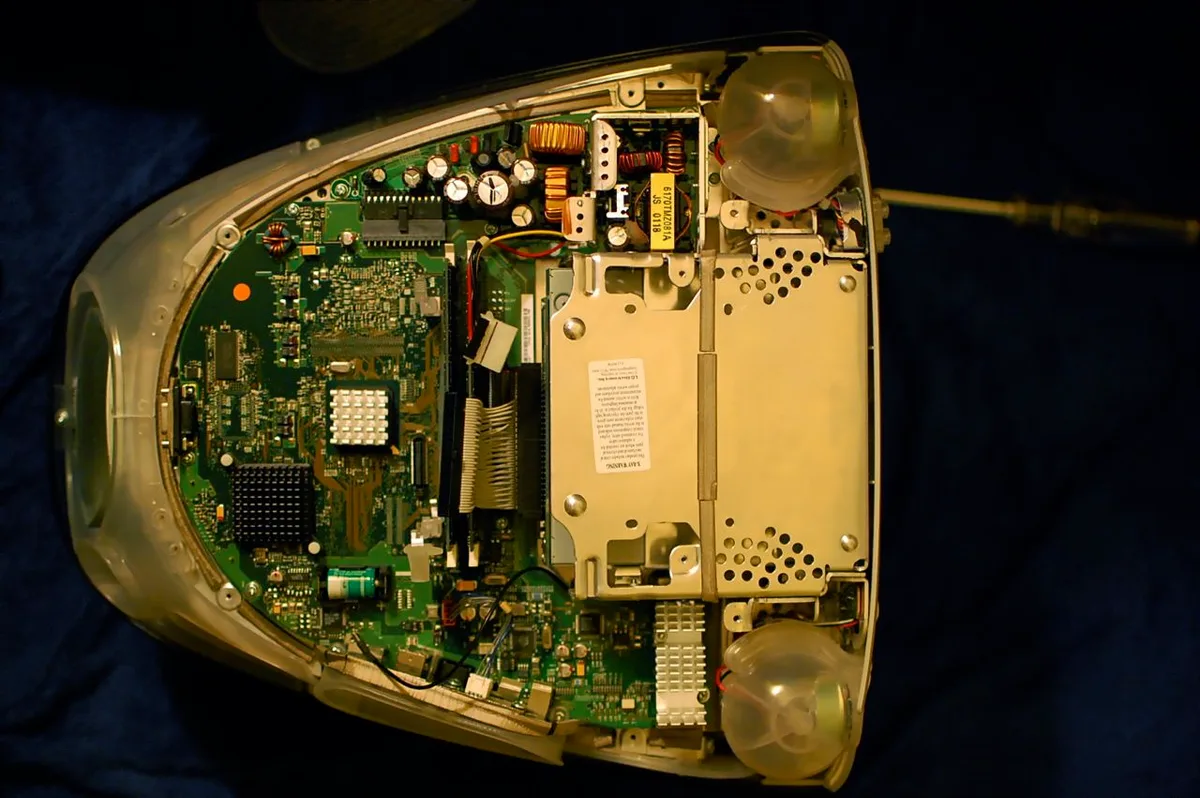
Image source: Wikimedia Commons / Fletcher6 (CC BY-SA)

Image source: Wikimedia Commons / It's No Game from Leicestershire, UK (CC BY)
Instant Shutdown vs. Delayed Shutdown: Which One Are You Seeing?
The timing of the shutdown narrows the cause fast. Instant means seconds. Delayed means minutes.
Match your symptom to the right branch.
| Shutdown Pattern | Likely Cause | First Check |
|---|---|---|
| Instant, within seconds of load | PSU protection trip, short, or VRM fault | Reseat all power cables, check PSU wattage |
| After 5 to 15 minutes | Thermal overload of CPU, GPU, or VRMs | Monitor temps under load |
| Only during specific games | Game-specific power spikes or memory instability | Test with a different stress tool |
| After waking from sleep | Power state transition fault | Disable fast startup, update BIOS |
Instant shutdowns point to electrical problems. The PSU detected overcurrent or a short and cut power. No warning, no throttle, just dark.
Check your power supply unit (PSU) wattage against your build's peak draw.
Delayed shutdowns point to heat. Components throttle first, then trip. If your CPU hits its thermal limit, it slows down before shutting off.
Watch the temperature curve, not just the peak.
Some games hit harder than others. A title with heavy ray tracing spikes GPU power draw in bursts. That burst can trip an older PSU that handles steady loads fine.
Test with a tool like FurMark or OCCT to reproduce on demand.
Memory errors that show up in games can also cause delayed shutdowns. An XMP profile that's slightly unstable may survive light loads but fail after twenty minutes of sustained stress.
Step-by-Step Diagnostic Path: From Symptom to Root Cause
Follow this path in order. Each step eliminates one variable before you spend money.
Step 1: Check Temps and Logs First
Open Event Viewer and look for Kernel-Power 41. That confirms an unexpected shutdown. Then monitor CPU, GPU, VRM, and RAM temperatures under load with a tool like HWiNFO64.
Step 2: Test at Stock Settings
Disable XMP or EXPO. Reset the CPU to default power limits. Run a stress test for thirty minutes.
If it stays stable, your overclock or memory profile was the culprit.
Step 3: Reseat and Inspect Power Cables
Power down and unplug. Reseat the 24-pin ATX, EPS, and PCIe cables. Check the GPU connector for melting or looseness.
Inspect for thermal throttling on storage drives as a side check if temps run high across the board.
Step 4: Rule Out VRMs and RAM
Touch the VRM heatsink area carefully after a load test. If it's scorching, airflow is the problem. Run a memory test at stock settings.
If errors appear, the RAM kit or motherboard slot is at fault.
Step 5: Swap in a Known-Good PSU
Borrow or buy a higher-wattage unit. Run the same stress test. If the shutdowns stop, your old PSU was the limit.
Match the replacement to your build's peak draw plus twenty percent headroom.
Common Mistakes That Send You Down the Wrong Path
Builders waste time and money on the wrong fixes. Avoid these traps.
- Reinstalling Windows first. A software reinstall won't fix a protection trip. It just burns an afternoon.
- Blaming the GPU without checking temps. A cool GPU with hot VRMs still shuts down. Monitor everything, not just the headline number.
- Buying a higher-wattage PSU without checking cables. A new unit with the same loose connector still fails. Reseat before you replace.
- Ignoring XMP. Many builders leave memory overclocked and chase power problems. Disable it early in diagnosis.
- Testing only at idle. Idle temps tell you nothing. Load is where the failure lives.
- Forgetting ambient temperature. A room at 30 degrees Celsius adds ten degrees to every component. Cool the room before you blame the hardware.
- Opening the PSU. Internal capacitors hold lethal charge. Never open a power supply unit. Replace it instead.
Matching RAM to your motherboard helps prevent memory-related shutdowns. So does keeping SSD temperatures during heavy sessions in check, since a hot drive can add heat to a cramped case.
If you've worked through every step and the system still dies under load, you're likely looking at a motherboard fault or a failing GPU. At that point, professional diagnosis saves more money than guessing. Manufacturer documentation and Intel's ATX12V power supply design guide are solid references for spec-level details.
For safety certification questions, UL's listing resources cover what to look for on a PSU label.
Real Scenarios: Three Builds, Three Root Causes
Scenario one is a compact build with a high-end GPU and a mid-tier PSU. Aggregate build logs show shutdowns two to three minutes into a stress test. CPU and GPU temps stay normal, but Event Viewer shows Kernel-Power 41.
The fix is often a partially seated 12VHPWR connector. Reseating it solves the issue.
Scenario two is a high-core CPU on a board with weak VRMs. The system runs fine for ten minutes, then dies. VRM sensors climb past 100 degrees Celsius.
Better case airflow and a modest undervolt fix it. This is why monitoring only CPU and GPU temps misses the real problem.
Scenario three is an older PSU with a strong new GPU. Shutdowns happen only during ray tracing. Transient spikes exceed the unit's response time.
A newer PSU with better transient handling stops the trips. If memory errors appear during testing, RAM stability testing for a gaming PC helps separate memory faults from power faults.
These examples show why symptoms matter. Same shutdown, different root causes.
PSU Sizing, Cooling, and Connector Choices Compared
Choose headroom over minimum. A PSU should cover peak CPU plus GPU draw plus twenty percent. High transient spikes need extra margin, especially with modern GPUs.
| Option | Best For | Watch Out For |
|---|---|---|
| Higher wattage PSU | New high-power GPUs | Cost and case fit |
| Air cooling | Simple builds | Hot VRMs in small cases |
| AIO liquid cooling | High CPU heat | Pump failure risk |
| Single PCIe cable | Lower power GPUs | Not enough for heavy cards |
Cooling choice affects shutdowns too. Air coolers are reliable and easy to inspect. AIO units cool better but add pump and coolant risks.
If your CPU is hot and VRMs are hotter, improve airflow first.
Connector choice matters as much as wattage. Use separate PCIe cables for high-power GPUs. Avoid daisy chains when possible.
Seat every connector fully and check for melted plastic.
If memory errors appear during testing, a solid guide to choosing compatible RAM also prevents unstable XMP profiles.
Expert Tips for Long-Term Stability Under Load
Keep temps low before chasing hardware. Clean dust filters monthly. Repaste the CPU if temps climb over time.
Check that AIO pumps actually spin.
Log every change. Note BIOS version, power limits, and fan curves. If a shutdown returns, you can roll back fast.
Reset CMOS if settings become confusing.
Use a UPS if your wall power dips. Brownouts look like PSU failures. A basic UPS also protects against sudden outages.
Check your wall circuit before blaming the PSU.
Do not ignore storage heat in cramped cases. A hot NVMe drive adds warmth near the GPU. Managing SSD temperature during heavy gaming keeps the whole system cooler.
Thermal throttling on NVMe drives can also signal poor case airflow.
Finally, buy PSUs from reputable makers. Look for UL certification and clear warranty terms. Cheap units may shut down early or fail dangerously.
Frequently Asked Questions
Can a bad PSU cause instant shutdowns?
Yes. If the PSU cannot meet peak demand, its protection circuits cut power instantly. This often happens within seconds of starting a game.
Does overheating always show a warning first?
No. VRMs and some PSUs can trip with little warning. CPU and GPU throttling usually appears first, but not always.
Should I disable XMP to test stability?
Yes. Disable XMP or EXPO and retest. If shutdowns stop, the memory profile was unstable.
Re-enable only after testing.
Is a higher wattage PSU always better?
No. Extra headroom helps, but quality matters more. A well-built lower wattage unit can beat a cheap oversized one.
Can dust really cause shutdowns?
Yes. Dust restricts airflow and raises VRM and GPU temps. Clean filters and heatsinks to restore cooling.
When should I stop troubleshooting myself?
Stop if you smell burning, see melted connectors, or the PSU trips repeatedly. Replace the part or seek professional help.
The Final Call: Replace, Repaste, or Rethink the Build
Start with the cheapest fixes. Reseat cables, clean dust, and disable XMP. Then check temps and logs.
If those fail, test with a known-good PSU.
Repaste or upgrade cooling when temps climb. Replace the PSU when wattage or transient handling is the limit. Rethink the build if the motherboard VRMs cannot support your CPU.
A stable gaming PC is not about one perfect part. It is about balance. Match power, cooling, and memory to the load.
When those three align, shutdowns stop.
If your storage runs hot too, a guide to choosing the right NVMe SSD can help you avoid adding heat to a cramped case. And if memory errors keep returning, revisit why gaming PCs get memory errors before buying new parts.
3 thoughts on “Why Your Gaming PC Shuts Down Under Load (Fixes)”
Comments are closed.