Your GPU and CPU generate serious heat during long gaming sessions. Without a clear plan, that heat gets trapped inside the case. The result is throttled performance and louder fans.
Most standard gaming cases support 120mm or 140mm fans, and a typical build runs best with three to six of them placed strategically. Manufacturer specifications indicate that positive or balanced pressure reduces dust buildup significantly. The sections below walk through how to plan airflow in a gaming pc case visually, step by step.
how to plan airflow in a gaming pc case
Plan a front-to-back or bottom-to-top path. Place intake fans at the front or bottom. Place exhaust fans at the rear or top.
Keep more intake than exhaust for positive pressure. Route cables away from fan paths. Test with stress tools after building.
Why Airflow Planning Is Easier When You Can See the Case Layout
Text descriptions of airflow fall short. You need to picture how air enters, travels, and exits. A case is a three-dimensional box with obstacles inside.
Fans, radiators, cables, and the GPU all block or redirect air.
Start by removing both side panels. Look at the case from the front with the panel off. You can now trace a straight line from intake to exhaust.
This is the airflow path. If a cable bundle or drive cage sits in that line, air will hit it and scatter.
Most cases have a front intake area, a rear exhaust, and sometimes a top exhaust. Some cases also have a bottom intake near the PSU shroud. The layout you choose depends on component placement.
A large GPU in the middle changes everything.
Think about where heat is produced. The CPU cooler sits at the top center. The GPU sits in the middle, parallel to the motherboard.
Both dump heat into the same general area. Your job is to push cool air across both and pull hot air out before it recirculates.
If you are choosing a new case, the optimal internal layout matters as much as fan count. A case with a full mesh front and unobstructed front-to-back path makes planning simple. A case with a solid front and only side vents makes it harder.
Size also plays a role. Larger enclosures give air more room to move and reduce turbulence. Smaller cases pack components tightly, so every fan position matters more.
The relationship between case dimensions and cooling is worth checking before you buy.
Grab a photo of your case interior with the panels off. Mark intake points with one color and exhaust points with another. Draw arrows showing the direction air should flow.
This simple sketch is the foundation of your plan.
How Airflow Actually Moves Through a Gaming PC Case
Airflow follows pressure differences. Cool air enters where pressure is lower. Hot air exits where pressure is higher.
Fans create these pressure zones by pushing or pulling air.
Intake fans push cool air in. They sit at the front or bottom of the case. Exhaust fans pull hot air out.
They sit at the rear or top. The direction of the fan blades and the arrow on the fan frame tell you which way air moves.
The most common path is front-to-back. Cool air enters through the front mesh. It travels across the GPU and CPU cooler.
Hot air exits through the rear fan and top vents. This path works well for most gaming builds.
A bottom-to-top path is the second option. Air enters through bottom vents near the PSU shroud. It rises past the GPU and CPU.
Hot air exits through the top. This works well when the front is blocked by a solid panel or radiator.
Some cases use both paths. Bottom intake feeds the GPU. Front intake feeds the CPU.
Both exhaust through the top and rear. This dual-path approach is common in larger cases with multiple fan mounts.
The GPU is the biggest heat source in most gaming PCs. It sits low in the case and blows hot air sideways. If intake air does not reach the GPU intake fans, temperatures spike.
This is why bottom intake is valuable for high-end cards.
The CPU cooler pulls air through its heatsink and pushes it out the back. A rear exhaust fan right behind the CPU cooler helps remove that hot air quickly. Without it, hot air sits near the CPU and recirculates.
Fan orientation is critical. Each fan has arrows on the frame showing airflow direction and blade rotation. Intake fans push air into the case.
Exhaust fans pull air out. Getting one fan backwards disrupts the entire path.
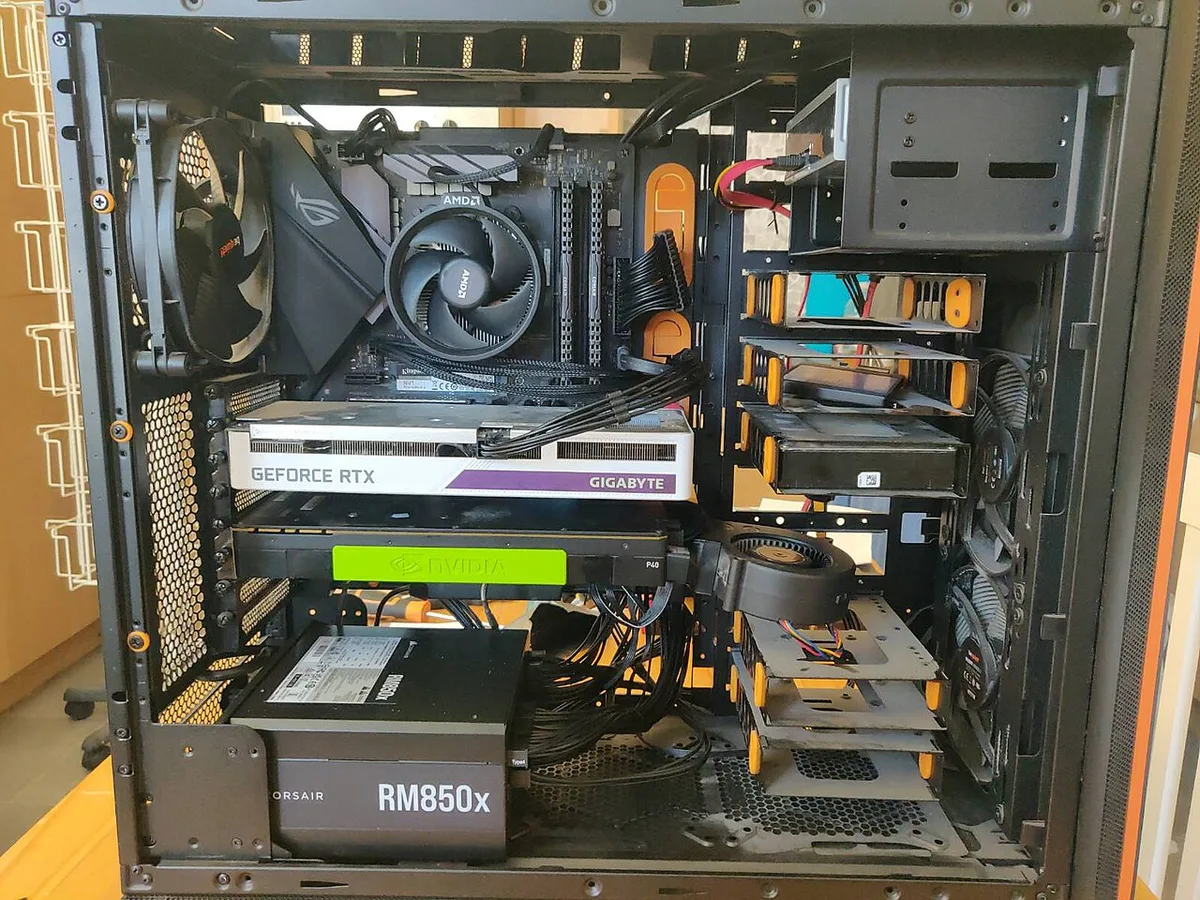
Image source: Wikimedia Commons / Tim Sheerman-Chase (CC BY)
Mesh front panels allow air to enter freely. Solid or glass fronts restrict intake and force air through side or bottom vents. The difference in cooling performance between these designs is measurable.
Open mesh intake front panels consistently deliver lower GPU temperatures than sealed designs.
Tempered glass side panels look great but do not affect airflow directly. They seal the side of the case, which can help maintain pressure. However, solid front designs require more careful fan placement to compensate for restricted intake.
Step-by-Step Visual Cues for Fan Placement
Planning airflow becomes concrete when you match each fan to a specific job. Do not add fans randomly. Give each one a role.
Here is a practical placement guide for a typical mid-tower case.
| Fan Position | Role | Direction | Notes |
|---|---|---|---|
| Front bottom | Intake | Into case | Feeds GPU directly |
| Front top | Intake | Into case | Feeds CPU cooler |
| Rear | Exhaust | Out of case | Behind CPU cooler |
| Top rear | Exhaust | Out of case | Removes rising hot air |
| Top front | Exhaust or intake | Depends on radiator | Check radiator placement |
| Bottom | Intake | Into case | Near PSU shroud vents |
Start with the GPU. Place your largest intake fan where it can push cool air directly toward the GPU intake. In most cases, this is the front bottom position.
If your case has a bottom intake, use it for the GPU instead.
Next, place an intake fan near the CPU cooler. The front top position works well. This ensures the CPU cooler has a steady supply of cool air.
If you have an AIO radiator at the front, the fans on the radiator serve as intake.
Place one exhaust fan directly behind the CPU cooler at the rear. This pulls hot air away from the CPU immediately. It is the single most important exhaust position in most builds.
Add a top exhaust fan if your case supports it. Hot air rises naturally. A top exhaust fan accelerates this process.
Place it at the rear top position for best results.
Check your case's supported fan count before buying extras. Some cases support six or more fans. Others max out at three.
More fans are not always better if they create turbulence.
Now check for obstructions. Cables, drive cages, and radiator thickness can block airflow. Tidy cable routing behind the motherboard tray keeps the main chamber clear.
This is one of the most overlooked steps in airflow planning.
Install fans with the arrows pointing in the correct direction. Double-check each one. A single reversed fan can create a dead zone where hot air pools.
Key Identifiers That Tell You Airflow Is Working
You cannot see air moving. But you can measure its effects. Several indicators tell you whether your plan is working.
Temperature is the primary metric. Run a stress test like Prime95 for the CPU and FurMark for the GPU. Monitor temperatures with HWiNFO or similar software.
If CPU and GPU temperatures stay within manufacturer limits, airflow is adequate.
Intel specifies maximum junction temperatures for its processors. AMD publishes thermal limits for Ryzen chips. These numbers are your ceiling.
If you approach them under load, airflow needs improvement.
Fan RPM tells you how hard the cooling system is working. If fans run at maximum speed during gaming, the system is struggling. If they stay at moderate speeds, airflow is sufficient.
Most modern motherboards let you set custom fan curves.
Noise level is another indicator. Loud fan ramping during gaming usually means heat is building up. A well-planned airflow setup keeps fan speeds lower and noise quieter.
Aggregate user reviews report that balanced pressure setups are noticeably quieter than intake-heavy or exhaust-heavy ones.
Dust accumulation reveals pressure balance. If dust collects rapidly inside the case, pressure is likely negative. More air is leaving than entering.
This pulls dust through unfiltered gaps. Dust management inside the case starts with maintaining positive pressure.
Thermal throttling is the worst sign. If your CPU or GPU drops its clock speed under load, heat is winning. This means airflow is insufficient or poorly directed.
Throttling reduces gaming performance directly.
Check for hotspots. Touch the case exterior near the GPU area after a gaming session. If one spot is significantly hotter than others, air is not reaching that area.
This points to a blocked path or missing fan.
Monitor VRM temperatures too. Motherboard VRMs sit near the CPU socket. They need airflow but often get ignored.
A top exhaust fan helps pull heat away from this area.
Common Visual Mistakes That Trap Heat
Even experienced builders make airflow mistakes. Most are visible once you know what to look for.
The biggest mistake is using too many exhaust fans. Three exhaust and one intake creates negative pressure. Dust enters through every gap.
Hot air from the GPU gets pulled across the CPU cooler before exiting. Balance intake and exhaust instead.
Another common error is placing a radiator as exhaust at the top while the GPU sits below it. The radiator pulls GPU heat through itself before exhausting. This raises CPU temperatures.
Place the radiator as intake at the front when possible. This pushes cool air through the radiator first.
Cable bundles blocking intake is a frequent issue. A thick bundle of SATA and power cables in front of the intake fans redirects air sideways. The GPU never receives cool air.
Route cables behind the motherboard tray and use zip ties.
Fans installed backwards are surprisingly common. The arrow on the fan frame shows airflow direction. If the arrow points out but the fan is in an intake position, it works as exhaust.
Check every fan after installation.
GPU sag can also block airflow. A sagging GPU drops closer to the PSU shroud or bottom panel. This narrows the gap where bottom intake air travels.
A vertical GPU mounting solution can help in some cases, but it also changes airflow dynamics.
Dust filters that are clogged restrict intake dramatically. A filter that looks slightly dusty can reduce airflow by a significant margin. Clean filters monthly in dusty environments.
Some cases have removable filters that slide out easily.
Another mistake is ignoring the PSU shroud vents. Many cases have vents on top of the PSU shroud. These allow air from the bottom intake to reach the GPU.
If you block these vents with a drive cage or cables, the GPU loses its air supply.
Finally, do not assume more fans equals better cooling. Four well-placed fans outperform six randomly placed ones. Turbulence from conflicting air paths can actually raise temperatures.
Start with three fans and add more only if testing shows a need.
Case Layout Reference Guide for Mesh, Glass, and Compact Builds
Different case styles need different airflow plans. A diagram for each would show intake arrows in green and exhaust arrows in red, with the GPU and CPU cooler marked as heat sources.
Mesh front panels give air the easiest path in. Cool air enters straight across the front and moves over the GPU and CPU. These builds usually need fewer fans and run quieter.
Tempered glass fronts restrict intake. Air must enter through side vents, bottom vents, or a small gap at the top. These builds often need a bottom intake fan to feed the GPU.
They also benefit from a slightly positive pressure setup to push air through the limited openings.
Compact cases change the rules. Components sit closer together, and the airflow path is shorter. Turbulence is more likely.
Cable management becomes critical because there is less room for error.
| Case Style | Best Airflow Path | Fan Strategy | Watch Out For |
|---|---|---|---|
| Mesh front | Front to back | Balanced intake and exhaust | Dust buildup |
| Glass front | Bottom to top | Extra intake fans | Restricted intake |
| Compact | Short front to back | Fewer, well-placed fans | Cable obstruction |
| Liquid cooled | Radiator as intake | Match radiator fans to case fans | Radiator thickness |
Liquid-cooled builds add another variable. A front radiator acts as both a cooler and an intake. The fans on the radiator push air through the fins and into the case.
This works well when the radiator is thin enough to leave clearance behind the front panel.
For compact builds, small form factor enclosures demand extra attention. Every fan position matters, and cable routing often determines whether airflow succeeds or fails.
Fan Orientation, Pressure Balance, and Cable Routing Checks
Fan orientation is the first thing to verify after installation. Each fan frame has two arrows. One shows blade rotation direction.
The other shows airflow direction. Intake fans should point into the case. Exhaust fans should point out.
A common mistake is trusting the fan's appearance. Some fans look identical from both sides. Always check the arrow, not the blade shape.
Getting one fan backwards can create a dead zone where hot air pools.
Pressure balance controls dust and temperature. Positive pressure means more intake than exhaust. Negative pressure means more exhaust than intake.
Balanced pressure means intake and exhaust are equal.
| Pressure Type | Intake vs Exhaust | Dust Behavior | Temperature Behavior |
|---|---|---|---|
| Positive | More intake | Less dust inside | Slightly warmer |
| Negative | More exhaust | More dust inside | Slightly cooler |
| Balanced | Equal | Moderate dust | Moderate temperature |
Positive pressure is the best choice for most gaming PCs. It keeps dust out through filtered intakes. The tradeoff is slightly higher temperatures because air does not exit as quickly.
Negative pressure runs cooler but pulls dust through every unfiltered gap. This means more frequent cleaning. Balanced pressure sits in the middle and works well for builds with strong filtration.
Cable routing is the final check. A thick bundle of cables in the intake path blocks air. Route cables behind the motherboard tray.
Use zip ties to keep them flat against the tray. Clean cable management directly improves airflow by removing obstructions.
Check the PSU shroud vents too. Many cases have vents on top of the shroud. These let bottom intake air reach the GPU.
If cables or drive cages cover these vents, the GPU loses its air supply.
Thermal Testing and Long-Term Airflow Maintenance
Planning is only half the job. Testing proves whether the plan works. Long-term maintenance keeps it working.
Start with a baseline. Record CPU and GPU temperatures at idle. Then run a stress test.
Use Prime95 for the CPU and FurMark for the GPU. Run both for at least 15 minutes. Monitor temperatures with HWiNFO.
Compare results to manufacturer limits. Intel and AMD publish maximum thermal junction temperatures for their processors. GPU manufacturers list thermal limits for their cards.
If temperatures stay below these limits with moderate fan speeds, the airflow plan is solid.
If temperatures are too high, adjust one variable at a time. Move a fan. Change a fan curve.
Clean a filter. Retest after each change. This isolates what works and what does not.
Long-term maintenance matters as much as initial planning. Dust filters clog over time. A clogged filter can reduce intake airflow significantly.
Clean filters monthly in dusty rooms. Check them every two weeks in extreme environments.
Fan bearings wear out. Listen for rattling or grinding noises. A failing fan moves less air and creates noise.
Replace worn fans promptly. Manufacturer specifications indicate that most case fans last between 30,000 and 50,000 hours of use.
Re-evaluate airflow after hardware changes. A new GPU is often larger and hotter than the old one. A new CPU cooler may block a top exhaust fan.
Any hardware change can alter the airflow path.
Room conditions change too. Summer ambient temperatures run higher than winter. A plan that works in January may struggle in July.
Adjust fan curves seasonally if needed.
| Maintenance Task | Frequency | Why It Matters |
|---|---|---|
| Clean dust filters | Monthly | Restores intake airflow |
| Check fan noise | Monthly | Catches failing bearings |
| Review temperatures | Quarterly | Tracks thermal drift |
| Adjust fan curves | Seasonally | Adapts to room changes |
| Re-evaluate after upgrades | As needed | Matches new heat output |
Frequently Asked Questions
How many fans do I need for a gaming PC?
Most gaming PCs run well with three to six fans. Start with one intake at the front bottom, one intake at the front top, and one exhaust at the rear. Add more only if thermal testing shows a need.
More fans can create turbulence if placed poorly.
Should intake fans be faster than exhaust fans?
Not necessarily. The goal is pressure balance, not speed. Intake fans should move slightly more air than exhaust fans for positive pressure.
Match fan sizes and models when possible. Mixing 120mm and 140mm fans is fine if their airflow ratings are similar.
Does a mesh front panel always cool better?
Mesh fronts consistently deliver lower GPU temperatures than solid or glass fronts. However, they also let more dust in. A glass front with strong bottom intake and positive pressure can perform nearly as well.
The difference depends on fan placement and case design.
How often should I clean dust filters?
Clean dust filters monthly in normal environments. In dusty rooms, check them every two weeks. A clogged filter restricts intake airflow and raises temperatures.
Most filters slide out easily from the front or bottom of the case.
Can too many fans hurt airflow?
Yes. Six fans placed randomly can create turbulence and raise temperatures. Fans fighting each other disrupt the intended path.
Start with three well-placed fans and add more only after thermal testing confirms a benefit.
Where should an AIO radiator go for best airflow?
Place the radiator as intake at the front when possible. This pushes cool air through the radiator fins and into the case. Top mounting as exhaust pulls GPU heat through the radiator first.
Front intake usually delivers lower CPU temperatures.
3 thoughts on “How to Plan Airflow in a Gaming PC Case for Cooler Temps”
Comments are closed.