You're shopping for a new graphics card, and the last thing you want is to spend serious money on a GPU that your CPU can't keep up with. Knowing how to avoid a cpu bottleneck when choosing a gpu is the difference between smooth, consistent frame rates and a stuttery mess that wastes your upgrade budget. This guide walks you through the exact checks, specs, and decision points that matter before you click buy.
As of 2026, the gap between processor and graphics card performance has widened, and upscaling tech like DLSS and FSR has rewritten which component actually limits your frame rate. That means the old rules of thumb no longer apply. Let's start with what a bottleneck really costs you.
how to avoid a cpu bottleneck when choosing a gpu
To avoid a CPU bottleneck, match the GPU to your target resolution. Pair it with a CPU that has strong single-thread performance. Check real utilization data instead of bottleneck calculators.
At 1080p, favor a stronger CPU. At 4K, the GPU almost always becomes the limit.
The Hidden Cost of a CPU Bottleneck When Upgrading GPUs
A CPU bottleneck happens when your processor can't feed data to the graphics card fast enough. The GPU finishes rendering a frame and sits idle, waiting for the next set of instructions. You paid for a powerful card, but your frame rate is capped by the older or weaker CPU.
The symptoms are easy to miss if you only watch average FPS. Your overall number might look acceptable. But the 1% lows, the worst frame times in any given second, drop sharply.
That's what causes the stutter you feel in fast-paced games. The GPU utilization percentage stays low, sometimes 60% or less, while CPU usage pins at 100%.
The financial hit is real. Dropping a high-end GPU into a system with a mid-range processor means you're paying for performance you never see. Aggregate benchmarks show the waste can reach 30% or more of the card's potential in CPU-heavy titles.
That's money better spent on a balanced pairing or a CPU upgrade.
There's also a longevity problem. A bottlenecked GPU works less, but it still ages. Meanwhile, your CPU is running at full load, generating heat and wear.
Keeping temps in check matters here, and reducing gaming PC temps without losing performance covers the cooling side. If your processor runs hot, safe CPU temperature limits while gaming gives you the thresholds to watch.
The fix isn't always buying a new CPU. Often it's choosing a GPU that your current processor can actually feed. That's what the rest of this guide is about.
The Resolution Rule: How Your Target Display Dictates Balance
Your target resolution is the single biggest factor in whether you're CPU-bound or GPU-bound. At 1080p, the graphics card finishes frames quickly, so the CPU becomes the limiter. At 1440p, the balance shifts.
At 4K, the GPU almost always becomes the bottleneck, and even older processors can keep up.
Here's the practical rule. If you game at 1080p on a high-refresh monitor, prioritize CPU single-thread performance. If you game at 4K, you can pair a mid-range CPU with a powerful GPU without major issues. 1440p sits in the middle, and that's where most builders need to think carefully.
Refresh rate matters too. A 240Hz 1080p monitor demands far more CPU work than a 60Hz 4K screen. More frames per second means more draw calls, more physics, more AI.
The CPU handles all of that.
Upscaling changes the math. DLSS, FSR, and XeSS render at a lower resolution and upscale, which shifts load back onto the CPU in some scenarios. Frame generation adds even more CPU overhead.
So a build that was GPU-bound at native 4K can become CPU-bound with frame generation enabled.
Before you pick a GPU, decide your resolution and refresh rate first. Everything else follows from that. If you're unsure about your motherboard's limits, checking GPU and motherboard compatibility is worth a read.
What Actually Causes a CPU Bottleneck in Modern Games
Modern games don't just render graphics. They simulate physics, handle AI, process audio, and manage networking. All of that runs on the CPU.
A game with thousands of NPCs, like a city builder or large-scale battle, will crush a weak processor regardless of your GPU.
Single-thread performance is the key spec. Most games still lean heavily on one or two cores for the main thread. A CPU with high IPC, Instructions Per Clock, and a strong boost clock will push more frames than a chip with more cores but lower per-core speed.
L3 cache matters more than people think. AMD's 3D V-Cache chips, like the Ryzen 7 7800X3D, show big gains in CPU-bound games because the larger cache reduces memory latency. That's a real, measurable effect in aggregate benchmarks.
PCIe generation and lane width are hidden bottlenecks. A modern GPU on a PCIe 3.0 x8 slot can lose bandwidth. Older motherboards with limited lanes starve the card.
Before buying, confirm your board supports the card's required interface. Checking CPU and motherboard compatibility covers the matching process.
RAM configuration is another silent killer. Single-channel RAM cuts memory bandwidth roughly in half. Many budget builds ship with one stick.
That cripples CPU performance in open-world games. Dual-channel is non-negotiable for gaming.
Background processes add up. Discord, browsers, RGB software, and launchers all consume cycles. A clean system with minimal background load frees up CPU time for the game.
Critical Specs That Determine CPU/GPU Balance
When choosing a GPU, four specs on the CPU side determine whether you'll hit a bottleneck. Here's what to check.
Single-thread performance. Look at per-core benchmarks, not just core counts. A 6-core chip with strong single-thread speed often beats an 8-core chip with weaker per-core performance in games.
L3 cache size. More cache reduces trips to RAM. Chips with large L3 caches, especially 3D V-Cache models, punch above their weight in CPU-bound titles.
PCIe support. Your CPU and motherboard must support the GPU's PCIe generation. PCIe 4.0 is the sweet spot as of 2026. PCIe 3.0 can work but may limit high-end cards slightly.
The PCI-SIG standards body defines PCIe specifications, and you can verify your board's support on the manufacturer's site.
RAM speed and channel configuration. Dual-channel DDR4 or DDR5 at adequate speeds keeps the CPU fed. Single-channel configurations create an artificial bottleneck.
Here's a quick reference for matching tiers to resolution:
| Target Resolution | CPU Priority | GPU Priority | RAM Minimum |
|---|---|---|---|
| 1080p 144Hz+ | High | Medium | 16GB dual-channel |
| 1440p 60-144Hz | Medium | High | 16GB dual-channel |
| 4K 60Hz | Low-Medium | Very High | 16GB dual-channel |
| 4K 120Hz+ | Medium-High | Very High | 32GB dual-channel |
Don't trust bottleneck calculator websites. They use outdated formulas and generic pairings that ignore resolution, RAM config, and upscaling. Real utilization data from your own system beats any online calculator.
The Workflow for Choosing a GPU That Won't Bottleneck
This is the decision process. Follow it in order.
Step 1: Define your target. Pick your resolution and refresh rate first. Write it down. Everything else follows.
Step 2: Identify your current CPU. Note the exact model and its single-thread benchmark. Check aggregate review data, not just spec sheets. Intel ARK is a reliable place to confirm processor specs.
Step 3: Check your motherboard. Confirm PCIe generation and lane width. Verify GPU and motherboard compatibility before buying.
Step 4: Check your RAM. Confirm dual-channel. If you have one stick, budget for a second. RAM and motherboard compatibility matters here.
Step 5: Set a GPU budget. Based on resolution, pick a tier. At 1080p, a mid-range card often pairs better than a flagship. At 4K, spend more on the GPU.
Step 6: Verify with real data. Search aggregate benchmarks for your exact CPU and candidate GPU at your target resolution. Look at 1% lows, not just averages.
Step 7: Check upscaling support. Ensure the card supports DLSS, FSR, or XeSS. Frame generation can shift CPU load, so test with it on and off.
If your CPU is too weak for even a mid-range GPU, the honest answer is to upgrade the CPU first. Throwing a better GPU at a weak processor wastes money. CPU and motherboard compatibility helps you plan that upgrade path.
CPU-Bound vs. GPU-Bound: How Upscaling Shifts the Balance
Understanding which component is limiting your frame rate changes everything about your upgrade strategy. A CPU-bound scenario means your processor hits 100% utilization while the GPU idles. You’re getting fewer frames than your graphics card can physically render.
A GPU-bound scenario is the opposite. The graphics card works at full tilt, often hitting 95-100% usage. The CPU has headroom left over.
This is the ideal state for high-resolution gaming because it maximizes visual fidelity without wasting resources.
Upscaling technologies like NVIDIA’s DLSS and AMD’s FSR complicate this picture. These features render the game internally at a lower resolution. Then they use AI or algorithms to upscale the image to your monitor’s native resolution.
This shift moves workload away from the GPU. It reduces the strain on the graphics card significantly. However, it doesn’t remove all pressure from the CPU.
In fact, in some implementations, the CPU still handles physics and AI calculations at full intensity.
Frame generation adds another layer. Technologies that insert synthetic frames between real ones require extra processing power. This overhead falls primarily on the GPU tensor cores or dedicated hardware.
But the base simulation still runs on the CPU.
If you enable aggressive upscaling, you might mask a weak GPU. But you won’t fix a bottlenecked CPU. If your processor struggles with draw calls, upscaling won’t save you from stuttering.
Here’s how to identify your current state using monitoring tools like MSI Afterburner or CapFrameX. Look at the utilization percentages during gameplay.
| Scenario | CPU Usage | GPU Usage | Primary Limit | Action Needed |
|---|---|---|---|---|
| CPU-Bound | 90-100% | 40-70% | Processor Speed | Upgrade CPU or lower settings affecting logic |
| GPU-Bound | 30-60% | 95-100% | Graphics Card Power | Upgrade GPU or increase resolution/detail |
| Balanced | 60-80% | 80-95% | Neither severe | Optimize cooling and drivers |
For gamers targeting 1440p or higher, staying GPU-bound is usually the goal. It ensures you’re getting the most out of your expensive graphics card. At 1080p, however, being CPU-bound is common even with mid-range processors.
The key takeaway? Don’t assume upscaling fixes everything. Test with it off first.
See where the true limit lies. Then decide if you need more raw compute power or better graphics throughput.
Matching CPU and GPU Tiers to Your Target Resolution
Pairing components correctly isn’t just about brand loyalty. It’s about matching performance tiers to your specific display setup. Mismatched pairs lead to wasted money and poor experiences.
At 1080p resolution, the demand on the GPU is relatively low. Modern mid-range cards can push hundreds of frames per second easily. This puts immense pressure on the CPU to prepare those frames quickly.
Therefore, at 1080p, prioritize a strong CPU. An Intel Core i5-13600K or AMD Ryzen 5 7600X is often sufficient for paired with an RTX 4060 Ti or RX 7600 XT. Going higher on the GPU yields diminishing returns unless you have a top-tier processor.
Moving to 1440p shifts the balance. The pixel count increases by roughly 78%. This demands more from the GPU.
Now, both components need to be robust.
A balanced build here might pair an Intel Core i7-13700K or AMD Ryzen 7 7700X with an RTX 4070 Super or RX 7800 XT. Both parts contribute equally to maintaining smooth frame rates. Neglecting either side creates noticeable dips in performance.
At 4K resolution, the GPU becomes the overwhelming factor. Rendering eight times the pixels of 1080p requires massive graphical horsepower. The CPU’s role diminishes slightly relative to the total workload.
You can get away with pairing a powerful GPU like an RTX 4080 Super with a mid-high tier CPU like a Ryzen 5 7600X. The GPU will likely hit its limit before the CPU does. Spending extra on a flagship CPU here offers little benefit for pure gaming.
However, competitive players aiming for 240Hz+ at 1440p face unique challenges. High refresh rates demand rapid frame production. This keeps the CPU busy despite the higher resolution.
In these cases, don’t skimp on single-thread performance. A faster CPU prevents input lag and maintains consistency. Verify your motherboard supports the latest PCIe standards to avoid bandwidth issues.
Checking RAM and motherboard compatibility ensures memory speed matches CPU capabilities, preventing secondary bottlenecks.
Ultimately, match the strongest component to the heaviest workload. Let the GPU handle pixels. Let the CPU handle logic.
Keep them in sync for the best experience.
Common Mistakes That Ruin Balanced PC Builds
Even well-planned builds fail due to simple oversights. Recognizing these errors saves time and frustration during assembly and tuning.
One frequent mistake is ignoring thermal constraints. Overclocking a CPU without adequate cooling leads to throttling. When temperatures spike, the processor slows down to protect itself.
This suddenly turns a balanced system into a CPU-bottlenecked one.
Ensure your cooler matches the CPU’s TDP rating. For high-end chips, liquid cooling is often necessary. Poor airflow in the case exacerbates heat buildup.
Learn more about planning airflow in a gaming PC case to prevent hotspots.
Another error is assuming newer equals better across the board. Buying a cutting-edge GPU but sticking with an aging motherboard limits potential. Older boards may lack PCIe 4.0 support or have weaker VRMs (Voltage Regulator Modules).
Weak VRMs struggle to deliver stable power to modern CPUs under load. This causes instability or reduced clock speeds. Always check that your motherboard chipset supports your chosen processor fully.
Neglecting BIOS updates is surprisingly common. Manufacturers release firmware patches to improve memory compatibility and CPU scheduling. Running an outdated BIOS can result in suboptimal performance or unrecognized RAM speeds.
Update your BIOS before installing new hardware. This ensures proper detection and configuration. It also unlocks hidden features like Resizable BAR, which boosts GPU efficiency in supported titles.
Finally, many users overlook background software. Antivirus scans, cloud syncing, and RGB control apps consume CPU cycles. During intense gaming sessions, these processes compete for resources.
Close unnecessary applications before benchmarking. Disable startup programs via Task Manager. This frees up processing power for the game engine.
Small optimizations here yield measurable gains in 1% lows.
Avoiding these pitfalls requires attention to detail beyond just picking specs. Consider the entire ecosystem of your PC. From cooling to firmware, every element plays a role in sustained performance.
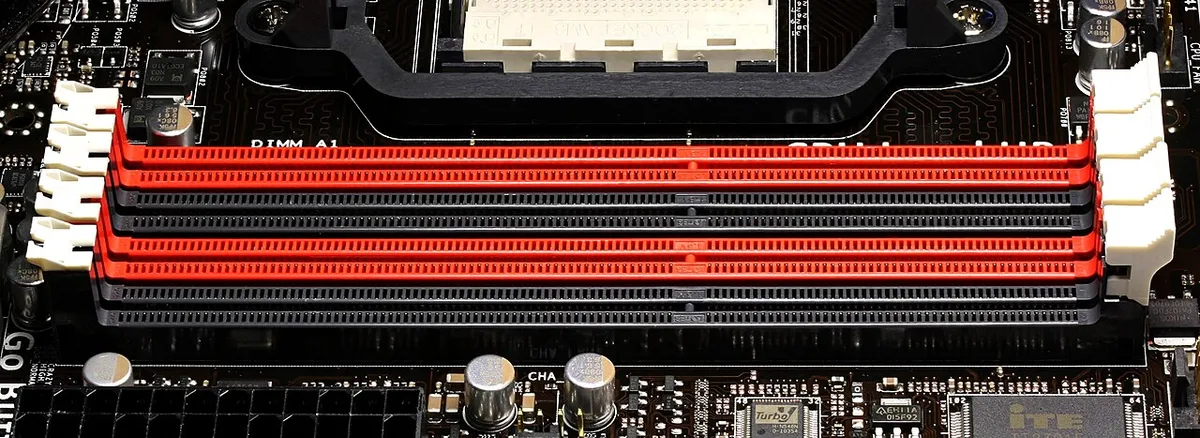
Image source: Wikimedia Commons / D-Kuru (CC BY-SA)
Expert Tips for Monitoring and Fixing Micro-Stutters
Micro-stutters ruin immersion even when average FPS looks great. These brief freezes disrupt smooth motion perception. Detecting and resolving them requires precise monitoring.
Start by capturing frametimes rather than just instantaneous FPS. Tools like CapFrameX record millisecond intervals between frames. Spikes above 16ms (for 60Hz) or 8ms (for 120Hz) indicate stutters.
Analyze the data pattern. Random spikes suggest driver issues or background interference. Consistent periodic hitches point to resource contention, such as disk streaming or shader compilation.
Shader pre-caching helps mitigate compile-time stalls. Enable this feature in Windows Settings for DirectX games. It stores compiled shaders locally, reducing initial load times and subsequent jumps.
Driver cleanliness matters immensely. Partial uninstalls leave conflicting files behind. Use Display Driver Uninstaller (DDU) in Safe Mode for a fresh start.
Install the latest Game Ready or Adrenalin drivers afterward.
Verify storage health. Fragmented HDDs cause loading delays. SSDs reduce seek times but aren't immune to controller saturation.
Monitor disk queue length during gameplay. High queues mean the drive can't keep up with asset requests.
Adjust in-game settings strategically. Lowering texture quality reduces VRAM usage. If VRAM fills up, the system swaps to slower system RAM.
This causes severe stuttering. Ensure textures fit within available video memory.
Enable VSync or G-Sync/FreeSync carefully. Adaptive sync eliminates tearing but can introduce input lag. Fixed VSync caps FPS to monitor refresh rate, stabilizing frametimes.
Choose based on tolerance for latency versus visual artifacts.
Regular maintenance prevents degradation. Dust accumulation raises temperatures, triggering throttling. Clean filters and heatsinks quarterly.
Reapply thermal paste annually if temps creep upward. Cleaning dust from gaming PC cooling components safely outlines proper techniques.
Consistency beats peak performance. Smooth 60 FPS feels better than erratic 100 FPS. Focus on eliminating outliers in your frametime graph.
This approach delivers a polished, responsive gaming experience regardless of hardware tier.
Frequently Asked Questions About CPU Bottlenecks
Does a faster RAM help reduce CPU bottlenecks?
Yes, significantly. Faster dual-channel RAM improves data transfer rates between memory and processor. This reduces latency in feeding instructions to the CPU.
Upgrading from 3200MHz to 6000MHz DDR5 can boost 1% lows noticeably in CPU-limited scenarios.
Can I fix a CPU bottleneck by overclocking my GPU?
No. Overclocking the GPU increases its rendering capability. It does nothing to address the processor's inability to send commands fast enough.
In fact, pushing the GPU harder may widen the gap, causing more idle time for the graphics card.
Are bottleneck calculators accurate for modern systems?
Generally, no. Most online tools rely on static databases and ignore dynamic variables like resolution, API overhead, and driver optimizations. They provide rough estimates at best.
Real-world testing with monitoring software remains the gold standard for diagnosis.
Will upgrading my PSU solve a CPU bottleneck?
Absolutely not. The Power Supply Unit delivers electricity to components. It does not influence processing speed or data throughput.
Unless your PSU was failing and causing instability, replacing it won't impact frame rates or bottleneck status.
Is it worth buying a new CPU just for 1080p gaming?
Sometimes. If you're playing esports titles at 240Hz+, yes. Competitive shooters rely heavily on high frame consistency.
For AAA titles at 60-144Hz, a mid-range CPU suffices. Evaluate your specific game library before spending on a processor upgrade.