How to reduce gaming laptop temperature starts with finding the bottleneck, not buying random cooling gear. A gaming laptop can run hot because dust blocks airflow, thermal paste ages, power limits climb, or the room itself is too warm. The safest fixes follow a clear order: airflow first, then settings, then hardware work.
In our research, many laptops throttle CPU or GPU performance once sustained temperatures climb past roughly 90 to 95 degrees Celsius. Manufacturer specifications indicate that thermal limits vary by chip, so your exact ceiling matters before you change anything. Start with monitoring, then move only to the next step if the first one does not help.
Why Gaming Laptop Heat Is a Problem Worth Fixing
A hot gaming laptop is not just uncomfortable. It can cut performance, raise fan noise, and shorten component life. Heat also moves through the keyboard, palm rest, and chassis, so your hands feel it before benchmarks do.
The goal is not ice-cold silicon. The goal is stable temperatures inside the safe range with fewer throttling events. If frame rates dip after ten minutes, heat is likely the cause.
Gaming laptops pack desktop-class power into thin chassis. That design leaves less room for airflow and smaller heatsinks. CPU and GPU heat can stack quickly during long sessions.
A 10-degree rise may not sound large, but it can push a chip from stable to throttled. Lower surface heat also makes longer sessions easier on your wrists.
Heat problems usually show patterns. A laptop that is hot at idle points to dust, background load, or poor placement. A laptop that heats only in games points to power limits, fan curves, or cooling capacity.
A laptop that heats in one spot may have a blocked vent or bad thermal contact. Those clues decide which fix comes first.
How CPU and GPU Heat Turns Into Thermal Throttling
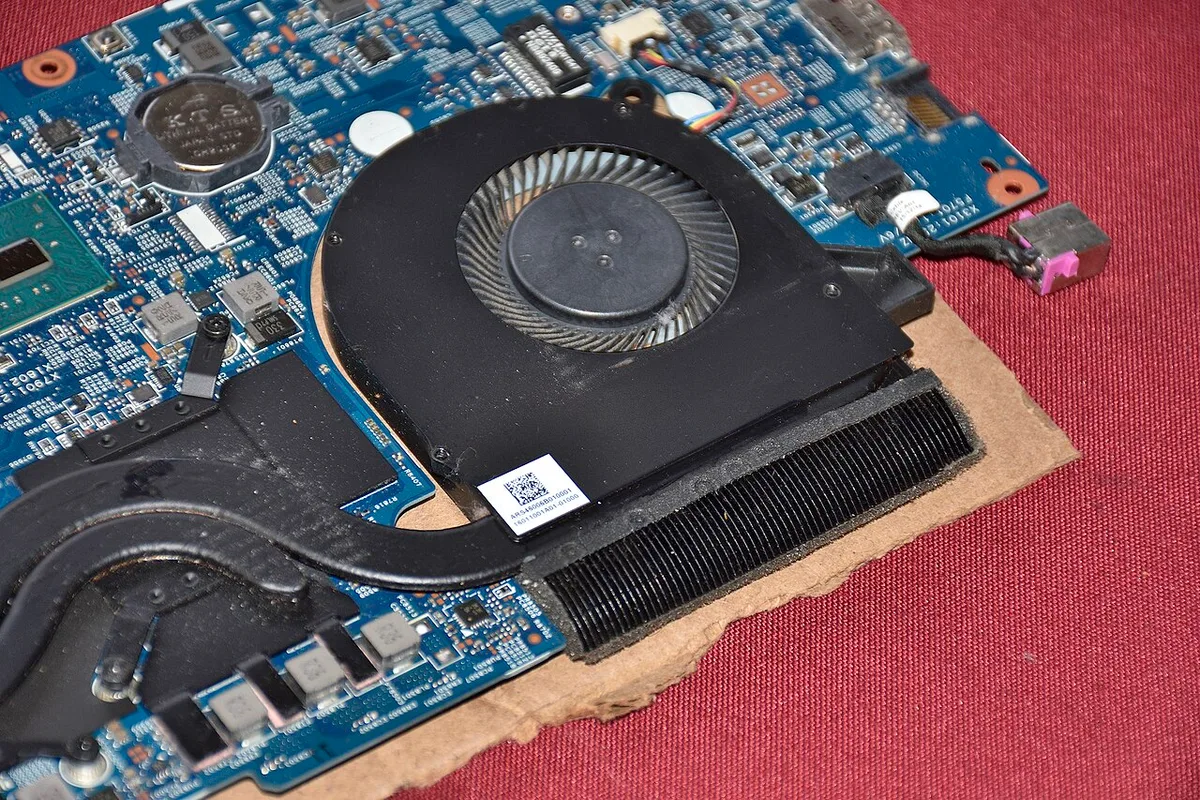
CPU and GPU temperature matters because heat changes how fast a chip can run. When heat builds faster than the cooling system can remove it, the processor protects itself by lowering clock speed. That drop is thermal throttling.
It can feel like stutter, lower frame rates, or sudden input lag. The heatsink, heat pipes, fans, vents, and thermal paste all work as one system.
A typical gaming laptop cooling loop works like this. The CPU and GPU create heat. Heat pipes move that heat to the heatsink fins.
Fans push air across the fins and out the vents. Thermal paste fills tiny gaps between chip and cooler. If one part fails, the whole loop suffers.
You can see the same pattern in aggregate reviews and manufacturer documentation. Dust on fins acts like a blanket. A blocked bottom intake starves the fans.
Old thermal paste loses contact. High ambient room temperature leaves less thermal headroom. A high-wattage GPU can also overwhelm a chassis designed for lower power.
Monitoring tools make the pattern visible. Watch CPU and GPU temperature, fan RPM, clock speed, and power draw. Compare idle, menu, and full-load numbers.
If clocks fall while temperatures stay high, throttling is likely. If clocks stay high but frames drop, look at settings or drivers.
The First Checks Before You Spend Money
Before you buy a cooling pad or open the chassis, check the free fixes. Place the laptop on a hard, flat surface. Keep the bottom vents clear.
Raise the rear edge if the design allows. Clean dust from vents with short bursts of compressed air. Close heavy background apps.
Check power mode and game settings. These steps solve more heat issues than many people expect.
Start with a baseline. Let the laptop idle for ten minutes, then record CPU and GPU temperature. Launch your usual game and play for fifteen minutes, then record again.
Note fan noise, frame rate, and surface heat. Repeat after each change so you know what actually helped.
Check the simple mistakes first. Soft surfaces like beds and couches block intake vents. A dusty desk can feed dust back into the fans.
A laptop pushed against a wall can choke exhaust. High refresh rate settings can add load. Streaming while gaming adds CPU and GPU work.
Even a browser with many tabs can raise temperatures.
Use the right tools. OEM control software can show fan status and power mode. Hardware monitoring tools can log temperatures and clock speeds.
Manufacturer service manuals show how to open the chassis safely. If your laptop is under warranty, check terms before removing panels. Some brands allow basic cleaning, while others restrict internal access.
Step-by-Step Cooling Workflow Based on Your Situation
The best workflow depends on what your laptop is doing. Use if/then logic instead of trying every fix at once. Start with airflow.
Move to software tuning if airflow is already good. Move to hardware service if software changes do not help. Stop early if temperatures reach safe levels.
If Your Laptop Is Dusty or the Fans Sound Wrong
If fans rattle, pulse, or spin loudly at light load, inspect airflow first. Power down and disconnect the charger. Use short bursts of compressed air through intake and exhaust vents.
Hold fans still with a toothpick or cotton swab if the manual allows it. Do not use a vacuum directly on fans because it can overspin them. Recheck temperatures after cleaning.
If the laptop still runs hot, dust may sit deeper on the heatsink fins. That usually needs chassis access. Follow the manufacturer service manual.
Remove the bottom panel on a clean, grounded surface. Inspect fan blades, heatsink, and vents. Clean with compressed air and a soft brush.
Do not bend fins or force connectors.
If Temps Spike Only During Heavy Gaming
If idle temperatures are fine but gaming temperatures spike, limit power before replacing parts. Cap frame rate to a stable value. Lower heavy settings like shadows, ray tracing, and resolution scale.
Use the OEM balanced or quiet power mode. Set a GPU power limit if the software supports it. Undervolt only if the CPU supports it and you test carefully.
A frame rate cap can help because the GPU stops chasing unnecessary frames. A 60 FPS cap may cut heat on a 165Hz panel. A 90 or 120 FPS cap can balance smoothness and temperature.
This is often safer than aggressive undervolting. It also reduces fan noise.
If the Keyboard and Palm Rest Get Too Hot
If the chassis gets hot but core temperatures stay acceptable, focus on heat path and placement. Elevate the rear of the laptop. Use a stand that does not block intake vents.
Add a cooling pad only if it matches your vent layout. Clean dust from palm rest vents if present. Lower sustained GPU load during long sessions.
Surface heat is not always dangerous, but it affects comfort. A keyboard at 45 degrees Celsius can feel much hotter than the same number suggests. Better airflow under the chassis can reduce that heat transfer.
A stand with open mesh often helps more than a pad with fans in the wrong place.
If You Game in a Hot or Poorly Ventilated Room
If ambient temperature is high, fix the room before blaming the laptop. Aim for cooler airflow near the desk. Avoid direct sunlight on the chassis.
Keep exhaust air from blowing back into intake vents. Use a desk fan to move warm air away. Gaming near 30 degrees Celsius leaves much less thermal headroom than gaming near 20 degrees.
Climate matters as much as hardware. Humidity can reduce cooling efficiency in some setups. High altitude reduces air density and cooling.
Small rooms trap exhaust heat. If the room warms during a session, temperatures will climb even if the laptop is clean. Plan breaks and lower settings during heat waves.
Cooling Pad vs Laptop Stand vs Repasting vs Undervolting
These fixes solve different problems. A cooling pad or stand improves airflow around the chassis. Repasting fixes poor thermal contact inside.
Undervolting reduces heat at the source. Power limiting does the same with less risk. The right choice depends on your laptop design, warranty, and skill level.
Cooling Pads and Elevated Stands
A cooling pad adds fans under or around the laptop. An elevated stand improves passive airflow. Pads help most when intake vents sit on the bottom and the fans align with them.
They help less when vents are on the sides or rear. A simple stand can be cheaper, quieter, and easier to carry.
Look for vent alignment, adjustable height, and stable support. Avoid pads that block ports or force awkward angles. Fan speed and noise matter if you play with speakers or a headset.
Some pads also add USB ports, but that is a side benefit, not a cooling benefit.
Repasting and Thermal Pads
Repasting replaces old thermal paste between CPU or GPU and the cooler. Upgraded thermal pads can improve contact on VRAM or VRM chips. This work can lower temperatures, but it carries risk.
You can crack a die, short a board, or void warranty coverage. Only attempt it if you are comfortable with laptop disassembly.
Thermal paste quality matters, but application matters more. A thin, even layer is usually better than a thick blob. Thermal pad thickness must match the gap.
Too thick can lift the cooler. Too thin can leave gaps. Manufacturer service manuals and component specs should guide the job.
Undervolting and Power Limits
Undervolting reduces voltage while keeping clock speed. It can lower heat without much performance loss. Power limiting caps total wattage instead.
Power limiting is usually safer and easier. Undervolting support varies by CPU and OEM firmware. Some modern chips lock voltage controls.
If you try undervolting, change one value at a time. Test stability with a stress tool and real games. Watch for crashes, blue screens, or black screens.
If instability appears, back off the offset. A small stable reduction beats an aggressive one that crashes mid-match.
Which Fix Fits Your Laptop, Climate, and Budget
The right fix depends on symptoms, access, and money. If idle temperatures are high, start with airflow and dust. If only gaming temperatures spike, start with settings and power limits.
If the laptop is old or paste is dried, repasting may help. If you rent or lack tools, stay with external fixes first.
If your budget is zero, use free changes. Raise the rear, clear vents, close apps, cap frames, and lower heavy settings. If you can spend a little, buy a stand or cooling pad that matches vent placement.
If you can spend more and the laptop is out of warranty, consider repasting or pad replacement.
Climate changes the answer. A hot room lowers the ceiling for every fix. In that case, lower settings and power limits matter more than accessories.
In a cool room, airflow and repasting can show bigger gains. Humidity and dust also affect how often you need to clean.
Screen settings can add load too. A higher refresh rate can push the GPU harder, so check whether 165Hz is worth it for your games. Display type also changes power draw and heat, so compare OLED vs IPS gaming laptop screens before blaming the cooler.
| Situation | Best first move | Why |
|---|---|---|
| Hot at idle | Clean vents and remove background load | Airflow or software issue |
| Hot only in games | Cap FPS and limit power | Load is the trigger |
| Hot keyboard | Elevate chassis and reduce sustained load | Heat is moving upward |
| Hot room | Lower settings and improve room airflow | Ambient temperature is the limit |
| Out of warranty and still hot | Inspect paste and pads | Thermal contact may be failing |
Mistakes That Make Gaming Laptop Temps Worse
Small habits can erase good cooling work. The biggest mistake is using a laptop on soft surfaces. Beds, couches, and carpets block intake vents and trap exhaust.
Another mistake is cleaning with the laptop on and fans spinning. That can push dust deeper or damage bearings.
People also chase high frame rates without checking heat. A 240Hz target can keep the GPU loaded even when the game feels smooth. If you want to know whether that tradeoff makes sense, read about whether 240Hz is worth it on a gaming laptop.
Lowering to a stable cap often helps more than buying accessories.
Storage and memory choices can add hidden load. A slow or nearly full drive can make the system work harder. Learn how SSD speed affects gaming performance before blaming the cooler.
If you add storage, check whether you can add a second SSD without blocking airflow. If you upgrade memory, remember that RAM upgrades do not fix a thermal problem.
Other common mistakes include using too much thermal paste, choosing the wrong pad thickness, and skipping baseline tests. Do not stack fixes blindly. Change one thing, test, and record the result.
That keeps you from chasing false gains.
Advanced Tuning: Fan Curves, Power Limits, and Thermal Paste
Advanced tuning is for users who understand the risks. Fan curves change how aggressively fans spin at each temperature. Power limits cap CPU or GPU wattage.
Thermal paste replacement fixes contact between chip and cooler. Each can help, but each can also cause instability or damage.
A custom fan curve can lower temperatures at the cost of noise. Set a gentle ramp first. Avoid maxing fans at low temperatures because that wears bearings and sounds harsh.
OEM software is usually safer than third-party tools. If the laptop shuts down or fans pulse, revert to auto.
Power limiting is often the safest advanced step. It reduces heat without changing voltage. Start with a small reduction, then test a real game.
If frame rates stay acceptable, keep it. If performance drops too much, raise the limit. This is a good option for thin chassis with weak cooling.
Thermal paste work needs care. Clean old paste fully. Apply a thin, even layer.
Use the right pad thickness for VRAM and VRM chips. Check manufacturer documentation for torque and reassembly order. Intel and AMD publish thermal guidance on their official sites, and laptop makers publish service manuals.
| Tuning method | Skill level | Main risk | Best for |
|---|---|---|---|
| Fan curve | Medium | Noise and wear | Loud but coolable laptops |
| Power limit | Medium | Lower peak performance | Thin or hot chassis |
| Undervolt | Advanced | Crashes or instability | Supported CPUs only |
| Repaste | Advanced | Hardware damage | Old or dried paste |
| Pad replacement | Advanced | Wrong thickness | VRAM or VRM hotspots |
What Temperature Drops and Costs Are Realistic
Expect modest gains, not miracles. Cleaning and airflow can drop temperatures by a few degrees. A stand or pad may help more if it matches vent placement.
Repasting can help more on older laptops, but results vary. Undervolting and power limiting can reduce heat quickly, but they may affect performance.
Costs vary by region and model. Compressed air is cheap. A stand may cost little.
A quality cooling pad costs more. Repasting adds paste, pads, tools, and time. Professional service costs the most but reduces risk.
As of 2026, many users should treat internal work as a last resort.
Do not trust exact temperature promises. A 20-degree drop is not normal from a pad alone. A 5-degree drop can still reduce throttling.
The real win is stable clocks and quieter fans. Track before and after numbers instead of chasing a single target.
| Fix | Typical cost | Realistic temperature change | Notes |
|---|---|---|---|
| Cleaning vents | Low | Small to moderate | Best first step |
| Laptop stand | Low to medium | Small | Helps if intake is bottom-mounted |
| Cooling pad | Medium | Small to moderate | Fan alignment matters |
| Power limit | Free | Moderate | May reduce peak FPS |
| Repaste | Low to medium | Moderate on older units | Risky if done wrong |
| Professional service | High | Varies | Best for warranty-safe work |
FAQs and Final Verdict: The Safest Order of Fixes
What CPU temperature is too hot for a gaming laptop?
A gaming laptop CPU is usually too hot when it stays near its throttle limit for long periods. Many chips begin to reduce speed around 90 to 100 degrees Celsius. Check your exact CPU specification because limits differ.
Short spikes are less concerning than sustained heat.
Do cooling pads actually lower temperatures?
Cooling pads can help when their fans align with bottom intake vents. They help less on laptops with side or rear vents. A passive stand can sometimes match or beat a poorly aligned pad.
Test with monitoring before keeping one.
Is undervolting safe for gaming laptops?
Undervolting can be safe when the CPU supports it and you test carefully. Change one setting at a time and watch for crashes. If instability appears, reduce the offset.
Power limiting is safer for most users.
How often should I clean a gaming laptop?
Clean external vents every one to three months. Clean internal dust when temperatures rise or fans get loud. Hot, dusty, or pet-filled rooms need more frequent cleaning.
Follow the manufacturer service manual for safe access.
Final Verdict: The Safest Order of Fixes
Start with airflow and room temperature. Then test settings, frame caps, and power limits. Add a stand or pad only if vent alignment makes sense.
Reserve repasting, pad replacement, and undervolting for cases where safer steps fail. This order protects your warranty, reduces risk, and still gives you a clear path to lower heat.
1 thought on “How to Reduce Gaming Laptop Temperature Fast”
Comments are closed.