How do the components of a gaming pc work together? They don’t act like separate parts sitting in a box. They act like a relay team passing data, power, and heat in real time.
If one leg is slow, the whole race suffers. In our research, a balanced system matters more than any single headline spec. Modern builds rely on PCIe 5.0 lanes and DDR5 bandwidth to keep that relay smooth.
We’ll walk through the data path visually so the handoffs make sense.
Manufacturer specifications show the motherboard as the central switchboard, while the CPU, GPU, RAM, and storage each wait their turn. The goal isn’t maximum numbers on paper. It is stable timing, cool thermals, and no bottlenecks during play.
As of 2026, that balance is what separates a smooth 4K session from stutter.
how do the components of a gaming pc work together
The CPU reads game logic and sends commands. The GPU turns those commands into frames. RAM holds active data for fast access.
Storage feeds assets when needed. The motherboard routes power and signals between them.
Why You Can’t Understand PC Synergy Without Seeing the Flow
A gaming PC is less like a checklist and more like a traffic system. Each part has a lane, a speed limit, and a job. The CPU plans routes.
The GPU paints the scene. RAM keeps the active map ready. Storage pulls the rest from disk.
The motherboard is the road network tying them together.
Diagrams help because the important details are invisible. You can’t see a PCIe lane, a memory channel, or a thermal limit by looking at a photo. A good diagram shows direction, width, and delay.
That is what turns a parts list into a system.
The biggest lesson is simple. Speed only matters where data actually moves. A fast GPU starves if the CPU feeds it too slowly.
Fast RAM helps only when the workload uses it. Storage matters most during loading and texture streaming.
The Motherboard as the Nervous System: Tracing Data Paths Visually
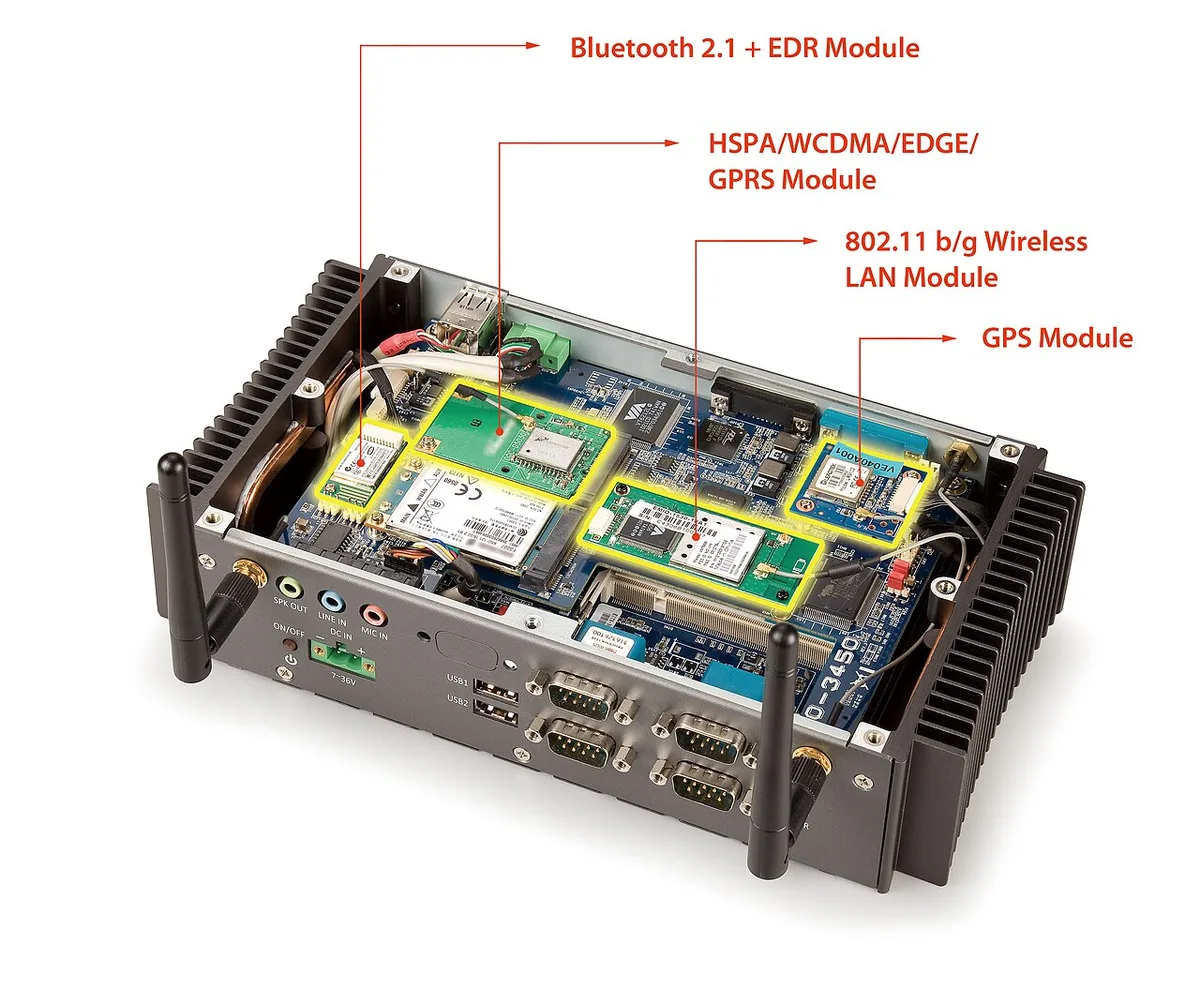
Image source: Wikimedia Commons / VIA Gallery from Hsintien, Taiwan (CC BY)
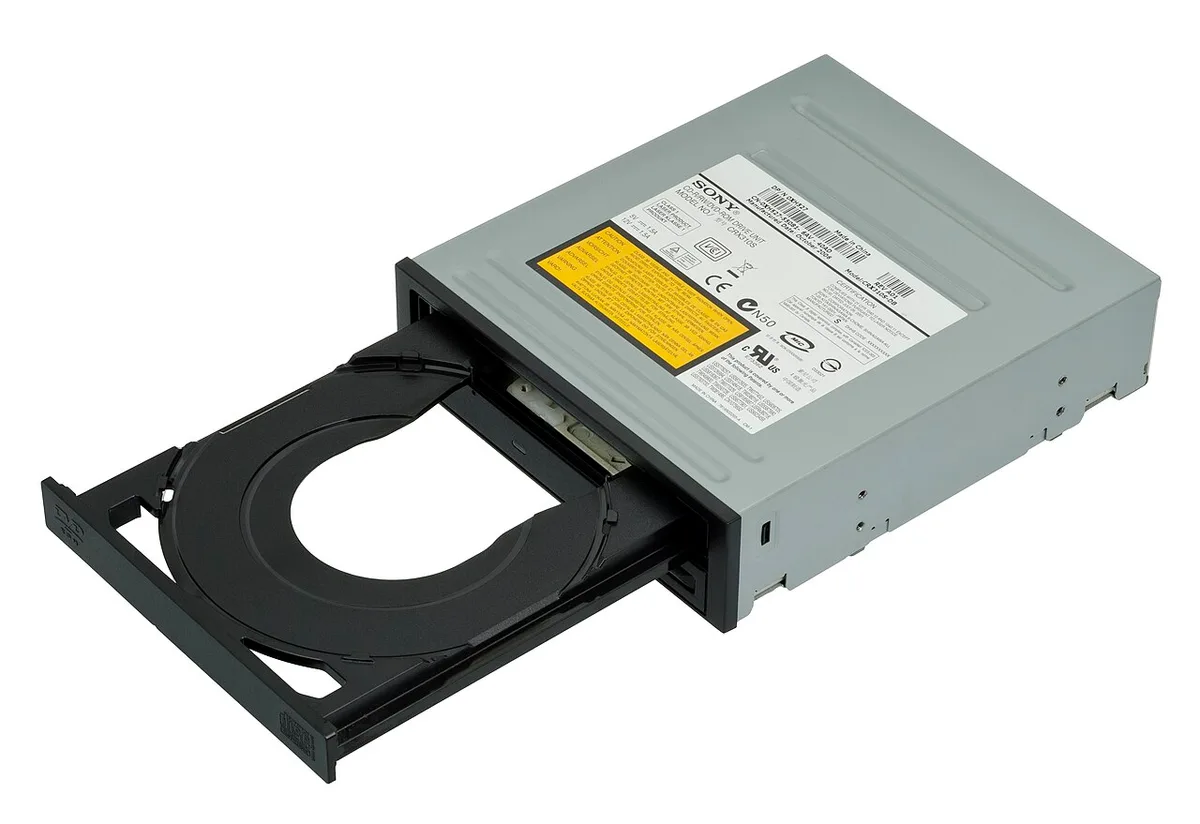
Image source: Wikimedia Commons / Evan-Amos
The motherboard is the nervous system of the build. It carries signals, power, and timing between every major part. Think of it as a city map with highways, side streets, and power lines.
The CPU socket, PCIe slots, RAM slots, and storage connectors are the districts.
Most of the traffic moves across PCIe lanes. A modern GPU usually takes an x16 connection, while fast NVMe drives often use x4 lanes. The chipset manages lower-speed devices like USB, audio, and SATA.
VRMs on the board convert power and keep voltage stable when the CPU spikes.
A visual layout matters here. You want to see which slots share lanes and which stay direct. Some boards split bandwidth when a second drive or card is installed.
That is why two builds with the same parts can behave differently.
| Motherboard Area | Main Job | What to Watch |
|---|---|---|
| CPU Socket | Holds the processor and power delivery | VRM heat under load |
| RAM Slots | Feed active game data | Channel and timing support |
| PCIe x16 Slot | Connects the GPU | Lane count and generation |
| M.2 Slots | Connect fast SSDs | Shared lanes with SATA or PCIe |
| Chipset | Manages slower I/O | USB, audio, storage limits |
When comparing boards, look beyond the brand name. Check motherboard feature sets for layout and lane details. A clean board with strong VRMs often beats a flashy one with weak power delivery.
CPU-GPU Handshake: How Instructions Become Pixels in Real Time
The CPU and GPU are constantly talking. The CPU handles game logic, physics, AI, and draw calls. The GPU turns those instructions into pixels.
The handshake is the frame pipeline, and it happens many times per second.
First, the CPU prepares a frame. It decides what objects exist, where they are, and what changed. Then it sends draw calls to the GPU.
The GPU builds geometry, shades surfaces, applies lighting, and outputs the image. RAM and VRAM feed both sides with assets.
This is where bottlenecks show up. If the CPU can’t prepare frames fast enough, the GPU waits. If the GPU can’t render fast enough, the CPU waits.
Neither part is “bad” on its own. They are just mismatched for that game or resolution.
Ray tracing and upscaling change the load. DLSS, FSR, and XeSS shift some work toward AI cores. That can improve frame rates, but it also changes how CPU and GPU share the load.
A visual pipeline diagram helps you see where each feature lands.
If you are choosing parts, compare balanced graphics card options with your CPU class. The goal is to avoid one part idling while the other is maxed out.
Memory and Storage Dynamics: Where Bottlenecks Actually Hide
RAM is the working desk. Storage is the filing cabinet. Games constantly move assets between them.
When RAM is full, the system uses slower storage as overflow. That is when stutter appears, even with a strong GPU.
Dual-channel memory matters because it doubles bandwidth. DDR5 adds more bandwidth than DDR4, but latency and timing still matter. For gaming, capacity and channel layout often beat chasing the highest clock speed.
A visual memory map makes this clearer than a spec sheet.
Storage has its own pipeline. NVMe drives feed textures and levels faster than SATA SSDs. Still, once a level loads, the drive may sit idle.
The real benefit is asset streaming, not raw benchmark numbers. That is why a PCIe 4.0 NVMe drive often feels as good as a PCIe 5.0 drive in current games.
| Memory or Storage Item | What It Does | Common Bottleneck |
|---|---|---|
| Single-Channel RAM | Basic active data access | Lower bandwidth |
| Dual-Channel RAM | Wider data path | Better frame pacing |
| DDR5 Memory | Higher bandwidth | Cost and timing tradeoffs |
| NVMe SSD | Fast asset loading | Shared PCIe lanes |
| SATA SSD | Slower but stable storage | Lower throughput |
For buyers, budget-friendly balanced builds often show where money actually helps. Spend on RAM capacity and a decent NVMe drive before chasing extreme storage speeds.
Power Delivery and Thermal Interdependence: The Invisible Link
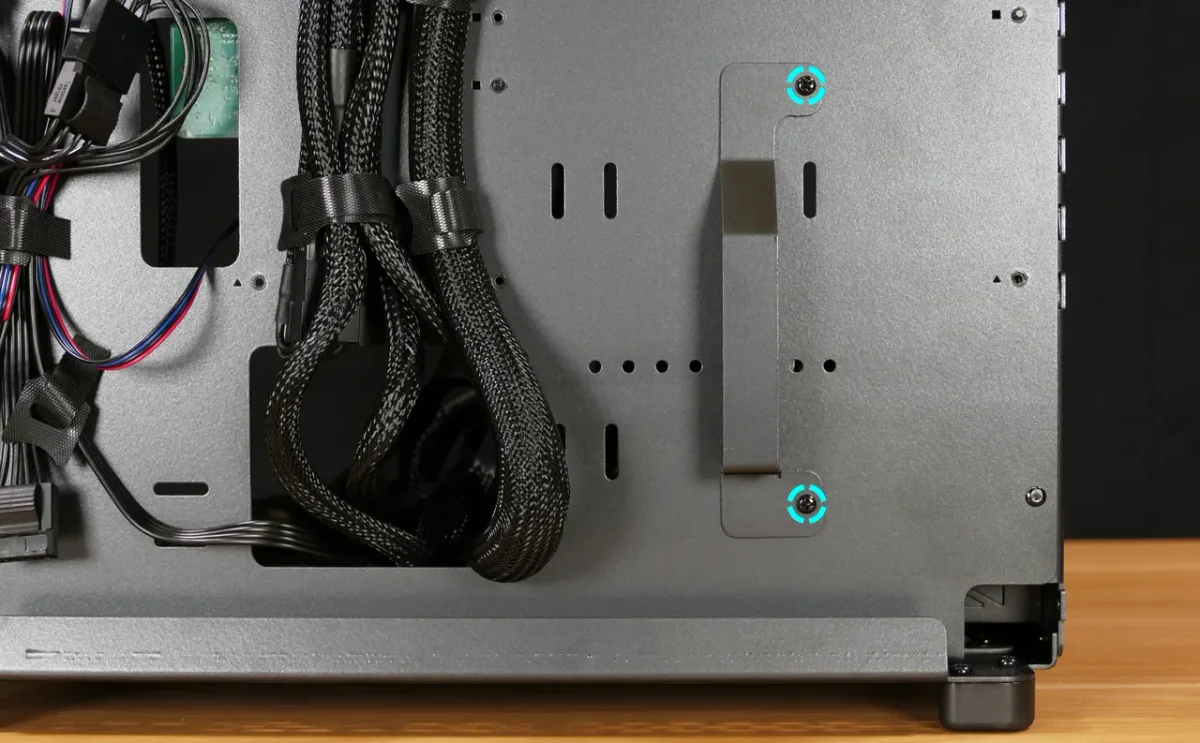
Image source: Wikimedia Commons / System76 (CC BY-SA)
Power and heat connect every component. The PSU sends 12-volt power to the GPU and CPU, while VRMs reshape it for precise use. If voltage drops, clocks drop.
If heat rises, clocks drop again. That is why a strong PSU and good cooling protect performance.
Thermal throttling is a chain reaction. A hot CPU can reduce boost clocks. A hot GPU can reduce shader performance.
A hot VRM can destabilize the whole board. Even cable placement matters because blocked airflow changes temperatures.
Cooling is not just about fan size. It is about where heat goes. Air coolers push heat into the case.
Liquid coolers move it to a radiator. Both can work well if airflow is planned. PCI-SIG specifications define PCIe power and signaling standards, while JEDEC standards define memory behavior.
Those standards are the baseline for stable interaction.
If you are comparing complete systems, full-system performance picks can help you spot balanced power and cooling choices. The best build is the one where no part fights the others.
Visualizing the Full Loop: From Input to Display Output
A complete frame starts at your input device. You click or press a key. The OS reads that event and passes it to the game.
The game updates logic, physics, and state. Then the CPU prepares draw calls and hands them to the GPU. The GPU renders the frame, stores it in VRAM, and sends it to the display.
Each stage adds latency. Input polling, OS scheduling, game simulation, CPU draw call prep, GPU render time, scanout, and panel response all stack up. A diagram of this loop shows where milliseconds disappear.
Most gaming feel comes from the total, not one number.
Refresh rate and frame rate are different. A 144Hz monitor can only show 144 frames per second. If the GPU renders 200, the extra work is wasted.
If it renders 80, the monitor waits. Matching output to display capacity is part of system balance.
VRR matters here. FreeSync and G-Sync let the monitor adapt to frame delivery. That reduces tearing and stutter when frame times vary.
A visual timeline of frame pacing makes this clearer than any spec list.
Common Misconceptions When Reading Hardware Diagrams
Many diagrams oversimplify. They show a straight line from CPU to GPU to screen. Real systems loop back through RAM, storage, and cache constantly.
Treating them as one-way paths leads to bad buying decisions.
Another myth is that more cores always help. Gaming often favors fewer fast cores over many slow ones. A diagram showing thread usage reveals which cores stay busy and which sit idle.
That is why an eight-core chip can beat a sixteen-core chip in many titles.
People also misread PCIe bandwidth. A GPU rarely saturates x16 lanes in games. Sharing lanes with an NVMe drive usually costs little.
But in capture or AI workloads, that sharing matters more. Context changes the answer.
Thermal diagrams cause confusion too. A CPU at 85°C may still boost fine. A VRM at 95°C may throttle the board.
Junction temperature and hotspot location matter more than a single average. Always read the legend before trusting a thermal map.
Practical Walkthrough: Diagnosing Interaction Failures via Monitoring Tools
Start with HWInfo or MSI Afterburner. Watch CPU usage, GPU usage, RAM usage, and temperatures at the same time. If GPU usage sits at 99% while CPU usage is low, the GPU is the limit.
If CPU usage is maxed and GPU usage is low, the CPU is the bottleneck.
Check 1% lows, not just average FPS. A game can average 120 FPS but drop to 40 during combat. That points to asset streaming or memory pressure.
NVMe read speeds and RAM capacity often explain those drops better than GPU power.
Thermal throttling shows up as clock drops. Look for CPU core clocks falling under load. Look for GPU hotspot temps above safe ranges.
If clocks dip while temps spike, cooling is the issue. If clocks dip while temps stay low, power delivery may be weak.
Driver order matters too. Install chipset drivers before GPU drivers. Update BIOS if memory training fails.
Reset XMP profiles if RAM refuses to boot. These small steps fix many interaction failures before you swap hardware.
Building for Balance: Matching Components to Avoid Friction
Balance beats extremes. A mid-range GPU with a mid-range CPU often feels better than a flagship GPU with a weak CPU. The goal is to keep all parts busy without one waiting on another.
Match resolution to hardware. 1080p gaming leans on CPU speed. 4K gaming leans on GPU power. 1440p sits in the middle and is the most common sweet spot. Pick parts based on where you actually play.
Memory should match the platform. DDR4 boards need DDR4 kits. DDR5 boards need DDR5 kits.
Capacity matters more than speed for most gamers. 16GB is the floor today. 32GB helps with streaming and heavy multitasking.
Storage should match your library size. A 1TB NVMe drive holds the OS and a few large games. A 2TB drive reduces juggling.
Add a slower SATA drive for media and archives. That keeps the fast drive focused on active games.
If you are choosing a complete system, balanced gaming PC picks can show which combos work well together. Look for consistent frame pacing, not just peak FPS.
Frequently Asked Questions About Component Interaction
Can a fast GPU fix a slow CPU?
No. A fast GPU renders frames quickly, but it waits for the CPU to send draw calls. If the CPU is slow, the GPU idles.
The result is low frame rates despite strong graphics hardware. Match both parts to the same tier.
Does RAM speed matter more than capacity?
Capacity matters first. Running out of RAM causes stutter and texture pop-in. Speed helps frame pacing but only after capacity is enough.
Most gamers should prioritize 16GB or 32GB before chasing high clocks.
Why does my PC stutter when loading new areas?
Storage and RAM are the usual culprits. The drive streams assets while RAM holds active data. If either is slow or full, frames drop during loads.
An NVMe SSD and enough RAM fix most cases.
Is a bigger PSU always better?
Not always. Oversized units waste money and may run less efficiently at low load. Match wattage to your parts plus headroom.
A quality 650W unit often beats a cheap 850W unit. Quality PSU options can guide selection.
Do I need liquid cooling for good performance?
No. Air coolers handle most builds well. Liquid cooling helps with tight cases or high-end CPUs.
The key is keeping temperatures in safe ranges, not the cooling type. Good airflow matters more than cooler category.
4 thoughts on “How Gaming PC Parts Work Together: A Simple Guide”
Comments are closed.