You've probably seen "memory overclocking support" listed on a motherboard spec sheet and wondered what it actually means for your build. What is memory overclocking support on a motherboard? It's the board's ability to run RAM faster than the base JEDEC standard speed, either through one-click profiles or manual tuning.
Without it, your pricey DDR5 kit may default to a slower speed.
Most DDR5 kits ship with XMP or EXPO profiles rated well above the base 4800 MT/s JEDEC spec, and the motherboard has to support that profile to use it. As of 2026, many mid-range boards advertise DDR5-7200 or higher, but real-world stability still depends on your CPU's memory controller and board layout. Let's break down what actually matters so you can make a confident choice.
what is memory overclocking support on a motherboard
Memory overclocking support means a motherboard can run RAM above its base JEDEC speed. It usually works through XMP, EXPO, or manual BIOS settings. The CPU's memory controller must support those speeds too.
Not every board reaches the same top frequency. Check the QVL and rated speed before buying.
The Conditions That Decide Whether Your RAM Will Hit Its Rated Speed
Memory overclocking support is not just a checkbox on the spec sheet. It's a team effort between the motherboard, the CPU's integrated memory controller, the RAM kit, and the BIOS. If any one of those is weak, your kit may not hit its rated speed even if the box says it should.
The CPU matters most. AMD Ryzen and Intel Core processors have different memory controllers, and some generations handle high speeds far better than others. A board rated for DDR5-8000 means little if your CPU's controller tops out at DDR5-6400.
Board layout plays a big role too. A two-DIMM design with daisy-chain routing usually reaches higher speeds than a four-DIMM T-topology design. More slots means more signal load, which limits top frequency.
BIOS maturity is the hidden variable. Early BIOS versions often struggle with memory training on new platforms. Manufacturer updates fix training bugs and add compatibility for newer kits.
Always update before judging a board.
Silicon lottery is real. Two identical kits can behave differently. Thermal conditions matter as well.
Hot DIMMs lose stability, so airflow near the memory slots helps.
If you're picking a board, match the socket first. You can read about matching your CPU to the socket before worrying about memory speed.
XMP, EXPO, DOCP, and Manual Tuning: Which Path Fits Your Build
Not all memory overclocking support works the same way. The path you choose changes how much effort and risk is involved. Here's how the main options compare.
XMP is Intel's one-click profile system. EXPO is AMD's equivalent for Ryzen platforms. Both store frequency, timings, and voltage in the RAM's SPD chip.
You enable them in BIOS and the board applies the profile.
DOCP, EOCP, and A-XMP are vendor-branded versions of XMP. They do the same job with different names. Don't let the branding confuse you.
Manual tuning is the advanced route. You set frequency, timings, and voltage yourself. It takes patience and testing but can squeeze out extra performance.
It's also where mistakes cause instability.
Auto-tuning tools like AI Overclocking attempt to find a stable profile for you. They're convenient but conservative. They rarely match a careful manual tune.
Here's a quick comparison to help you decide.
| Path | Effort | Risk | Best For |
|---|---|---|---|
| XMP / EXPO | Low | Low | Most builders |
| Vendor profiles (DOCP, EOCP) | Low | Low | Same as XMP |
| Auto-tuning | Low | Low to medium | Beginners wanting more |
| Manual tuning | High | Medium to high | Enthusiasts and benchers |
For most people, XMP or EXPO is the right answer. It's fast, safe, and well-tested. Manual tuning makes sense if you enjoy tweaking and accept the risk.
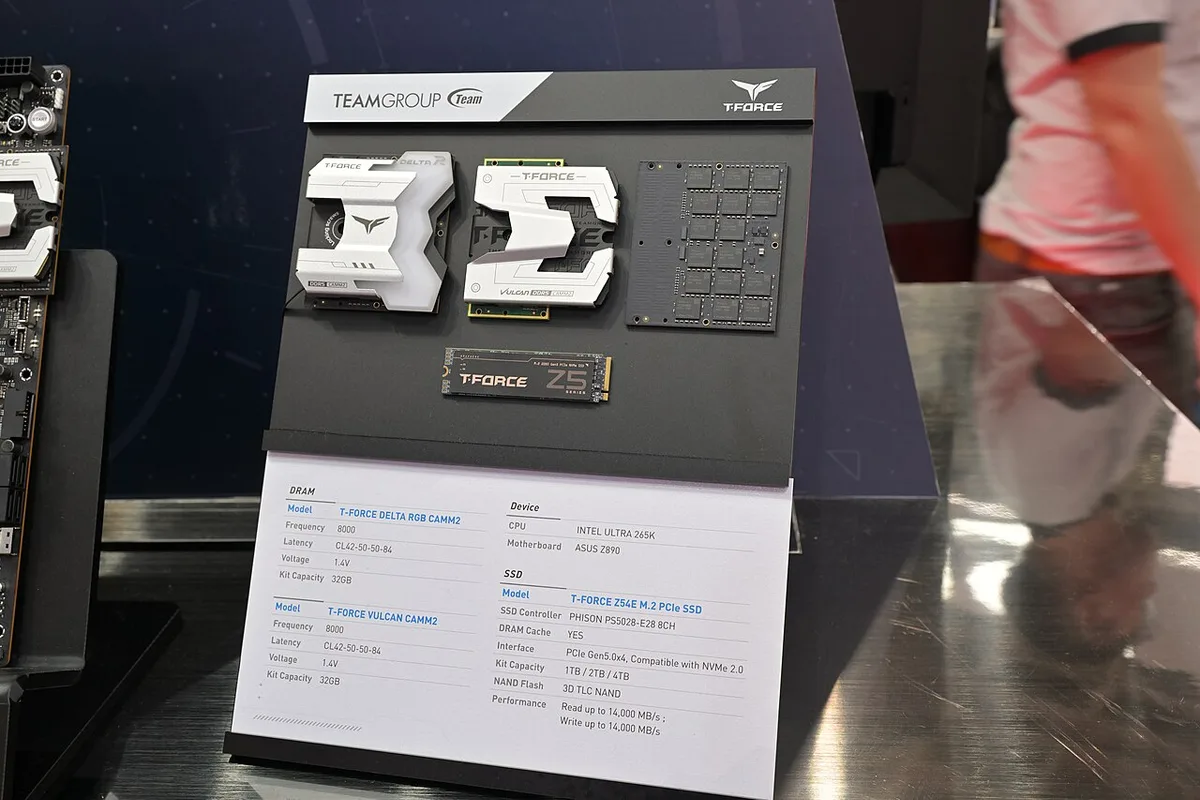
Image source: Wikimedia Commons / 4300streetcar (CC BY)
Understanding what the board actually does helps here. Memory support is one piece of a larger system, and the chipset determines how much control you get. See chipset features that matter most for the bigger picture.
How to Check Motherboard and RAM Compatibility Before You Buy
Buying a fast kit without checking compatibility is the most common mistake. A few minutes of research saves hours of troubleshooting. Here's what to verify.
Start with the QVL. The Qualified Vendor List is published by the motherboard maker. It lists RAM kits tested and confirmed stable on that board.
If your kit isn't on it, that doesn't mean it won't work, but it's a warning sign.
Check the rated speed against the board's spec. A board rated for DDR5-6400 may not boot a DDR5-8000 kit at its full speed. It might downclock to a safe default.
Match the DIMM count to your board. Four-DIMM boards are pickier at high speeds. If you plan to run DDR5-7200 or higher, a two-DIMM board is safer.
Verify BIOS version. Newer memory kits often need a newer BIOS. Check the manufacturer's support page before building.
Consider board size and layout. Smaller boards sometimes have tighter trace routing, which affects top speed. Read about board size and layout trade-offs if you're building in a compact case.
Finally, confirm your CPU's memory support. Intel and AMD publish max supported speeds. Those numbers are conservative but useful baselines.
Step-by-Step: Enabling and Testing Memory Overclocking Safely
Here's the safe workflow most builders follow. Take it slow and test at each step.
- Update the BIOS to the latest stable version.
- Install the RAM in the recommended slots per the manual.
- Boot into BIOS and enable XMP or EXPO.
- Save and reboot. Watch for successful POST.
- If it boots, run a memory stress test.
- If it fails, try a lower profile or manual settings.
- Test again until stable.
Memory training can take several minutes on first boot. Don't panic if the screen stays black for a while. Give it time.
For stress testing, use tools like MemTest86, TestMem5, or OCCT. Run at least one full pass, ideally two or three. A single pass can miss intermittent errors.
Watch temperatures. Hot RAM is unstable RAM. If DIMMs exceed 50 to 60 degrees Celsius under load, improve airflow.
If stability fails, reduce frequency first, then tighten timings. Lowering voltage slightly can help too, but never exceed manufacturer limits. Most DDR5 kits are rated for 1.35V to 1.4V.
Going beyond that risks damage.
Keep notes. Write down what worked and what didn't. This helps if you upgrade later.
Understanding how system RAM differs from GPU memory also helps set expectations. System RAM overclocking gains are real but modest compared to GPU upgrades.
If you're still picking the right board for your build, factor memory support into the decision alongside socket, chipset, and expansion. It's one of the specs that separates a good board from a great one.
Common Memory Overclocking Mistakes and How to Avoid Them
The biggest mistake is trusting the box speed without checking the board and CPU. A kit rated for DDR5-8000 can still run at DDR5-5600 if the memory controller or BIOS is not ready. Always cross-check the QVL first.
Mixing RAM kits is another common failure. Even two kits with the same model number can use different memory chips or revisions. Buy one matched kit instead of combining leftovers.
Many builders enable XMP, see a successful boot, and stop there. That is not enough. Run a real stress test before trusting the profile for daily use.
Four-DIMM builds are harder at high speeds. If you want DDR5-7200 or higher, a two-DIMM board is usually the safer path. Fill all four slots only when speed matters less than capacity.
Other mistakes worth avoiding:
- Skipping the BIOS update before enabling a new kit
- Overvolting beyond the kit's rated DRAM voltage
- Ignoring DIMM temperatures during testing
- Testing only with light apps instead of memory stress tools
- Forcing Gear 1 on a platform that needs Gear 2
- Changing five settings at once, then guessing which one fixed it
Base JEDEC speeds are conservative by design. That is why JEDEC profiles boot easily, while overclocked profiles need more validation.
Real-World Results: Gaming, Creation, and Everyday Gains
Memory overclocking gains are real, but they are usually modest. In gaming, aggregate benchmark results often show small average FPS improvements, sometimes in the low single digits. The bigger win is often smoother 1 percent lows, not headline frame rates.
The gains grow in memory-bound workloads. Large code compiles, heavy video timelines, 3D rendering, and scientific work can benefit more from higher bandwidth and lower latency. Everyday browsing and office work rarely show a noticeable difference.
Your CPU and GPU balance matters. If the GPU is the bottleneck, faster RAM will not transform performance. If the CPU is the bottleneck, memory tuning can help more.
A useful expectation is this: memory overclocking is a refinement, not a replacement for a better CPU or GPU. It rewards careful builders, but it should not be the first upgrade you chase.
Costs, Specs, and What You're Really Paying For
You are paying for speed binning, tighter timings, and validation work. Faster kits cost more because the memory chips are tested and sorted for higher frequencies. As of 2026, the jump from a basic DDR5 kit to a high-speed kit can be significant, especially at 64GB or more.
| Spec | Entry DDR5 Kit | High-Speed DDR5 Kit |
|---|---|---|
| Frequency | DDR5-4800 to DDR5-5600 | DDR5-6400 to DDR5-8000+ |
| Typical Voltage | 1.1V | 1.35V to 1.4V |
| Timings | Looser | Tighter |
| Best Use | Stock or mild profiles | Enthusiast tuning |
| Cost Per GB | Lower | Higher |
Specs to compare before buying:
- Frequency in MT/s
- CAS latency and secondary timings
- Kit capacity and rank count
- Rated DRAM voltage
- Heatspreader design and height
- QVL coverage on your board
- Warranty and XMP or EXPO support
Do not buy speed you cannot use. A DDR5-8000 kit on a board or CPU that tops out at DDR5-6400 wastes money unless you plan to upgrade later.
Safety, Warranty, and When to Stop Pushing
Memory overclocking can be safe when you stay within rated voltage and temperature limits. Risk rises when you push beyond the kit's specifications or ignore cooling. Overvolting can shorten component life, and unstable memory can cause crashes or data corruption.
Warranty is another consideration. Many motherboard and CPU warranties do not cover damage from overclocking. Some platforms offer official overclocking tools, but that does not make every setting risk-free.
Stop pushing if you see any of these signs:
- Repeated boot failures or training loops
- WHEA errors or random application crashes
- DIMM temperatures above safe levels
- File corruption or failed stress tests
- Needing extreme voltage for small gains
Best practices are simple. Change one variable at a time. Save stable settings as a profile.
Keep a known-good BIOS configuration. Clear CMOS if the system will not boot. If a small gain needs a large risk, it is not worth it.
FAQs and Final Decision Guide: Choosing the Right Memory Path
Does enabling XMP or EXPO void my warranty?
It can, depending on the manufacturer and platform. Many OEM systems and some components exclude overclocking from warranty coverage. Check the warranty terms before enabling any profile.
Why does XMP fail on a supported motherboard?
The CPU memory controller, BIOS version, DIMM count, or kit revision may be the limiting factor. A supported board does not guarantee every kit will train at its rated speed.
Is manual memory overclocking worth it?
It is worth it for enthusiasts who enjoy tuning and accept the time cost. For most builders, a stable XMP or EXPO profile delivers nearly all the benefit with far less risk.
Can I mix two RAM kits safely?
It is possible, but it is not recommended. Different chips, timings, or revisions can cause instability even when the labels match.
How long should memory stress testing last?
Run at least one full pass, then repeat if the system is for work or long sessions. A quick boot is not proof of stability.
What should I do if memory training takes several minutes?
Wait before resetting the system. First boots and profile changes can take longer than normal. If it hangs indefinitely, clear CMOS and start from stock settings.
Final decision guide:
- If you want simple speed, enable XMP or EXPO and test it.
- If you want more performance, try auto-tuning after a stable baseline.
- If you enjoy tweaking, use manual tuning with careful notes.
- If stability matters most, choose a two-DIMM board and a QVL-listed kit.
- If gains are small and risk is high, stay at stock or mild settings.
1 thought on “What Is Memory Overclocking Support on a Motherboard?”
Comments are closed.