Figuring out how to avoid a gpu bottleneck when choosing a cpu is less about raw power and more about balance. Many gamers overspend on flagship processors while their graphics cards sit idle, waiting for instructions. This mismatch wastes money and leaves performance on the table.
We’ve seen this pattern repeatedly in aggregate user reviews and benchmark data. A CPU that’s too slow holds back even the fastest GPUs at 1080p. But at 4K, the dynamic shifts entirely.
Understanding these variables saves you from costly build errors. Let’s break down exactly where your system stands right now.
The Real Reason Your Expensive GPU Isn’t Hitting Its Numbers
A GPU bottleneck happens when your processor can’t feed data to the graphics card fast enough. The GPU waits. Frames drop.
Utilization plummets. It feels like lag, but it’s actually starvation.
Most people assume more cores equal better gaming. That’s false. Games rely heavily on single-thread speed and cache latency.
If your CPU struggles with draw calls, the GPU sits at 60% usage. You pay for horsepower you can’t use.
This isn't just theory. Manufacturer specifications indicate that modern titles stress specific CPU subsystems. DirectX 11 games often hit CPU limits earlier than DirectX 12 counterparts.
The API overhead matters. So does the game engine. Unreal Engine 5 projects, for example, lean harder on CPU threads for physics and AI.
You might think upgrading your GPU fixes everything. It doesn’t. If the brain of your PC is sluggish, the muscle stays weak.
We need to identify if your current pairing is truly unbalanced or if software settings are masking the issue. Sometimes background processes eat up cycles. Other times, thermal throttling slows the chip down.
Before we swap parts, let’s look at what creates this imbalance. Is it the resolution? The frame rate target?
Or simply the wrong architectural match? Getting this right prevents expensive regret. Our research shows that most bottlenecks occur below 1440p with high-refresh monitors.
At those speeds, the CPU becomes the primary limiter.
Defining the Variables: Resolution, Refresh Rate, and Game Type
How do you know which variable dominates your experience? Start with resolution. Higher resolutions shift the load to the GPU.
Lower resolutions keep it on the CPU. This is the golden rule of balancing builds.
At 1080p, your CPU works overtime. It prepares geometry, handles lighting calculations, and manages AI. The GPU renders pixels quickly, then waits.
If you pair an RTX 4090 with a Ryzen 5 3600 at 1080p, you’ll see massive underutilization. The CPU hits 100% while the GPU idles.
Now flip the script. At 4K, pixel count explodes. The GPU spends its time shading millions of pixels.
The CPU’s job becomes relatively lighter. Even a mid-range processor can keep up here. The bottleneck disappears because the workload moves downstream.
Refresh rate changes the math again. Competitive gamers targeting 240Hz or 360Hz demand extreme CPU throughput. Each frame must be prepared in milliseconds.
Missing that deadline causes stutter. For casual players locked at 60fps, the pressure eases significantly.
Game type adds another layer. Strategy games like Civilization VI hammer multiple cores. Shooters like Counter-Strike 2 favor single-core speed.
Simulators depend on complex physics engines. Knowing your primary title helps predict where the limit lies.
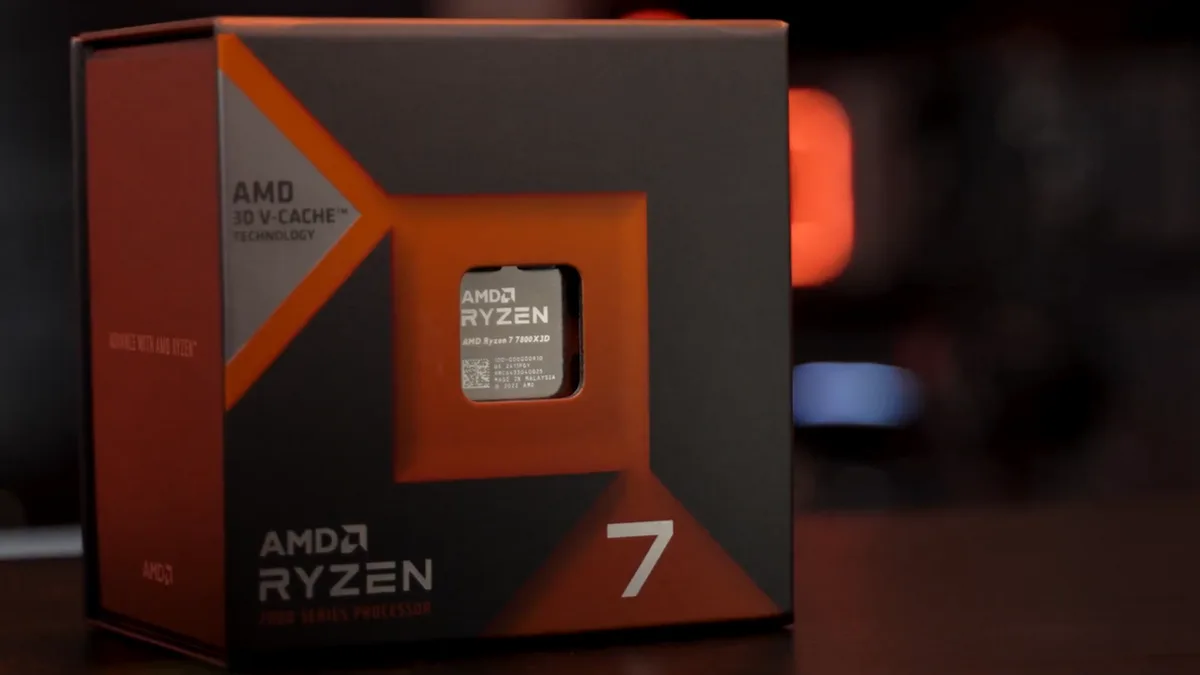
Image source: Wikimedia Commons / Memory PC (CC BY)
Consider these scenarios as you plan your build. Are you chasing esports glory or cinematic immersion? The answer dictates your component priorities.
Don’t guess. Match your hardware to your actual playstyle.
Step 1: Assessing Your Current Hardware Pairing
Before buying new parts, audit what you have. You don’t want to replace a healthy CPU unnecessarily. Use tools like MSI Afterburner or HWInfo64 during gameplay.
These apps show real-time utilization percentages.
Look for two red flags. First, check CPU usage per core. If one core pegs at 100% while others idle, you’re limited by single-thread performance.
Second, watch overall GPU usage. Below 90% usually signals a CPU bottleneck, provided temps are normal.
Temperature plays a sneaky role here. Thermal throttling reduces clock speeds automatically. If your CPU hits 95°C, it slows down.
Suddenly, a capable chip acts like a budget model. Ensure your cooling solution matches your processor’s TDP rating.
Also verify RAM configuration. Slow memory or incorrect timings starve the CPU. Enabling XMP profiles boosts effective bandwidth.
Without it, your processor runs crippled. Check your motherboard manual to confirm supported speeds. You might also need to verify RAM compatibility before tweaking BIOS settings.
Background processes steal cycles. Browsers, Discord overlays, and RGB software consume resources. Close unnecessary apps during testing.
Run benchmarks twice. Once clean, once cluttered. Compare the results.
If FPS jumps after closing apps, optimize your startup list instead of upgrading hardware.
Finally, ensure drivers are current. Outdated chipset drivers cause scheduling issues. Windows updates sometimes reset power plans.
Set your OS to "High Performance" mode. This prevents aggressive sleep states that delay CPU response times. Small tweaks often yield big gains without spending a dime.
Step 2: Choosing a CPU Based on Target Performance Tier
Once assessed, select your next step based on tiers. There is no universal "best" CPU. Only the best fit for your GPU and goals.
We categorize builds into three distinct brackets.
Entry-level builds focus on value. Pairing a Ryzen 5 7600 with an RTX 4060 makes sense at 1080p. Spending $400 on an i9 here is waste.
The cheaper chip handles the load perfectly. Save money for storage or peripherals.
Mid-range systems aim for 1440p sweet spots. Here, balance is critical. An RTX 4070 Super pairs well with a Ryzen 7 7700X.
Both components push each other equally. Neither lags behind. This synergy maximizes cost-per-frame efficiency.
High-end enthusiasts chase 4K or ultra-high refresh rates. Flagship GPUs like the RTX 4090 demand top-tier CPUs. However, cache size matters more than core count.
The Ryzen 7 7800X3D outperforms many i9 models in gaming despite having fewer cores. Its 3D V-Cache technology feeds data faster.
Intel offers strong alternatives with hybrid architectures. Core Ultra 200 series chips compete fiercely. They handle multitasking better due to E-cores.
Yet, for pure gaming throughput, AMD’s X3D lineup currently leads aggregate reviews. Always cross-reference recent benchmarks. As of 2026, market dynamics shift quarterly.
Don’t forget platform longevity. AM5 sockets promise support through future generations. LGA1851 offers similar paths.
Investing in a durable board protects your upgrade path later. Verify CPU socket compatibility before purchasing any motherboard. Mismatched pins ruin days of planning.
| Build Tier | Recommended CPU Examples | Ideal GPU Partner | Primary Use Case |
|---|---|---|---|
| Entry-Level | Ryzen 5 7600, Core i5-14400F | RTX 4060, RX 7600 | 1080p @ 60-144Hz |
| Mid-Range | Ryzen 7 7700X, Core i5-14600KF | RTX 4070 Ti, RX 7800 XT | 1440p @ 144Hz+ |
| High-End | Ryzen 7 7800X3D, Core i7-14700K | RTX 4080, RX 7900 XTX | 4K @ 60Hz+ or Esports |
Match your wallet to your monitor. Overspending hurts nothing except your pride. Underspending frustrates every session.
Find the middle ground.
The X3D Factor: Why Cache Matters More Than Core Count for Gaming
Cache is the secret weapon. Specifically, L3 cache. Standard CPUs share large pools of slow-access memory.
AMD’s X3D chips stack extra SRAM directly onto the die. This brings data closer to the cores. Latency drops.
Speed rises.
Why does this matter for avoiding bottlenecks? Games rarely saturate all eight or sixteen cores. They rely on rapid access to assets.
Textures, meshes, and AI states live in cache. Larger capacity means fewer trips to slower system RAM.
The Ryzen 7 7800X3D exemplifies this principle. Despite being a 8-core chip, it beats 16-core competitors in many titles. The 96MB of L3 cache acts as a buffer.
It keeps the pipeline full. The GPU receives instructions consistently. No stalls.
No hitches.
Intel attempts similar tricks with larger shared caches. Their hybrid design places E-cores strategically. However, independent testing suggests AMD still edges ahead in pure gaming framerates.
The physical proximity of stacked cache wins over logical complexity.
Does this apply to everyone? Not quite. Streamers benefit from multi-core encoding.
Video editors need thread counts. For those users, non-X3D variants offer better versatility. But for dedicated gamers, cache trumps cores almost every time.
When selecting a CPU, ignore marketing hype about "total processing power." Focus on gaming-specific metrics. Look for charts showing 1% lows. Smoothness equals high cache efficiency.
Jitter indicates missed deadlines.
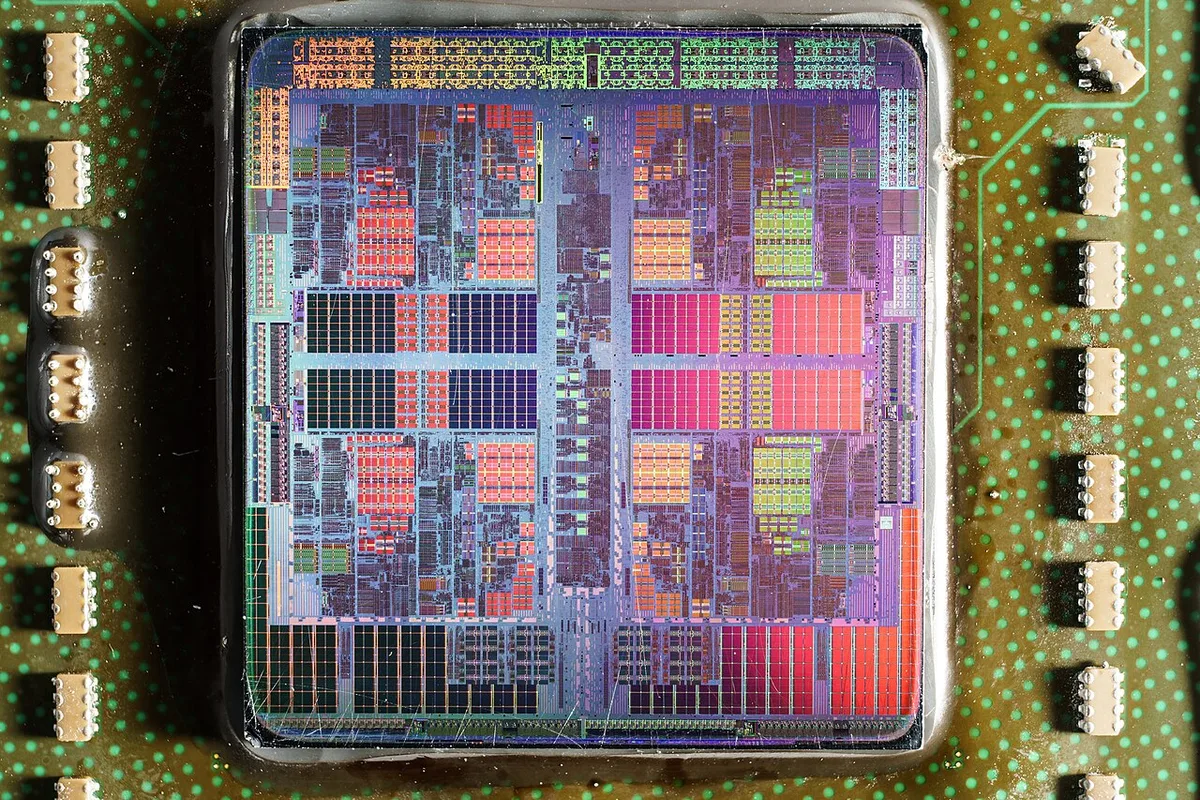
Image source: Wikimedia Commons / Fritzchens Fritz from Berlin
Investigate thermal implications too. Stacked dies run hotter. Adequate cooling ensures sustained boost clocks.
Poor airflow negates cache advantages. Plan your case fans accordingly. Proper ventilation maintains peak performance levels throughout long sessions.
Common Pitfalls That Create Artificial Bottlenecks
A common mistake is buying a flagship CPU for a mid-range GPU. That money rarely improves 1080p frame rates. The GPU becomes the limiter instead.
The system stays unbalanced, just in reverse.
Ignoring RAM speed causes hidden bottlenecks. Slow memory starves the CPU before it can feed the GPU. Enable XMP or EXPO profiles in BIOS.
Then confirm your kit runs at its rated speed. If your board supports faster RAM, check RAM compatibility before upgrading.
Thermal throttling fakes a CPU bottleneck. If your processor hits 95°C, it slows automatically. Fix cooling before buying new parts.
Clean dust from fans and heatsinks. Replace old thermal paste if temperatures climb. Our research shows that understanding thermal throttling helps separate hardware limits from heat issues.
Background apps steal cycles. Browser tabs, Discord overlays, and RGB utilities add overhead. Close them during testing.
If FPS jumps, optimize startup programs instead of upgrading hardware.
Outdated drivers cause scheduling bugs. Update chipset drivers and Windows. Old BIOS versions may mishandle new CPUs.
Budget boards can also suffer PCIe lane starvation. Verify slot configuration in the manual.
Overclocking rarely fixes a real mismatch. A small boost won’t turn a weak CPU into a balanced match. Focus on pairing, not pushing.
When to Upgrade Just the CPU vs. The Whole Platform
Upgrade only the CPU when your socket supports newer chips. AM5 and LGA1700 both offer upgrade paths. Check BIOS compatibility first.
If your board lacks DDR5 or PCIe 5.0, a full platform swap may be smarter.
DDR4 budget builds still perform well. Used Ryzen 5000 chips drop into older AM4 boards. They offer strong value for budget gamers.
Compare cost per frame before choosing. Sometimes a used CPU plus a better GPU beats a new mid-range CPU.
Platform longevity matters for future upgrades. AM5 support extends further into future generations. If you plan multiple upgrades, invest in the newer socket.
Otherwise, keep what works. Don’t chase specs you won’t use.
Verify CPU and motherboard compatibility before buying. Mismatched sockets waste money. Also check GPU and motherboard compatibility if you’re changing boards.
PCIe slot placement affects airflow and bandwidth.
Manufacturer specifications confirm supported memory speeds and PCIe versions. AMD publishes detailed processor specs on its official site. Review those before choosing a platform.
Verifying Balance with In-Game Metrics and Tools
Use MSI Afterburner with RivaTuner. Watch GPU and CPU usage during gameplay. Aim for 90 to 99% GPU utilization.
Check per-core CPU load. If one core maxes out, single-thread speed is the limit.
Analyze frametime graphs. Spikes mean stutter. Smooth lines mean balance.
Test in your actual games. Synthetic benchmarks miss real behavior. Run at your target resolution and refresh rate.
Compare results before and after changes. If GPU usage rises and FPS improves, the upgrade worked. If nothing changes, the bottleneck was elsewhere.
Also monitor temperatures. Poor cooling can mask true performance. Safe CPU temperatures help confirm your cooler keeps up.
Use 3DMark for repeatable synthetic checks. It won’t replace in-game testing, but it helps isolate variables. UL benchmarks provide consistent methodology across systems.
Frequently Asked Questions
Can a CPU bottleneck damage my GPU?
No. A bottleneck only limits performance. It does not harm hardware.
The GPU simply waits for data. Power draw drops, not rises. Your system remains safe.
Fixing it improves smoothness, not longevity.
Does lowering graphics settings fix a CPU bottleneck?
Sometimes. Lower settings reduce GPU load. If CPU was already maxed, FPS may stay flat.
But lowering resolution or draw distance can reduce CPU work. Test both changes. Watch utilization.
If CPU drops, you found the fix.
Is a CPU bottleneck worse at 1080p or 4K?
Usually worse at 1080p. Lower resolution shifts load to the CPU. At 4K, the GPU works harder.
The CPU gets breathing room. Competitive 1080p players see bottlenecks more often. 4K gamers rarely do unless using flagship cards.
Should I upgrade CPU or GPU first?
Upgrade the component that’s actually limiting your target. If GPU usage stays low, fix the CPU. If CPU usage is low and FPS is poor, upgrade the GPU.
Check metrics first. Guessing wastes money. Match upgrades to your monitor resolution.
Do more cores always prevent bottlenecks?
No. Games use few cores well. Cache and clock speed matter more.
A 16-core chip can still bottleneck if single-thread speed is weak. Focus on gaming benchmarks. Ignore raw core counts.
Real-world 1% lows tell the true story.
1 thought on “How to Pick a CPU That Won’t Bottleneck Your GPU”
Comments are closed.