If you're trying to figure out how to fix a gaming laptop black screen, start by watching what the laptop does before the screen goes dark. A black screen is a symptom, not a diagnosis, and the same symptom can come from power, memory, graphics, or display hardware.
As of 2026, most gaming laptops use a switchable graphics setup with an integrated GPU and a discrete GPU, plus an embedded DisplayPort cable between the motherboard and panel. That means one failed part can look like a total failure, even when the laptop is still booting. Let's walk through the symptom patterns first, then match each one to a safe next step.
Black Screen Patterns: What Your Laptop Is Actually Telling You
The first clue is timing. A screen that stays black from the moment you press power points to a different fault than a screen that shows the logo and then goes dark.
Use this quick pattern guide before touching any hardware.
| What you see or hear | Most likely area to check |
|---|---|
| No lights, no fans, no sound | AC adapter, battery, DC jack, power button |
| Fans spin, no logo, no beeps | RAM, BIOS, CPU power, motherboard |
| Logo appears, then black screen | GPU, driver, display cable, panel |
| Boots to Windows login, then black | Graphics driver, Fast Startup, Windows update |
| Screen is very dim but visible with a flashlight | Backlight or panel power |
If the laptop makes beep codes or blinks its power LED in a repeating pattern, write that pattern down. Manufacturer service manuals often map those codes to a specific part, so a service manual lookup can save hours.
Why Gaming Laptops Go Dark: The Hardware Chain Explained
A gaming laptop display path has several links. Power reaches the motherboard. The CPU runs POST.
The BIOS hands control to the graphics system. The GPU sends a signal through the eDP cable. The panel turns that signal into an image.
If any link fails, you can get a black screen. That is why a black screen does not always mean a dead screen. A loose RAM module can stop POST before the display ever wakes.
A bad GPU driver can load Windows and then kill the image. A damaged eDP cable can make the panel light up only at certain angles.
Many gaming laptops also use switchable graphics. The integrated GPU may drive the internal display, while the discrete GPU handles heavy games. If the MUX switch or driver stack gets confused, the laptop can boot but show nothing usable.
NVIDIA Optimus and AMD Switchable Graphics are common examples of this design.
Heat is another common trigger. If the CPU or GPU overheats, protection logic may shut the system down or blank the display. Dust buildup and old thermal paste can make this happen during gaming, not during light use.
If the laptop only goes black under load, read about thermal paste age before assuming the panel is bad.
The Diagnostic Decision Tree: Step-by-Step Branching Fixes
Work from the outside in. Do not open the chassis until the simple checks fail. A safe chassis opening guide matters later, but first rule out power and software.
Branch 1: No Lights, No Fans, No Response
If nothing happens when you press power, treat it as a power problem first.
- Unplug the AC adapter.
- Remove the battery if it is removable.
- Hold the power button for 30 to 60 seconds.
- Reconnect only the AC adapter.
- Try a known-good outlet.
If the laptop still does nothing, check the adapter wattage. Gaming laptops often need 180W, 230W, or 330W adapters. A lower-wattage charger may not start the system at all.
If the DC jack is loose or the adapter cable is damaged, replace the adapter before blaming the motherboard.
Also look for a swollen battery. A swollen lithium-ion battery can press against internal parts and cause shorts. Do not puncture it.
If it is swollen, stop and seek professional service.
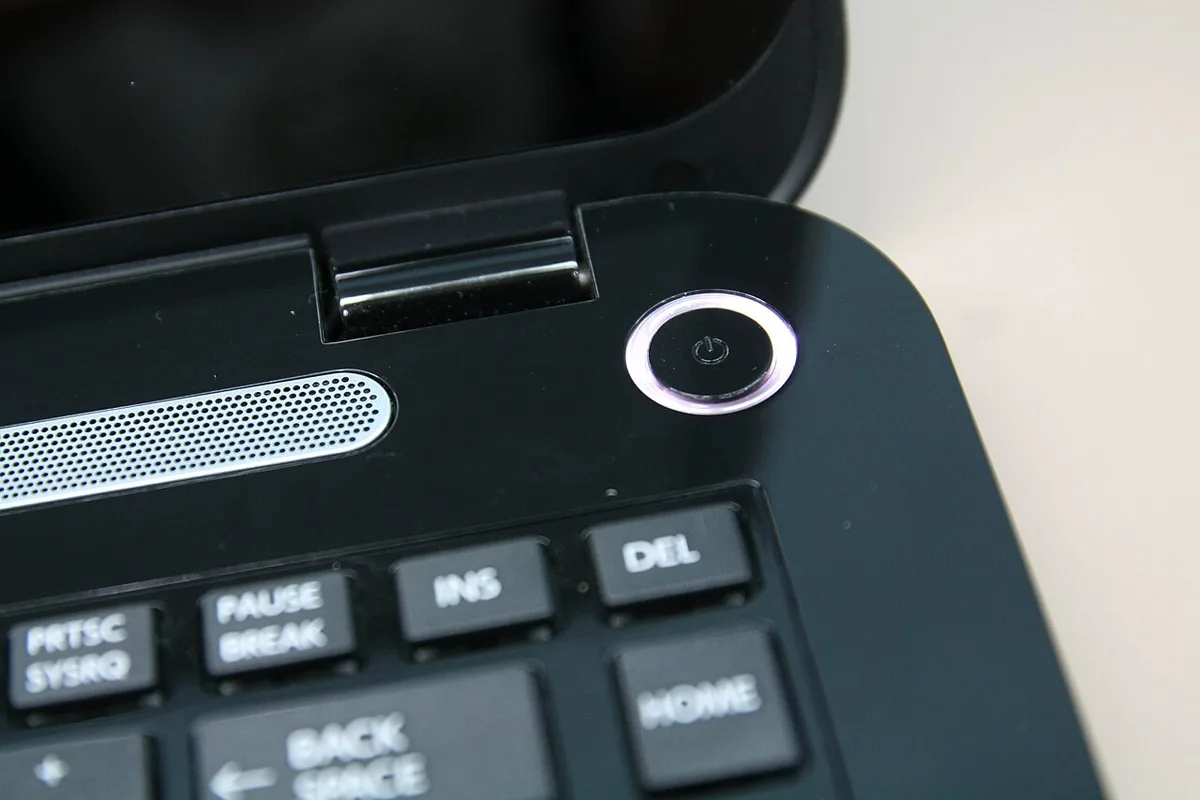
Image source: Wikimedia Commons / liewcf (CC BY-SA)
Branch 2: Fans Spin but No POST or Beeps
If fans spin but the screen stays black and there is no logo, memory is a strong suspect.
- Power down and disconnect AC.
- Reseat both RAM modules.
- Test one stick at a time in each slot.
- Try a known-good compatible SO-DIMM if available.
If one stick or slot works, you have isolated the fault. If neither works, the issue may be BIOS, CPU power, or motherboard. At that point, check diagnostic LED blink codes and the service manual.
Branch 3: POST Logo Appears Then Screen Goes Black
If the logo appears and then the screen goes black, the system is starting but the display path or GPU is failing.
- Connect an external monitor.
- If the external display works, the onboard panel or eDP cable is likely at fault.
- If neither display works, suspect the discrete GPU, driver, or motherboard.
A driver crash can also cause this. Boot into Safe Mode and use Display Driver Uninstaller before reinstalling the correct NVIDIA, AMD, or Intel driver. Do not install random driver packages from third-party sites.
Branch 4: Boots to Windows Login Then Goes Dark
If you reach the login screen and then lose the image, software is more likely than hardware.
- Restart and enter Safe Mode.
- Roll back the last graphics driver update.
- Disable Fast Startup.
- Run Windows Startup Repair if needed.
- Check for recent Windows updates that changed the display driver.
If the issue started after an update, restoring to an earlier point may fix it faster than reinstalling Windows.
External Monitor and GPU Mode Tests: Isolating the Fault
An external monitor test is one of the most useful checks for how to fix a gaming laptop black screen. It separates a bad panel from a bad graphics system.
Connect a known-good monitor through HDMI, DisplayPort, or USB-C, depending on what your laptop supports. Then press the display toggle key, often a function key with a monitor icon. Give it 10 to 20 seconds before deciding it failed.
| Test result | What it suggests |
|---|---|
| External monitor works, laptop panel stays black | Panel, backlight, or eDP cable fault |
| Neither display works, fans spin | GPU, driver, or motherboard fault |
| External works only in Safe Mode | Driver or Windows issue |
| External works only after restart | Fast Startup or driver initialization issue |
If your laptop has a MUX switch, try the integrated GPU mode. Some models let you switch between hybrid and discrete modes in software or BIOS. If the internal display works only in one mode, the GPU switching path is the problem.
Also test brightness. It sounds simple, but a panel can be on while the backlight is off. Shine a flashlight at the screen in a dark room.
If you can faintly see the desktop, the panel is receiving a signal but the backlight is not.
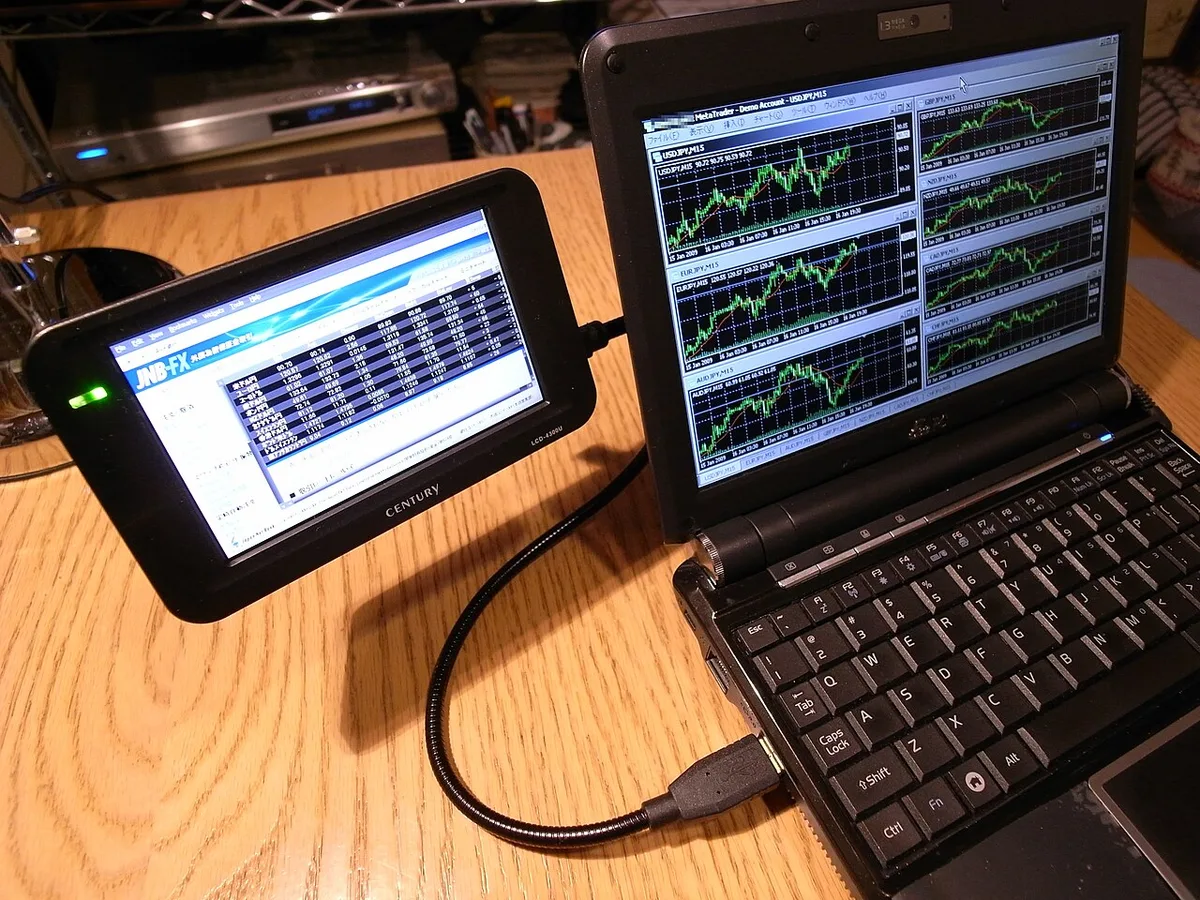
Image source: Wikimedia Commons / Masahiko OHKUBO (CC BY)
Common Mistakes That Waste Time and Money
The biggest mistake is replacing parts before isolating the fault. A new panel will not fix a bad GPU. A new SSD will not fix a black screen.
A full Windows reinstall may destroy data and still leave a hardware fault untouched.
Another common mistake is ignoring heat. If the laptop only goes black during games, clean the vents and check fan behavior. Dust removal can help, but be gentle around fan blades and cables.
If the issue persists, thermal paste replacement may be the next step.
People also skip the service manual. Gaming laptops vary widely, even within the same brand. Screw lengths, cable routing, and RAM access differ by model.
Use the service manual before opening anything.
Finally, do not assume a black screen means a dead motherboard. In our research, many cases are fixed by reseating RAM, rolling back a driver, or replacing a cheap display cable. Motherboard replacement is usually the last step, not the first.
Repair Costs, Part Lifespans, and Warranty Realities
Repair costs depend on which part failed and whether the laptop is still under warranty. A cheap cable fix is very different from a motherboard replacement.
| Part or service | Typical cost range |
|---|---|
| eDP display cable | $20 to $60 |
| RAM module | $30 to $120 |
| Battery replacement | $60 to $180 |
| Display panel | $150 to $400 |
| Motherboard repair or replacement | $300 to $900 |
| Labor | $75 to $150 |
If the laptop is under warranty, contact the manufacturer before opening it. Many gaming laptops have a one-year standard warranty, and some regions offer extended coverage. Opening the chassis can void that coverage if you break a seal or damage a part.
Out of warranty, compare repair cost to replacement value. A five-year-old gaming laptop with a dead motherboard may not be worth a $700 board. A loose cable on a two-year-old machine usually is.
Check a parts replacement guide before buying anything.
Battery and ESD Safety: What to Watch Before You Open It
Safety comes first when you open a gaming laptop. Lithium-ion batteries can swell, leak, or short. Capacitors on the motherboard can hold charge even after the battery is removed.
| Risk | Safer practice |
|---|---|
| Swollen battery | Stop work and seek professional service |
| Static discharge | Use an ESD strap or touch grounded metal |
| Sharp chassis edges | Wear cut-resistant gloves |
| Loose screws | Use the correct driver size |
| Hidden cables | Disconnect battery before removing parts |
If the battery looks puffy, smells odd, or pushes the trackpad upward, do not charge or open the laptop. Set it aside and contact the manufacturer or a repair shop. For general electrical safety guidance, review UL safety resources.
Use the right tools and keep screws organized by location. A magnetic mat or labeled cups helps. If you need a tool checklist, see upgrade tool basics.
Real-World Scenarios: Three Diagnostic Walkthroughs
Scenario one: a laptop drops off a desk and later shows no POST. The owner reseats both RAM modules and tests one stick at a time. The system boots with one module, so the fault is a cracked RAM module.
Cost is $45 for a replacement.
Scenario two: a laptop boots to the Windows login screen, then goes black. Safe Mode works, so the driver is the issue. The owner uses Display Driver Uninstaller in Safe Mode, then installs the correct driver from the GPU maker.
The fix takes about 45 minutes and costs nothing.
Scenario three: the screen works only when tilted slightly. An external monitor works fine, so the panel is healthy. The eDP cable is loose near the hinge.
Reseating the cable fixes it, but the cable is replaced later for $35 because the old one shows wear.
Frequently Asked Questions
Why is my gaming laptop screen black but the power light is on?
The laptop may be stuck during POST, loading a bad driver, or failing to send a signal to the panel. Check RAM first, then test an external monitor. If the external display works, the onboard panel or cable is likely at fault.
Can a bad graphics driver cause a black screen?
Yes. A corrupted or incompatible driver can load Windows and then kill the image. Boot into Safe Mode, remove the old driver with Display Driver Uninstaller, and install the correct driver from NVIDIA, AMD, or Intel.
How do I know if the screen or GPU is bad?
Use an external monitor. If the external display works but the laptop panel stays black, the panel or eDP cable is likely bad. If neither display works and fans spin, suspect the GPU, driver, or motherboard.
Is a black screen always a hardware problem?
No. Software issues like Fast Startup, Windows updates, and bad drivers can cause it. Try Safe Mode, driver rollback, and Startup Repair before replacing parts.
Hardware becomes more likely after those checks fail.
Should I replace the motherboard for a black screen?
Usually no. Start with power, RAM, driver, and display cable checks. Motherboard replacement is a last resort after simpler parts are ruled out.
It is also one of the most expensive repairs.
When to Stop DIY and Call a Professional
Stop DIY work if you see a swollen battery, smell burning, or find liquid damage. Those signs can mean a short or damaged power circuit. Continuing may make the laptop unsafe to use.
Also get help if the laptop needs a motherboard-level repair, BIOS chip reflash, or GPU rework. These jobs need hot-air tools, schematics, and experience. A bad attempt can turn a repairable board into scrap.
If the laptop is under warranty, use the authorized service path. If it is not, get a written quote before approving work. A good technician should explain the failed part, the test used, and the expected cost.
For recovery steps, Microsoft's support site is a useful reference at Microsoft support.
1 thought on “Gaming Laptop Black Screen: How to Fix It Fast”
Comments are closed.