Which operating system is best for a gaming laptop depends on the games you actually play, not just the hardware under the hood. Windows 11 still wins for most people because it supports nearly every title, anti-cheat system, and peripheral out of the box. Linux gaming has improved fast, but it still asks you to check compatibility before you buy. macOS remains a niche choice with a smaller library and translation overhead.
As of 2026, Windows 11 requires TPM 2.0 and Secure Boot on most new laptops, while ProtonDB tracks compatibility for thousands of Windows games running on Linux. Your best pick comes down to three questions: which games you play, whether you need competitive multiplayer, and how much tinkering you enjoy. Let's walk through each option so you can match the OS to your real gaming habits.
Why Your Gaming Laptop's OS Matters More Than You Think
Your operating system decides which games launch, which anti-cheat systems run, and how well your laptop manages heat and battery. It also affects driver support, sleep reliability, and how much background software competes for CPU time. That means two identical laptops can feel very different depending on the OS installed.
A bad match can waste money. If you buy a laptop for competitive shooters, an OS with weak anti-cheat support will block your favorite games. If you want long battery life on the road, an OS with heavy background activity may drain power faster.
If you enjoy tweaking systems, a flexible OS can feel rewarding instead of frustrating.
The good news is that you do not need to guess. Start with your game library, then check anti-cheat and hardware support. After that, compare battery life, updates, and maintenance habits like keeping your cooling system clean.
Windows 11 for Gaming Laptops: The Safe Default
Windows 11 is the safest choice for most gaming laptops. It has the widest game support, the best day-one compatibility, and the fewest surprises with launchers, mods, and peripherals. For many buyers, it is the answer to which operating system is best for a gaming laptop.
Where Windows 11 Wins
Windows 11 supports DirectX 12 Ultimate, ray tracing, DLSS, FSR, and most upscaling tools without extra setup. It also works with Easy Anti-Cheat, BattlEye, Riot Vanguard, and FACEIT for competitive games. Steam, Epic Games Store, Battle.net, Ubisoft Connect, and other launchers install normally.
Battery life has improved, but gaming laptops still drain quickly under load. Windows background tasks can also interrupt sessions with updates or notifications. A clean install and careful startup settings help a lot.
Where Windows 11 Frustrates
Windows can feel heavy. Bloatware, background services, and large updates may slow older laptops. Some updates restart at bad times if you do not manage active hours.
For better long-term results, pair Windows with good habits like routine long-term upkeep. If performance drops later, check whether thermal paste needs replacing before blaming the OS.
Linux Gaming Distros: Proton, SteamOS, Bazzite, and Nobara
Linux gaming is no longer just a hobby project. Proton, a compatibility layer backed by Valve, lets many Windows games run on Linux through Steam. Distributions like SteamOS, Bazzite, Nobara, CachyOS, and Garuda tune the system for gaming and reduce setup work.
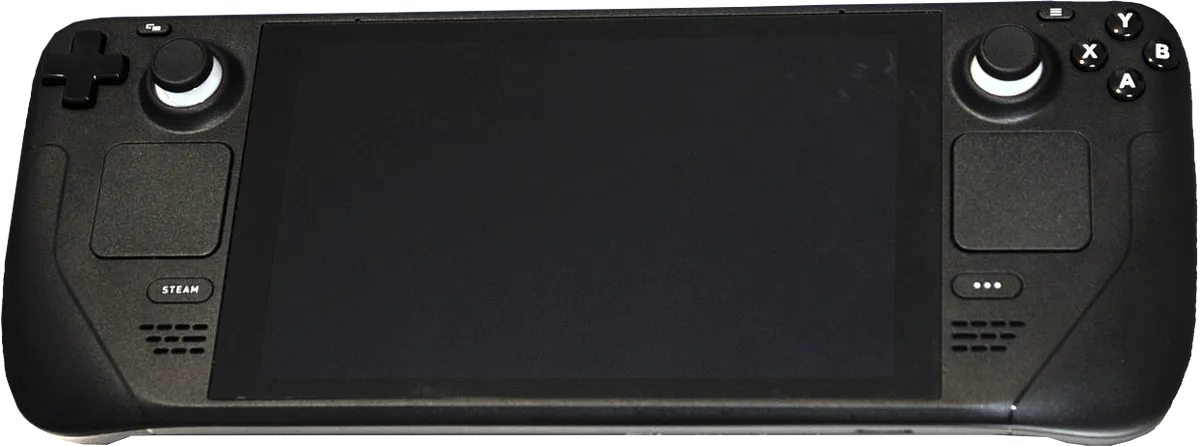
Image source: Wikimedia Commons / Liam Dawe/GamingOnLinux, PNG version by VulcanSphere (CC BY-SA)
What Linux Does Well
Linux can feel lighter than Windows. It avoids much telemetry and background clutter, and many distros offer a console-like experience with controller-first navigation. SteamOS and Bazzite focus on game mode, suspend, and resume, which feels great on handhelds and some laptops.
ProtonDB is useful before you spend money. It shows community-tested compatibility ratings for individual games. You can check whether a title is Platinum, Gold, Silver, Bronze, or Borked before installing it.
The Big Linux Catch
The main problem is kernel-level anti-cheat. Easy Anti-Cheat and BattlEye support Linux only when developers enable it. Riot Vanguard and some FACEIT setups still block Linux entirely.
That means many competitive games remain Windows-only.
Laptop support can also be uneven. Sleep, suspend, hybrid graphics, and power management may need tuning. NVIDIA proprietary drivers work, but setup is more involved than on Windows.
AMD and Intel graphics often work well through Mesa.
If you plan to dual-boot, check upgrade compatibility and storage space first. A small SSD can make dual-booting painful.
macOS on a Gaming Laptop: Honest Reality Check
macOS is not the best OS for most gaming laptops, but it can work for specific users. Apple Silicon chips offer strong efficiency, unified memory, and excellent battery life. Metal provides good graphics performance, and Rosetta 2 helps run some Intel apps.
The problem is the game library. Many major PC games skip macOS entirely. When a game does support macOS, it may lag behind Windows versions or use older APIs.
Translation and emulation can reduce performance, especially for demanding 3D titles.
macOS makes more sense for indie games, Apple Arcade, cloud gaming, and users who also need creative apps. If you want AAA gaming, Windows remains stronger. If you want a Mac for work and casual games, cloud services like GeForce NOW or Xbox Cloud Gaming can fill gaps.
Side-by-Side Comparison: Compatibility, Anti-Cheat, and Battery Life
This table gives a practical snapshot. Use it as a starting point, then check your exact game list.
| Factor | Windows 11 | Linux Gaming Distros | macOS |
|---|---|---|---|
| Game compatibility | Highest | High for Steam/Proton, variable elsewhere | Lowest |
| Anti-cheat support | Best | Mixed, title-specific | Limited |
| Setup effort | Low | Medium to high | Low |
| Battery life while gaming | Moderate | Often better with tuning | Strong on Apple Silicon |
| Modding support | Strong | Good but path quirks | Limited |
| Best for | Most gamers | Tinkerers and Steam Deck fans | Casual and cloud gaming |
Windows 11 wins if you play competitive multiplayer or want zero friction. Linux wins if you value control, lower overhead, and a Steam Deck-style experience. macOS wins if battery life and build quality matter more than native AAA support.
For Windows users, battery replacement may become relevant after years of gaming sessions. For Linux users, expect to spend time checking ProtonDB before buying big releases. For macOS users, plan around cloud gaming or smaller titles.
Best OS for Each Gaming Style and Budget
Your gaming style matters more than your budget when picking an OS. A competitive shooter player needs different things than a single-player RPG fan. Match the OS to your habits first, then worry about price.
Competitive multiplayer gamers should stay on Windows 11. Valorant, Fortnite, Apex Legends, CS2, and EA FC all rely on kernel-level anti-cheat. Linux support remains patchy for these titles.
Windows gives you day-one access and the lowest risk of a blocked launch.
Single-player AAA gamers have more flexibility. Windows still offers the smoothest experience, but Linux with Proton runs many AAA titles well. Check ProtonDB before buying.
If your favorite games show Platinum or Gold ratings, Linux becomes realistic.
Indie and retro gamers can use almost anything. macOS handles indie games fine, and Linux runs them beautifully. Windows remains the safest fallback. If you love emulation, Linux distros like Bazzite offer excellent controller-first interfaces.
Students and budget buyers should consider Linux. It is free, runs well on older hardware, and avoids Windows license costs. Just verify your games first.
For hardware upgrades on a tight budget, see whether your laptop parts are replaceable.
Streamers and creators usually need Windows. OBS, capture cards, and streaming software have the deepest Windows support. Linux streaming works but requires more setup.
Cloud gaming users can sidestep the OS debate entirely. GeForce NOW and Xbox Cloud Gaming run in browsers on any platform. If your library is mostly cloud-based, macOS or Linux becomes viable even for AAA titles.
How to Switch or Dual-Boot Without Breaking Your Laptop
Switching OSes is manageable if you prepare first. Rushing leads to lost data or a bricked bootloader. Follow these steps for a clean transition.
Back Up Everything First
Copy your game saves, screenshots, and personal files to an external drive or cloud storage. Game save locations vary by launcher. Steam Cloud covers many games, but not all.
Check each launcher individually.
Check Hardware Compatibility
Before installing Linux, verify your Wi-Fi card, GPU, and trackpad work well with your chosen distro. Manufacturer forums and distro wikis list known issues. If your laptop has NVIDIA graphics, expect extra driver setup.
For storage questions, see whether you can add more storage.
Choose Your Approach
You have three main options. A clean install wipes everything and starts fresh. Dual-boot keeps both OSes on separate partitions.
A virtual machine runs Linux inside Windows but costs performance.
Dual-booting sounds appealing but adds complexity. You must partition your drive, configure a bootloader like GRUB or rEFInd, and manage shared storage. Mistakes here can corrupt your Windows install.
Dual-Boot Steps
- Shrink your Windows partition to free space.
- Create a bootable USB with your chosen Linux distro.
- Boot from the USB and install Linux into the free space.
- Let the installer configure the bootloader automatically.
- Test both OSes before deleting anything.
After Installation
Update your GPU drivers immediately. On Linux, install the NVIDIA proprietary driver if applicable. Enable Proton in Steam settings.
Check ProtonDB for your first game. Test sleep, suspend, and Wi-Fi before committing.
If something goes wrong, opening your laptop safely helps you access recovery tools. Keep a Windows recovery USB handy for emergencies.
Common Mistakes to Avoid When Choosing a Gaming OS
Picking the wrong OS usually comes from skipping research. These mistakes cost time and money.
Buying a laptop before checking game compatibility. Always verify your must-play titles on your chosen OS first. ProtonDB for Linux, system requirements for macOS, and anti-cheat pages for Windows.
Ignoring anti-cheat requirements. Many competitive games block Linux entirely. If Valorant or Fortnite is your main game, Linux will disappoint you. Check EAC and BattlEye Linux support lists before switching.
Assuming Linux is free and easy. Linux costs nothing but demands time. Expect driver tuning, Proton tweaks, and troubleshooting. If you want plug-and-play, Windows is worth the license fee.
Overlooking laptop-specific issues. Sleep, suspend, hybrid graphics switching, and fan control vary widely on Linux. What works on desktop may fail on laptops. Read distro-specific laptop reports before committing.
Dual-booting without enough storage. Two OSes plus games need serious space. A 512GB SSD fills fast. Consider upgrading your Wi-Fi card or storage before dual-booting.
Ignoring thermal management. Some Linux distros lack granular fan control out of the box. Monitor temperatures closely. If your laptop runs hot, repasting the CPU and GPU may help regardless of OS.
Skipping backups before switching. A failed install can wipe your drive. Always back up first. Keep recovery media ready.
Test your backup before proceeding.
Frequently Asked Questions
Is Windows 11 the best OS for gaming laptops?
Yes for most gamers. Windows 11 supports the widest game library, all major anti-cheat systems, and every major launcher. It works out of the box with minimal setup.
Unless you have specific reasons to choose Linux or macOS, Windows 11 remains the safest default.
Can I game on Linux in 2026?
Yes for many games. Proton enables thousands of Windows games on Linux through Steam. However, competitive multiplayer titles with kernel anti-cheat often block Linux.
Check ProtonDB and EAC support lists before switching your main gaming laptop.
Is macOS good for gaming?
Not for AAA gaming. macOS has a smaller native game library and translation overhead on Apple Silicon. It works well for indie games, Apple Arcade, and cloud gaming. If you want AAA titles locally, Windows is the better choice.
Should I dual-boot Windows and Linux?
Only if you have enough storage and patience. Dual-booting gives you both ecosystems but adds complexity. You need careful partitioning, bootloader setup, and shared storage management.
A 1TB SSD is a practical minimum for comfortable dual-booting with games.
Does Linux improve laptop battery life?
Often yes during light use. Linux has less background activity than Windows, which can extend idle battery life. However, gaming drains battery fast regardless of OS.
Tuned Linux distros may squeeze out extra minutes, but do not expect dramatic differences during heavy gaming.
What is Proton and how does it work?
Proton is a compatibility layer from Valve. It translates Windows DirectX calls into Vulkan for Linux. It runs inside Steam and requires no manual setup for supported games.
ProtonDB tracks compatibility ratings from community testing.