Figuring out how many pcie slots are useful in a gaming pc is trickier than it looks. The answer depends on what you plug in, not on how many slots the board lists. Most gamers need far fewer than they think.
PCIe, which stands for Peripheral Component Interconnect Express, is the standard that connects your GPU, sound cards, and storage cards to the CPU. A modern PCIe 5.0 lane carries roughly 4 GB/s of bandwidth in each direction. That single fact changes how you should think about slot count.
Let's break down why.
how many pcie slots are useful in a gaming pc
For most gamers, one PCIe x16 slot is enough. That slot holds the graphics card, the only expansion card most builds need. A second slot is useful for a capture card, sound card, or fast storage.
Beyond two slots, most gamers will never use the extra space. Slot count matters less than whether those slots are actually usable.
Why "How Many PCIe Slots" Isn't a Simple Number
Motherboard boxes love to brag about slot counts. A board might list four PCIe slots on the spec sheet. That number sounds generous.
But it rarely tells the whole story.
Here's the catch. Not every slot can run at full speed. Some share lanes with other components.
Some sit too close to the GPU to fit anything. Some need BIOS settings you may not have.
So "how many" is the wrong question. The better question is "how many can I actually use at full speed." That answer changes based on your CPU, chipset, and case. A thick GPU blocks the slot below it, and case clearance around your GPU is worth checking before you count slots.
In our research, many builders buy boards with extra slots they never touch. Others buy boards with too few and regret it later. The gap between marketed slots and usable slots is where most confusion lives.
Think of it like USB ports on a laptop. You might see four ports listed. But plug in a thick dongle and two become useless.
PCIe slots work the same way, just with higher stakes and more money involved.
The marketing numbers also ignore physical reality. A modern graphics card takes up two or three slots of vertical space. That blocks the slot directly beneath it.
So a board with four slots might offer only two usable ones once the GPU is in.
Another trap is lane sharing. Many boards route extra slots through the chipset, not the CPU. Those slots run slower and share bandwidth with other devices.
You might not notice during gaming, but a capture card or 10GbE network card will feel it.
Three things make a slot useless in practice:
- Physical blocking by a thick GPU
- Shared or limited PCIe lanes
- Missing BIOS support for bifurcation
The rest of this guide walks you through the real variables. By the end, you'll know exactly how many slots your next build needs.
The Short Answer: Most Gamers Need One or Two Usable Slots
Let's keep it simple. Most gaming PCs need exactly one PCIe slot. That slot holds the graphics card.
Everything else, like audio, networking, and storage, lives on the motherboard or in M.2 slots. If you're new to this, understanding what the graphics card does helps explain why it claims that first slot.
A second slot becomes useful in specific cases. Streamers need a capture card. Audiophiles want a dedicated sound card.
Network-heavy users add a 10GbE or Wi-Fi 7 card. These are real needs, but they apply to a minority of builders.
For everyone else, extra slots are insurance. They give you room to grow without replacing the board. That's a fair reason to want them, but it's not a need.
Here's a quick breakdown by builder type:
- Single-GPU gamer: one slot is plenty
- Streamer or creator: two slots (GPU plus capture card)
- Audiophile: two slots (GPU plus sound card)
- Storage expander: two or three slots (GPU plus RAID or HBA card)
- Compact ITX builder: one slot, no choice
Notice the pattern. The GPU always takes the first slot. Everything else fights for the remaining ones.
If your GPU is thick, your second slot might be blocked entirely.
As of 2026, most mid-range motherboards ship with three or four physical slots. But only two are typically usable in a gaming build. The rest exist for spec-sheet appeal.
So when you shop, count usable slots, not listed ones. A board with two usable slots often beats one with four phantom ones. Don't pay a premium for slot count alone.
Pay for the slots you'll actually populate. If your plan is just a GPU and maybe one add-in card, a mid-range board with two usable slots is the sweet spot.
How PCIe Slots, Lanes, and Generations Actually Work
Before you count slots, you need to understand what's underneath them. PCIe is a highway system. Slots are the on-ramps.
Lanes are the lanes on that highway.
PCIe Generations and Per-Lane Bandwidth
Each PCIe generation doubles the bandwidth of the previous one. PCIe 3.0 delivers about 1 GB/s per lane. PCIe 4.0 doubles that to 2 GB/s.
PCIe 5.0 doubles again to roughly 4 GB/s per lane.
A GPU slot is usually x16, meaning 16 lanes. So a PCIe 4.0 x16 slot moves about 32 GB/s. That's more than enough for any current graphics card.
Even PCIe 3.0 x16 handles most GPUs without bottlenecking. If you're worried about performance loss, GPU bottlenecking rarely comes from the PCIe slot itself.
The generation matters most for storage and future-proofing. A fast NVMe drive benefits from PCIe 4.0 or 5.0. A GPU rarely saturates even PCIe 3.0 in real gaming.
CPU Lanes vs. Chipset Lanes
Here's where most confusion starts. Your CPU provides a fixed number of PCIe lanes, usually 16 to 24 on consumer chips. These connect directly to the CPU.
They're fast and low-latency.
The chipset adds more lanes on top, often 8 to 28 depending on the model. But these route through the chipset first. They're slower and share bandwidth with USB, SATA, and networking.
Your top slot, the x16 one for the GPU, almost always uses CPU lanes. The lower slots often use chipset lanes. That's why a second GPU or capture card can run slower than expected.
Manufacturer specifications indicate that Intel and AMD both publish lane counts per platform. Check the CPU and chipset docs before assuming a slot runs at full speed. The board manual has a lane map that shows which slots connect where.
Which CPU generation you pick directly affects how many lanes you get.
Understanding this split is the key to counting usable slots. A slot that shares lanes with four USB ports and two SATA drives isn't truly free, even if it's physically empty.
The Four Variables That Decide How Many You Need
Slot count isn't a fixed number. It depends on four things. Answer these and the right count becomes obvious.
1. Your GPU thickness. A modern GPU is two to four slots wide. That blocks the slot directly below it.
If your board has three slots and your GPU takes two, you have one usable slot left. Maybe zero if the GPU sag touches it.
2. Your add-in card needs. Most gamers need none. Streamers need a capture card.
Audiophiles need a sound card. Network users need a NIC. Storage expanders need a RAID or HBA card.
Count your real needs, not hypothetical ones. If you're running on integrated graphics without a dedicated GPU, your slot needs drop to zero.
3. Your CPU and chipset lane budget. A 16-lane CPU gives you one x16 GPU slot. Everything else shares chipset lanes.
If you plan two or three add-in cards, you need a platform with more lanes. That usually means a higher-end CPU and board.
4. Your form factor. Mini-ITX boards have one slot. Period.
Micro-ATX boards have two or three. Full ATX boards have three to five. Smaller cases mean fewer slots, but also smaller GPUs and less airflow.
Run through these four in order. Start with your GPU. Then list your add-in cards.
Then check your lane budget. Then pick a form factor that fits.
If you answer honestly, most builds land on one or two usable slots. The third variable, lane budget, is where people overspend. They buy a board with five slots but a CPU that can only feed two of them properly.
The fix is simple. Match the board's slot count to your CPU's lane count. Don't pay for slots your CPU can't feed.
One more factor: bifurcation. Some boards can split one x16 slot into two x8 slots. That's useful for dual-GPU or dual-capture setups.
But not all boards support it, and it requires BIOS support. Check the manual before counting on it.
Slot Counts by Form Factor, Chipset, and CPU
Here's where the numbers get concrete. Slot counts vary by form factor, chipset, and CPU together. No single factor decides it.
ATX, micro-ATX, and Mini-ITX Boards
ATX boards typically offer three to five physical slots. Micro-ATX boards offer two to three. Mini-ITX boards offer exactly one.
These are physical counts, not usable ones.
A full ATX board with four slots sounds great. But once you install a thick GPU, you often lose one or two. So an ATX board with four slots might give you two usable ones.
That's the same as many micro-ATX boards.
What "Physical x16" vs. "Electrical x4" Really Means
This is the biggest trap in motherboard shopping. A slot can be physically x16, meaning it accepts a full-length card. But electrically, it might only run at x4 speed.
Physical size determines what fits. Electrical width determines how fast it runs. A slot that's physically x16 but electrically x4 will run a GPU at a fraction of its potential speed.
Budget boards often list "one x16 slot" but it's electrically x4. That's fine for a Wi-Fi card. It's terrible for a second GPU.
When picking the right GPU for your build, the slot it goes into matters as much as the card itself.
Always check the manual's lane map. Look for the electrical width next to each slot. If it says x4, plan around that.
Don't assume a full-length slot runs full speed.
Here's a rough guide to what to expect:
| Form Factor | Physical Slots | Typically Usable After GPU |
|---|---|---|
| Mini-ITX | 1 | 1 |
| micro-ATX | 2 to 3 | 1 to 2 |
| ATX | 3 to 5 | 2 to 3 |
| E-ATX | 4 to 7 | 3 to 4 |
The table shows physical counts. Usable counts drop based on GPU thickness and lane sharing. Treat these as starting points, not guarantees.
Chipset and CPU also shift the numbers. A high-end chipset like AMD X670 or Intel Z790 adds more lanes and slots. Budget chipsets like B650 or B760 give you fewer.
Match the board tier to your actual slot needs. Don't buy a flagship board for a single-GPU build. And keep GPU power consumption in mind when adding cards.
Every add-in card draws from your PSU budget too.
Per PCI-SIG specifications, lane counts and generation speeds follow strict standards. But how motherboard makers route those lanes is up to them. That's why two boards with the same chipset can have very different slot layouts.
Who Actually Needs More Than One Slot
Most gamers need one usable slot. That slot holds the graphics card. Everything else, like audio, networking, and storage, usually lives on the motherboard or in M.2 slots.
A second slot earns its place in specific builds. Streamers need a capture card. Audiophiles want a dedicated sound card.
Network-heavy users add a 10GbE or Wi-Fi 7 card. Storage expanders add a RAID or HBA card.
If none of those apply, extra slots are insurance, not a need. They give you room to grow without replacing the board.
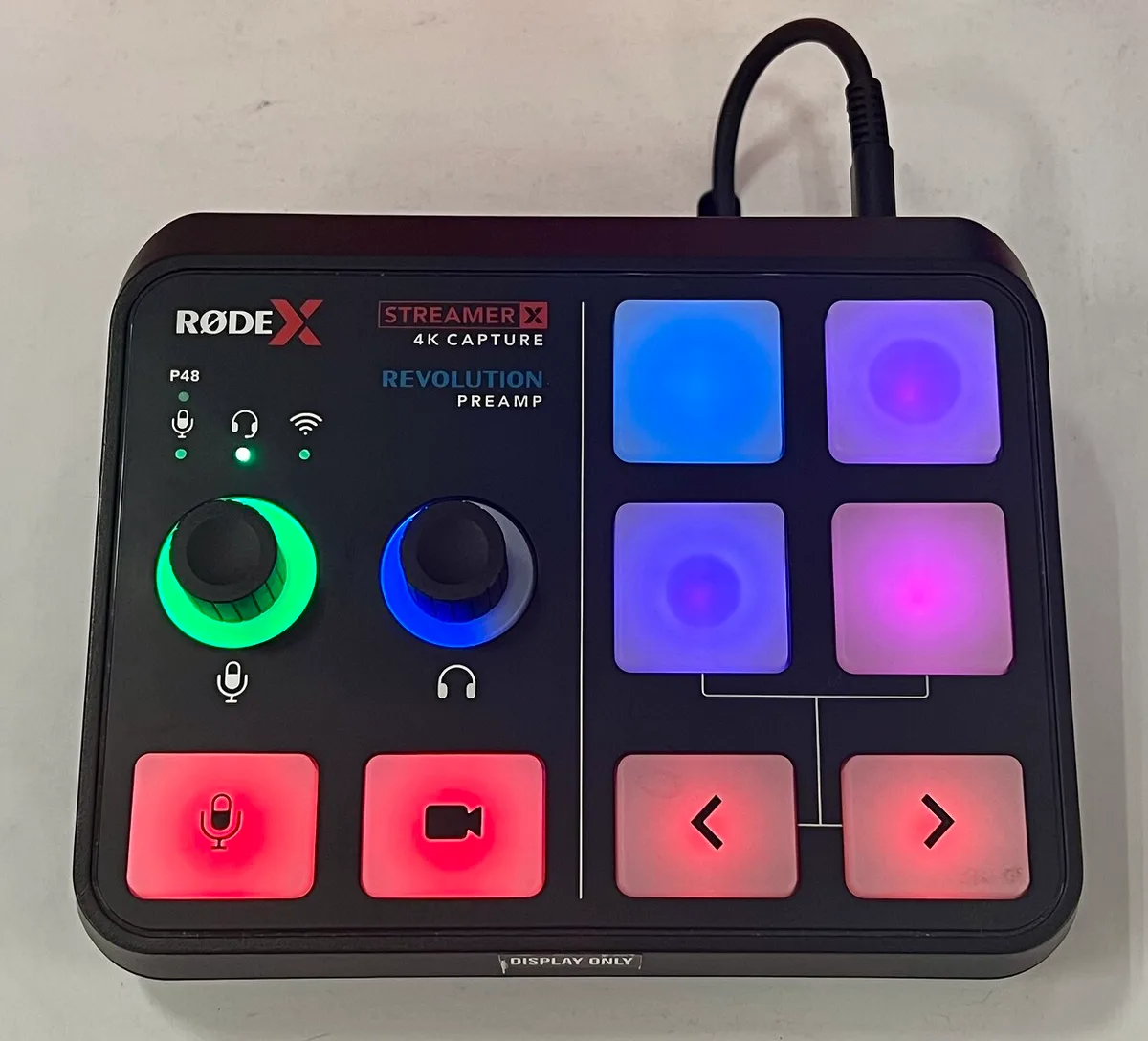
Image source: Wikimedia Commons / TaurusEmerald (CC BY-SA)
| Builder Type | Usable Slots Needed | Why |
|---|---|---|
| Single-GPU gamer | 1 | GPU only |
| Streamer or creator | 2 | GPU plus capture card |
| Audiophile | 2 | GPU plus sound card |
| Storage expander | 2 to 3 | GPU plus RAID or HBA card |
| Compact ITX builder | 1 | One physical slot |
The pattern is simple. The GPU always takes the first slot. Everything else fights for the remaining ones.
If your GPU is thick, your second slot may be blocked entirely.
If you plan to add a capture card, check its lane needs first. Some cards need x4 or x8. A slot that is physically x16 but electrically x4 may bottleneck that card.
The board manual shows the electrical width for each slot.
Common Mistakes That Waste Slots (and Money)
Builders often count listed slots instead of usable ones. That leads to bad purchases. A board with four slots can still offer only two usable ones after a thick GPU.
Another mistake is ignoring the lane map. A slot may look full size but run at x4 speed. That is fine for a Wi-Fi card.
It is poor for a second GPU or fast capture card.
M.2 storage can also eat slots. Populating certain M.2 slots can disable SATA ports or lower PCIe slots. The manual lists these trade-offs.
Read it before buying.
People also assume bifurcation support. Not every board can split one x16 slot into two x8 slots. Even when supported, it needs BIOS settings.
Check before planning a dual-card setup.
A few more traps show up often:
- Buying a flagship board for a single-GPU build
- Forgetting PSU headroom for add-in cards
- Blocking airflow around bottom slots
- Mixing cards with conflicting drivers
- Ignoring case clearance for full-height brackets
Each of these turns a useful slot into dead space. Most are avoidable with five minutes in the manual.
How to Decide: A Step-by-Step Workflow
Start with your real needs, not hypothetical ones. This keeps you from overpaying for slots you will never use.
- List every add-in card you plan to install.
- Check your GPU thickness in slots.
- Read the motherboard lane map for each slot.
- Match slot count to your CPU lane budget.
- Confirm bifurcation support if you need it.
- Verify PSU wattage for all cards.
If you only run a GPU, stop at step one. One usable slot is enough. If you plan a capture card or sound card, aim for two usable slots.
If you want three or more cards, check your platform. Consumer CPUs often provide 16 to 24 usable lanes. That feeds one x16 GPU slot and leaves the rest to the chipset.
For heavier expansion, higher-end platforms offer more lanes.
Manufacturer specs from Intel and AMD list CPU lane counts. The board manual shows how those lanes map to slots. Together, they tell you what is actually usable.
If a slot is electrically x4, plan around it. Use it for lighter cards like Wi-Fi or audio. Keep heavy cards in CPU-fed x16 or x8 slots.
Finally, check clearance. A thick GPU can block the slot below it. Case size and card length matter as much as slot count.
Measure before you build.
Frequently Asked Questions
Do most gaming PCs need more than one PCIe slot?
Most gaming PCs need one usable slot. That slot holds the graphics card. Extra slots only matter if you add a capture card, sound card, or fast network card.
Is a PCIe x4 slot fast enough for a graphics card?
A PCIe x4 slot can run a GPU, but it is not ideal. It limits bandwidth compared to x16. For gaming, x16 is the better choice when available.
Does adding a sound card improve gaming audio?
A sound card can improve audio quality and reduce CPU load. It matters most for audiophiles and streamers. For casual gaming, onboard audio is usually fine.
Can a thick GPU block other PCIe slots?
Yes. A thick GPU takes two to four slots of vertical space. That often blocks the slot directly below it.
Check GPU thickness before counting usable slots.
Should I pay extra for more PCIe slots?
Pay extra only if you will use them. More slots help future expansion. If you run one GPU, a cheaper board with two usable slots is usually enough.
Final Decision Guide
If you only game, choose a board with one strong x16 slot. Do not chase slot count. Spend the savings on a better GPU or more storage.
If you stream or create, aim for two usable slots. Put the GPU in the top slot. Put the capture card in a slot that runs at least x4 electrically.
If you expand storage or networking, count your cards first. Then match the board and CPU to feed them. Check the lane map before buying.
If you build small, accept one slot. Mini-ITX boards offer one physical slot. Plan around that and use M.2 storage instead of add-in cards.
The right number is not the biggest one. It is the number of slots you can actually use at full speed. Count usable slots, check lane maps, and buy for your real needs.
2 thoughts on “How Many PCIe Slots Are Actually Useful in a Gaming PC?”
Comments are closed.