How to test gaming laptop performance before buying starts with one hard truth: a quick store demo rarely shows sustained speed. Showroom units often run balanced power profiles, cool rooms, and short tests. That can hide heat, noise, and throttling.
Manufacturer specifications and aggregate reviews report wide gaps between peak and sustained performance. A laptop that looks fast for two minutes may slow after ten. We'll walk through the checks that matter most.
how to test gaming laptop performance before buying
Plug it in first. Switch to performance mode. Warm it up for ten minutes.
Run a real game test. Watch temps, clocks, FPS, and fan noise.
Why a 30-Second Benchmark Run Lies to You
A short test shows peak numbers, not real gaming behavior. Heat builds after several minutes. Clocks can drop once the cooling system saturates.
Store demos also hide problems. Balanced profiles limit power. Cool air helps.
Fresh boots avoid background load. These conditions rarely match your desk.
Look for sustained results instead. Track frame time consistency, not only average FPS. A game that averages 90 FPS can still stutter.
Real testing means ten minutes or more under load.
If you see low frame rates in real games, compare the cause before judging the laptop. Our research shows cooling often matters as much as the GPU tier.
How to Test Sustained GPU and CPU Performance
Start with power. Gaming laptops often ship with several performance modes. The wrong mode can cut GPU power by 20 to 40 watts.
Power Profiles, TGP, and Charger Wattage
Plug in the included charger. Confirm its wattage matches the laptop. A 180-watt charger cannot feed a 240-watt system.
Open the vendor control app. Choose performance or turbo mode. Check the GPU TGP, because an RTX 4060 can run at very different power levels.
Reading Clocks and Temps in HWiNFO
Use HWiNFO or GPU-Z. Watch GPU clock, CPU clock, temperature, and power draw. Start a game or stress test.
Wait ten minutes. Stable clocks mean strong cooling. Falling clocks mean thermal limits.
A useful table:
| Check | Good sign | Warning sign |
|---|---|---|
| GPU clock | Stays near boost | Drops after 5 minutes |
| GPU temp | Under 85 C | Over 90 C |
| Power draw | Near rated TGP | Far below rated TGP |
| Charger | Correct wattage | Underpowered brick |
Aggregate reviews report that sustained power often matters more than the GPU name. Manufacturer specifications list TGP ranges, so compare exact SKUs.
Thermal Throttling, Surface Temps, and Fan Noise
Heat affects speed, comfort, and noise. Thermal throttling means the chip lowers clocks to stay safe. You can spot it when FPS drops while temps stay high.
Surface heat matters too. A hot keyboard or palm rest hurts long sessions. Fan noise can reach levels that bother roommates.
Measure it with a phone app in dBA.
Test on a hard surface. Beds and couches block vents. Dust-blocked vents also raise temps, so inspect the intake and exhaust.
Safe GPU temperatures vary by model, but sustained readings near the high 80s deserve attention. If you suspect throttling, compare clock behavior over time. Thermal throttling can make a strong laptop feel weak.
Display Quality Beyond Refresh Rate and Resolution
A fast panel still needs good color and motion. Check brightness in nits, color gamut coverage, and response time. A washed-out screen can make games look dull.
Color Gamut, Brightness, and Response Time
Look for at least 300 nits for bright rooms. sRGB coverage matters for general gaming. DCI-P3 matters for richer color. Fast response time reduces blur.
VRR helps smooth frame drops.
Dead Pixels and Backlight Uniformity
Open a white, black, red, green, and blue image. Check corners for glow. Look for stuck pixels.
Inspect from different angles.
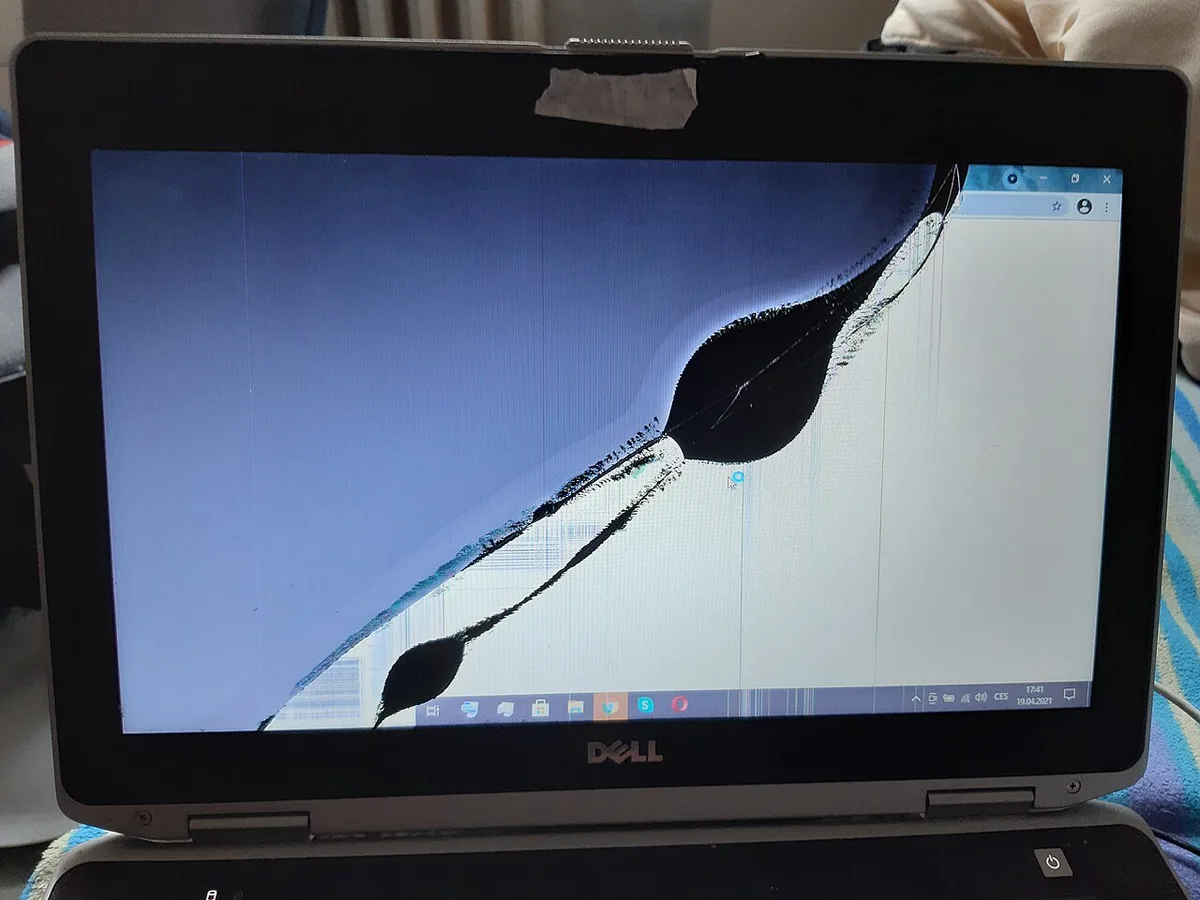
Image source: Wikimedia Commons / GALAXY 2018 A7
If you care about visuals, check screen brightness before buying. Color accuracy also matters for creators.
Battery Life, Weight, and Everyday Ergonomics
Gaming laptops trade battery for power. Expect roughly one to three hours of gaming on battery. Some models last longer for light tasks.
Weight and charger size matter for travel. A 2.5 kg laptop plus a heavy brick feels different in a backpack. Check keyboard travel, trackpad, and port layout.
Try the hinge, webcam, and speakers. These details affect daily use. A strong gaming score means less if the laptop feels awkward every day.
If you want better cooling at home, consider how the design affects airflow. Raising the chassis can help.
Side-by-Side Comparison Checklist for In-Store Testing
If you're comparing two laptops, test them on the same day and in the same room. Keep notes on your phone so memory doesn't blur the results.
| Check | What to record | Pass sign |
|---|---|---|
| Power mode | Performance or turbo | Enabled |
| Sustained FPS | 10-minute average and 1% lows | Stable, no big drops |
| Temperatures | CPU and GPU maximum | Within safe range |
| Fan noise | dBA at your ear | Acceptable for you |
| Display | Brightness, color, motion | No defects or glow |
Add a few practical checks too. Plug in the charger and confirm the wattage. Lift the laptop and judge the weight.
Check ports, hinge feel, keyboard travel, and webcam placement. These details affect daily use more than a single benchmark score.
A useful baseline for safe heat is safe GPU temperature ranges. For panel quality, compare ideal laptop screen brightness before you decide.
Matching the Right Laptop to Your Gaming Style
Different games stress different parts. Competitive esports players need high refresh rates, low input lag, and stable frame times. A mid-tier GPU with strong cooling often beats a hotter high-tier chip.
AAA players need more GPU power, VRAM, and storage speed. Ray tracing and high settings push the cooling system hard. For this group, sustained performance matters more than peak numbers.
Content creators should check CPU cores, RAM, and display color. Video export and streaming need steady CPU clocks. A color-accurate panel helps editing.
Students and travelers usually want lower weight, quieter fans, and better battery life.
Use this simple guide:
| Gaming style | Priority | Nice to have |
|---|---|---|
| Esports | High refresh, low latency | Strong battery |
| AAA gaming | GPU power, cooling | Fast SSD |
| Creation | CPU, RAM, color | Quiet fans |
| School/travel | Weight, battery | Compact charger |
If your laptop runs hot during real play, cooling improvements can help. If you see low FPS in games, compare common FPS fixes before blaming the hardware.
Common Pre-Purchase Testing Mistakes to Avoid
Avoid these mistakes when you test a gaming laptop.
- Trusting a 30-second demo. Heat and throttling show up later.
- Testing on balanced mode. That hides real performance.
- Forgetting the charger. Battery power limits speed.
- Testing on a bed or couch. Soft surfaces block vents.
- Skipping warm-up time. Cold starts look better than sustained use.
- Watching only average FPS. Check 1% lows and frame times.
- Ignoring fan noise. A loud laptop may bother you daily.
- Skipping display checks. Dead pixels and glow are easy to miss.
- Missing return details. Restocking fees can cost real money.
If a laptop feels slow after a few minutes, review the signs of thermal throttling. If you plan to use it on soft surfaces, read why laptops overheat on beds.
Expert Tips for Getting an Honest Read on a Demo Unit
Ask staff to switch the laptop to performance mode. Many demo units run balanced profiles to save power and noise. Bring your own game or benchmark on a USB drive if the store allows it.
Let the laptop warm up first. Run your test for at least ten minutes. Check the exact SKU sticker, because similar names can hide different GPUs.
Inspect the chassis, hinge, and ports before you buy.
Listen for coil whine during quiet scenes. Test the keyboard at your normal typing speed. Check the webcam and speakers in store lighting.
Ask about the return window, restocking fee, and warranty type.
As of 2026, many gaming laptops ship with aggressive default profiles. A quick settings change can reveal the real hardware. If temps climb fast, fast temperature fixes may help you judge the design.
Frequently Asked Questions
How long should I test a gaming laptop before buying?
Test for at least ten to fifteen minutes under load. Short runs only show peak speed. Sustained testing reveals heat, throttling, and fan noise.
Record FPS, temps, clocks, and noise before you compare models.
Can I test a gaming laptop on battery power?
You can, but it is not the main gaming test. Battery mode often limits GPU power. Test plugged in for gaming performance.
Then test battery life separately for light tasks like browsing.
What FPS should I expect from a mid-range gaming laptop?
It depends on the game and settings. Many mid-range models land around 60 to 100 FPS in popular titles at 1080p. Check 1% lows too, since stutter matters more than the average number.
How do I check for thermal throttling in a store?
Use HWiNFO or GPU-Z. Watch GPU clock speed for several minutes. If clocks drop while temps stay high, throttling is likely.
Compare that behavior across the laptops you are considering.
Should I test the display with my own files?
Yes, if the store allows it. Open white, black, and color images. Check brightness, glow, and dead pixels.
A good panel should look even and sharp from normal viewing angles.
What return policy matters most for gaming laptops?
Look for a clear return window and low restocking fee. Check whether warranty service is on-site or carry-in. Save the box and accessories until you are sure the laptop meets your needs.