Does raising a gaming laptop improve airflow? The honest answer is sometimes yes, sometimes no, and the difference comes down to where your intake vents sit. If they are on the bottom, a little clearance can help.
If they are on the sides or rear, lifting the chassis may do almost nothing.
Manufacturer specifications indicate that many gaming laptops pull air from the underside. That design makes surface choice and stand shape matter more than height alone. As of 2026, the safest first step is still to check the vent layout before spending money.
does raising a gaming laptop improve airflow
Raising helps only when intake vents sit on the bottom. It does little for side or rear intake designs. Check vent placement before buying a stand.
A hard desk beats a soft surface every time. Test temps with and without the stand.
Why Raising a Gaming Laptop Sometimes Does Nothing
Raising is not a universal fix. It only helps when the stand opens a clear path to the intake vents. Many laptops already have rubber feet that create enough gap.
If the feet are tall and the desk is hard, extra height adds very little.
Airflow also depends on exhaust design. Hot air still has to leave the chassis. A stand cannot fix a blocked exhaust grill.
It also cannot fix dust packed into the fans.
Real-world testing usually shows mixed results. Some bottom-intake models drop a few degrees. Some side-intake models show no change at all.
That is why broad claims about stands are misleading.
If your laptop gets hot on a bed or couch, raising it may help a lot. The stand is not cooling the laptop. It is stopping the surface from choking the vents.
Check Where Your Intake Vents Actually Are
Start with the underside of the laptop. Look for grills, mesh, or slotted openings. If the intake is there, raising can help.
If there are no bottom vents, height is unlikely to matter.
Side intakes are common on performance models. Rear intakes appear near the hinge. These designs pull air from the sides or back, not from underneath.
A flat riser will not change that path much.
Check the exhaust too. Most gaming laptops push hot air out the sides or rear. Keep those grills clear.
A stand that blocks exhaust can make temperatures worse.
Use a flashlight if the vents are hard to see. Dust can hide the openings. If the mesh looks gray or fuzzy, cleaning comes before buying accessories.
Does Your Desk or Surface Block Airflow?
The surface under the laptop matters as much as the stand. A hard desk lets air move freely. A blanket, pillow, or carpet can seal the intake vents.
That is a common cause of sudden heat spikes.
Soft surfaces also trap heat under the chassis. The laptop warms the material below it. That heat then rises back into the case.
A stand on a bed still leaves the bottom partly blocked.
If you game on a couch, use a rigid lap desk. It should be flat and wide. It should not touch the rear exhaust.
A thin board can work better than an expensive riser.
Desk material affects stability too. Glass looks clean but can reflect heat. Wood and metal are usually fine.
The key is a flat, open surface with no fabric over the vents.
Stand vs. Cooling Pad vs. Doing Nothing
A passive stand only changes position. It has no fans. It helps when the laptop needs clearance.
It does nothing to add cool air.
An active cooling pad has fans. It can help some bottom-intake laptops. Results vary by fan placement and pad design.
A pad with fans under solid plastic may do very little.
Doing nothing can be fine. If temps are safe and fans are quiet, no accessory is needed. Many laptops are designed to run warm under load.
| Option | What it does | Best for | Main drawback |
|---|---|---|---|
| Passive stand | Adds height and tilt | Bottom-intake laptops on hard desks | No active cooling |
| Cooling pad | Adds fans under the chassis | Bottom-intake laptops with hot surfaces | Noise, mixed results |
| No accessory | Keeps stock design intact | Side or rear intake models | No extra clearance |
If you are choosing between them, match the tool to the vent layout. Do not buy a cooling pad for a side-intake laptop. Do not buy a tall stand for a laptop with tall rubber feet.
For more on active cooling, see our guide on active cooling pad results. For heat transfer basics, read about heat pipes and vapor chambers.
How to Test Whether Raising Helps Your Laptop
Testing is simple and cheap. You only need a temperature monitor and a repeatable game load. Do not trust one quick match.
Run the same scene for the same time.
- Close background apps and let the laptop cool to idle.
- Record idle CPU and GPU temperatures.
- Play one demanding game for 15 minutes.
- Note peak temperatures and fan noise.
- Shut down and let the laptop cool fully.
- Repeat the same test on the stand.
- Compare peak temps, not just averages.
- Check for thermal throttling signs.
A drop of 2 to 4 degrees is a real win. A drop of 1 degree is noise. No change means the stand is not solving your problem.
Also check the surface during each test. A stand on a carpet may still fail. A stand on a desk may work better.
If temps stay high, try fast temperature fixes before buying more gear.
Dust can hide the real issue. If fans have not been cleaned recently, do that first. A fan cleaning routine often beats a new stand.
If you need to adjust fan behavior, use fan speed controls carefully. Higher RPM helps, but it adds noise. Manufacturer specs from Intel and AMD can show safe temperature limits for your chip.
For powered accessories, look for UL safety certification where applicable.
What Kind of Stand Actually Works
A good stand does one job. It holds the laptop steady while keeping the intake path open. Everything else is secondary.
Look for an open-frame design. Mesh or slotted surfaces let air move freely. Solid plastic bases can trap heat like a table.
Aluminum frames also pull some heat away from the chassis, but that effect is small.
Height matters less than clearance. Two inches of open space under the laptop is usually enough. Tall stands can wobble and strain cable ports.
A slight tilt helps typing and viewing, but too much angle can block rear exhaust grills.
Rubber pads on the stand keep the laptop from sliding. They also reduce vibration noise. Check that the stand fits your laptop width.
A 17-inch machine on a 15-inch stand is a tipping risk.
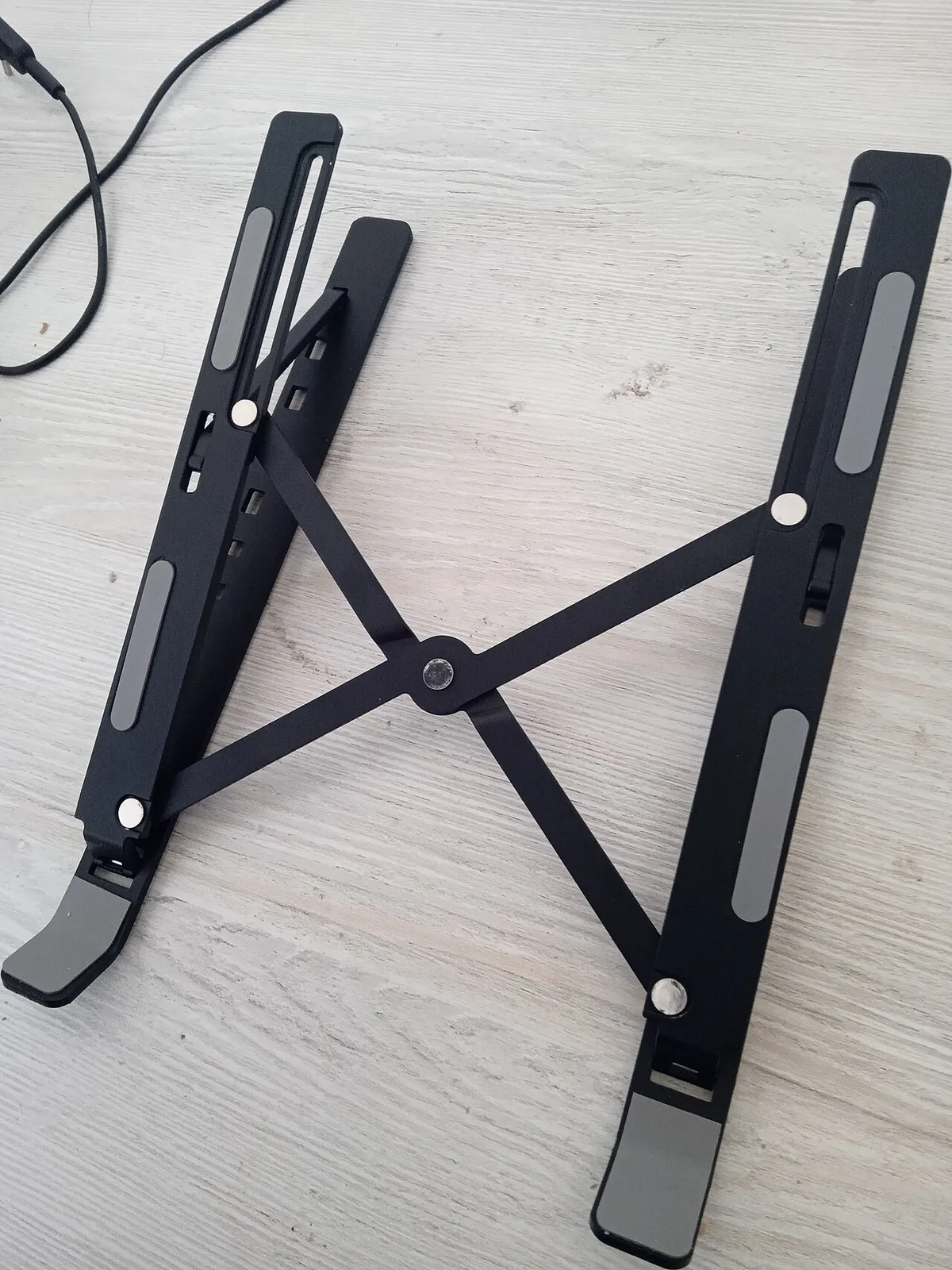
Image source: Wikimedia Commons / Solijon Solayev (CC BY-SA)
For more on managing heat overall, see our guide on improving laptop cooling. For fan behavior basics, read how laptop fans work.
Common Mistakes That Waste Money or Make Heat Worse
Buying a cooling pad for a side-intake laptop is the most common waste. The fans blow air at solid plastic. Nothing reaches the vents.
The money would be better spent on cleaning.
Blocking exhaust is the second mistake. A stand that pushes the laptop against a wall traps hot air. The same applies to tall stands near the rear grill.
Leave space behind the machine.
Soft surfaces defeat the purpose. A stand on a bed still leaves fabric under the vents. The stand needs a hard base to work.
If you game on a couch, use a rigid lap desk first.
Ignoring dust is another error. Dust acts like insulation. It clogs fan blades and vent mesh.
A fan cleaning routine often drops temps more than any stand.
Some users chase height instead of airflow. A six-inch riser adds little benefit. It also hurts posture and cable strain.
Modest clearance plus a hard surface wins every time.
Which Fix Fits Your Laptop and Setup
If your laptop has bottom intakes and you use a hard desk, a passive stand is a solid choice. It is cheap and silent. Expect a small temperature drop and quieter fans.
If your laptop has bottom intakes and you game on soft surfaces, start with a rigid lap desk. Add a stand only if temps stay high. The lap desk solves the real problem.
If your laptop has side or rear intakes, skip stands and cooling pads. Focus on cleaning and fan control. Use custom fan curves to push air through the chassis.
If temps are already safe, do nothing. Normal gaming temps are higher than many users expect. Chasing lower numbers can cost money without real benefit.
If you suspect throttling, test first. Use throttling detection steps before buying anything. A safe GPU temperature range and safe CPU temperature range give you clear targets.
Frequently Asked Questions
Does raising a gaming laptop improve airflow for all models?
No. It helps bottom-intake designs on hard surfaces. Side and rear intake models see little benefit.
Check vent placement before buying a stand.
How much height do I need under a gaming laptop?
About two inches of open clearance is enough for most models. More height adds wobble without better cooling. Stability matters more than extra lift.
Are cooling pads better than laptop stands?
Not always. Cooling pads help some bottom-intake laptops. They do little for side or rear intake designs.
A passive stand is cheaper and quieter when clearance is the only issue.
Can a stand make a gaming laptop hotter?
Yes, if it blocks exhaust grills or wobbles on soft surfaces. A stand that traps hot air or sits on fabric can raise temps. Always keep exhaust vents clear.
Should I raise my laptop if it is already cool?
No. If temperatures are safe and fans are quiet, no accessory is needed. Save the money for cleaning or repasting later if temps rise.
What should I try before buying a stand?
Clean the fans and vents first. Test on a hard desk. Check for thermal throttling and adjust fan curves.
These free steps often solve the problem.