Why does my gaming laptop lag during games when it felt fine last week? Usually, the issue is not one hidden failure. Heat, load, storage, and network stress can stack up.
In our research, gaming laptops often lose smoothness before they show a clear error. A typical mid-range model may run a CPU at 90°C or higher before it slows down. Start with symptoms, not guesses.
Then follow a short diagnostic path.
Manufacturer specifications indicate most laptops lower clock speeds when temperatures cross safe thermal limits. Aggregate reviews report that lag often comes from background apps, full SSDs, or weak Wi-Fi. This guide walks you through the checks that matter first.
You will not need to change everything at once.
Why Gaming Laptop Lag Feels Random but Usually Isn't
Lag is a symptom, not a single cause. You might see frame drops, stutter, or input delay. Each one points to a different bottleneck.
Thermal throttling means the CPU or GPU lowers speed to protect itself from heat. It can happen even when the fan sounds normal. Dust, poor airflow, or high room temperature can trigger it.
Many players change settings first. That helps only when the game is GPU-bound. If the laptop is CPU-bound or storage-bound, settings will not fix it.
Start by asking what changed. New game update, new driver, new background app, or hotter room. Small changes can expose a weak cooling system.
- Sudden lag after 20 minutes often points to heat.
- Lag in busy scenes often points to CPU or RAM.
- Lag on Wi-Fi only points to network.
- Lag after storage fills points to disk I/O.
If heat seems likely, learn how heat cuts performance.
The Real Causes Behind Lag, Stutter, and Frame Drops
Most lag comes from one of four areas: CPU, GPU, memory, or storage. Network issues can look the same in online games.
A CPU-bound game struggles with physics, AI, or large worlds. A GPU-bound game struggles with high resolution, ray tracing, or upscaling. RAM limits cause hitching when assets load.
A full SSD slows loading and shader compilation.
Frame time is the gap between frames. Stable FPS with uneven frame times feels like stutter. So watch frame time, not just FPS.
Driver problems can also cause lag. A new GPU driver may fix bugs or introduce new ones. Manufacturer specs and driver notes matter here.
- Overheating and thermal throttling
- Too little RAM or VRAM
- Full or slow storage
- Background apps and bloatware
- Outdated or buggy drivers
- Network ping and packet loss
- Power limits on battery
- VSync or frame pacing issues
| Symptom | Likely cause | First check |
|---|---|---|
| Sudden slowdown after warm-up | Heat | CPU/GPU temp |
| Busy scenes stutter | CPU or RAM | Usage % |
| Slow loading | Storage | Free space |
| Online rubber-banding | Network | Ping and packet loss |
Check the latest GPU driver notes before rolling back.
Check These Metrics Before You Change Settings
Do not tune blindly. Measure first. A few numbers tell you where the bottleneck sits.
CPU and GPU temperature show heat. CPU and GPU usage show load. RAM and VRAM usage show memory pressure.
Disk usage and free space show storage health. Ping and packet loss show network health.
If CPU is at 100% and GPU is low, the game is CPU-bound. If GPU is at 100% and CPU is moderate, it is GPU-bound. If disk is at 100%, storage is the issue.
Use built-in tools first. Task Manager, Windows Game Bar, or vendor software can show basics. For deeper data, use HWiNFO or MSI Afterburner.
Keep overlays simple.
| Metric | Healthy clue | Warning clue |
|---|---|---|
| CPU temp | Under 90°C | Above 95°C |
| GPU temp | Under 85°C | Above 90°C |
| RAM usage | Under 85% | Above 90% |
| Free SSD space | Over 15% | Under 10% |
| Ping | Under 50 ms | Above 100 ms |
For safer cooling steps, see how to reduce gaming laptop temperature fast.
Decision Tree: Diagnose Lag by Symptom and Conditions
This is the fast path. Match the symptom, then test one variable at a time.
If lag starts after 15 to 30 minutes, check heat first. Raise the laptop, clean vents, and test again. If temps drop and lag stops, cooling was the cause.
If lag happens in crowded scenes, check CPU usage and RAM. Close background apps and lower CPU-heavy settings. If usage drops, you found the limit.
If lag appears during loading or shader compilation, check storage. Free at least 15% of SSD space. Move the game to an NVMe SSD if possible.
If lag only happens online, test Ethernet. If ping and packet loss improve, Wi-Fi was the issue. If not, the server or ISP may be at fault.
- Heat path: hot temps, fan loud, sudden slowdown.
- CPU path: 100% CPU, low GPU usage.
- GPU path: 100% GPU, high settings.
- Storage path: 100% disk, slow loading.
- Network path: high ping, rubber-banding.
Raising the chassis can help airflow improve.
Fix the Most Common Causes First
Start with the fixes that are safe and cheap. Do not open the laptop yet.
- Plug in the power adapter. Many laptops cut power on battery.
- Close browsers, launchers, and overlays.
- Update GPU drivers from the vendor site.
- Free SSD space and verify game files.
- Raise the laptop and clean vents with compressed air.
- Lower heavy settings like ray tracing and shadows.
- Switch to Ethernet for online games.
- Use a cooling pad if desk space allows.
Test after each change. One change at a time shows what worked. If nothing helps, move to deeper checks like fan curves or thermal paste.
As of 2026, many games use upscaling. DLSS and FSR can reduce GPU load. They may add slight softness, but they often improve smoothness.
If temps stay high after cleaning, thermal paste may be dried. That repair can void warranty on some models. Check the service manual first.
A cooling pad can lower temps when desk airflow is poor. For fan behavior, see how gaming laptop fans work. If cleaning is overdue, review how often gaming laptop fans should be cleaned.
Settings and Hardware Tweaks That Actually Help
Not every tweak helps. Some waste time. Others make lag worse.
Focus on changes that match your bottleneck.
If the game is GPU-bound, lower resolution scale, shadows, and ray tracing. Keep texture quality high if you have enough VRAM. Use DLSS or FSR when available.
Both can boost smoothness with little visual loss.
If the game is CPU-bound, lower NPC density, physics effects, and draw distance. Close background apps first. Extra RAM can also help on 8GB systems. 16GB is a safer target for modern games.
Fan control is another useful lever. Many laptops run fans too quietly until temps spike. A custom fan curve can hold temps lower.
Check your brand's control software first.
- Use performance mode on AC power
- Enable Game Mode in Windows
- Set the GPU to high performance
- Turn off overlays you do not need
- Cap FPS slightly below refresh rate
- Use upscaling for demanding titles
A frame cap helps frame pacing. It also reduces heat. That alone can stop stutter on thin laptops.
For deeper tuning, review proven performance tips. If fan noise is high, learn how to control fan speed.
Mistakes That Make Gaming Laptop Lag Worse
Some fixes cause new problems. Avoid these common errors.
Do not run the laptop on a bed or couch. Fabric blocks bottom vents. Heat builds fast.
Temps can rise 10°C or more. That triggers throttling within minutes.
Do not disable antivirus permanently. It rarely helps lag. It also exposes your system.
Clean bloatware instead.
Do not force max fans all the time. It adds noise and wear. Use a smart curve instead.
Let fans ramp with load.
Do not clean vents with a vacuum. Static and suction can damage fans. Use short bursts of compressed air.
Hold fan blades gently with a toothpick.
- Playing on soft surfaces
- Blocking rear or side exhaust
- Skipping driver updates
- Ignoring low SSD space
- Using heavy overlays
- Leaving many tabs open
- Gaming on battery power
Another mistake is chasing FPS alone. Smooth frame times matter more. A steady 60 FPS beats 90 FPS with spikes.
If your laptop runs hot on soft surfaces, read why laptops overheat on beds.
When the Lag Isn't Your Laptop's Fault
Sometimes the laptop is fine. The game, server, or network is the real issue.
Online games depend on server load. Peak hours bring higher ping. Packet loss causes rubber-banding.
Test with a speed test and a ping tool. Compare results at different times.
Game updates can also introduce stutter. Shader compilation happens after patches. It may take several matches to settle.
Give it time before changing settings.
Mods and overlays can break performance. Disable them one by one. Test after each removal.
This isolates the cause fast.
- Server congestion
- ISP routing issues
- Wi-Fi interference
- Game bugs after updates
- Mod conflicts
- Background downloads
- Cloud sync running
Try Ethernet before buying new hardware. A cheap cable often beats a new laptop. If you must use Wi-Fi, use 5GHz or 6GHz.
Keep the router line of sight clear.
For low FPS cases, see why your laptop gets low FPS.
Final Decision Guide: Fix, Repaste, or Upgrade
At this point, you know the cause. Now choose the right next step.
If cleaning and settings fix the lag, stop. You saved money. Keep temps under 90°C.
Clean vents every 3 to 6 months.
If temps stay high after cleaning, repasting may help. Old thermal paste dries out over 2 to 4 years. Replacement can drop temps 5°C to 15°C.
Some laptops use liquid metal. That requires care. Warranty may be affected.
If RAM is 8GB, upgrade to 16GB. It is cheap and easy on most models. If storage is a slow HDD, move to an NVMe SSD.
Load times improve sharply.
If the GPU or CPU is too weak for the game, settings are your limit. No tweak fixes hardware limits. Consider a desktop or newer laptop.
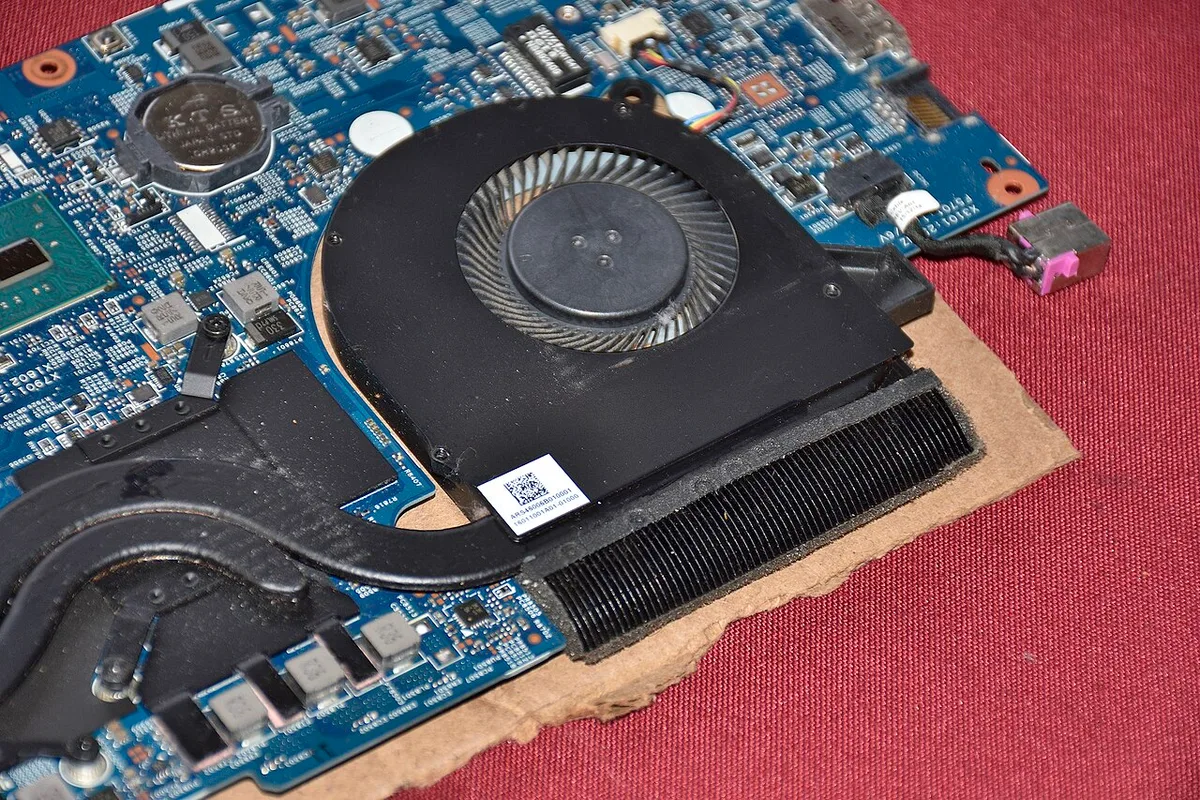
Image source: Wikimedia Commons / Saud (CC BY-SA)
- Fix first: settings, cleaning, drivers
- Repaste if: high temps after cleaning
- Upgrade RAM or SSD if: memory or storage bound
- Replace device if: hardware too weak
For safe cooling upgrades, check whether liquid metal is safe. If you suspect throttling, learn how to tell if your laptop is throttling.
Frequently Asked Questions
Why does my gaming laptop lag during games only after 20 minutes?
Heat is the likely cause. Dust or poor airflow raises temps over time. The CPU or GPU then throttles to stay safe.
Clean vents and raise the laptop. Test temps again. If they drop, cooling fixed it.
Can low RAM cause lag in games?
Yes. Low RAM causes stutter when assets load. 8GB may struggle with modern titles. 16GB is a safer target. Check RAM usage during gameplay.
If it stays above 90%, upgrade.
Does gaming on battery cause lag?
Yes. Many laptops limit power on battery. That reduces CPU and GPU speed.
Plug in the adapter for full performance. Check power settings too. Use performance mode while gaming.
Is a cooling pad worth it?
It can help. A cooling pad improves airflow under the laptop. It may drop temps a few degrees.
It works best with clean vents. Do not expect miracles on a dusty system.
How often should I clean my gaming laptop?
Clean vents every 3 to 6 months. Heavy use or dusty rooms need more often. Deep cleaning takes longer.
Check the service manual before opening the chassis. Warranty may be affected.
Can a bad Wi-Fi connection cause lag?
Yes. High ping and packet loss cause rubber-banding. Use Ethernet for online games.
If Wi-Fi is needed, use 5GHz or 6GHz. Keep the router close and clear.